

The most efficient fix is to separate the problem into two parts. First, establish whether the physical keyboard is reaching the PC at all. Then, once you are signed in, correct the setting or software issue without changing your password, PIN, or account configuration unnecessarily.
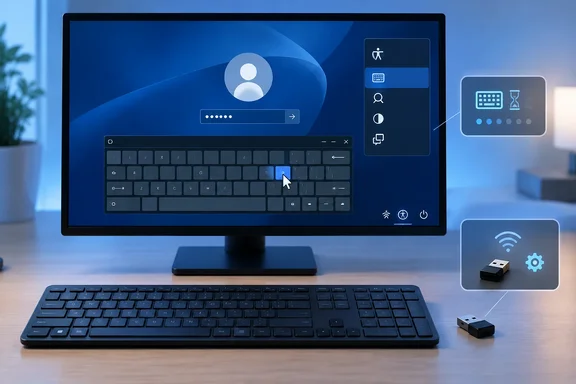 Windows 10 and Windows 11 sign-in keyboard failures need a quick hardware check
Start with the least invasive possibility: the keyboard is disconnected, unpowered, or connected through hardware that Windows has not recognized properly.
For a wired USB keyboard, unplug it, wait briefly, and connect it directly to a different USB port on the PC. Microsoft specifically recommends bypassing an unpowered or troublesome USB hub, checking cable condition, and reconnecting USB devices so Windows can unload and reload the device driver.
For a wireless keyboard, replace or charge its batteries, then reconnect its USB receiver directly to the computer rather than through a dock or hub. If the keyboard or receiver has a reset button, follow its documented reset procedure. A wireless keyboard may appear to be paired while failing to send usable input.
Laptop owners have a useful dividing line: attach a basic USB keyboard. If the external keyboard works at the Windows sign-in screen while the built-in keyboard does not, the immediate problem is likely specific to the laptop keyboard, its connection, or its vendor driver package. If neither keyboard works but the mouse still does, Windows settings and the sign-in environment become more likely suspects.
A restart is also a reasonable early step. Select the Power button at the lower-right of the sign-in screen and choose Restart. This clears a temporary input or initialization failure without changing credentials or Windows settings.
Do not start by resetting a Microsoft account password or Windows Hello PIN. If the keyboard does not enter characters, the evidence points to an input fault; changing credentials can create a second problem without solving the first.
Windows On-Screen Keyboard provides a sign-in escape hatch
The most important Windows recovery tool here is the On-Screen Keyboard, usually abbreviated as OSK. It is a built-in virtual keyboard that accepts mouse clicks or touch input, and Microsoft documents it for both Windows 10 and Windows 11.
At the Windows sign-in screen:
- Select the Accessibility button in the lower-right corner of the screen.
- Select On-Screen Keyboard.
- Click or tap the characters of the password or PIN with the mouse or touchscreen.
- Select Enter on the virtual keyboard, or use the sign-in arrow on the credential box.
This does not require a touchscreen. Any working mouse, touchpad, or pointing device can select the virtual keys.
One easily missed OSK setting can make the tool seem broken. Windows supports a compact Nav layout containing keys such as Tab, Enter, Space, and the arrow keys, as well as the normal General layout with letters, numbers, and punctuation. If the keyboard on screen lacks ordinary typing keys, select General on the OSK itself.
Windows remembers the last OSK layout used. Closing and reopening it will not automatically return it to the full keyboard; choose General explicitly.
The OSK also helps distinguish a keyboard failure from a credentials issue. If the OSK enters text and Windows accepts the password or PIN, the account is working. Focus the repair effort on the physical keyboard, accessibility configuration, input layout, or driver after reaching the desktop.
If the OSK cannot enter credentials either, verify that the selected sign-in method is the one you expect. The sign-in screen can offer a PIN, password, security key, or biometric option depending on how the account was configured. Select Sign-in options if it is visible and choose the credential type you actually use.
Filter Keys can make Windows appear to ignore typing
Windows accessibility settings are designed to make keyboard use easier for people who need them, but they can be confusing when enabled unintentionally.
The setting most relevant to apparently missed keystrokes is Filter Keys. Microsoft describes it as a feature that changes keyboard sensitivity so Windows can ignore brief or repeated presses. That behavior is useful for someone who accidentally strikes keys multiple times, but it can feel like a failing keyboard if a user expects every short keypress to register immediately.
If you can still use the mouse at the sign-in screen, open the Accessibility menu. Some Windows configurations expose a Filter Keys control there; if it is on and you do not need it, turn it off and test the physical keyboard again.
After signing in, confirm the setting from Windows Settings:
- In Windows 11, open Settings > Accessibility > Keyboard.
- In Windows 10, open Settings > Ease of Access > Keyboard.
- Turn off Filter Keys if it was not intentionally enabled.
Check Sticky Keys as well if modifier behavior seems wrong—for example, if pressing a letter behaves as though Ctrl, Alt, Shift, or the Windows key is held down. Sticky Keys exists to let users enter multikey shortcuts one key at a time. It does not normally suppress all typing, but an unexpected modifier state can make the desktop or sign-in behavior look very strange.
Avoid disabling accessibility features indiscriminately on a shared, school, or managed PC. If Filter Keys, Sticky Keys, or the OSK was deliberately configured for another user, document the setting before changing it and restore the needed accessibility configuration afterward.
Keyboard layout is another quiet source of sign-in trouble. Microsoft cautions that the layout used at the Windows sign-in screen may differ from the one expected by the user. That matters most for passwords containing punctuation, symbols, or characters whose placement changes between US, UK, and other layouts. Before assuming the password is wrong, check the language or keyboard-layout indicator on the sign-in screen and select the expected layout where available.
Repair the Windows keyboard driver only after access is restored
Once the OSK, an external keyboard, or another sign-in method gets you to the desktop, repair the keyboard through supported Windows tools. Start with Windows Update rather than a third-party “driver updater.”
- Open Settings and go to Windows Update.
- Select Check for updates and install any offered Windows or driver updates.
- Restart the PC and test the keyboard at both the desktop and the next sign-in screen.
Microsoft notes that Windows Update may not offer a driver update even when a keyboard is connected. If the problem remains, use Device Manager:
- Open Start and search for Device Manager.
- Expand the category that contains the keyboard device.
- Double-click the affected keyboard.
- Open the Driver tab.
- Select Update Driver and follow the Windows prompts.
- Restart and test again.
This is also the point to test the keyboard on another PC, if possible. Microsoft recommends that comparison for hardware which appears completely dead. A keyboard that fails on a second PC is a strong reason to suspect the keyboard, cable, receiver, battery, or built-in hardware rather than Windows. A keyboard that works elsewhere but fails only on one machine makes the Windows driver, port, dock, or local configuration more plausible.
For a laptop’s built-in keyboard, do not assume a generic Windows driver update will resolve every fault. Laptop makers sometimes bundle keyboard, hotkey, firmware, and platform software as part of a model-specific support package. If Windows Update and Device Manager do not restore input, use the PC manufacturer’s support path for the exact model rather than installing an unrelated keyboard utility.
What this means for you
Use the OSK to regain access first, then fix only the layer that the evidence points to. Most users do not need to reset a password, edit the registry, or reinstall Windows for a keyboard that stops working at the sign-in screen.
- A wired keyboard should be reconnected directly to another USB port before software changes are attempted.
- A wireless keyboard should have its battery, receiver, and any intervening USB hub checked before blaming Windows.
- The Accessibility button at the lower-right of the Windows sign-in screen can open the On-Screen Keyboard on both Windows 10 and Windows 11.
- Filter Keys can intentionally ignore short or repeated presses, so turn it off only when that behavior was not chosen for accessibility reasons.
- Windows Update and Device Manager’s built-in driver update process are the appropriate first software repairs after sign-in succeeds.
- A keyboard that fails on another PC is a hardware troubleshooting or replacement case, not a Windows account problem.
A sign-in screen that will not accept typing is alarming mainly because it blocks access to the tools that would normally fix it. Windows’ pre-login On-Screen Keyboard changes that equation: use it to get back into the system, identify whether the physical device or Windows configuration is at fault, and apply a targeted repair instead of turning a keyboard failure into an account-recovery exercise.