

 Before you change drivers or settings
First establish what kind of keyboard you have:
Quick walkthrough
- Built-in laptop keyboard: Backlight control commonly depends on an
Fnshortcut, the laptop’s embedded controller, BIOS/UEFI settings, and the manufacturer’s hotkey or system-control software. - External wired, wireless, or Bluetooth keyboard: Lighting may be controlled by a hardware button, an
Fnshortcut, a vendor utility, or—on supported RGB devices—Windows 11 Dynamic Lighting. - Non-backlit keyboard: Not every laptop configuration includes illuminated keys. A model family may be sold with both backlit and non-backlit keyboard options. Check the specifications or service manual for the exact model, not just the laptop series name.
Have these ready before proceeding:
- Your laptop or keyboard’s exact model number.
- An AC adapter if you may install firmware or BIOS updates.
- A mouse, touchpad, or second keyboard if you plan to reinstall a keyboard driver.
- An administrator account for driver and firmware changes.
Warning: Do not install “driver updater” tools or drivers from generic download sites. Keyboard lighting frequently relies on model-specific firmware and manufacturer software. Use Windows Update or the PC/keyboard manufacturer’s official support page only.
1. Turn the keyboard backlight on with its physical shortcut
Many apparent failures are simply the backlight being set to Off or at its lowest brightness.
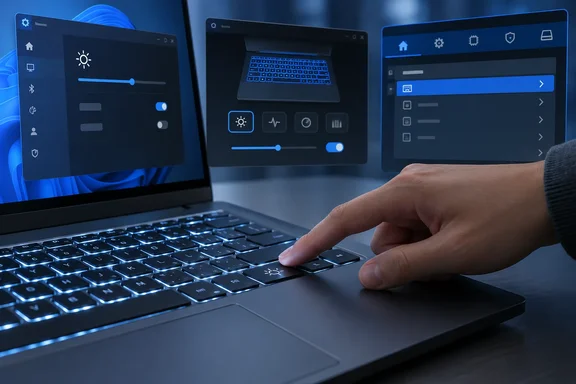
- Look along the top row of keys and the arrow keys for a keyboard backlight icon. It commonly resembles a small keyboard with light rays.
- Press the marked key once. If nothing changes, hold Fn and press that key.
- Press the same combination several times, pausing briefly between presses. Many keyboards cycle through modes such as:
- Off
- Low brightness
- High brightness
- RGB or effect modes on gaming systems
- If the key works only with
Fn, try toggling the laptop’s Fn-lock setting. On many laptops, this is done with Fn + Esc, but confirm the shortcut in your model documentation before relying on it. - Restart the computer and test the shortcut again at the Windows sign-in screen.
Do not assume a particular function key works on every laptop. Depending on the manufacturer and model, the control might be on an F-key, the right Arrow key, a dedicated lighting key, or only inside a vendor application.
If the light turns on but quickly turns off
This normally indicates a timeout rather than a failed backlight.
- Press a key and watch whether the backlight stays on briefly.
- Open the manufacturer utility, if installed, and look for settings named Keyboard Backlight Timeout, Keyboard Backlight Sleep Mode, Illumination Timeout, or similar.
- Set the timeout separately for On battery and Plugged in power states if those options exist.
- Select an always-on option only if your model supports it and you accept the extra battery use.
Windows display sleep settings and screen-off timers do not necessarily control the keyboard’s illumination timeout. On many laptops, that timeout is configured in firmware or the manufacturer’s utility instead.

2. Check Windows 11 Dynamic Lighting for compatible RGB keyboards
Windows 11 includes Dynamic Lighting controls for compatible LED and RGB hardware that implements the supported lighting standard. It is useful for some external gaming keyboards and a smaller number of integrated laptop keyboards. It is not a universal backlight control panel.
- Open Start > Settings.
- Select Personalization > Dynamic Lighting.
- Look for your keyboard in the device cards at the top of the page.
- If it appears, select the keyboard card.
- Confirm that Use Dynamic Lighting on my devices is turned on.
- Increase Brightness.
- If necessary, select Reset for the device or use Reset for all devices to return lighting effects and brightness to their defaults.
- Expand Background light control.
- If a manufacturer RGB utility is listed, move the app you want to control the keyboard to the top of the priority list, or close the competing lighting utility and test again.
A keyboard that does not appear on this page is not necessarily defective. It may not support Dynamic Lighting, may require a firmware update, or may be designed to use only its manufacturer’s software.
Windows 10 does not provide the same Settings-based Dynamic Lighting page. Use the keyboard shortcut, BIOS/UEFI controls, or the manufacturer’s supported utility instead.
3. Use the manufacturer’s keyboard or hotkey software
For a built-in laptop keyboard, Windows may correctly recognize normal key presses while the backlight still fails because the manufacturer’s hotkey, system-interface, or lighting component is missing.
- Press Windows key + R, type
msinfo32, and press Enter. - In System Information, note:
- System Manufacturer
- System Model
- BIOS Version/Date
- Go to the official support page for that manufacturer.
- Search using the exact model or service tag/serial number, if the site provides that option.
- Choose your installed Windows version and architecture when prompted.
- Look specifically for packages described as one of the following:
- Keyboard hotkeys
- Function key support
- System Control Interface
- System Event Utility
- BIOS/UEFI
- Chipset
- Keyboard, RGB, lighting, or control-center software
- Install only the package explicitly listed for your model.
- Restart Windows when the installer requests it, or restart manually after installation if no prompt appears.
- Test the keyboard-backlight shortcut before opening any RGB utility.
For example, some ASUS laptops use the ASUS System Control Interface driver and MyASUS or Armoury Crate features; other manufacturers use differently named packages. The names are not interchangeable. Installing a package intended for another brand or model can leave function keys and lighting controls less reliable.
If the backlight stopped after removing a vendor utility, reinstall the official utility for your model. If the utility is installed but its lighting controls are missing or unresponsive, uninstall it from Settings > Apps > Installed apps in Windows 11 or Settings > Apps > Apps & features in Windows 10, restart, then install the current version from the manufacturer.
4. Install Windows and optional driver updates
Windows Update can supply keyboard, chipset, HID, Bluetooth, and other driver updates. It may not supply the manufacturer-specific hotkey package, but it is the safest first update source.
Windows 11
- Open Start > Settings > Windows Update.
- Select Check for updates.
- Install available updates.
- Select Advanced options > Optional updates.
- Open Driver updates if it appears.
- Select relevant keyboard, HID, chipset, Bluetooth, or manufacturer driver updates.
- Select Download and install.
- Restart the PC after updates finish, even if Windows does not explicitly request a restart.
Windows 10
- Open Start > Settings > Update & Security > Windows Update.
- Select Check for updates.
- Install available updates.
- If View optional updates appears, select it.
- Open Driver updates and install applicable updates.
- Restart the PC.
If the keyboard uses a wireless receiver, reconnect it directly to a USB port after the restart. Avoid unpowered hubs while testing. For Bluetooth keyboards, charge or replace batteries as appropriate, then confirm the keyboard is connected under Settings > Bluetooth & devices in Windows 11 or Settings > Devices > Bluetooth & other devices in Windows 10.
5. Update or reinstall the keyboard device in Device Manager
Device Manager can correct a corrupted standard keyboard driver, but it is not a substitute for the laptop manufacturer’s hotkey or embedded-controller package.
- Right-click Start and select Device Manager.
- Expand Keyboards.
- Right-click the keyboard you are troubleshooting.
- Select Update driver.
- Select Search automatically for drivers.
- If Windows reports that the best driver is already installed, select Search for updated drivers on Windows Update if that option is shown.
- Restart and test the backlight shortcut.
If the normal keys work but illumination does not, also expand System devices and look for a manufacturer-named system-control interface device. Do not uninstall unfamiliar chipset, firmware, ACPI, or system devices merely to test the keyboard. Those components may control power, hotkeys, touchpad functions, and other laptop hardware.
Reinstall the standard keyboard driver only if necessary
Warning: Uninstalling a keyboard device can temporarily remove keyboard input until Windows restarts and reinstalls it. Make sure the touchpad, mouse, on-screen keyboard, or another keyboard is available first. This step may not fix a lighting issue controlled by manufacturer software or firmware.
- Save work and close open programs.
- Open Device Manager.
- Expand Keyboards.
- Right-click the affected keyboard and select Uninstall device.
- Select Uninstall to confirm.
- Restart the PC using Start > Power > Restart.
- Windows should detect and reinstall the standard keyboard driver during startup.
- Test normal typing first, then test the backlight shortcut.
If typing works but lighting remains unavailable after the restart, reinstall the model-specific hotkey or system-control package rather than repeatedly removing the generic keyboard driver.
6. Check BIOS or UEFI keyboard-illumination settings
Some laptops have a firmware setting that disables keyboard lighting regardless of Windows settings. This is particularly common on business and gaming models.
- Save your work.
- Shut down the laptop completely.
- Turn it on and use the BIOS/UEFI entry key specified by the manufacturer. Common keys include
F2,Del,Esc, orF10, but the correct key varies. - Look for a section named Keyboard, Built-in Device Options, System Configuration, Lighting, or Illumination.
- Look for an option such as Keyboard Illumination, Keyboard Backlight, or Backlight Timeout.
- Enable keyboard illumination or select the desired brightness/timeout option.
- Save changes and exit using the firmware’s displayed command.
- Allow Windows to start, then test the lighting key.
Do not change unrelated boot, security, storage, virtualization, or TPM settings while in BIOS/UEFI.
If no keyboard-illumination setting exists, that does not prove the keyboard lacks a backlight; firmware menus vary. Check the official specifications and manual for the exact configuration.
7. Confirm whether the issue is hardware-related
The strongest test is whether the keyboard lighting works outside the normal Windows session.
- Test the lighting shortcut immediately after powering on.
- Test it at the Windows sign-in screen before opening manufacturer software.
- Check whether the light works in BIOS/UEFI, if the firmware has a keyboard-lighting option.
- For an external keyboard, test it on another compatible PC with the correct manufacturer software installed.
- Inspect USB cables, connectors, and wireless receivers. Connect external keyboards directly to another USB port rather than through a hub.
- Look for physical damage, liquid exposure, stuck keys, or a loose cable on an external keyboard.
If the keyboard backlight remains off in firmware or before Windows loads, Windows drivers are unlikely to be the cause. If the keyboard is confirmed to be a backlit model, the likely next step is manufacturer support or hardware service.
Troubleshooting specific symptoms
The shortcut does nothing
- Confirm you are using the key with the backlight icon, not a similarly located function key.
- Try both the direct key press and
Fnplus that key. - Check whether Fn-lock changes how the function-row keys behave.
- Install the manufacturer’s hotkey or system-control package for the exact model.
- Check BIOS/UEFI for a disabled illumination setting.
The keyboard lights briefly, then goes dark
- Look for a keyboard-backlight timeout in BIOS/UEFI or the manufacturer utility.
- Review separate battery and AC power settings.
- Do not expect Windows display timeout settings to change an internal keyboard’s illumination timer unless the manufacturer documents that behavior.
The keyboard appears in Device Manager, but RGB or brightness controls do not work
- Update Windows and check Optional updates.
- Update the manufacturer’s lighting application and the keyboard’s firmware, if officially provided.
- In Windows 11 Dynamic Lighting, check Background light control for competing RGB applications.
- Close other lighting utilities, then test one controller at a time.
The problem began immediately after a driver or utility update
If the keyboard backlight was working before a recent driver, vendor-utility, or system change, use System Restore rather than experimenting with unrelated drivers.
- Open Start and search for Create a restore point.
- Open the result, then select System Restore.
- Select a restore point dated before the backlight stopped working.
- Select Scan for affected programs to review software that will be removed or restored.
- Select Next > Finish.
System Restore does not remove personal files, but it can undo recently installed drivers, programs, and system settings. After the restart, test the keyboard backlight before reinstalling any updates.