

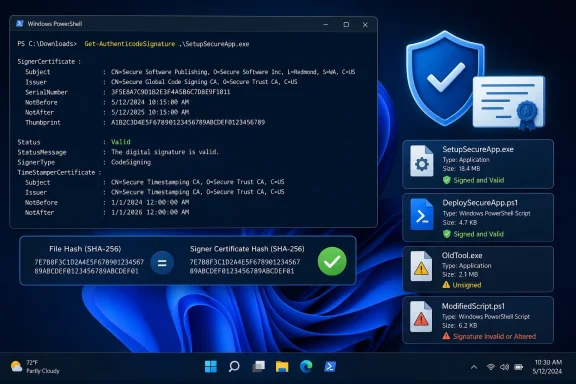
.exe, .msi, or PowerShell script carries a valid Authenticode signature before you run it. The fastest reliable check is PowerShell’s built-in Get-AuthenticodeSignature cmdlet, which tells you whether Windows can validate the file, whether it has been altered since signing, and which certificate signed it.This is a useful habit for installers fetched outside the Microsoft Store, scripts copied from GitHub, driver utilities, and tools attached to support emails. It will not prove that a program is harmless, but it can expose a missing signature, broken integrity, or a publisher you did not expect before the file gets a chance to execute.
Microsoft’s Authenticode documentation describes signatures as a way to establish authorship and integrity: Windows verifies that the signed content still matches the content that the signer approved. CISA’s software supply-chain guidance likewise treats signatures and published hashes as useful verification artifacts for software consumers. The important limit is easy to miss: a valid signature proves that the file has not been modified since it was signed; it does not certify that the software is safe or that the signer deserves your trust.
 Start with the download source
Download the installer or script from the developer’s official site, its documented release page, or a vendor-controlled repository. Avoid search-ad links, “download mirror” sites, file-hosting links supplied in unsolicited messages, and repackaged installers from forums.
Before opening the file, confirm that its name and extension match what you meant to download. Windows hides known file extensions by default on many systems, which can make setup.pdf.exe look less suspicious than it is. In File Explorer, open View, choose Show, and enable File name extensions.
A signature check is strongest when you already know the expected publisher. If you intended to download a Microsoft tool but the signer is an unfamiliar company—or an individual certificate—the signature result has given you a reason to stop, not a reason to click through a warning.
Check the Digital Signatures tab in File Explorer
For a quick visual check of an executable installer or signed binary, right-click the file and select Properties. Look for a Digital Signatures tab, select an entry in the signature list, and then choose Details.
A healthy result normally states that the digital signature is OK. Select View Certificate and compare the certificate’s “Issued to” name with the publisher you expected. For example, a genuine installer from a well-known vendor should normally identify that vendor or its legal corporate name, not an unrelated entity.
This Explorer check is convenient, but do not overread it.
- A listed signature with an unexpected publisher is a stop sign until you can explain the mismatch.
- A file with no meaningful signature entry should be treated as unsigned unless the vendor explicitly documents a different verification method.
- A certificate warning, an invalid-signature message, or a missing certificate chain means you should not run the file.
- A signature that expired is not automatically a problem if it was properly timestamped while the signing certificate was valid.
Microsoft notes that time stamping lets Windows validate an Authenticode signature after the signing certificate itself expires. That is why an older, legitimate installer can still validate years after release. Conversely, an expired certificate without a valid timestamp can leave a legitimate historical file looking unsigned or invalid.
For PowerShell scripts, File Explorer is not the best authority. A signed .ps1 file contains its Authenticode signature as a signature block in the script, and PowerShell is the more useful verifier.
Use PowerShell for the actual verification
Open Windows PowerShell or PowerShell in Windows Terminal. You do not need to run it as administrator simply to inspect a downloaded file.
Use a full path, preferably with -LiteralPath, which prevents PowerShell from treating wildcard characters in a filename as a pattern:
Get-AuthenticodeSignature -LiteralPath "C:\Users\YourName\Downloads\AppSetup.exe"
Replace the path with your downloaded .exe, .msi, or .ps1 file. The key field is Status.
For a clearer report that includes the signer and timestamp certificate, use:
Get-AuthenticodeSignature -LiteralPath "C:\Users\YourName\Downloads\AppSetup.exe" |
    Format-List Status,StatusMessage,SignerCertificate,TimeStamperCertificate
The result is based on Windows’ Authenticode verification. Microsoft’s PowerShell documentation also notes a detail that matters to administrators: where a file can be signed both directly and through a Windows catalog, Get-AuthenticodeSignature uses the catalog signature. That can matter for some Windows components and drivers, but it does not weaken the method for ordinary installers.
Read the signature status correctly
The command does more than answer “signed” or “unsigned.” It returns a status that tells you what Windows could verify on that PC.
| Status | What it means | What you should do |
|---|---|---|
Valid | Windows considers the signature syntactically valid. | Confirm the signer is the publisher you expected, then continue with other checks. |
NotSigned | The file has no Authenticode signature. | Do not run it by default; seek an official signed release or verify a vendor-published SHA-256 hash. |
HashMismatch | The file’s current contents do not match the hash protected by its signature. | Do not run it. Re-download only from the official source, and investigate if the result persists. |
NotTrusted | The signer’s certificate chain is not trusted on the current PC. | Stop unless your organization deliberately uses an internal certificate authority and you can verify that policy. |
UnknownError | Windows could not validate the signature. | Treat the file as unverified and do not bypass the result. |
NotSupportedFileFormat | The file type is not supported by the signing verifier. | Use the vendor’s documented integrity method, typically a published SHA-256 hash or a package-specific signature. |
The subtle but critical point is Valid. Microsoft’s own SignatureStatus definition says a valid result means the signature is syntactically valid and does not imply trust in any way. A potentially unwanted program can be signed. So can malware signed with a stolen, fraudulently obtained, or later-abused certificate. The verification tells you whether the bytes you hold are tied to the certificate; it does not substitute for judgment about the vendor or the program’s behavior.
That is also why a SmartScreen warning and a valid signature can coexist. Microsoft says Defender SmartScreen considers both publisher identity and the reputation of the specific file hash. A new but correctly signed application can still be unfamiliar enough to trigger a reputation warning. Do not dismiss the warning merely because PowerShell says Valid; compare the publisher, download source, and expected file hash.
Check a PowerShell script before unblocking it
Downloaded PowerShell scripts deserve extra caution because they can directly automate administrative actions. Check the signature first:
Get-AuthenticodeSignature -LiteralPath "C:\Users\YourName\Downloads\Install-Tool.ps1" |
    Format-List Status,StatusMessage,SignerCertificate,TimeStamperCertificate
If the script is unsigned, do not respond by immediately running Unblock-File or weakening your execution policy. Microsoft’s PowerShell guidance says that RemoteSigned blocks unsigned scripts that Windows identifies as downloaded from the internet, but it also makes clear that execution policy is a safety feature—not a security boundary. It can be bypassed, and a signed script can still be malicious.
Instead, read the script in Notepad or Visual Studio Code, obtain it again from the project’s official repository or release page, and look for a vendor-published hash or signed release artifact. If a script is supposed to be signed but reports HashMismatch, assume it has changed after signing; even an innocent edit such as adding text or changing encoding can invalidate the signature.
You can also check whether a downloaded file still has Windows’ Mark of the Web metadata, which commonly records that it came from the Internet zone:
Get-Item -LiteralPath "C:\Users\YourName\Downloads\Install-Tool.ps1" -Stream Zone.Identifier
If PowerShell displays a Zone.Identifier stream, Windows has download-origin metadata for the file. If it does not, that is not proof the file is local or safe: archives, network transfers, command-line download tools, and copied files can lose or avoid that metadata.
Add a SHA-256 hash when the vendor publishes one
A signature validates integrity relative to the signer. A published SHA-256 checksum lets you compare your exact download with the release value the vendor announced. When an official download page provides a SHA-256 hash, calculate yours with:
Get-FileHash -LiteralPath "C:\Users\YourName\Downloads\AppSetup.exe" -Algorithm SHA256
Compare the displayed hash character-for-character with the value published by the vendor through a separate trusted channel. Do not accept a checksum displayed only on the same suspicious mirror that supplied the file.
Microsoft’s PowerShell documentation says Get-FileHash uses SHA-256 by default. That is the right default for current Windows software verification; do not treat MD5 or SHA-1 as security-grade evidence against tampering.
For routine downloads, the practical order is simple: use the official source, verify the expected publisher, require a clean PowerShell signature result, heed SmartScreen and Defender warnings, and compare the SHA-256 hash when the vendor provides one. A file that is unsigned, altered, untrusted, or signed by the wrong party has already failed the pre-run check—there is no reason to give it administrator rights to find out what it does.