

This is not a miracle “PC cleaner,” nor a substitute for backups, Windows Update, or Windows Security. Think of it instead as the scheduler that gives eligible background maintenance work a sensible opportunity to run with minimal disruption. Microsoft documents that these tasks are normally deferred until the computer is idle and connected to AC power; if you return and start using the PC, Windows can pause the maintenance work and resume it during a later idle period.
For most people, the right move is not to install a third-party tune-up utility with a neon “Fix 4,892 Errors!” button. It is to check that Windows’ own maintenance routine has had a chance to do its job.
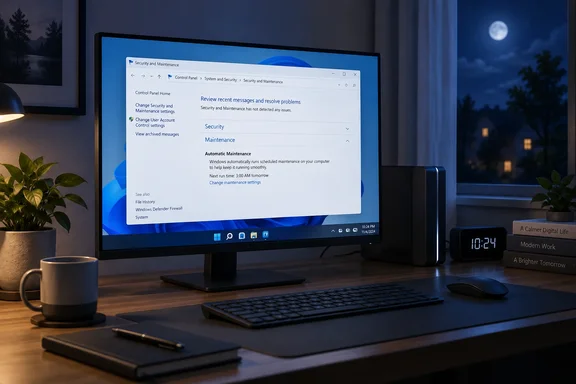 Open Automatic Maintenance
The controls live in the classic Control Panel, even on Windows 11.
Quick walkthrough
- Open Start.
- Type Security and Maintenance.
- Select Security and Maintenance from the Control Panel results.
- Expand the Maintenance section.
- Find Automatic Maintenance.
Alternatively, navigate through:
Control Panel > System and Security > Security and Maintenance > Maintenance
Under Automatic Maintenance, Windows displays its current status and a Last run date. That timestamp is the first thing to inspect.
Check When It Last Ran
A recent last-run date generally means Windows has been getting enough idle, plugged-in time to complete its scheduled background work. That is the boring outcome—and, in PC maintenance, boring is often beautiful.
If the date is older than expected, do not immediately assume that Windows is broken. Automatic Maintenance is intentionally opportunistic:
- It prefers the PC to be idle.
- It normally runs while the PC is connected to AC power.
- Windows can postpone or interrupt maintenance when you begin using the device.
- A laptop that is regularly shut down, carried around on battery, or constantly in use may not provide a convenient maintenance window.
The scheduled time is therefore a preference, not a pinky promise carved into silicon. Windows tries to minimize impact on performance and battery life, which is usually more useful than forcing a task to begin at precisely 2:00 a.m. while the machine is tucked into a backpack.
Start Maintenance Manually
If you want Windows to begin its scheduled maintenance session now, return to the Automatic Maintenance section and select Start maintenance.
For the best result:
- Save your open work.
- Connect a laptop to its charger.
- Select Start maintenance.
- Leave the PC idle for a while.
You can keep the computer on, but avoid launching demanding apps, games, large file transfers, or a dozen browser tabs that behave like they pay rent. Windows may suspend maintenance when it detects active use.
A manual start is useful after a PC has been off for an extended period, has rarely been connected to power while idle, or simply has an old maintenance timestamp. It is not necessary to run it every day by hand; the feature exists specifically so Windows can schedule work in the background.
Set a More Convenient Daily Time
To adjust the planned maintenance time:
- Open Security and Maintenance in Control Panel.
- Expand Maintenance.
- Under Automatic Maintenance, select Change maintenance settings.
- Choose a time under Run maintenance tasks daily at.
- Select Allow scheduled maintenance to wake up my computer at the scheduled time if you want Windows to wake a sleeping PC for the task.
- Select OK to save the change.
Choose a time when the device is likely to be plugged in and unused. For a desktop, that might be late evening. For a laptop, a better choice may be an hour when it is normally charging on a desk rather than asleep in a travel bag.
Should You Allow Windows to Wake the PC?
That checkbox is optional.
Leave it enabled if:
- The PC is normally connected to power overnight.
- You want Windows to have the best chance of completing idle maintenance.
- A brief overnight wake-up will not be disruptive.
Turn it off if:
- You do not want the computer waking from sleep unexpectedly.
- The device is usually on battery.
- The PC lives somewhere where fans, lights, or attached monitors would be annoying at night.
Microsoft notes that scheduled maintenance behavior can also depend on a device’s sleep capabilities, firmware settings, and Windows power configuration. In other words, checking the box grants permission; it does not guarantee that every PC will wake on schedule.
What Automatic Maintenance Does—and Does Not Do
Automatic Maintenance coordinates supported background activities, such as system upkeep work, security-related checks, diagnostics, and maintenance tasks registered by Windows or applications. It is designed to reduce the performance impact of such work by running it at appropriate idle times.
But it is not an all-purpose repair button.
It does not replace these essentials:

- Windows Update: Check Settings > Windows Update for pending updates and restart requests.
- Windows Security: Open Windows Security to review antivirus protection, scan status, and device-health notifications.
- Storage management: Use Windows’ built-in storage tools when disk space is low rather than trusting aggressive registry cleaners.
- Backups: Maintenance cannot rescue files from a failed drive, ransomware incident, or an accidental deletion.
- Hardware diagnostics: A failing SSD, overheating CPU, or dying battery will not be cured by a scheduled background task. If only it were that easy.
For Windows 10 users, there is an additional reality check: Microsoft ended free Windows 10 security updates and support on October 14, 2025. Automatic Maintenance can still perform its scheduling role on an existing Windows 10 PC, but it cannot manufacture new operating-system security fixes after the platform’s support end date. Where practical, moving to a supported Windows 11 device or support arrangement is the meaningful long-term maintenance step.
If Maintenance Has Not Run for a Long Time
Try this sensible checklist before reaching for Task Scheduler tweaks or registry edits:
- Plug in the PC and keep it powered on.
- Start maintenance manually from Security and Maintenance.
- Leave the system idle long enough for Windows to work.
- Install pending Windows updates and restart if prompted.
- Check Windows Security for warnings or protection issues.
- Review free disk space, especially if the system drive is nearly full.
- Avoid disabling built-in maintenance tasks in Task Scheduler unless you are troubleshooting a documented enterprise issue.
That last point matters. Windows maintenance is composed of scheduled tasks and services that may be shared by update, security, and diagnostic components. Randomly disabling them because a forum post promised “maximum performance” is a fine way to turn routine upkeep into a detective novel.
Automatic Maintenance is best treated as a low-drama safety net: confirm it is enabled, give it realistic idle-and-charging time, and let Windows take care of the housekeeping it can perform without interrupting your day.