

Microsoft Support’s current audio troubleshooting guidance for Windows 11 and Windows 10 confirms that selecting an output under Settings > System > Sound makes it the default playback device. It also directs users to the Playback tab in More sound settings to set a default device. The important detail missing from many quick fixes is that Windows has long treated ordinary playback and communications as distinct device roles.
Before changing drivers or uninstalling anything, determine whether Windows is actually changing the system default or whether one application is routed elsewhere. Play a test sound, then open Settings > System > Sound and check the selected device under Output. If the selected device is correct but only one app remains silent or uses another speaker, skip to the Volume mixer section below; reinstalling a driver will not clear an app-specific routing choice.
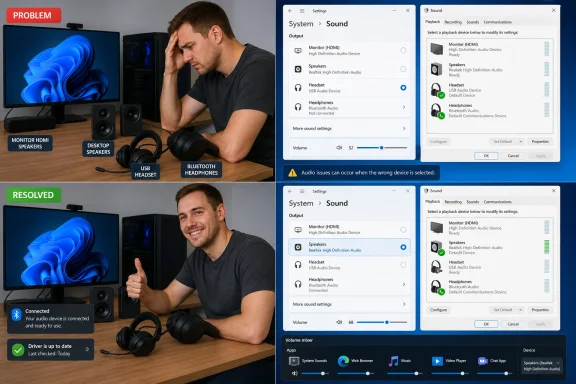 Set the playback and communications defaults together
Connect and turn on the speakers, headphones, dock, or Bluetooth device you want Windows to prefer. A device that is powered off or disconnected cannot reliably be selected as the active output.
On Windows 11, select the speaker icon in the taskbar, then select the arrow beside the volume slider to see currently available output devices. Choose the device you want to hear immediately. You can make the same selection through Start > Settings > System > Sound, under Output.
Next, open the older control-panel view, which still exposes the communications role:
- Go to Settings > System > Sound.
- Under Advanced, select More sound settings. On some Windows 10 builds, this link is labeled Sound Control Panel under Related settings.
- Open the Playback tab.
- Right-click the speakers or headset you want to keep using.
- Choose Set as Default Device if it is available.
- Right-click the same device again and choose Set as Default Communication Device if it is available.
A green check badge indicates the normal default playback device. A green phone badge indicates the default communications device. If you use one headset for calls and desktop speakers for everything else, intentionally set the headset as the communications default and the speakers as the ordinary default. If you want all sound in one place, make the same device both.
Microsoft’s Windows audio documentation describes these as separate roles, and Windows can assign a communications role when it identifies a newly connected USB headset or similar device as suited to calls. That behavior explains why plugging in a headset can appear to “take over” only meeting audio even while music stays on the desktop speakers.
Disable outputs that should never receive audio
A monitor connected through HDMI or DisplayPort often registers as an audio endpoint even if it has no usable speakers. USB docks, graphics cards, virtual machines, capture cards, old Bluetooth pairings, and monitor audio can create a long list of plausible but unwanted destinations.
Do not disable a device merely because it is not in use today. Disable it when it is an output you never intend to use, because disabled devices disappear from the normal selection list until you turn them back on. This is the most durable way to reduce accidental selection of a monitor’s HDMI audio endpoint.
In More sound settings > Playback, right-click the unwanted item and select Disable. Repeat for genuinely unused endpoints, such as:
- An HDMI or DisplayPort monitor output with no speakers attached.
- Audio outputs from a dock, capture device, or television that is not used for sound.
- A retired USB headset or Bluetooth audio endpoint that remains connected or repeatedly appears.
- Virtual audio devices installed by recording, remote-access, or streaming software when those tools are no longer in use.
Do not disable your PC’s only built-in Speakers device as a test. If you accidentally disable the wrong output, right-click an empty area of the Playback tab, enable Show Disabled Devices, then right-click the device and choose Enable.
For laptop users, it is worth distinguishing the GPU’s HDMI/DisplayPort audio device from the laptop’s internal speakers. Disabling an unused NVIDIA, AMD, or Intel display-audio endpoint does not remove the graphics driver; it only prevents Windows from offering that endpoint as a playback destination. Conversely, disabling the built-in Realtek, Conexant, or similar audio device can make the laptop appear to have no audio hardware at all.
Check per-app routing before blaming Windows
Windows can send a particular app to a different output than the system default. This is useful when, for example, a game plays through speakers while a conference app uses a headset. It is frustrating when an old assignment survives after a device change and makes it look as if Windows ignored the selected default.
Open Settings > System > Sound > Volume mixer while the affected app is running and producing sound. Find the app in the Apps section and inspect its Output device setting. Select Default to make it follow the Windows default, or explicitly choose the headset or speakers you want that program to use.
Microsoft Support lists per-app output selection as a cause when system sounds work but an individual app does not. In practical terms, this check is especially important after moving between a desk dock, a monitor, Bluetooth headphones, and a home speaker setup. The system default can be correct while the app remains pinned to a disconnected or silent endpoint.
If several apps have accumulated bad assignments, use the Reset control at the bottom of Volume mixer to restore audio devices and volume levels for apps to Microsoft’s defaults. Expect this to remove intentional routing choices too, so record any setup you want to recreate first.
Browser-based calls deserve separate attention. Close the browser completely and reopen it after changing outputs, then check the audio-device setting inside the meeting service itself. Teams, Discord, Zoom, games, media players, and browsers can retain their own output choices in addition to Windows’ routing state.
Treat Bluetooth as a connection and profile problem first
Bluetooth audio can look like a default-device problem when the real issue is an unstable connection, a stale pairing, or a headset switching behavior while its microphone is used. Microsoft’s Bluetooth support guidance recommends first confirming the Bluetooth device is selected under Settings > System > Sound, then removing and pairing it again if it will connect but does not carry audio reliably.
For a headset that disappears, reconnects, or changes behavior during a call:
- Turn the headset off and back on, then reconnect it from Settings > Bluetooth & devices.
- Confirm it is the chosen output under System > Sound after it reconnects.
- Remove the device from Bluetooth settings and pair it again if it keeps returning as a broken or duplicate entry.
- Update the PC’s Bluetooth driver from Windows Update or the PC manufacturer’s support page.
- Check the headset maker’s utility or support page for device firmware updates.
On compatible Windows 11 24H2 systems, Bluetooth LE Audio can support stereo playback while the microphone is active. Microsoft says that feature requires Windows 11 version 24H2 or newer, supported hardware, updated Bluetooth drivers, and a compatible audio device. If a newly updated LE Audio headset glitches during calls, its Sound properties may offer a microphone-active format setting; changing that setting to mono can be a sensible compatibility test.
Older Bluetooth gear may expose separate playback and hands-free endpoints. Do not disable one indiscriminately: the hands-free endpoint may be needed for the headset microphone in voice calls, even though it sounds worse for music. Set the desired communications default deliberately, then choose the same device in the calling application.
Repair the driver only when the device changes, vanishes, or fails
A driver is the likely culprit when the selected output disappears, Device Manager shows an error, sound fails immediately after a Windows update, or the machine reverts to a generic or incorrect device after every restart. It is less likely to be the explanation when only one app is routed incorrectly or when HDMI audio appears whenever a monitor wakes; those are usually configuration and device-enumeration issues.
Microsoft recommends Windows Update as the first place to obtain audio driver updates. Go to Settings > Windows Update, check for updates, install any driver updates offered, and restart. Also check the Optional updates area if it is present, but avoid installing unrelated drivers simply because they are available.
If no suitable update appears, open Device Manager, expand Sound, video and game controllers, right-click the affected audio device, and select Update driver > Search automatically for drivers. If Windows reports that the best driver is already installed but the problem began after an upgrade or a Windows update, download the driver specifically for your PC model and Windows version from the computer manufacturer rather than using a generic driver-download site.
When an update does not help, Microsoft’s documented next step is reinstalling the device driver:
- In Device Manager, expand Sound, video and game controllers.
- Right-click the affected sound device and select Uninstall device.
- Restart Windows and allow it to reinstall the driver.
- Recheck the Playback tab and set the default and default communications roles again.
If sound broke directly after a driver update, open the device’s Properties > Driver tab and use Roll Back Driver when it is available. This is preferable to randomly cycling drivers because it returns to the driver package that was working before the regression.
Windows 10 reached end of support on October 14, 2025. A Windows 10 PC can still play audio, but it no longer receives normal Microsoft security updates or ongoing support. If a manufacturer has stopped publishing compatible Windows 10 Bluetooth or audio drivers, repeated output problems may be a platform-support limitation rather than a setting Windows can permanently correct.
The reliable end state is simple: one enabled playback device for everyday audio, one deliberate communications choice, no unused HDMI or virtual endpoints competing for selection, and no app pinned to a device you no longer use. Once those are in place, a driver repair is reserved for actual device failures—not the first response to every unexpected audio switch.