

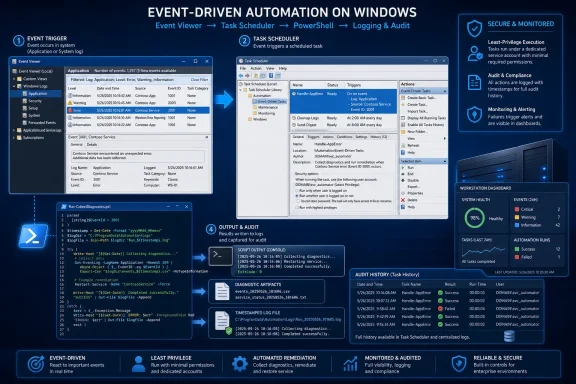
Microsoft’s Task Scheduler documentation calls this an event trigger: a task starts when its event subscription matches an entry in a Windows log. Microsoft’s Event Viewer guidance confirms that the right-click wizard builds the task from the selected log, provider, and event ID, then stores it under Task Scheduler Library’s Event Viewer Tasks folder. The practical limitation is important: the wizard matches the event category, not necessarily the exact operational condition you have in mind.
A Service Control Manager event, for example, may identify a stopped service, but one Event ID can apply to many services. Before connecting an event to a remediation script, establish whether the event is rare, meaningful, and specific enough to act on automatically.
 Start with an event you can explain
Open Event Viewer with eventvwr.msc, then look in Windows Logs or Applications and Services Logs for the event that represents the condition you care about. Do not start with a list of “important Windows event IDs” copied from the web. Event IDs are emitted by particular providers and logs, and their operational value depends on the machine’s role, installed software, audit configuration, and ordinary background activity.
For a workstation or server, useful candidates often include a service unexpectedly terminating, a backup application reporting a failed job, a storage driver error, or an event from a line-of-business application. Security log events deserve special care: they can be noisy, they may contain sensitive account details, and they should generally feed an alert or investigation workflow rather than trigger an automatic response.
Select a real occurrence and double-click it. Record these fields from the General or Details tab:
- The log name, such as
System,Application, or a provider-specific channel under Applications and Services Logs. - The source or provider name, such as
Service Control Manager. - The Event ID.
- The full event message, including any service name, error code, device name, or user account that explains the condition.
The fastest way to narrow a busy log is Filter Current Log. Filter by level, source, date range, or Event IDs, then inspect a few examples rather than assuming every result means the same thing. For repeatable investigation, PowerShell’s Get-WinEvent can query the same information. This example lists Service Control Manager Event ID 7031 entries from the last seven days:
Get-WinEvent -FilterHashtable @{
    LogName      = 'System'
    ProviderName = 'Service Control Manager'
    Id           = 7031
    StartTime    = (Get-Date).AddDays(-7)
} | Select-Object TimeCreated, Id, ProviderName, Message
Read the messages before taking action. If the event is caused by several services, attaching a task directly to it can create a script that restarts the wrong service—or restarts a service repeatedly while the underlying fault remains unresolved.
Create the event-triggered task
With the exact event selected in Event Viewer, right-click it and choose Attach Task To This Event. The wizard opens with the selected event already defined as the trigger.
Give the task a name that identifies the response, not merely the Event ID. Log backup failure to local file is more useful than Event 1234. Put the log, provider, Event ID, and intended response in the description, especially if the computer will be administered by someone else later.
On the event summary page, verify the log, source, and Event ID. If any value is wrong, cancel and select the correct event before continuing. The wizard is designed around the entry currently highlighted; it is not a broad event-query editor.
Choose Start a program for a script, executable, or command interpreter. The older Send an e-mail and Display a message actions remain visible in some Task Scheduler interfaces but are deprecated. Microsoft Press documentation warned that those legacy actions can fail during task creation, and they are not a dependable notification method on current Windows installations.
For a PowerShell action, use the PowerShell executable as the program, not the .ps1 file itself:
Program/script:
C:\Windows\System32\WindowsPowerShell\v1.0\powershell.exe

Add arguments:
-NoProfile -File "C:\ProgramData\EventTaskDemo\OnEvent.ps1"

Start in:
C:\ProgramData\EventTaskDemo
-NoProfile keeps a user’s interactive PowerShell profile from changing task behavior. Use absolute paths for scripts, log files, executables, and input data. Microsoft’s Task Scheduler documentation notes that an action has separate fields for the executable, arguments, and working directory; if the working directory is omitted, Windows commonly starts the action from the system directory. Scripts that work when launched manually can therefore fail in a task because they rely on relative paths.
Do not add -ExecutionPolicy Bypass simply to make a task run. That hides a deployment or signing problem rather than fixing it. In managed environments, place the script in an approved location and follow the organization’s execution-policy and code-signing rules.
Before selecting Finish, check Open the Properties dialog for this task when I click Finish. Event Viewer normally places the completed task in Task Scheduler Library > Event Viewer Tasks. Open the task there and review the Triggers, Actions, Conditions, and Settings tabs.
Set the security context before the script needs it
The identity that runs the task changes what it can access. A task running only while the creator is logged on can interact with that user’s session, but it stops being suitable for unattended administration. A task configured to run whether the user is logged on or not is better for background logging and service operations, but it does not have a desktop where it can reliably display a dialog box.
This is the reason “show me an alert” needs a more precise design:
- A background task can write to a protected log, create an Event Viewer entry, send data to an approved monitoring endpoint, or invoke a command-line notification tool.
- A visible notification requires an interactive user session and an alerting method designed for that session.
- A task running under a privileged account should not execute a script stored in a folder writable by ordinary users.
On the General tab, choose the least-privileged account that can complete the task. Select Run with highest privileges only when the specific operation requires elevation. Microsoft documents that Task Scheduler normally runs tasks with low privileges under User Account Control unless the task’s run level is explicitly elevated.
For a service-monitoring script that only appends a local record, a standard account may be enough. For a script that queries protected logs, controls services, changes firewall rules, or writes into system-managed folders, plan the permissions deliberately. The script directory, task definition, and output directory should be writable only by the administrators responsible for the automation.
Test with a harmless Application event
Do not test the first version by waiting for a production failure. Windows includes the eventcreate command, documented by Microsoft for Windows 10 and Windows 11, which lets an administrator create a custom event in the Application or System log. It cannot write to the Security log.
Create a safe test folder and a minimal script first. Run PowerShell as Administrator:
New-Item -ItemType Directory -Force C:\ProgramData\EventTaskDemo | Out-Null

@'
$stamp = Get-Date -Format o
"$stamp Event-triggered task ran." |
    Add-Content -LiteralPath "C:\ProgramData\EventTaskDemo\trigger.log"
'@ | Set-Content -LiteralPath C:\ProgramData\EventTaskDemo\OnEvent.ps1
Then create a test event from an elevated Command Prompt:
eventcreate /l APPLICATION /so EventTaskDemo /t INFORMATION /id 901 /d "Testing an Event Viewer task trigger"
Find the resulting EventTaskDemo event with Event ID 901 in Windows Logs > Application, attach a task to it, and configure the PowerShell action shown earlier. Run the same eventcreate command again. If the trigger and action are correct, C:\ProgramData\EventTaskDemo\trigger.log should contain a new timestamped line.
This test does more than confirm that the task starts. It confirms that the account can launch PowerShell, read the script, write the output file, and operate under the task’s actual security context. A green “task completed” status alone is weaker evidence: the process may exit successfully while the script writes nowhere useful or takes a different path than expected.
After testing, disable or delete the task, remove the test event strategy from your workflow, and create a new task tied to the real provider and Event ID. Keep the test script if it is useful as a future Task Scheduler diagnostic, but do not leave a trigger that can be activated casually on a production machine.
Review history in two places
Task Scheduler’s History tab is the first place to check whether the event fired the task and whether the action completed. If history is disabled, select Task Scheduler (Local) and use Enable All Tasks History in the Actions pane. You can also inspect the Task Scheduler operational channel in Event Viewer:
Applications and Services Logs
  > Microsoft
    > Windows
      > TaskScheduler
        > Operational
Microsoft support guidance identifies Task Scheduler Operational events as the more detailed record when a task does not behave as expected. In practice, combine that record with your script’s own log file. The scheduler can show that it launched PowerShell; only the script’s log can show that it reached the intended code path and processed the expected condition.
Also review the task’s Last Run Result, but do not treat 0x0 as proof that the operational response succeeded. It means the launched process returned success. If a script calls a remote service, restarts an application, or forwards an alert, write explicit success and failure messages with timestamps.
Tighten broad matches before enabling remediation
The attach-task wizard is best for a simple, fixed match. When an event’s message contains the detail that determines whether to act—such as one particular service name, account, disk, or application instance—the generated trigger may be too broad. Open the task’s Triggers tab and inspect the event filter. For more selective automation, use a custom event query or leave the trigger broad but make the script validate the event condition before it makes a change.
Build in a brake for repeat events. A service that fails every minute can launch dozens of overlapping scripts; a disk or driver event can recur rapidly during a hardware fault. Configure the task’s Settings so a new instance is not started while the previous response is still running, and make the script log when it deliberately declines to act.
The useful endpoint is modest and auditable: Windows records one clearly understood event, Task Scheduler starts one least-privileged action, and the action leaves evidence that an administrator can review. Once those pieces are working, Event Viewer becomes a practical local automation trigger rather than a screen full of warnings someone notices after the fact.