This Is Normal Windows 11 Behavior
Zevik83, you are seeing two separate stages rather than a duplicated startup screen:
- Lock screen — displays the background, clock, and date.
- Sign-in screen — appears after pressing
Enter and displays Enter PIN.
Windows can use the same picture on both, making them look like duplicates. This is a Windows 11 design choice, not an ASUS/ROG fault.
Make the Screens Look Different
- Open Settings.
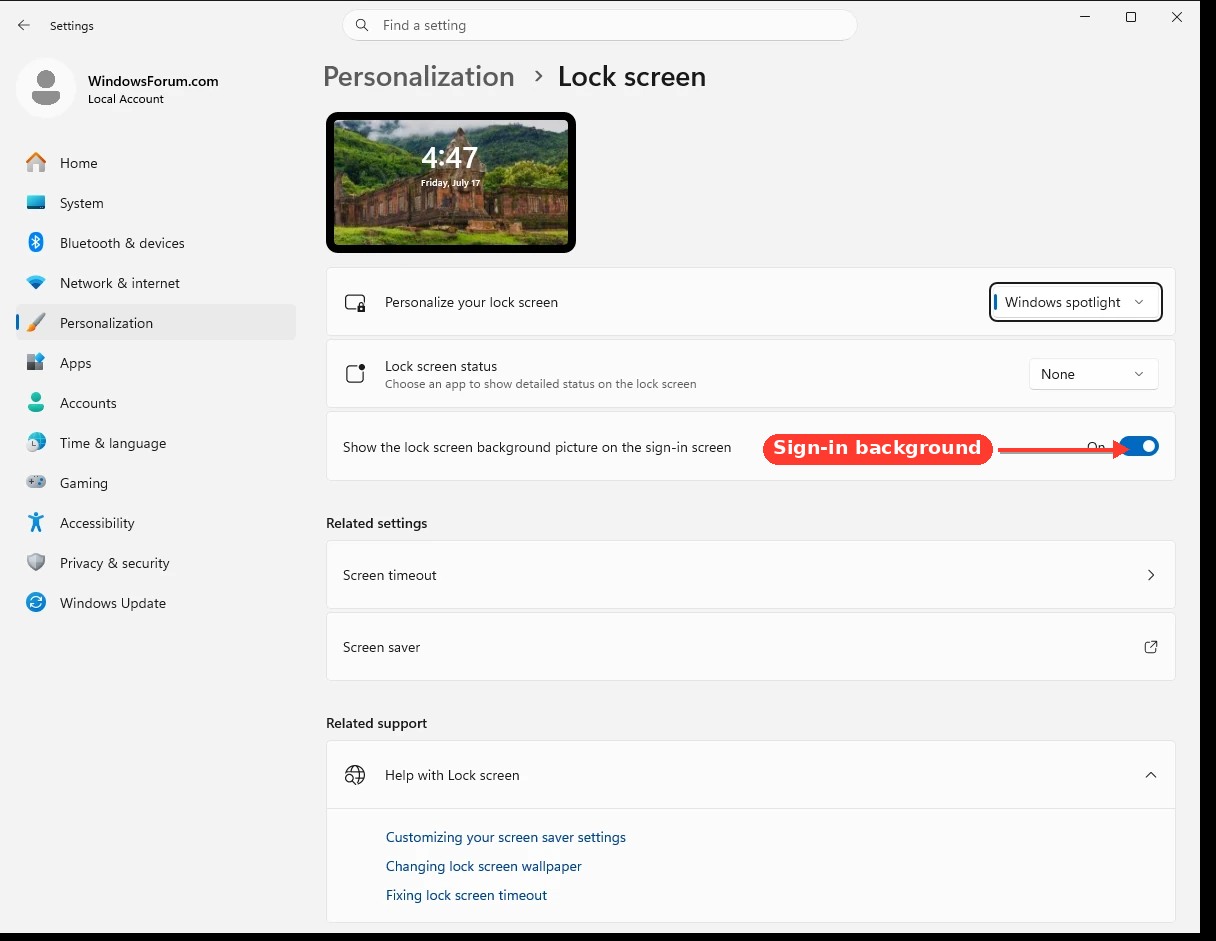
- Select Personalization > Lock screen.
- Turn off Show the lock screen background picture on the sign-in screen.
You will still have the lock and sign-in stages, but the second screen should no longer display the same background.
Correct the 12/24-Hour Difference
The lock screen can use the
system/welcome-screen regional format, while your account uses your personal regional format.
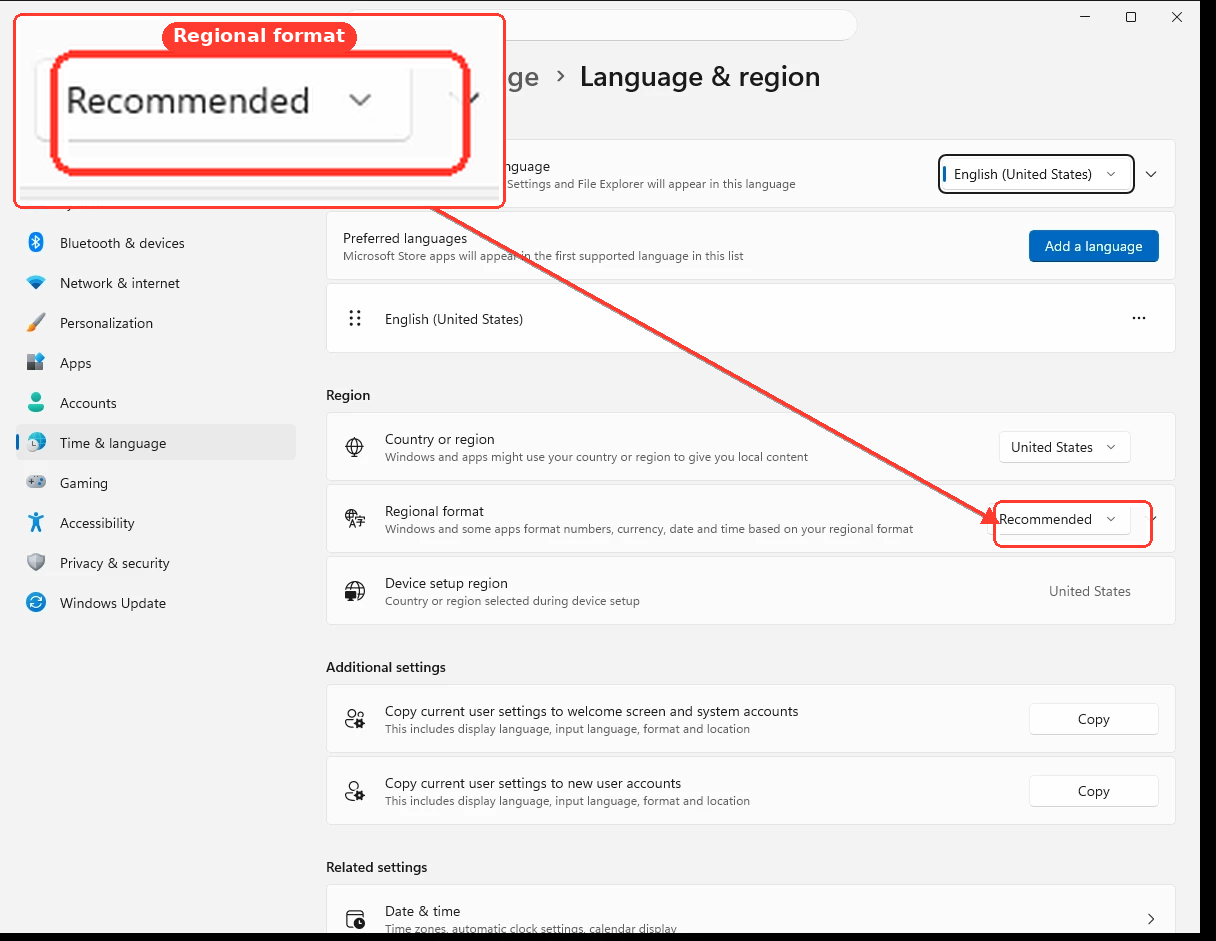
- Open Settings > Time & language > Language & region.
- Confirm that Regional format is set to your preferred region.
- Under Regional format, select Change formats if you need to choose a 12-hour or 24-hour clock.
Then copy that format to the welcome screen:
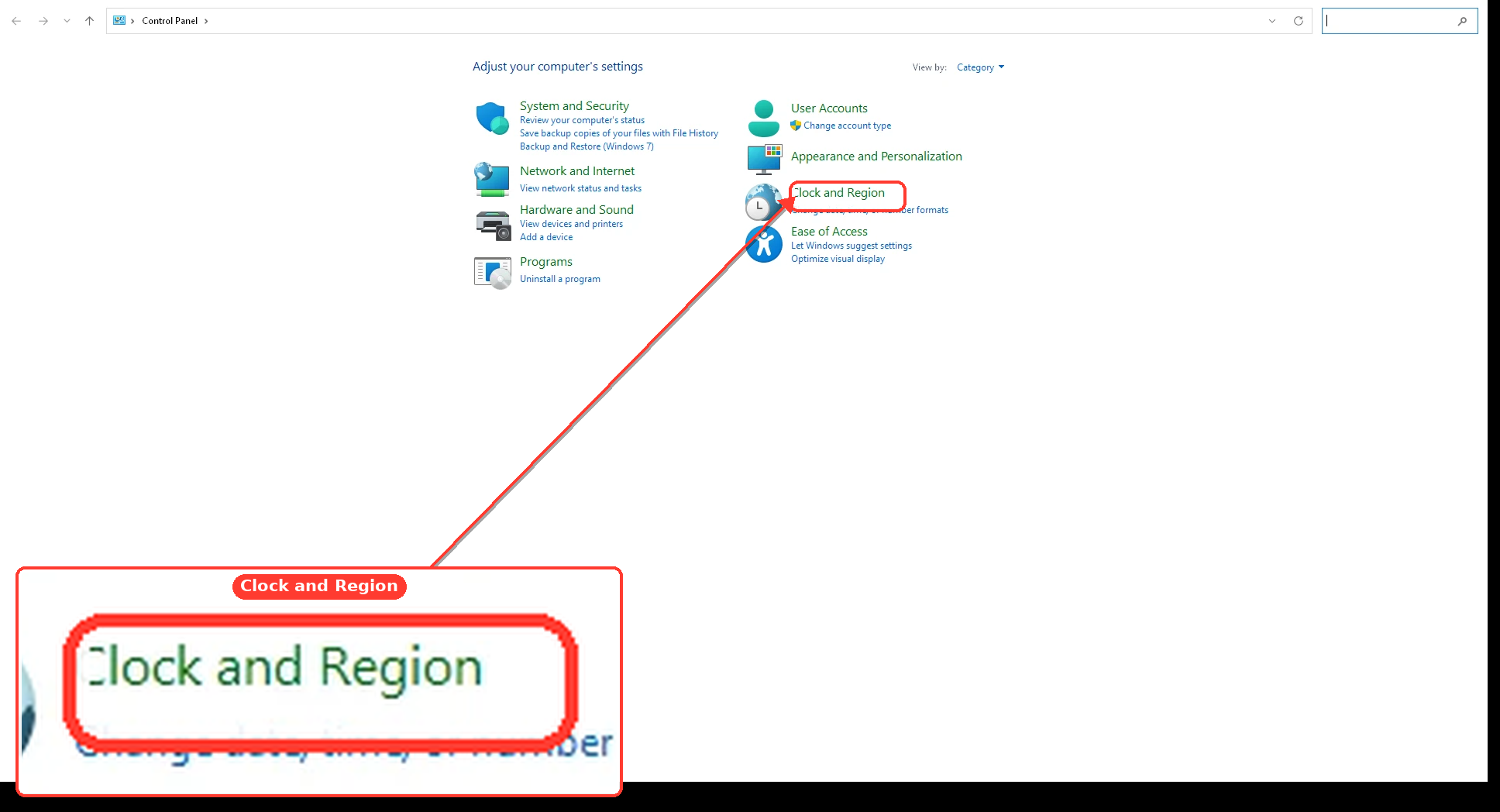
- Press
Win + R.
- Enter
intl.cpl and press Enter.
- Open the Administrative tab.
- Click Copy settings.
- Check Welcome screen and system accounts.
- Click OK, then restart Windows.
After restarting, the time format should be consistent.
Nothing appears to be wrong with the laptop based on your description.