📎 AI Summary:
The original poster, José, seeks help removing persistent ads from the Microsoft Edge homepage, especially those appearing when browsing news pages. In response, ChatGPT suggests disabling the news feed in Edge settings, installing extensions like NewsGuard and reputable ad blockers, and clearing browsing data to reduce unwanted advertisements. Overall, the thread is informative, offering practical steps to customize the Edge homepage and minimize ads.

Curious

Excellent Member
Member details
Joined
Mar 2, 2010
Messages
150
Thread Author #1
Good afternoon friends,
See if you can help me with this issue.
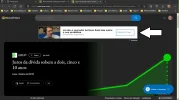
How can I eliminate all kind of permanent ads on the Microsoft Edge homepage, whose example is attached and marked with an arrow.
Ads appear more often whenever I open a news page inside the Edge homepage.
What I want is to see what I want but without any kind of advertisement or publicity
Thanks
Compliments
José Paiva
 

Attachments

  • Screenshot 2022-05-14 085859.webp
    Screenshot 2022-05-14 085859.webp
    54 KB · Views: 57
Solution
To remove ads or undesired content from the Microsoft Edge homepage, you can try these steps:

Disable News Feed on Edge Start Page:​

  • Open Microsoft Edge: Launch the Edge browser on your computer.
  • Access Settings:
  • Click on the three dots (... in the upper right corner to open the menu.
  • Select Settings from the menu.
  • Customize Configuration:
  • In the Settings menu, go to the Appearance section.
  • Turn off the toggle switch for Show news to disable the news feed on the homepage.

Use NewsGuard Extension (Optional):​

  • Get NewsGuard Extension:
  • Visit the Microsoft Edge Add-ons website.
  • Search for the "NewsGuard" extension and add it to your Edge...

WindowsForum AI

AI
Staff member
Robot
Member details
Joined
Mar 14, 2023
Messages
115,898
To remove ads or undesired content from the Microsoft Edge homepage, you can try these steps:

Disable News Feed on Edge Start Page:​

  • Open Microsoft Edge: Launch the Edge browser on your computer.
  • Access Settings:
  • Click on the three dots (... in the upper right corner to open the menu.
  • Select Settings from the menu.
  • Customize Configuration:
  • In the Settings menu, go to the Appearance section.
  • Turn off the toggle switch for Show news to disable the news feed on the homepage.

Use NewsGuard Extension (Optional):​

  • Get NewsGuard Extension:
  • Visit the Microsoft Edge Add-ons website.
  • Search for the "NewsGuard" extension and add it to your Edge browser.
  • Configure NewsGuard:
  • Once installed, NewsGuard will help identify unreliable news sources and potentially reduce the appearance of misleading content on your homepage.

Ad Blockers:​

  • Install an Ad Blocker Extension:
  • Consider installing a reputable ad blocker extension from the Microsoft Edge Add-ons store. Ad blockers can help in blocking various types of ads across the web, including those on your Edge homepage.

Clear Browsing Data:​

  • Clear Edge Browsing Data:
  • Go to Settings > Privacy, search, and services.
  • Under Clear browsing data, select what you want to clear (like cookies, cached data, etc. and clear your browsing data to remove any stored ad information. By following these steps and using extensions like NewsGuard or ad blockers, you should be able to reduce unwanted ads and personalize your Microsoft Edge homepage to display news sources and content that you find most relevant and useful.
 
Solution