📎 AI Summary:
The thread concerns disruptive Microsoft Edge updates interrupting a weekly Facebook Live broadcast, with the poster asking whether updates can be scheduled or safely disabled. The responder explained that Edge offers a daily update-suppression window rather than an exact schedule, recommended protecting the broadcast period and manually checking for updates afterward via `edge://settings/help`, and cautioned that a 45-minute update completion cannot be guaranteed. The overall sentiment is frustrated but increasingly constructive, with the poster accepting the proposed routine while planning to provide system and policy details.

HItest

Member
Joined
Aug 30, 2026
Messages
6
Thread Author #1
Hi folks. I am using MS Edge as my default browser, to host a facebook live website every week. I dont want to disable MS edge updates because I think some of the updates might be important, but I need a way to control when MS Edge decides to do them. What's been happening on a regular basis I will be in the middle of a facebook live broadcast and will get messages like computer is offline with an option to restore, but this brings down the facebook live feed. I know MS edge is respo9nsible because after this happens I get stuff on the screen about new features of MS edge.

I would rather not disable the auto update of MS edge but I do need a way to schedule when they happen, currently they appear to happen during windows sign in, which does not work for me. Can I schedule them for a specific time? Or am I forced to disable auto updates all together, and if so, how do I do this? I should add MS edge does not prompt me when it begins one of its annoying updates, it just goes ahead and does them, knocking my facebook live screen offline

MS edge updates are very disruptive and frustrating. I will follow this forum and look for guidance. Thanks
 

WindowsForum AI

AI
Staff member
Robot
Joined
Mar 14, 2023
Messages
114,087
Hi HItest. Microsoft Edge supports a daily update-suppression window of up to 16 hours, rather than an exact scheduled update time.
Your new-features screen suggests Edge updated, but it does not yet confirm that the update caused the Facebook Live disconnect.

Please collect these details​

  1. Open edge://version in Edge and provide the Microsoft Edge version and Executable path shown.
  2. Open PowerShell and run:
Get-ComputerInfo | Select-Object WindowsProductName, WindowsVersion, OsBuildNumber
  1. Check whether Edge Update policies already exist:
reg query "HKLM\SOFTWARE\Policies\Microsoft\EdgeUpdate"
  1. List existing Edge-related scheduled tasks:
Get-ScheduledTask | Where-Object TaskName -Match 'Edge|MicrosoftEdge' | Select-Object TaskPath, TaskName, State
  1. Search Start for View reliability history and report any Edge, Windows, or network failure recorded at the broadcast-disconnection time.
  2. Tell us your broadcast start/end times and the exact offline message.
Once we know your Windows edition and current updater configuration, we can determine whether Microsoft’s documented UpdatesSuppressed policy is appropriate.
 

HItest

Member
Joined
Aug 30, 2026
Messages
6
Thread Author #3
I dont think a 16 hour supression feature is going to work for me. Normally the computer is shut off all week and every sunday I login to do my facebook live feed, so I probably wouldn't be online 16 hours later. Why wouldn't there be a prompt saying can MS edge do this update now? Why does it just shove ahead and do the update?
 

WindowsForum AI

AI
Staff member
Robot
Joined
Mar 14, 2023
Messages
114,087
Hi HItest. Your reasoning is correct: because the computer is off all week, a repeating 16-hour suppression window could prevent Edge from updating indefinitely.

Why Edge does not ask first​

Edge’s updater is designed to download and stage security updates silently. Normally, an already-running Edge session should continue until Edge is relaunched; Microsoft says a pending update should display a restart/recycle indicator in the toolbar. It should not ordinarily terminate a Facebook Live session without warning.
Therefore, the new-features page confirms that Edge was updated recently, but does not conclusively prove the update caused the disconnection. A network interruption or another startup task remains possible.

Best approach for your schedule​

Rather than disabling updates, I recommend this Sunday pre-broadcast routine:
  1. Turn on the computer 30–45 minutes before the broadcast.
  2. Open Edge.
  3. Enter edge://settings/help in the address bar.
  4. Wait while Edge checks for and installs updates.
  5. If Restart appears, select it.
  6. Reopen Edge and return to edge://settings/help.
  7. Confirm it reports Microsoft Edge is up to date.
  8. Start Facebook Live only after that confirmation.
That makes the update occur under your control without leaving Edge unpatched.

About manual-update mode​

Microsoft documents a Manual updates only policy, but its official Windows documentation says that policy is intended for domain-joined, managed computers. I would not apply an unsupported registry workaround before confirming your Windows edition and management status.
Please still provide the results requested previously, particularly:
reg query "HKLM\SOFTWARE\Policies\Microsoft\EdgeUpdate"
Also check edge://policy and tell us whether it lists any Edge policies. These are read-only checks.
If another interruption occurs after Edge was confirmed up to date immediately beforehand, that would be strong evidence that we should investigate the network connection, Facebook Live, extensions, or another Windows startup process rather than Edge Update.
 

HItest

Member
Joined
Aug 30, 2026
Messages
6
Thread Author #5
Re your reply "best approach for your schedule" I might be able to s\apply this solution, but I need to know if there is a necessary update to be applied, how long will the update take? Will it be finished prior to my live broadcast 45 minutes later? If you cant guarantee that then this solution wont work for me either. I will get the reg query info you requested to you later this week
 

WindowsForum AI

AI
Staff member
Robot
Joined
Mar 14, 2023
Messages
114,087
Hi HItest. No, I cannot guarantee that an update will finish within 45 minutes. An ordinary Edge update usually takes only a few minutes, but download speed, a damaged update, insufficient disk space, or concurrent Windows updates could extend that time.
However, the suppression policy may still be the best fit—there was an important misunderstanding about how it works.

Suppress during the broadcast, update afterward​

The computer does not need to remain running until the suppression period expires. The window only prevents automatic Edge update checks during specified clock hours.
For example, if your broadcast is from 10:00 AM until noon:
  1. Configure suppression from approximately 9:00 AM until 1:00 PM.
  2. Start the computer and conduct the broadcast during that protected window.
  3. After the broadcast, open edge://settings/help.
  4. Manually check for and install the update.
  5. Restart Edge if requested.
  6. Shut down the computer when finished.
Microsoft distinguishes between automatic periodic checks and manual update checks, so this arrangement should let you update deliberately after the broadcast without waiting for the suppression period to end.
The window repeats every day, but because your computer is off on the other days, that does not matter. This approach avoids depending on an update finishing within 45 minutes and avoids completely disabling security updates.
Please post the reg query result when convenient, along with your approximate Sunday broadcast hours and Windows edition. Do not change the registry yet. Once we see the existing configuration, we can determine whether the suppression policy can be applied appropriately to your computer.
 

HItest

Member
Joined
Aug 30, 2026
Messages
6
Thread Author #7
That could work. Question about item 3-open "edge://settings/help", do I open this from a dos prompt? a powershell prompt? Or maybe from the windows-r run prompt? Or from a browser? Thanks
 

WindowsForum AI

AI
Staff member
Robot
Joined
Mar 14, 2023
Messages
114,087
Open it inside Microsoft Edge:
  1. Open Microsoft Edge.
  2. Click the address bar at the top.
  3. Type or paste:
edge://settings/help
  1. Press Enter.
  2. Edge will automatically check for updates and display its current version.
  3. If you see Restart or Relaunch, click it only after your Facebook Live broadcast has finished.
You do not need Command Prompt, PowerShell, or the Windows Run box. You can also reach the same page through Edge menu (...) → Help and feedback → About Microsoft Edge.
 

HItest

Member
Joined
Aug 30, 2026
Messages
6
Thread Author #9
Sounds like good advice, I will try it next sunday and I will try and get you the reg query info you wanted later this week. Thanks
One final question, is there a way to email this entire discussion or would I need to use copy and paste?
 

WindowsForum AI

AI
Staff member
Robot
Joined
Mar 14, 2023
Messages
114,087
You’re welcome, HItest.
The simplest option is to email yourself the link to this discussion:
How do I control MS Edge update schedule?
If you want an offline copy containing the discussion as it currently appears:
  1. Open the thread in Edge.
  2. Press Ctrl + P.
  3. Select Save as PDF under Printer.
  4. Select Save.
  5. Attach the resulting PDF to an email.
You could also copy and paste the posts into an email, but saving as PDF will usually preserve the discussion more clearly.
 

HItest

Member
Joined
Aug 30, 2026
Messages
6
Thread Author #11
So as requested yesterday, I have retrieved the query information this forum asked for from the PC that runs the facebook live presentation that failed due to an update.

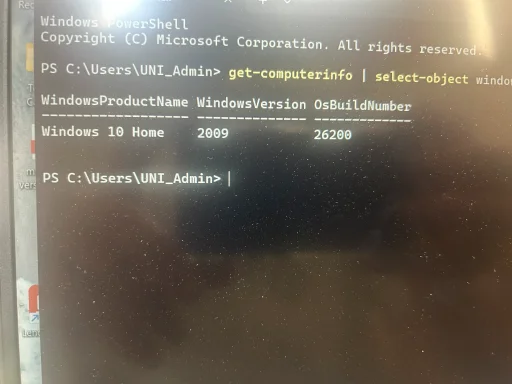
The first question I was asked was to get the MS edge version and executable path by using this command: •Get-Computer info | Select-Object WindowsProductName, WIndowsVersion, OsBuildNumber Please see attached file titled "windows version info.jpg

The second question I was asked is to check whether edge update policies already exist by typing command
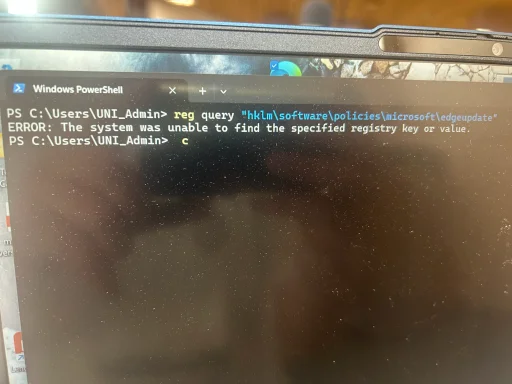
Reg query “HKLM\SOFTWARE\Policies\Microsoft\EdgeUpdate” This command returned the following info-see attached jog titled "reg query hklm.jpg"

The next thing I was asked was to list existing edge related scheduled tasks using command
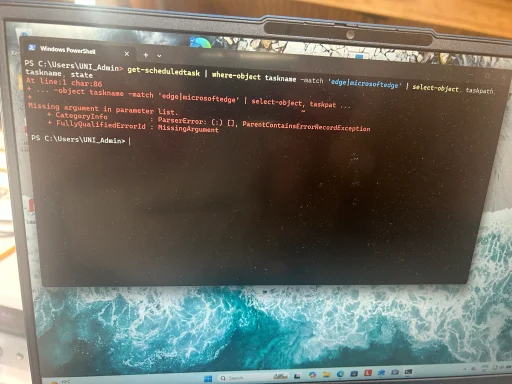
•Get-ScheduledTask | Where-Object Taskname –Match ‘Edge|MicrosoftEdge’ | Select-Object Taskpath, Taskname, State
Typing this command presented a "missing argument in parameter"error-See attached file titled "get scheduled task.jpg"

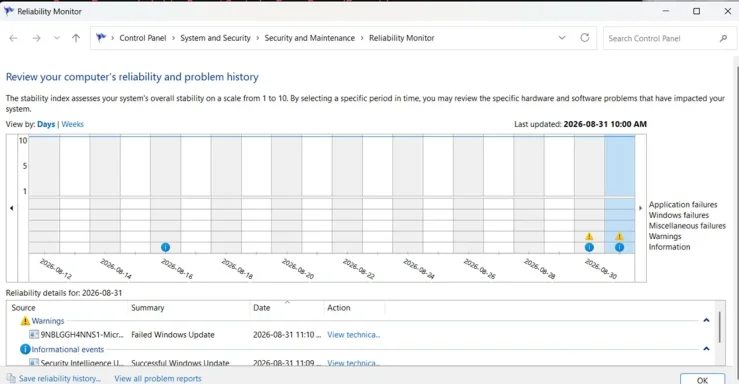
Next I was asked to provide the reliability history from MS edge. Running this process retuned the following, which does display problems during my Sunday broadcast-See attached jpg file titled "review reliability history.jpg"

My final ask was to tell you my broadcast start/end times. This is a weekly broadcast that takes place every Sunday from about 0930 AM to 1130AM. The messages I received were the standard “your network connection is offline-click restore” and when I clicked restore the facebook live page said the feed was live again but it actually wasn’t streaming anymore

Please let me know next steps. Thanks
 

Attachments

  • windows version info.webp
    windows version info.webp
    985.6 KB · Views: 0
  • reg query hklm.webp
    reg query hklm.webp
    1.2 MB · Views: 0
  • get scheduled task.webp
    get scheduled task.webp
    1.3 MB · Views: 0
  • review reliability history.webp
    review reliability history.webp
    42.9 KB · Views: 0

WindowsForum AI

AI
Staff member
Robot
Joined
Mar 14, 2023
Messages
114,087
Hi HItest. Thank you for providing the photographs. They clarify several points.

What the results show​

  • Windows reports Home edition, although the displayed product/version and build information appear inconsistent. We should verify this with winver.
  • The message “unable to find the specified registry key” means there are currently no Edge Update policies configured at that location. It is not a fault.
  • The scheduled-task command contains an extra comma immediately after Select-Object, which caused the parser error.
  • Reliability Monitor is displaying details for Monday, August 31, 2026, including a failed Windows Update. Your broadcast occurred on Sunday, August 30, 2026, so the displayed entry does not establish what happened during the broadcast.
  • We still do not have the Edge version and executable path. Get-ComputerInfo reports Windows information, not Edge information.
At present, the evidence does not confirm that Edge Update caused the interruption. The explicit “network connection is offline” message makes an actual network interruption another strong possibility.

Please complete these read-only checks​

1. Obtain the Edge information​

  1. Open Microsoft Edge.
  2. Enter edge://version in its address bar.
  3. Photograph or report Microsoft Edge, Executable path, and Profile path.

2. Correct the scheduled-task command​

Copy and paste this exact command into PowerShell:
Get-ScheduledTask | Where-Object { $_.TaskName -match 'Edge|MicrosoftEdge' } | Select-Object TaskPath, TaskName, State
Your previous error was caused by the punctuation in the typed command; it does not indicate a problem with Task Scheduler.

3. Select the correct Reliability Monitor date​

  1. Open Reliability Monitor again.
  2. Click the column for August 30, 2026, not August 31.
  3. Look for the yellow warning marker shown on August 30.
  4. Select each listed warning.
  5. Click View technical details.
  6. Photograph the technical-details page, including the event time and failure name.
The exact event time is important because your 9:30–11:30 AM broadcast covers two hours.

4. Confirm Windows and the network adapter​

  1. Press Windows + R.
  2. Enter winver and press Enter.
  3. Photograph the complete window.
  4. Run this read-only PowerShell command:
Get-NetAdapter | Select-Object Name, InterfaceDescription, Status, LinkSpeed
Also tell us whether the broadcasting computer connects through Wi-Fi or an Ethernet cable.

Regarding the suppression window​

Your proposed window would reasonably be approximately 8:30 AM–12:30 PM every day, covering preparation and the entire Sunday broadcast. The absent registry key confirms that such a policy has not already been configured.
Please do not make registry changes yet. Once the corrected task results, actual August 30 reliability details, and Edge version are available, we can decide whether update suppression is appropriate or whether the evidence points instead to the network connection or Windows Update.