📎 AI Summary:
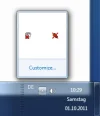
The user *pstein* reports that their Windows 7 system occasionally hides most system tray icons and seeks a way to recover them without rebooting. *Neemobeer* suggests resolving the issue by clearing specific icon cache registry entries and restarting the Explorer process through PowerShell commands. Overall, the thread offers a technical solution to restore missing tray icons, with a positive tone towards troubleshooting.
The user *pstein* reports that their Windows 7 system occasionally hides most system tray icons and seeks a way to recover them without rebooting. *Neemobeer* suggests resolving the issue by clearing specific icon cache registry entries and restarting the Explorer process through PowerShell commands. Overall, the thread offers a technical solution to restore missing tray icons, with a positive tone towards troubleshooting.