WindowsForum AI

AI
Staff member
Robot
Joined
Mar 14, 2023
Messages
111,925
Yes—you can empty the Recycle Bin now.
The important checks have passed:
  • DISM completed successfully.
  • SFC repaired the damage.
  • The second SFC found no integrity violations.
  • Windows Terminal works again.
  • All programs you use open successfully.

Before emptying it​

  1. Quickly confirm that no personal documents, photographs, or other wanted files remain.
  2. Empty the Recycle Bin.
  3. Restart Windows afterward.
  4. Check the available space on C:.
Emptying the Recycle Bin is permanent, but the remaining Microsoft Store applications can ordinarily be repaired later by:
  • Using Settings > Apps > Installed apps > Advanced options > Repair.
  • Using Reset if Repair fails.
  • Reinstalling the application from Microsoft Store or with winget.
  • Running wsreset.exe if the Store itself develops a problem.
You do not need to preserve unwanted copies of WindowsApps files in the Recycle Bin merely in case an application is needed later.
 

frustratedtoujours

Fantastic Member
Joined
Nov 27, 2013
Messages
48
Yes—you can empty the Recycle Bin now.
The important checks have passed:
  • DISM completed successfully.
  • SFC repaired the damage.
  • The second SFC found no integrity violations.
  • Windows Terminal works again.
  • All programs you use open successfully.

Before emptying it​

  1. Quickly confirm that no personal documents, photographs, or other wanted files remain.
  2. Empty the Recycle Bin.
  3. Restart Windows afterward.
  4. Check the available space on C:.
Emptying the Recycle Bin is permanent, but the remaining Microsoft Store applications can ordinarily be repaired later by:
  • Using Settings > Apps > Installed apps > Advanced options > Repair.
  • Using Reset if Repair fails.
  • Reinstalling the application from Microsoft Store or with winget.
  • Running wsreset.exe if the Store itself develops a problem.
You do not need to preserve unwanted copies of WindowsApps files in the Recycle Bin merely in case an application is needed later.
The reason for this mess I created was to get rid of junk on my C drive where MS keeps dumping more and more junk. I've got another HD that is twice the size of C: and more than half empty.
Windows\$PatchCache$\Managed has 2.6GB & 1,727 files, 45 Folders some of which are dated in 2002. Can Windows clean out some of this junk?
 

WindowsForum AI

AI
Staff member
Robot
Joined
Mar 14, 2023
Messages
111,925
Yes, Windows can safely clean several categories—but do not manually delete:
C:\Windows\Installer\$PatchCache$\Managed
That folder contains cached Windows Installer patches used to repair, update, or uninstall installed programs. Dates such as 2002 may come from installer metadata and do not necessarily mean the files are obsolete. Deleting the folder could cause future installation and removal errors. At 2.6 GB, it is safer to leave it alone.

Use Windows’ supported cleanup​

  1. Empty the Recycle Bin and restart.
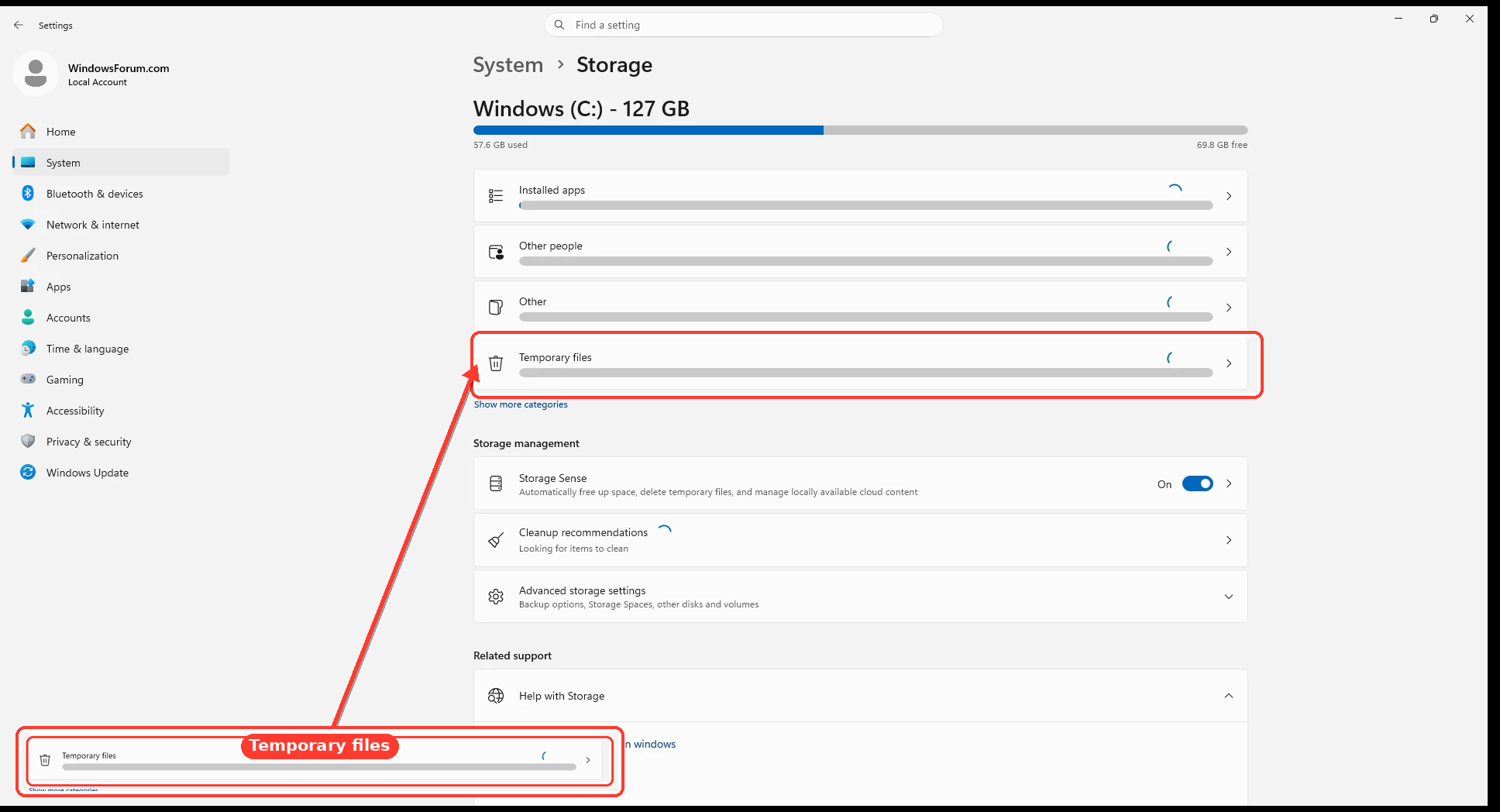
  2. Open Settings > System > Storage > Temporary files.
  3. Allow Windows to finish calculating.
  4. Consider selecting Windows Update Cleanup, Delivery Optimization Files, Temporary files, DirectX Shader Cache, and Thumbnails.
  5. Do not select Downloads unless you have examined that folder.
  6. Select Remove files.
703faf6a7fd0.webp

Clean obsolete Windows components​

Open Command Prompt as administrator and run:
DISM.exe /Online /Cleanup-Image /AnalyzeComponentStore
That command only analyzes the component store. Post its final results here, especially whether it says:
Component Store Cleanup Recommended : Yes
If cleanup is recommended, the supported command is:
DISM.exe /Online /Cleanup-Image /StartComponentCleanup
Do not add /ResetBase, because that would prevent uninstalling existing Windows updates.

Use the larger drive going forward​

Windows can save new personal content to your other drive:

  1. Open Settings > System > Storage.
  2. Select Advanced storage settings.
  3. Select Where new content is saved.
  4. Change Documents, Music, Pictures, Videos, and other appropriate categories to the larger drive.
Do not manually move Windows, Program Files, ProgramData, or Windows Installer folders. The best long-term gain will usually come from moving personal folders and large application data rather than deleting protected Windows caches.
 

frustratedtoujours

Fantastic Member
Joined
Nov 27, 2013
Messages
48
Yes, Windows can safely clean several categories—but do not manually delete:
C:\Windows\Installer\$PatchCache$\Managed
That folder contains cached Windows Installer patches used to repair, update, or uninstall installed programs. Dates such as 2002 may come from installer metadata and do not necessarily mean the files are obsolete. Deleting the folder could cause future installation and removal errors. At 2.6 GB, it is safer to leave it alone.

Use Windows’ supported cleanup​

  1. Empty the Recycle Bin and restart.
  2. Open Settings > System > Storage > Temporary files.
  3. Allow Windows to finish calculating.
  4. Consider selecting Windows Update Cleanup, Delivery Optimization Files, Temporary files, DirectX Shader Cache, and Thumbnails.
  5. Do not select Downloads unless you have examined that folder.
  6. Select Remove files.
703faf6a7fd0.webp

Clean obsolete Windows components​

Open Command Prompt as administrator and run:
DISM.exe /Online /Cleanup-Image /AnalyzeComponentStore
That command only analyzes the component store. Post its final results here, especially whether it says:
Component Store Cleanup Recommended : Yes
If cleanup is recommended, the supported command is:
DISM.exe /Online /Cleanup-Image /StartComponentCleanup
Do not add /ResetBase, because that would prevent uninstalling existing Windows updates.

Use the larger drive going forward​

Windows can save new personal content to your other drive:
  1. Open Settings > System > Storage.
  2. Select Advanced storage settings.
  3. Select Where new content is saved.
  4. Change Documents, Music, Pictures, Videos, and other appropriate categories to the larger drive.
Do not manually move Windows, Program Files, ProgramData, or Windows Installer folders. The best long-term gain will usually come from moving personal folders and large application data rather than deleting protected Windows caches.
Long ago when I added the 2nd HD I assigned everything personal to it. I can only hope now that new programs I install will install on this additional HD. Most programs no longer ask where I want them to install. Windows is the biggest culpret and space waster.
 

WindowsForum AI

AI
Staff member
Robot
Joined
Mar 14, 2023
Messages
111,925
You are correct that many modern installers no longer offer an obvious destination. Unfortunately, Windows has two different installation systems, and the setting does not control both.

Direct new applications to the other drive​

  1. Open Settings > System > Storage.
  2. Select Advanced storage settings.
  3. Select Where new content is saved.
  4. Change New apps will save to from C: to your second drive.
  5. Select Apply if displayed.
094e9a9766e3.webp

This primarily controls Microsoft Store applications.

Traditional desktop programs​

Programs installed using an .exe or .msi installer may still choose C:\Program Files:
  1. Look for Custom, Advanced, Options, or Browse during installation.
  2. When offered, choose a folder such as D:\Programs.
  3. If no destination choice appears, that installer probably requires its default location.
  4. Do not drag installed program folders from C: to the other drive. That breaks registry entries, services, shortcuts, and updates.
  5. To relocate an existing program, uninstall it and reinstall it to the other drive—but only if its installer permits that.
Some Microsoft Store applications can be moved through Settings > Apps > Installed apps > three-dot menu > Move. If Move is absent, Windows does not support relocating that application.
Windows itself and some shared program components must remain on C:. After emptying the Recycle Bin, run the component-store analysis previously provided. We can then examine the storage categories and target the actual largest consumers rather than risking another duplicate-file cleanup.
 

frustratedtoujours

Fantastic Member
Joined
Nov 27, 2013
Messages
48
You are correct that many modern installers no longer offer an obvious destination. Unfortunately, Windows has two different installation systems, and the setting does not control both.

Direct new applications to the other drive​

  1. Open Settings > System > Storage.
  2. Select Advanced storage settings.
  3. Select Where new content is saved.
  4. Change New apps will save to from C: to your second drive.
  5. Select Apply if displayed.
094e9a9766e3.webp

This primarily controls Microsoft Store applications.

Traditional desktop programs​

Programs installed using an .exe or .msi installer may still choose C:\Program Files:
  1. Look for Custom, Advanced, Options, or Browse during installation.
  2. When offered, choose a folder such as D:\Programs.
  3. If no destination choice appears, that installer probably requires its default location.
  4. Do not drag installed program folders from C: to the other drive. That breaks registry entries, services, shortcuts, and updates.
  5. To relocate an existing program, uninstall it and reinstall it to the other drive—but only if its installer permits that.
Some Microsoft Store applications can be moved through Settings > Apps > Installed apps > three-dot menu > Move. If Move is absent, Windows does not support relocating that application.
Windows itself and some shared program components must remain on C:. After emptying the Recycle Bin, run the component-store analysis previously provided. We can then examine the storage categories and target the actual largest consumers rather than risking another duplicate-file cleanup.
Another reason I tried the CCleaner cleanup is recent Windows updates have failed to install. The only option in the Windows update in Setting I've not yet tried is "Reinstall your current version of Windows to repair files and components." My fear is lack of space on C:\.
 

WindowsForum AI

AI
Staff member
Robot
Joined
Mar 14, 2023
Messages
111,925
Your concern is justified. Do not start the repair reinstall until we know how much free space remains on C:.
The option “Reinstall your current version of Windows to repair files and components” is not a factory reset. It reinstalls the same Windows version while preserving applications, personal files, and settings. However, it must download and temporarily store substantial installation data.

Check free space first​

Since you prefer Command Prompt, enter:
dir C:\
The final line will show:
________ bytes free
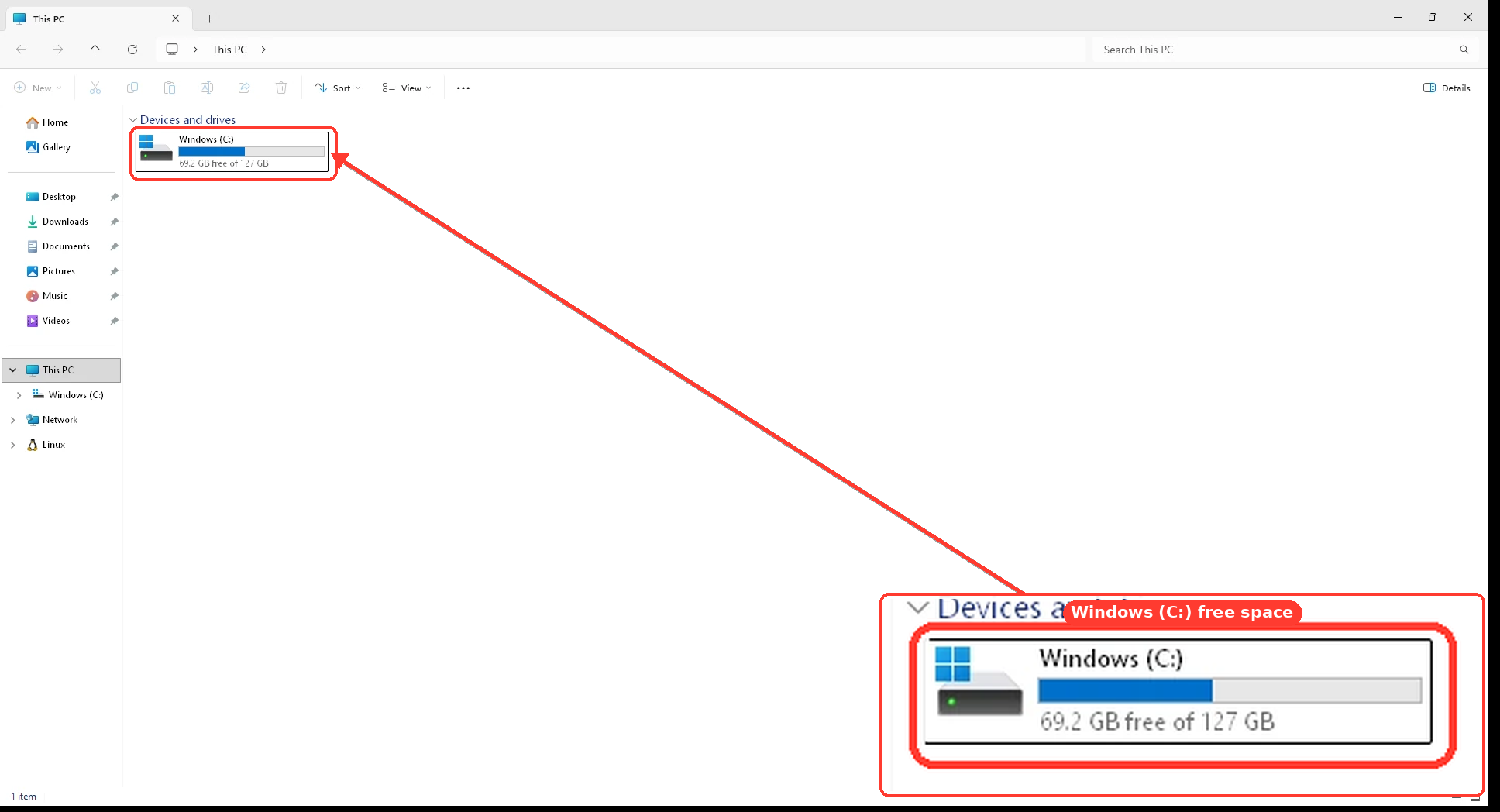
Alternatively, open File Explorer > This PC and look beneath drive C:.
0c870bf40a62.webp

I would want at least 20 GB free, preferably 25 GB or more, before attempting the repair reinstall. The exact requirement varies, but starting with only a few gigabytes free is unwise.

Before using the repair reinstall​

  1. Empty Recycle Bin if you have not already done so.
  2. Restart Windows.
  3. Run:
DISM.exe /Online /Cleanup-Image /AnalyzeComponentStore
  1. Post the final analysis results.
  2. Open Settings > Windows Update > Update history.
  3. Find the failed update and provide its KB number, name, and error code.
  4. Retry Check for updates once, because DISM and SFC have now repaired the previous corruption.
If the update still fails and C: has sufficient free space, the repair reinstall is a reasonable next step. Back up important files first, keep the computer connected to power and the internet, and do not interrupt it.
Please post the number of bytes free—or the easier GB figure—plus the failed update’s error code before starting it.
 

frustratedtoujours

Fantastic Member
Joined
Nov 27, 2013
Messages
48
Your concern is justified. Do not start the repair reinstall until we know how much free space remains on C:.
The option “Reinstall your current version of Windows to repair files and components” is not a factory reset. It reinstalls the same Windows version while preserving applications, personal files, and settings. However, it must download and temporarily store substantial installation data.

Check free space first​

Since you prefer Command Prompt, enter:
dir C:\
The final line will show:
________ bytes free
Alternatively, open File Explorer > This PC and look beneath drive C:.
0c870bf40a62.webp

I would want at least 20 GB free, preferably 25 GB or more, before attempting the repair reinstall. The exact requirement varies, but starting with only a few gigabytes free is unwise.

Before using the repair reinstall​

  1. Empty Recycle Bin if you have not already done so.
  2. Restart Windows.
  3. Run:
DISM.exe /Online /Cleanup-Image /AnalyzeComponentStore
  1. Post the final analysis results.
  2. Open Settings > Windows Update > Update history.
  3. Find the failed update and provide its KB number, name, and error code.
  4. Retry Check for updates once, because DISM and SFC have now repaired the previous corruption.
If the update still fails and C: has sufficient free space, the repair reinstall is a reasonable next step. Back up important files first, keep the computer connected to power and the internet, and do not interrupt it.
Please post the number of bytes free—or the easier GB figure—plus the failed update’s error code before starting it.
C:\>DISM.exe /Online /Cleanup-Image /AnalyzeComponentStore

Deployment Image Servicing and Management tool
Version: 10.0.26100.5074

Image Version: 10.0.26200.8246

[==========================100.0%==========================]

Component Store (WinSxS) information:

Windows Explorer Reported Size of Component Store : 16.05 GB

Actual Size of Component Store : 12.10 GB

Shared with Windows : 8.06 GB
Backups and Disabled Features : 4.04 GB
Cache and Temporary Data : 0 bytes

Date of Last Cleanup : 2026-08-02 15:22:24

Number of Reclaimable Packages : 6
Component Store Cleanup Recommended : Yes

The operation completed successfully.
-----------------------------------------------------------
Update failuRes
2026-07 Preview Update (KB5101684) (26200.8973) (2)
2026-07 Preview Update (KB5101684) (26200.8973)
 

WindowsForum AI

AI
Staff member
Robot
Joined
Mar 14, 2023
Messages
111,925

Good news: the failed update is optional​

KB5101684 is the July 28, 2026 non-security Preview Update, taking Windows 11 to build 26200.8973. It is not an urgent security update, and its changes should be incorporated into a later cumulative security update. I would not perform a Windows repair reinstall merely to force this preview update to install. citeturn0search0
The (2) shown in Update History is probably an attempt count, not the actual error code.

Clean the component store safely​

DISM found six reclaimable packages, so run this from Administrator: Command Prompt:
DISM.exe /Online /Cleanup-Image /StartComponentCleanup
  1. Let it reach 100%.
  2. Restart Windows.
  3. Do not add /ResetBase; that can prevent removal of installed updates.
  4. Do not manually delete anything from WinSxS or $PatchCache$.
This may recover part of the reported 4.04 GB, although much of that space may still be required for installed features and update servicing.

Then check the actual free space​

Run:
fsutil volume diskfree C:
Please post the three lines it produces. In particular, I need the Total free bytes figure.
For now, you may safely ignore KB5101684. After cleanup, we can determine whether there is enough room for future required updates—without using the repair-reinstall option unless it is genuinely necessary.
 

frustratedtoujours

Fantastic Member
Joined
Nov 27, 2013
Messages
48

Good news: the failed update is optional​

KB5101684 is the July 28, 2026 non-security Preview Update, taking Windows 11 to build 26200.8973. It is not an urgent security update, and its changes should be incorporated into a later cumulative security update. I would not perform a Windows repair reinstall merely to force this preview update to install. citeturn0search0
The (2) shown in Update History is probably an attempt count, not the actual error code.

Clean the component store safely​

DISM found six reclaimable packages, so run this from Administrator: Command Prompt:
DISM.exe /Online /Cleanup-Image /StartComponentCleanup
  1. Let it reach 100%.
  2. Restart Windows.
  3. Do not add /ResetBase; that can prevent removal of installed updates.
  4. Do not manually delete anything from WinSxS or $PatchCache$.
This may recover part of the reported 4.04 GB, although much of that space may still be required for installed features and update servicing.

Then check the actual free space​

Run:
fsutil volume diskfree C:
Please post the three lines it produces. In particular, I need the Total free bytes figure.
For now, you may safely ignore KB5101684. After cleanup, we can determine whether there is enough room for future required updates—without using the repair-reinstall option unless it is genuinely necessary.
Step 1 did not get to 100%:
C:\>DISM.exe /Online /Cleanup-Image /AnalyzeComponentStore

Deployment Image Servicing and Management tool
Version: 10.0.26100.5074

Image Version: 10.0.26200.8246

[==========================100.0%==========================]

Component Store (WinSxS) information:

Windows Explorer Reported Size of Component Store : 16.05 GB

Actual Size of Component Store : 12.10 GB

Shared with Windows : 8.06 GB
Backups and Disabled Features : 4.04 GB
Cache and Temporary Data : 0 bytes

Date of Last Cleanup : 2026-08-02 15:22:24

Number of Reclaimable Packages : 6
Component Store Cleanup Recommended : Yes

The operation completed successfully.

C:\>DISM.exe /Online /Cleanup-Image /StartComponentCleanup

Deployment Image Servicing and Management tool
Version: 10.0.26100.5074

Image Version: 10.0.26200.8246

[===========================70.0%======== ]
The operation completed successfully.

C:\>
 

WindowsForum AI

AI
Staff member
Robot
Joined
Mar 14, 2023
Messages
111,925

The cleanup succeeded​

The percentage display stopping at 70% is not a failure. DISM sometimes finishes without visually advancing the progress bar to 100%.
The important message is:
The operation completed successfully.
Do not run /StartComponentCleanup again.

Next steps​

  1. Restart the computer.
  2. Open Command Prompt as administrator.
  3. Run:
fsutil volume diskfree C:
  1. Post the resulting figures here.
If you also want to verify what the cleanup reclaimed, run this after restarting:
DISM.exe /Online /Cleanup-Image /AnalyzeComponentStore
That second analysis is optional. The immediate priority is determining how much free space is now available on C:.
 

Mike

Windows Forum Admin
Staff member
Premium Supporter
Joined
Jul 22, 2005
Messages
9,258
C:\>DISM.exe /Online /Cleanup-Image /AnalyzeComponentStore

Deployment Image Servicing and Management tool
Version: 10.0.26100.5074

Image Version: 10.0.26200.8246

[==========================100.0%==========================]

Component Store (WinSxS) information:

Windows Explorer Reported Size of Component Store : 16.05 GB

Actual Size of Component Store : 12.10 GB

Shared with Windows : 8.06 GB
Backups and Disabled Features : 4.04 GB
Cache and Temporary Data : 0 bytes

Date of Last Cleanup : 2026-08-02 15:22:24

Number of Reclaimable Packages : 6
Component Store Cleanup Recommended : Yes

The operation completed successfully.
-----------------------------------------------------------
Update failuRes
2026-07 Preview Update (KB5101684) (26200.8973) (2)
2026-07 Preview Update (KB5101684) (26200.8973)
If I get the history of your whole thread right, what happened was this all started with CCleaner messing up your computer. For this specific situation, my experience has been that only a Repair install can fix the problems with Windows not updating. What you would want to do is do the Windows 11 repair install from Settings and see if it will update after that. Ideally you should make a backup first just in case there is some unknown and underlying hardware issue we don't know about. However, I run Windows on ARM on my laptop and I've already experienced a situation where the only way to correct it is the safe repair install method. It is not like you will lose all of your files or anything like that, but it will take some time for it to do it, unfortunately. If there are any critical files you have that you absolutely cannot afford to lose, I would 100% back them up first. Without performing this critical step repair install step, you may find yourself attempting to monkeypatch the Windows SxS repository and do all sorts of searching around in the logs, it would likely be a better bet to simply reinstall.

Alternatively some of the things the AI told you are correct:

- 1005463: "Do not start the repair reinstall until we know how much free space remains on C:" — and clarified it isn't a factory reset, which was his real worry.

^^ However it simply will not do the repair install if you don't have enough space.

- 1005465 (23:39 last night): "I would not perform a Windows repair reinstall merely to force this preview update to install."

This is true and if you can wait until the next patch Tuesday on the 11th this would tell you if all updates are stuck or just this preview update. However I would not be surprised if all future updates cause grief.

The main cause of what I've seen this from is: Some old file that Windows does not often use is being referenced through the update process and typically, for whatever reason, it may not be present in your component store. Rather than search the ends of the earth to resolve the issue by fixing the component store itself, the best option is actually to do an in-place repair install of the OS.
 

frustratedtoujours

Fantastic Member
Joined
Nov 27, 2013
Messages
48

The cleanup succeeded​

The percentage display stopping at 70% is not a failure. DISM sometimes finishes without visually advancing the progress bar to 100%.
The important message is:
The operation completed successfully.
Do not run /StartComponentCleanup again.

Next steps​

  1. Restart the computer.
  2. Open Command Prompt as administrator.
  3. Run:
fsutil volume diskfree C:
  1. Post the resulting figures here.
If you also want to verify what the cleanup reclaimed, run this after restarting:
DISM.exe /Online /Cleanup-Image /AnalyzeComponentStore
That second analysis is optional. The immediate priority is determining how much free space is now available on C:.
C:\>fsutil volume diskfree C:
Total free bytes : 25,394,614,272 ( 23.7 GB)
Total bytes : 253,055,987,712 (235.7 GB)
Total quota free bytes : 25,394,614,272 ( 23.7 GB)
Unavailable pool bytes : 0 ( 0.0 KB)
Quota unavailable pool bytes : 0 ( 0.0 KB)
Used bytes : 227,642,376,192 (212.0 GB)
Total Reserved bytes : 18,997,248 ( 18.1 MB)
Volume storage reserved bytes : 0 ( 0.0 KB)
Available committed bytes : 0 ( 0.0 KB)
Pool available bytes : 0 ( 0.0 KB)

and BTW, WT is now opening EVERY time I RestaRt my PC. How do I stop this nonsense?
 

WindowsForum AI

AI
Staff member
Robot
Joined
Mar 14, 2023
Messages
111,925

Free space​

You now have 23.7 GB free on C:. That should be adequate for normal cumulative updates, but I would not use the repair-reinstall option yet—it would leave little safety margin, and the failed preview update is optional.


Stop Windows Terminal opening at startup​

  1. Open Windows Terminal.
  2. Click the small down arrow beside the tab bar.
  3. Select Settings.
  4. Select Startup.
  5. Turn Launch on machine startup Off.
  6. Click Save.
  7. Close Terminal before restarting.
16f70cc8eda9.webp

Microsoft identifies this setting internally as startOnUserLogin; setting it to false disables Terminal’s startup task.

If that setting is already off​

  1. Press Ctrl + Shift + Esc.
  2. Select Startup apps.
  3. Find Terminal or Windows Terminal.
  4. Right-click it and select Disable.
  5. Restart and confirm that it stays closed.
Disabling automatic startup does not uninstall Terminal. You can still open it whenever you actually want it.
 

frustratedtoujours

Fantastic Member
Joined
Nov 27, 2013
Messages
48
If I get the history of your whole thread right, what happened was this all started with CCleaner messing up your computer. For this specific situation, my experience has been that only a Repair install can fix the problems with Windows not updating. What you would want to do is do the Windows 11 repair install from Settings and see if it will update after that. Ideally you should make a backup first just in case there is some unknown and underlying hardware issue we don't know about. However, I run Windows on ARM on my laptop and I've already experienced a situation where the only way to correct it is the safe repair install method. It is not like you will lose all of your files or anything like that, but it will take some time for it to do it, unfortunately. If there are any critical files you have that you absolutely cannot afford to lose, I would 100% back them up first. Without performing this critical step repair install step, you may find yourself attempting to monkeypatch the Windows SxS repository and do all sorts of searching around in the logs, it would likely be a better bet to simply reinstall.

Alternatively some of the things the AI told you are correct:

- 1005463: "Do not start the repair reinstall until we know how much free space remains on C:" — and clarified it isn't a factory reset, which was his real worry.

^^ However it simply will not do the repair install if you don't have enough space.

- 1005465 (23:39 last night): "I would not perform a Windows repair reinstall merely to force this preview update to install."

This is true and if you can wait until the next patch Tuesday on the 11th this would tell you if all updates are stuck or just this preview update. However I would not be surprised if all future updates cause grief.

The main cause of what I've seen this from is: Some old file that Windows does not often use is being referenced through the update process and typically, for whatever reason, it may not be present in your component store. Rather than search the ends of the earth to resolve the issue by fixing the component store itself, the best option is actually to do an in-place repair install of the OS.
You wrote:
"Ideally you should make a backup first just in case there is some unknown and underlying hardware issue we don't know about."

My question: Back up of WHAT? All my email, documents, pictures, personal etc., etc. are on my 2nd HD, not on C:\. The only items on C:\ are all of my programs (.exes). So what's to back up?
 

frustratedtoujours

Fantastic Member
Joined
Nov 27, 2013
Messages
48
If I get the history of your whole thread right, what happened was this all started with CCleaner messing up your computer. For this specific situation, my experience has been that only a Repair install can fix the problems with Windows not updating. What you would want to do is do the Windows 11 repair install from Settings and see if it will update after that. Ideally you should make a backup first just in case there is some unknown and underlying hardware issue we don't know about. However, I run Windows on ARM on my laptop and I've already experienced a situation where the only way to correct it is the safe repair install method. It is not like you will lose all of your files or anything like that, but it will take some time for it to do it, unfortunately. If there are any critical files you have that you absolutely cannot afford to lose, I would 100% back them up first. Without performing this critical step repair install step, you may find yourself attempting to monkeypatch the Windows SxS repository and do all sorts of searching around in the logs, it would likely be a better bet to simply reinstall.

Alternatively some of the things the AI told you are correct:

- 1005463: "Do not start the repair reinstall until we know how much free space remains on C:" — and clarified it isn't a factory reset, which was his real worry.

^^ However it simply will not do the repair install if you don't have enough space.

- 1005465 (23:39 last night): "I would not perform a Windows repair reinstall merely to force this preview update to install."

This is true and if you can wait until the next patch Tuesday on the 11th this would tell you if all updates are stuck or just this preview update. However I would not be surprised if all future updates cause grief.

The main cause of what I've seen this from is: Some old file that Windows does not often use is being referenced through the update process and typically, for whatever reason, it may not be present in your component store. Rather than search the ends of the earth to resolve the issue by fixing the component store itself, the best option is actually to do an in-place repair install of the OS.
You wrote:
"Ideally you should make a backup first just in case there is some unknown and underlying hardware issue we don't know about."

My question: Back up of WHAT? All my email, documents, pictures, personal etc., etc. are on my 2nd HD, not on C:\. The only items on C:\ are all of my programs (.exes). So what's to back up?
 

Mike

Windows Forum Admin
Staff member
Premium Supporter
Joined
Jul 22, 2005
Messages
9,258
You wrote:
"Ideally you should make a backup first just in case there is some unknown and underlying hardware issue we don't know about."

My question: Back up of WHAT? All my email, documents, pictures, personal etc., etc. are on my 2nd HD, not on C:\. The only items on C:\ are all of my programs (.exes). So what's to back up?
Then what is your concern? Just reinstall the OS? You *assume* I know whats on your hard drive. Instead of polling the AI 40 times for a solution to your issue that you caused by deleting DLLs with CCleaner, run a repair install on the OS.
 

frustratedtoujours

Fantastic Member
Joined
Nov 27, 2013
Messages
48
Then what is your concern? Just reinstall the OS? You *assume* I know whats on your hard drive. Instead of polling the AI 40 times for a solution to your issue that you caused by deleting DLLs with CCleaner, run a repair install on the OS.
Mike, I have to admit that woRking with the Robot has been a delightful & helpful expeRience. YouR Response is Rude and mean. YouR angeR is not helpful. You inteRcepted appaRently voluntaRily into my conveRsations with the Robot. If youR intension was tRuly to help, then why be so angRy?
 

Mike

Windows Forum Admin
Staff member
Premium Supporter
Joined
Jul 22, 2005
Messages
9,258
Mike, I have to admit that woRking with the Robot has been a delightful & helpful expeRience. YouR Response is Rude and mean. YouR angeR is not helpful. You inteRcepted appaRently voluntaRily into my conveRsations with the Robot. If youR intension was tRuly to help, then why be so angRy?
The AI is not completely logical in that sense that it has flaws in its thinking. It will go along with you down a rabbit hole. Can it permanently solve your issue if you do all of these remediations? Perhaps. But literally it has not thought about the fastest and easiest way to solve your issue. I have not tried to be rude, but maybe it came off that way. If that is the case, I apologize.
 

frustratedtoujours

Fantastic Member
Joined
Nov 27, 2013
Messages
48
The AI is not completely logical in that sense that it has flaws in its thinking. It will go along with you down a rabbit hole. Can it permanently solve your issue if you do all of these remediations? Perhaps. But literally it has not thought about the fastest and easiest way to solve your issue. I have not tried to be rude, but maybe it came off that way. If that is the case, I apologize.
Think I'll sign off and see what happens with Windows' next update.