
I want to upgrade to Windows 7, but the Realtek Ethernet Network Card Diagnostic Tool (for Windows Vista, of course) is not compatible with it. The Upgrade Advisor says I have to uninstall it and then reinstall it after the upgrade. I have Vista Home Premium. Will that program be replaced when I upgrade to 7? Do I have to uninstall it? Thanks.
📎 AI Summary:
The thread discusses upgrading from Vista to Windows 7, focusing on compatibility issues with certain software like the Realtek Ethernet Diagnostic Tool, iTunes, and Catalyst Control Center. The original poster seeks advice on whether these programs need to be uninstalled and how to back up data before upgrading, with responses indicating that incompatible software generally won't be installed in Windows 7 and recommending system backups—preferably to external drives or DVDs—to prevent data loss. Overall, the conversation emphasizes caution and preparation before performing the upgrade.
The thread discusses upgrading from Vista to Windows 7, focusing on compatibility issues with certain software like the Realtek Ethernet Diagnostic Tool, iTunes, and Catalyst Control Center. The original poster seeks advice on whether these programs need to be uninstalled and how to back up data before upgrading, with responses indicating that incompatible software generally won't be installed in Windows 7 and recommending system backups—preferably to external drives or DVDs—to prevent data loss. Overall, the conversation emphasizes caution and preparation before performing the upgrade.
Solution
I would NOT recommend the upgrade path, backup your files and programs and do a clean install, reinstalling everything after the install..
Alternatively, instead of backing up, and can choose not to reformat during the "clean" install and windows will put your old installation in a folder named "windows.old" in your main drive where you can access everything from your previous installation, so you can just move all your personal files over. You will need to reinstall your programs, but hey at least now you have a list of them in your old directory
I hope this helps. Sorry if it's a bit confusing. The whole "windows.old" folder thing is kind of hard to explain.

Alternatively, instead of backing up, and can choose not to reformat during the "clean" install and windows will put your old installation in a folder named "windows.old" in your main drive where you can access everything from your previous installation, so you can just move all your personal files over. You will need to reinstall your programs, but hey at least now you have a list of them in your old directory
I hope this helps. Sorry if it's a bit confusing. The whole "windows.old" folder thing is kind of hard to explain.
From my experience, if anything is incompatible it will not be installed in Win 7. But I only had 1 or 2 things that were not compatible. I had to reinstall after the upgrade because they were missing.
Edit
Yours is a bit more complicated. You may want to uninstall so as not to mess up the upgrade and be in an unknown state of repair.
Edit
Yours is a bit more complicated. You may want to uninstall so as not to mess up the upgrade and be in an unknown state of repair.
Last edited:
At this point I would suggest backing up you system and going ahead with the upgrade.
All too often we see people trying to upgrade with the result being a system hang with no way to recover or a blue screen which is difficult if not impossible to debug.
Of course if this happens you could do a clean install but you will lose everything on your system unless you have backup.
Microsoft would not recommend uninstalling incompatible software for no reason at all.
The call is yours.
Edit
Here is link to diagnostic tool: Link Removed.
All too often we see people trying to upgrade with the result being a system hang with no way to recover or a blue screen which is difficult if not impossible to debug.
Of course if this happens you could do a clean install but you will lose everything on your system unless you have backup.
Microsoft would not recommend uninstalling incompatible software for no reason at all.
The call is yours.
Edit
Here is link to diagnostic tool: Link Removed.
Last edited:
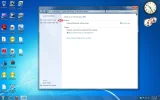
Type backup in the search area of the start menu. Then click it from the above menu. Then create a system image from the left side navigation pane.
Edit
It's best not to put the image on the same partition as the current operating system. Use an external hard drive or create another partition or use dvd.
Edit
It's best not to put the image on the same partition as the current operating system. Use an external hard drive or create another partition or use dvd.
Attachments
Last edited:

Super Sarge
New Member
- Joined
- Jun 4, 2009
- Messages
- 1,723
NO !!! but you can backup to CD/DVD Discs. It is not possible to back up to the disc you are going to backup to
Mitchell_A
Former Moderator
- Joined
- Feb 7, 2009
- Messages
- 4,978
I would NOT recommend the upgrade path, backup your files and programs and do a clean install, reinstalling everything after the install..
Alternatively, instead of backing up, and can choose not to reformat during the "clean" install and windows will put your old installation in a folder named "windows.old" in your main drive where you can access everything from your previous installation, so you can just move all your personal files over. You will need to reinstall your programs, but hey at least now you have a list of them in your old directory
I hope this helps. Sorry if it's a bit confusing. The whole "windows.old" folder thing is kind of hard to explain.
Alternatively, instead of backing up, and can choose not to reformat during the "clean" install and windows will put your old installation in a folder named "windows.old" in your main drive where you can access everything from your previous installation, so you can just move all your personal files over. You will need to reinstall your programs, but hey at least now you have a list of them in your old directory
I hope this helps. Sorry if it's a bit confusing. The whole "windows.old" folder thing is kind of hard to explain.
Just another suggestion, though it may not be the first choice of yours -- have you considered performing a "custom" installation as opposed to the "upgrade?" You can do the "custom" install from the same upgrade disc of Windows 7. The only difference for the custom installation is that it is essentially a clean installation and therefore will require a reinstall of all your applications.
The reason why I normally recommend this method of moving to Windows 7 over an upgrade is that it is always best to perform a clean install whenever possible so as not to bring former code into a new environment. The custom installation will also back up all of your data for you and move it to a "windows.old" folder within your same hard drive / partition. It is always advisable to backup data yourself just as a precaution though.
The reason why I normally recommend this method of moving to Windows 7 over an upgrade is that it is always best to perform a clean install whenever possible so as not to bring former code into a new environment. The custom installation will also back up all of your data for you and move it to a "windows.old" folder within your same hard drive / partition. It is always advisable to backup data yourself just as a precaution though.
Mitchell_A
Former Moderator
- Joined
- Feb 7, 2009
- Messages
- 4,978
A clean install with a fresh reformat takes about 8 GB before updates.
But if you don't reformat when you do the clean install, it will e that 8 GB plus however much space your previous installation took. But you can easily clean that up by running Disk Cleanup as an admin once you've got your files copied back over - thanks to Jessica for making sense of my original post.
You can perform a clean installation using an upgrade disc, here's how:
Link Removed due to 404 Error
It's a rather time consuming process, and if your not confortable working with the registry, you may want to purchase the "full" version of Windows 7. Of course you could always still upgrade, but there's a 95% chance you'll come across a lot of problems upon completion.
But if you don't reformat when you do the clean install, it will e that 8 GB plus however much space your previous installation took. But you can easily clean that up by running Disk Cleanup as an admin once you've got your files copied back over - thanks to Jessica for making sense of my original post.
You can perform a clean installation using an upgrade disc, here's how:
Link Removed due to 404 Error
It's a rather time consuming process, and if your not confortable working with the registry, you may want to purchase the "full" version of Windows 7. Of course you could always still upgrade, but there's a 95% chance you'll come across a lot of problems upon completion.
Similar threads

- Article
- Replies
- 0
- Views
- 2K
- Article
- Replies
- 0
- Views
- 799
- Article
- Replies
- 0
- Views
- 784

- Solved
- Replies
- 2
- Views
- 2K

- Replies
- 1
- Views
- 2K
