
TechJunkie’s guide correctly identifies RunPlatformExperienceHelperOnUnlock under Task Scheduler’s GoogleUserPEH folder as the common trigger reported by affected users. PCWorld independently documented the same pattern in July: a sizable white, content-free window can linger on the desktop, block icons, and appear across both Windows 10 and Windows 11 systems. Users on Intel and AMD hardware have described the problem, which undercuts early theories that placed the blame on an AMD graphics driver.
The important qualification is that this is a pattern with a useful workaround, not a formal Windows diagnosis. Microsoft has not issued a Windows servicing advisory for the blank-window issue, and Google’s public Chrome release posts do not identify a white-window defect or explain the purpose of the helper task. The task is associated with Chrome’s platform_experience_helper.exe, but Google has not publicly documented what user-facing Chrome function will be lost if it is disabled.
That changes how Windows users and administrators should approach the fix. Disabling an unfamiliar scheduled task because a web guide says it is safe is acceptable only after confirming the task points to the expected signed Google executable. A blank window is a symptom, not a unique error code. Other startup applications, management agents, OEM utilities, and unwanted software can also create an empty or improperly rendered window.
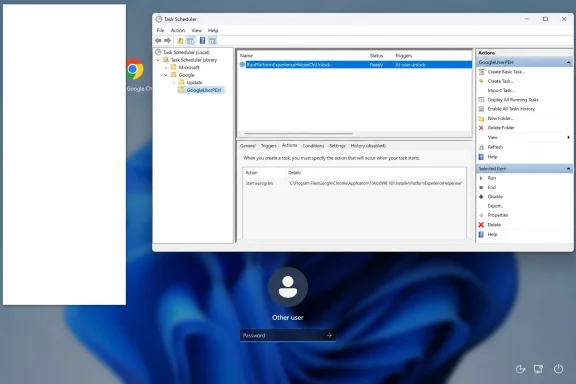 Chrome’s scheduled task matches the timing of the bug
The name RunPlatformExperienceHelperOnUnlock explains why the reports look inconsistent at first glance. It is triggered when a Windows session is unlocked, which can include the first sign-in after startup, a return from the lock screen, or a restart followed by login. It does not appear in Task Manager’s Startup apps list because Task Scheduler, rather than the conventional Startup folder or Run registry keys, launches it.
Reports first clustered in early July 2026, shortly after Chrome 150 reached the Stable channel. The affected task has appeared under this location:
Task Scheduler Library\GoogleUserPEH\RunPlatformExperienceHelperOnUnlock
The corresponding executable reported by several troubleshooting sites and user investigations is:
C:\Program Files\Google\Chrome\Application\PlatformExperienceHelper\platform_experience_helper.exe
That path matters. A task named similarly but pointing to AppData, Temp, a random folder under ProgramData, or an unsigned executable should not be treated as this Chrome nuisance. That is a separate security investigation: record the path, scan the system with Microsoft Defender, and inspect the file’s digital signature before disabling or deleting anything.
The Chrome connection is also stronger than a one-off forum theory. PCWorld, ElevenForum, Microsoft Q&A community threads, and Reddit reports independently converged on the same task name and the same disappearance of the white box after the task was disabled. That is credible operational evidence, though it is still different from Google formally accepting responsibility or documenting a permanent fix.
Update Chrome before changing Task Scheduler
The submitted guidance leads with disabling the task, but updating Chrome should be the first repair step. Google released Chrome 150.0.7871.100/.101 for Windows on July 7, followed by later Chrome 150 maintenance builds. Several ElevenForum participants reported that the blank window stopped after updating to Chrome 150.0.7871.101, although Google’s release notes did not say that build fixed this particular defect.
That evidence is anecdotal, so it should not be presented as a confirmed patch. Still, it is enough to make updating the least invasive first move—especially for managed devices, where disabling a Chrome-installed task across an estate creates a new unsupported configuration that future Chrome updates may reverse.
Open Chrome, select the three-dot menu, then go to Help and About Google Chrome. Allow it to download any pending update, close all Chrome windows, and relaunch the browser. Then restart Windows rather than merely shutting down and powering back on; on systems with Fast Startup enabled, a shutdown can preserve portions of the previous session and make troubleshooting less conclusive.
If the white box has disappeared after the update and restart, leave the scheduled task enabled. There is no benefit in making a persistent Task Scheduler change for a problem that no longer reproduces.
Verify the task before disabling it
If the white rectangle returns after Chrome is fully updated, Task Scheduler provides a targeted workaround. The key is to inspect rather than blindly disable.
Open Task Scheduler by pressing Win + R, typing taskschd.msc, and pressing Enter. In the left pane, expand Task Scheduler Library and select GoogleUserPEH. In the central pane, locate RunPlatformExperienceHelperOnUnlock.
Before disabling it, open Properties and check the Actions tab. The action should lead to Chrome’s PlatformExperienceHelper directory under C:\Program Files\Google\Chrome\Application\. If it does, right-click the task and choose Disable, then restart Windows and test both a fresh sign-in and a lock-and-unlock cycle.
This stops Windows from launching that one helper at unlock. It does not uninstall Chrome, erase browser profiles, remove extensions, or change the Windows graphics stack. It is a containment measure for a process that is drawing an empty desktop window.
Do not disable every item in GoogleUserPEH, and do not delete the folder. The reports identify a narrow trigger, not a reason to dismantle Chrome’s scheduled-task configuration wholesale. Some users have also pointed to RunPlatformExperienceHelper_Daily, but that is a separate task and should be changed only if the unlock task does not resolve a reproducible symptom.
The claim that disabling the helper has no side effects is too broad. Most people who reported success did not describe a Chrome regression, but that is not proof that the helper is nonessential. One Reddit user reported a Windows freeze after changing the task, though no second outlet has independently verified that outcome or established that the task change caused it. The sensible course is to document the original task state and re-enable it if Chrome or Windows behavior worsens.
A white box is not automatically Chrome
The workaround only fits a specific scenario: the box is blank, appears around sign-in or unlock, Chrome is installed, GoogleUserPEH exists, and the scheduled task points to the expected Google executable. If any of those conditions is missing, the diagnosis is incomplete.
A useful test is to open Task Manager while the window is visible. Check the Processes and Details views for an application that appeared at the same time. For deeper inspection, Microsoft Sysinternals Process Explorer can identify the process owning an on-screen window, while Autoruns can expose scheduled tasks, logon entries, services, and Explorer shell extensions that Task Manager does not show.
For an individual PC, a clean boot is appropriate if the Chrome task is absent or disabling it changes nothing. Disable non-Microsoft startup services and startup applications temporarily, restart, and re-enable entries in groups until the artifact returns. Enterprise administrators should use the same principle with a pilot group, endpoint telemetry, and an approved configuration change rather than deploying a blanket task disable to every Chrome installation.
A box that appears only during a particular application launch points away from the Chrome unlock task. A box that survives after Chrome has been uninstalled, appears before user sign-in, carries text or controls, or is associated with unexpected CPU, network, or disk activity also deserves a different investigation.
The durable fix remains unconfirmed
The July reports show a real and repeatable Chrome-adjacent Windows nuisance, but the public record does not yet support calling it a Microsoft defect or a documented Chrome feature. The best evidence places the visible artifact in Chrome’s Platform Experience Helper launch path, with the unlock-triggered scheduled task as the most effective temporary workaround.
For affected users, the order of operations should be simple: update Chrome, restart Windows, verify the task’s executable path, disable only RunPlatformExperienceHelperOnUnlock if the blank box remains, and re-enable it if the change introduces problems. For everyone else seeing a random white box, do not apply the Chrome fix until the process and timing match—the wrong scheduled task can hide the real cause rather than solve it.