
The guide, published by Mashable on August 4, says its alerts will carry breaking news, trending stories, and deal coverage directly to a device rather than requiring readers to revisit the site. The important operational detail is that this is a web-notification subscription, not a Windows app installation or a newsletter signup. Permission is tied to the site and, in most cases, to the particular browser profile where it was granted.
For Microsoft Edge users on Windows 11 or Windows 10, visit Mashable, select the site-information control immediately left of the address bar, and open the site permissions view. Set Notifications to Allow, then refresh the site. Microsoft’s own Edge documentation confirms that site notifications can appear in the lower-right corner of the desktop and in Notification Center; they can continue arriving even when the Edge window itself is closed.
That last point changes the usual assumption that closing a browser ends its connection to a news site. A user who enables Mashable notifications in Edge is authorizing Edge to act as the delivery channel for future alerts. The browser remains the sender Windows recognizes, while Mashable remains the website that originates the notification.
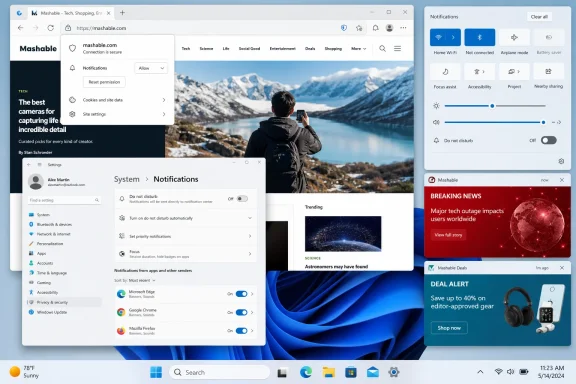 The Windows setting that can still silence the alerts
Mashable correctly identifies the second permission layer that often causes confusion: a site can be set to Allow in Edge, Chrome, or Firefox while Windows prevents the browser from showing banners. On Windows 11, open Settings > System > Notifications, make sure Notifications is enabled globally, and then check that the chosen browser is allowed under “Notifications from apps and other senders.”
Microsoft documents that Windows can independently control whether each app displays banners, appears in Notification Center, plays sounds, or shows content on the lock screen. For a web push subscription, those controls apply to the browser rather than to Mashable as a separately listed Windows application. If Edge is blocked at the Windows level, changing Mashable’s site permission back to Allow will not restore visible desktop alerts by itself.
Windows 11’s Do not disturb setting is a separate issue. Mashable advises readers to verify that Do not disturb is disabled, but the fuller check is whether Windows is configured to activate it automatically. Microsoft lists automatic triggers including scheduled times, full-screen apps, games, duplicated displays, and the hour following a Windows feature update. Alerts that arrive during that period may go to Notification Center without appearing as banners.
For a quick diagnostic, use this sequence:
- Confirm that Mashable is listed as allowed in the browser’s per-site notification controls.
- Confirm that the browser itself can show notifications in Settings > System > Notifications.
- Open Notification Center with Windows key + N and check whether alerts arrived without producing a banner.
- Review the automatic Do not disturb rules rather than only switching the feature off at the moment of testing.
This is also why a simple browser refresh is useful after changing a site permission: it confirms that the browser has applied the new rule. It does not, however, prove that the website has immediately sent a notification to test the channel.
Edge has an enterprise-policy exception
Mashable’s consumer instructions assume the browser’s notification controls belong to the user. That is true on a personally managed PC, but it is incomplete for work and school devices.
Microsoft’s Edge policy documentation shows that administrators can set a mandatory default for website notifications using the DefaultNotificationsSetting policy. It can permit notifications, block them, or make sites ask before sending them. Administrators can also use NotificationsAllowedForUrls to specify sites that may show notifications; Microsoft says the policy supports dynamic refresh and can be enforced through Edge’s administrative templates or the Windows registry.
The practical consequence is simple: if Edge says that its settings are “managed by your organization,” a user may be unable to approve Mashable notifications regardless of the steps in the guide. On a corporate device, that is normally an intentional policy decision rather than a browser fault. Help desk staff should check Edge policy status before treating the issue as a Windows notifications failure.
For unmanaged Windows PCs, Edge’s permission can be changed or revoked from the same address-bar site-information menu. Microsoft specifically distinguishes web notifications from pop-ups: allowing a notification does not grant a website permission to open advertising windows or redirects. The permissions are separate, and users do not need to weaken Edge’s pop-up protections to receive site alerts.
Chrome and Firefox use the same permission model
Mashable’s Chrome instructions follow the familiar Chromium permission path: open the site-information panel at the left side of the address bar, set Notifications to Allow, and reload the page. Google’s Chrome support documentation confirms that users can manage an individual site directly from that control or through Settings > Privacy and security > Site settings > Notifications.
Chrome adds a detail absent from Mashable’s article: notification permissions may not be permanent. Google says Chrome can remove notification access from sites a person has not visited for a while, as part of its effort to reduce notification overload. A user who previously enabled Mashable alerts but stopped receiving them should therefore check Chrome’s removed-permissions or safety-review controls before assuming that Windows has blocked the browser.
Chrome may also use quieter prompts, which replace the ordinary permission prompt with an icon near the address bar. In that case, the absence of a large “Allow notifications” dialog does not necessarily mean Mashable cannot ask for permission; Chrome may simply be presenting the request less intrusively.
Firefox works on the same broad principle. Mashable instructs readers to accept Firefox’s initial permission request, or to find Mashable under Settings > Privacy & Security > Permissions > Notifications and change the entry to Allow. As with Edge and Chrome, the permission belongs to the Firefox profile. Granting access in one profile does not automatically enable it in another, and private-browsing sessions should not be used as the test case for a long-lived news-alert subscription.
Mac and Android instructions are separate from the Windows workflow
Mashable also covers Safari on macOS and Chrome on Android, but their operating-system gates differ from Windows. Safari users need to permit Mashable in Safari’s website notification settings and ensure that macOS allows notification prompts. Android Chrome users must have browser notifications enabled in Chrome’s site settings before allowing Mashable at the site level.
The shared lesson across platforms is that there are two decisions: whether a website may send notifications, and whether the operating system may display notifications from the browser. The consumer guide handles both, though Windows users should interpret “allow Mashable” as a site-level permission and “allow Edge, Chrome, or Firefox” as the system-level delivery permission.
Readers should also keep the subscription narrowly scoped. Web notifications are convenient when the source is trusted and the alert volume is worthwhile, but they are easy to accumulate and easy to forget. In Edge, the reversible setting is available from the address bar on Mashable itself; in Windows, the browser’s sender controls provide a broader off switch without affecting the browser’s ability to display websites.
Mashable’s new instructions are therefore useful as a setup guide, but the decisive Windows check is not on Mashable’s page. It is whether the browser remains allowed to notify you after Windows 11’s notification rules, Do not disturb automation, Chrome permission cleanup, and any organization-managed Edge policy have had their say.
