
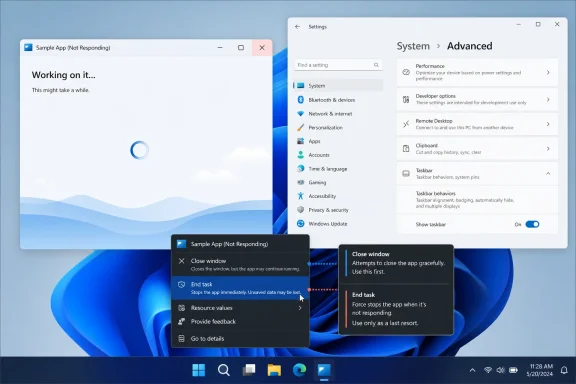
How-To Geek’s August 19 guide correctly identifies the practical payoff: after the option is enabled, right-clicking a running app’s taskbar icon exposes End task. That cuts out the familiar Ctrl+Shift+Esc, process-list, and right-click sequence when an app has stopped responding. For people who regularly work with browsers, IDEs, Office applications, virtual machines, or remote-desktop sessions, that is a worthwhile convenience.
But the important qualification is that this is a force-quit control, not a smarter Close button. It exists for an application that cannot or will not exit normally. Treating it as the everyday way to dismiss a window invites data loss and can create avoidable recovery work.
 A 2023 feature presented as a fresh Windows 11 discovery
Microsoft’s Windows Insider team said in May 2023 that enabling End task from the taskbar was working through the developer settings page. By September 2023, Microsoft’s Windows Developer Blog said the control had reached stable Windows 11 through the latest update at the time. The company also listed it in Release Preview notes for Windows 11 version 24H2 in August 2024, where it noted that the command no longer showed a “not responding” dialog before stopping a task.
That history matters because readers should not interpret the How-To Geek article as announcing a new Windows 11 capability or wait for a future feature rollout. On a reasonably current Windows 11 installation, the feature may already be available; it is simply off by default.
Microsoft’s current Advanced Settings documentation describes the option plainly: Taskbar > End Task enables ending a task by right-clicking it on the taskbar. The page is aimed at developers and power users, which helps explain why the control was tucked away rather than placed among ordinary taskbar settings. The command is powerful enough to end active work instantly, and Microsoft has chosen to make users opt in.
The fastest low-risk route is therefore the Settings app:
- Open Settings with Win+I.
- Go to System > Advanced.
- Turn on End Task in the Taskbar section.
- Right-click the taskbar icon for a running application and select End task when that application is genuinely stuck.
On installations that still use the older label, the same control can appear under Settings > System > For developers. Searching Settings for “End Task” is safer than relying on a path copied from an article, particularly because Microsoft has renamed and reorganized this settings area over several Windows 11 releases.
What End task does that Close does not
The distinction between Close window and End task is operational, not cosmetic. A normal close request asks the application to wind down: it can prompt to save documents, finish writing files, terminate background work cleanly, and release resources. A responsive application should be closed that way.
End task bypasses that cooperation. It is designed to terminate the application when the normal user-interface path is no longer functioning. The command has the same basic role as ending an application in Task Manager, but attaches that action to the place users can already see the failed program.
The consequence is simple: unsaved work can be lost. Word, Excel, and other applications with recovery features may offer restored material when restarted, but recovery is not a guarantee and is especially unreliable for recently created or never-saved documents. A browser can restore a session, but it may not restore form fields, uploads, in-progress downloads, or work inside a web application.
For IT staff, the shortcut is particularly useful when a user can identify the failed application but cannot navigate Task Manager confidently. It also avoids the more destructive reflex of signing out or rebooting a machine merely to clear one hung application. Those larger actions close other programs too, often turning a single app failure into a broader data-loss event.
The taskbar command does have limits. It is not a replacement for Task Manager’s Processes, Details, Performance, Startup apps, Services, Users, and process-tree views. If the visible app is only a symptom of a wider problem — runaway CPU usage, a stalled service, a driver fault, a child process that remains alive, or an Explorer crash — Task Manager remains the diagnostic tool.
One app icon may mean more than one window
How-To Geek notes that ending a taskbar application with multiple open windows can present an “End all tasks” command rather than a control for one selected document window. That behavior fits the feature’s purpose: the taskbar menu is an emergency escape hatch for an unhealthy application, not a window-management interface.
Users should take the wording seriously. If several Microsoft Word documents, browser windows, or terminal sessions belong to the same running application, ending all tasks can close more work than expected. The taskbar’s normal Close window command is still the appropriate choice when the objective is to dismiss a single functioning window.
This is also why the shortcut is most useful for applications that are visibly frozen: a browser that will not repaint, an IDE stuck during an extension operation, a media editor that has ceased responding, or a line-of-business desktop application trapped behind an invisible dialog. It is less useful for diagnosing applications that are merely slow, busy, or waiting for network access.
A few seconds of patience can distinguish a temporary stall from a failure. If the program is still processing a large file, rendering media, compiling code, or waiting for a remote resource, forcing it closed may discard work while solving nothing.
The Registry fallback needs more caution than the guide suggests
The Settings toggle is the preferred path. How-To Geek also supplies a Registry workaround, but the published instructions deserve caution because the record is inconsistent about the exact Registry location.
The article says to create a TaskbarDeveloperSettings key beneath:
HKEY_CURRENT_USER\Software\Microsoft\Windows\CurrentVersion\Explorer\Advanced
and then create TaskbarEndTask inside that new key.
Microsoft’s current open Windows Developer Configuration project, however, identifies TaskbarEndTask as a DWORD value directly under:
HKEY_CURRENT_USER\Software\Microsoft\Windows\CurrentVersion\Explorer\Advanced
That disagreement is not a minor typographical difference. It determines whether an automation script writes the value in a location Windows actually reads. Community deployment discussions contain examples of both layouts, which may reflect changes across Windows 11 versions, experimental builds, or simply copied instructions that outlived the implementation they targeted.
The practical conclusion is not to choose one Registry recipe by confidence alone. If the Settings toggle exists, use it and avoid Registry editing altogether. If an organization has a genuine need to enable the control for users at scale, validate the intended behavior on the exact Windows 11 release and servicing level in a test group before deploying a per-user Registry change through Intune, Group Policy Preferences, a logon script, or an image task sequence.
The setting lives in the current user hive, not a machine-wide policy location. That means enabling it in one account does not automatically turn it on for every local or domain user who later signs in. This is the operational detail that a simple Registry tweak often leaves out: a technician may test the setting successfully in an administrator account, then discover that standard users never received it.
A small shortcut with a narrow, valuable job
Windows 11’s End task option is worth enabling for people who understand what it does. It reduces the time needed to remove a genuinely frozen application, keeps users out of Task Manager for a routine recovery action, and can spare the rest of a desktop session from an unnecessary restart.
It should remain an exception tool. Close responsive apps normally, save work before forcing anything to exit, and move to Task Manager when a failed program points to a system-level problem. For the straightforward case — one desktop app that has stopped responding while everything else still works — the taskbar command is exactly the shortcut Windows 11 needed.
