
A cursor that jumps, freezes, loses side-button assignments, or refuses to reconnect over Bluetooth can still be a driver problem. But it can also be a weak battery, USB interference, a damaged cable, a stale Bluetooth pairing record, a firmware mismatch between a wireless mouse and its receiver, or an overly aggressive companion app. Treating every symptom as a reason to download a “mouse driver” from a third-party site is one of the fastest ways to create a bigger problem.
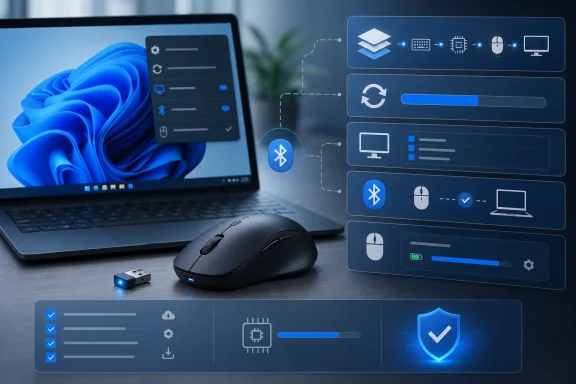 The modern mouse-driver model
The word driver now covers several different layers. Understanding those layers makes troubleshooting substantially easier, particularly on Windows 11 PCs where a generic HID-compliant mouse entry is often completely normal.
At the base is the operating system driver. Windows communicates with ordinary USB and Bluetooth mice through its own input and HID support. This is why a newly plugged-in mouse often works immediately, even before an internet connection is available. Windows Update can subsequently supply recommended or optional hardware updates when the device manufacturer has published compatible packages. Microsoft documents that recommended drivers can install automatically, while optional drivers require manual selection.
Above that sits the device-specific software layer. This is where higher-end mouse features live:
- DPI stages and sensitivity presets
- Extra-button remapping
- Application-specific profiles
- Macros and gestures
- RGB lighting and battery reporting
- Wireless receiver pairing
- Mouse and receiver firmware updates
A gaming mouse can therefore show up in Device Manager as a generic HID device while its manufacturer app handles every advanced feature. That is not evidence that Windows failed to install the “real” driver. It is the expected division of responsibility between the operating system and the peripheral’s ecosystem.
Finally, there is firmware: code stored on the mouse itself, and sometimes separately on its USB receiver. Firmware is not the same as a Windows driver. It should be updated only through the manufacturer’s supported process, with a stable power connection and no interruption.
Start with Windows Update on Windows 11
For a mainstream Windows 11 PC, Windows Update should be the first stop. It is the lowest-risk path because Windows can evaluate the device, the installed hardware IDs, and the compatibility of offered updates before installing them.
- Open Start > Settings > Windows Update.
- Select Check for updates.
- Install available Windows updates.
- Restart the PC when prompted.
- Return to Windows Update after the restart and check for optional driver updates.
The optional-driver step matters. Microsoft notes that Windows 11 does not automatically install every optional driver package; users can find them under Settings > Windows Update > Advanced options > Optional updates when they are available. That official workflow is also the preferred way to install a vendor-provided driver without hunting through unverified download sites.
Why Windows Update should come before Device Manager
Windows Update is more than a delivery mechanism for monthly patches. It is also a compatibility channel for drivers supplied by hardware makers. A Bluetooth mouse issue may be resolved not by a mouse entry at all, but by a revised Bluetooth radio driver, USB controller package, chipset update, or firmware update supplied for the PC.
This sequencing is especially important on laptops and compact desktops. Their Bluetooth and Wi-Fi hardware is often integrated on the motherboard, so the device manufacturer—not the mouse maker—may be responsible for the adapter package that fixes pairing instability. Microsoft similarly advises checking the PC manufacturer’s site when Windows cannot locate a newer Bluetooth driver. Its Bluetooth driver documentation specifically calls out PC-maker downloads as the next step after Windows Update.
Windows 10 requires a more cautious approach
Windows 10 support ended on October 14, 2025, according to Microsoft’s current driver-update documentation. Microsoft’s support page states that date directly. Organizations with extended support arrangements, Long-Term Servicing Channel deployments, or managed update plans can be exceptions, but an ordinary consumer Windows 10 installation should not be treated as an indefinitely current platform.
On a supported or managed Windows 10 installation, check Settings > Update & Security > Windows Update, then look for View optional updates and expand Driver updates. Install only items that clearly correspond to the mouse, Bluetooth adapter, USB controller, chipset, or PC model in question. A reboot is worthwhile even if Windows does not explicitly demand one, because kernel-mode drivers and Bluetooth services can remain in their old state until restart.
Use Device Manager when Windows can see the mouse
Device Manager is most helpful when the mouse is detected but behaves incorrectly. Typical examples include a mouse that moves but has no extra buttons, a Bluetooth device that appears with a warning symbol, or a wired device that repeatedly disconnects.
Open Device Manager by right-clicking Start and choosing Device Manager, or by searching for it from Start. Then inspect these categories:
- Mice and other pointing devices
- Human Interface Devices
- Bluetooth
- Universal Serial Bus controllers
- Other devices, if Windows has not identified the hardware correctly
Do not be alarmed if the mouse is listed as HID-compliant mouse. For standard mice, that generic label is common and often correct. The goal is not to force a different name into Device Manager; it is to restore stable input and ensure the intended device functions are available.
Search automatically before forcing an install
Right-click the relevant device and choose Update driver > Search automatically for drivers. This asks Windows to check its available sources for a more suitable package.
If the result says that the best driver is already installed, do not assume the investigation is over. That message can simply mean Windows does not have a newer package locally or through its active update channel. Microsoft’s Bluetooth guidance says a newer driver may still be available from the PC manufacturer. The same guidance recommends checking the computer maker’s support site after Windows has no newer result.
For a laptop, use the manufacturer’s support utility or support page for the exact model. For a desktop assembled from components, prioritize the motherboard maker for chipset, USB, Wi-Fi, and Bluetooth packages. Those components are frequently more relevant to mouse stability than a generic pointer-device package.
Install a downloaded package only when it matches the hardware
The manual option—Update driver > Browse my computer for drivers—is appropriate only when a reputable vendor has supplied a package for the exact device and operating system. That might be an installer, or it might be a folder containing an .inf file plus related driver files.
Microsoft documents this manual route for Bluetooth adapter packages: select the folder that contains the extracted files, then let Device Manager process the .inf installation. Its troubleshooting instructions outline both executable and INF-based driver installation paths.
Avoid downloading “universal mouse driver updaters,” driver repositories, and anonymous ZIP files. The risks are not merely nuisance advertisements or incorrect versions. A bad driver can introduce instability, block security features, overwrite a working package, or install software with far broader privileges than a mouse utility should need.
Reinstall a corrupted mouse or Bluetooth entry
If a device has stopped responding after an update, a damaged driver registration or stale pairing record may be the issue. Reinstalling the device entry is often more useful than repeatedly clicking Update driver.
For a mouse entry:
- In Device Manager, right-click the affected mouse under Mice and other pointing devices or Human Interface Devices.
- Choose Uninstall device.
- Confirm the removal.
- Restart the PC.
- If Windows does not restore the device automatically, select Action > Scan for hardware changes in Device Manager.
For a Bluetooth mouse, it can be more effective to reinstall the Bluetooth adapter after first removing the mouse from Windows’ Bluetooth device list. Microsoft’s current troubleshooting material confirms that Windows normally reinstalls the adapter after restart, and recommends Scan for hardware changes if it does not. See Microsoft’s Bluetooth repair steps for the supported sequence.
Fix Bluetooth pairing before chasing a mouse driver
Bluetooth problems often look like driver failures because the mouse may disappear, lag, or reconnect only intermittently. But pairing and radio conditions need attention first.
Put the mouse into pairing mode according to its manufacturer’s instructions—normally by holding a dedicated Pair or channel button until an LED flashes. Then open Settings > Bluetooth & devices > Add device > Bluetooth and select the mouse when it appears.
If the mouse has been paired before but now refuses to reconnect, remove it from the Bluetooth device list and pair it again. Confirm that Bluetooth is enabled, that the mouse has sufficient battery charge, and that it is within practical range of the PC.
USB 3 interference is a real troubleshooting factor
Wireless problems are not always radio-driver bugs. Microsoft warns that unshielded USB devices near USB 3.0 ports can interfere with Bluetooth connections. Its Bluetooth troubleshooting page specifically identifies nearby USB 3.0 hardware as a possible cause of sluggish or unreliable Bluetooth accessories.
That makes several low-tech tests worthwhile:
- Move a USB receiver away from the PC using a short extension cable.
- Disconnect nearby external drives, docks, and high-speed USB accessories temporarily.
- Test another USB port, preferably one farther from other radio receivers.
- Charge or replace the mouse battery.
- Restart both the PC and the mouse.
- Update the PC’s Bluetooth and chipset packages from the OEM.
On Windows 11, the Get Help app includes Microsoft’s automated Bluetooth troubleshooter. It can run diagnostics and attempt common repairs before a user begins manually removing devices or altering drivers. Microsoft directs Windows 11 users to the Get Help Bluetooth troubleshooter as the initial automated diagnostic path.
Companion software: customization and firmware, not a universal driver replacement
The manufacturer app is essential when the mouse has advanced features, but it should be matched to the exact product family. Installing several competing utilities “just in case” can create conflicting profiles, duplicate background services, and confusion about which program owns the device.
For Logitech productivity hardware, Logi Options+ is the current customization platform for supported mice and keyboards. Logitech describes it as software for button customization, gestures, cursor controls, app-specific settings, and related workflows. The official Logi Options+ setup page lists support for Windows 10 or later and macOS 12 or later.
For Logitech gaming hardware, use Logitech G HUB only when the specific mouse is supported by that ecosystem. Logitech’s software directory distinguishes its productivity-oriented Options+ application from its gaming and streaming tools, reinforcing the importance of using the correct family-specific utility. Logitech’s software page identifies Options+ and G HUB as separate offerings with distinct roles.
CORSAIR users should manage supported devices through iCUE. For firmware work, CORSAIR says to connect the device directly to the PC; with wireless hardware, connect both the mouse and its dongle directly rather than through a hub or dock. CORSAIR’s firmware instructions state that direct connections provide the most stable update path and warn against intermediary USB devices.
Firmware updates demand more care than driver updates
Firmware flashing can improve reliability, fix receiver compatibility, and resolve intermittent device behavior. It can also leave a device unusable if power or the data connection is interrupted at the wrong time.
Before starting a firmware update:
- Charge a wireless mouse adequately.
- Connect the mouse and receiver exactly as the vendor instructs.
- Avoid USB hubs, front-panel extensions of questionable quality, and docks.
- Close games and other peripheral utilities.
- Do not restart, disconnect, or turn off the mouse during the update.
- Verify that the vendor app recognizes both the mouse and its receiver, if applicable.
CORSAIR’s instructions explicitly caution users not to disconnect a device during a firmware update. Its current iCUE documentation also provides a controlled “Force Update” option only when a normal update check is insufficient. That distinction matters: a forced firmware flash is not a routine maintenance action.
Keep legacy utilities away from current devices
Older peripheral utilities can be useful for older products, but they are not automatically appropriate for current hardware. A legacy installer may lack support for a newer receiver, a modern security configuration, or a current version of Windows.
The safer policy is simple: begin on the manufacturer’s product-support page, enter the exact model, and download only the software listed for that device. Logitech, for example, positions Options+ as its newer-generation customization application while still maintaining pages for older software. Its current product page describes Options+ as the next-generation successor in the Options family.
Do not overlook the PC manufacturer
When a mouse continues to malfunction after Windows Update and basic device repair, shift focus from the mouse to the PC platform. The following updates can materially affect mouse behavior:
- Bluetooth adapter drivers
- Wi-Fi/Bluetooth combo-card packages
- USB host controller drivers
- Chipset drivers
- BIOS or UEFI firmware
- Dock firmware
- Thunderbolt or USB4 controller software
This is particularly relevant for Bluetooth dropouts and wireless receiver instability. An external mouse may be functioning correctly while the laptop’s radio, USB power management, or dock is the underlying failure point.
Windows Update remains valuable here, but OEM support tools can expose model-specific packages not presented as optional updates. On business-class systems, those packages may also be governed by IT policies, staged deployment rings, or security review processes.
Managed PCs may deliberately hide driver updates
Work, school, and family-managed PCs can behave differently from personal systems. An organization can control Windows Update through Intune, Group Policy, configuration policies, or related management tools. Microsoft defines update-managed devices as systems whose Windows Update behavior is controlled through administrative tools or policies.
This can explain why a driver appears to be missing from Optional updates. Microsoft’s Intune driver-update FAQ states that, once a device is assigned to a driver-update policy, optional drivers are not shown to the user; approved updates become required and install through the management process. That is a design choice, not necessarily a fault with the mouse or Windows Update.
The correct response on a managed device is to provide the IT team with useful details:
- PC manufacturer and exact model
- Windows version and build
- Mouse make and exact model
- Connection type: USB, Bluetooth, or 2.4 GHz receiver
- Device Manager error codes, if any
- The date the fault began
- Whether another mouse works normally
Do not bypass update policies or install unsigned packages to force a fix. In an enterprise setting, controlled driver deployment exists to reduce the chance that a broadly deployed package breaks compatibility or security.
Treat Memory Integrity warnings as a compatibility signal
Windows may display a message saying that a driver cannot load because of Memory Integrity. This security feature, also called Hypervisor-protected Code Integrity, helps prevent low-level malicious code from abusing vulnerable drivers. Microsoft explains that Memory Integrity isolates code verification to make driver-based attacks harder.
The preferred fix is not to disable the protection. First, install current Windows updates and obtain a compatible driver from the device manufacturer or PC maker. Microsoft’s support guidance presents an updated compatible driver as the first remedy and warns that disabling Memory Integrity can take a Secured-core PC out of its secured state. The official “driver can’t load” article makes that security trade-off explicit.
For an old mouse utility that installs an incompatible driver, the stronger long-term answer may be to remove the legacy software and use the mouse’s built-in HID functionality. Basic pointer movement and clicks will often continue to work even when old customization features do not.
Mouse updates on macOS, ChromeOS, and Ubuntu
The same principle applies outside Windows: update the operating system first rather than searching for generic mouse-driver installers.
macOS
On a Mac, choose Apple menu > System Settings > General > Software Update and install available macOS updates. Apple also recommends enabling background system-data and security updates. In macOS Tahoe 26 or later, the setting is Install system data files and security updates, while macOS Sequoia, Sonoma, and Ventura display Install Security Responses and system files. Apple documents the version-specific wording and locations for these background-update controls.
For Bluetooth or Magic Mouse issues, reconnect or re-pair the device through System Settings > Bluetooth. Use the official cable-based pairing method where the specific model supports it, and avoid installing outdated Mac driver packages intended for much older Apple peripherals or Boot Camp configurations.
ChromeOS
Chromebooks update their input support through ChromeOS updates, not through separate mouse-driver installers. Connect to Wi-Fi, select the clock area, open Settings > About ChromeOS, and choose Check for updates.
Mouse behavior settings are separate from driver installation. ChromeOS provides device settings for connected peripherals, including customization options for mouse buttons. Google’s Chromebook documentation directs users to Device settings to configure connected mouse controls. Adjusting pointer speed, scrolling, primary button behavior, or acceleration can improve usability, but it does not replace or manually update a driver.
Ubuntu and other Linux distributions
On Ubuntu, input, Bluetooth, and kernel improvements typically arrive through normal package management. A straightforward terminal update sequence is:
sudo apt update
sudo apt upgrade
Restart after a kernel, Bluetooth stack, or related hardware update. Ubuntu’s documentation describes apt-get update as refreshing package information and apt-get upgrade as upgrading installed packages. The Ubuntu community documentation outlines those package-management functions.
For most USB mice, Linux uses kernel HID support and desktop input components such as libinput. A proprietary configuration tool may still be warranted for a gaming mouse with complex macros or lighting, but it should come from the vendor or a trusted distribution repository—not a random download portal.
Remove companion software without removing the mouse
If a vendor app is crashing, consuming resources, or causing profile conflicts, uninstalling it is a reasonable troubleshooting step. On Windows 11, open Settings > Apps > Installed apps, locate the utility, select the More menu, and choose Uninstall. Microsoft documents this Settings-based removal path for installed applications.
Removing companion software does not normally remove Windows’ fundamental HID mouse support. The mouse should continue to provide basic pointing, clicking, and scrolling after a reboot. What may disappear are vendor-specific features such as custom mappings, RGB effects, stored profiles, battery overlays, or macro controls.
That distinction is useful diagnostically. If the mouse becomes stable after the companion app is removed, the issue was likely in the utility, its profile service, or its firmware integration—not in Windows’ basic mouse driver.
The reliable order of operations
A disciplined mouse-driver update process avoids both unnecessary downloads and risky overcorrections.
- Check physical basics: battery, cable, receiver, USB port, and surface.
- Run Windows Update and inspect Optional updates.
- Restart before drawing conclusions.
- Repair Bluetooth pairing if the device is wireless.
- Update Bluetooth, USB, chipset, and firmware packages from the PC maker when appropriate.
- Use Device Manager to search, reinstall, or manually apply a verified vendor package.
- Install the exact manufacturer app only for supported customization or firmware work.
- Keep firmware updates stable: direct connections, adequate power, no interruption.
- Respect management policies on work or school PCs.
- Preserve Memory Integrity whenever possible and replace incompatible legacy software rather than weakening security.
The most effective fix for a bad mouse driver in 2026 is rarely a mysterious standalone download. It is a methodical return to trusted update channels, exact hardware identification, and a clear separation between Windows’ built-in HID support and the optional software that unlocks a mouse’s premium features.
Update: Additional details (July 28, 2026)
Technobezz adds that Windows 10’s eligible consumer Extended Security Updates program can run through October 12, 2027, despite standard support having ended on October 14, 2025. It also highlights Device Manager’s Roll Back Driver control as the appropriate response when a mouse problem begins immediately after a confirmed driver update; the option requires a prior driver version and administrator permissions.
For vendor utilities, the report notes that Logitech no longer maintains SetPoint, Unifying Software, Connection Utility, Logitech Control Center, or its standalone Firmware Update Tool, though older devices may not support Logi Options+. It also identifies Razer Synapse 4 as the current supported control software for compatible Razer mice and describes Razer’s Driver Clean-up Tool as an escalation option after a normal Synapse reinstall fails.
