
The practical first move is to determine whether Windows itself is responsive or whether only the shell has stopped accepting input. If applications still open with keyboard shortcuts, Ctrl + Shift + Esc still launches Task Manager, or Win + R still opens Run, the machine is not broadly frozen. Treat it as a Start/Taskbar or Explorer problem first. If the keyboard and mouse fail throughout Windows, inspect the input hardware, reconnect a wireless receiver, test another USB port, or use a known-good mouse and keyboard before changing Windows settings.
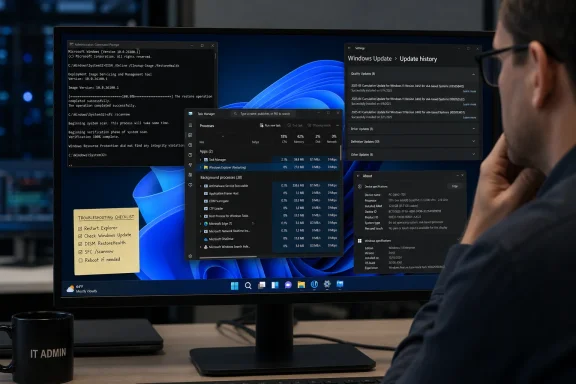 Restart Explorer before repairing Windows
The Taskbar is part of the Windows shell, and restarting explorer.exe remains the quickest low-risk recovery step. In Task Manager, select Windows Explorer in the Processes tab and choose Restart task. The desktop and Taskbar may vanish briefly; that is expected while Explorer reloads.
This is more than a cosmetic trick. Microsoft has repeatedly issued reliability fixes for explorer.exe affecting sign-in, Taskbar menus, Task View, multiple-desktop switching, Start menu visual effects, and shell extensions. Microsoft’s April 2026 preview update for Windows 11 24H2 and 25H2, KB5083631, specifically included underlying changes intended to improve Explorer reliability while interacting with Taskbar flyouts and Task View. Windows Latest and TechRadar also reported that Microsoft associated earlier 2026 reliability work with freezes, delayed Taskbar appearance, and—in more severe cases—a blank desktop after sign-in.
If restarting Explorer resolves the problem once, do not immediately run repair commands or reset the PC. Check whether it recurs after a reboot, after connecting a particular display or dock, or after launching a recently installed utility. Repeated shell crashes point toward a driver, shell extension, security tool, or incomplete update—not merely an Explorer session that needed refreshing.
A full restart is the next sensible step if Explorer will not restart, the Taskbar comes back but remains inert, or Start continues to ignore clicks. Use Ctrl + Alt + Delete and the power button if the Start menu is unavailable. A hard power-off should be a last resort, particularly on systems applying updates.
Update history matters more than the “25H2” label
The submitted guidance names Windows 11 25H2 as a “major offender,” but it does not identify a Windows build, cumulative update, Microsoft-known issue, or independent data set that supports treating all 25H2 installations as the cause. That is too broad to be useful troubleshooting advice.
Version 25H2 has had documented Explorer and Start-menu reliability fixes, but so has Windows 11 24H2. Microsoft’s release notes show shell fixes landing across both versions, and current build number plus update history are more diagnostic than the feature-update label alone. On an affected PC, open winver or go to Settings > System > About to record the version and OS build. Then open Settings > Windows Update > Update history and note any cumulative update installed immediately before the failure began.
Install currently offered Windows updates and restart. This is Microsoft’s recommended prerequisite before using System File Checker, and it matters because some fixes are delivered in cumulative updates rather than through separate hotfixes. Conversely, if Start and the Taskbar stopped working immediately after one identifiable update, an administrator should document the KB number and affected build before deciding whether to remove it. Blindly uninstalling updates can remove security fixes while failing to address a damaged user profile or a third-party conflict.
The same caution applies to notification clearing. Guiding Tech suggests clearing notifications as a possible remedy, but there is no Microsoft support guidance establishing corrupted notifications as a general cause of an unresponsive Windows 11 Taskbar. It is harmless to clear the notification pane if it opens, but it should not displace the more evidence-based checks: Explorer recovery, restart, update history, and system-file integrity.
Run DISM, then SFC, with the right expectation
If the problem persists across restarts and updates, repair the Windows component store and protected system files from an elevated Command Prompt or Windows Terminal. Microsoft’s support documentation gives this order:
DISM.exe /Online /Cleanup-image /Restorehealth
sfc /scannow
Run the commands one at a time and allow each to finish. DISM /RestoreHealth checks and repairs the Windows image that SFC relies on as its repair source; sfc /scannow then verifies protected Windows system files and replaces corrupted versions where possible. Microsoft notes that DISM can take several minutes to begin and complete, so a seemingly stalled progress display is not automatically a failed repair.
After both commands complete, restart the PC and retest the Start button, Taskbar icons, Task View, and notification area. If SFC reports it found corruption but could not repair some files, do not assume the Taskbar issue has been solved. Save the result, check the DISM outcome, and look at the relevant log output before escalating to an in-place repair installation.
These tools are valuable when servicing corruption is real. They are not a universal cure for a shell process crashing because of an incompatible Explorer extension, display driver, device-management policy, or a failed AppX registration. A clean SFC result is therefore useful evidence: it shifts the investigation away from core file corruption.
Managed PCs may be hitting KB5072911 instead
A particularly important exception applies to some enterprise and managed Windows 11 systems. Microsoft’s KB5072911 documents an issue affecting certain PCs provisioned with Windows 11 24H2 or 25H2 cumulative updates released on or after July 2025. Explorer, Start, Settings, the Taskbar, and Windows Search can fail to start or close unexpectedly because required XAML-dependent packages were not registered in time.
This is not presented as a common consumer-PC fault. Microsoft says it primarily affects a limited number of enterprise or managed environments and is unlikely to occur on ordinary personal devices. The distinction matters: repeatedly restarting Explorer or running SFC may temporarily recover the desktop but will not necessarily correct a provisioning defect.
Microsoft’s documented workaround is to register specific system AppX packages in the user session and restart the shell infrastructure. The relevant packages include MicrosoftWindows.Client.CBS, Microsoft.UI.Xaml.CBS, and MicrosoftWindows.Client.Core. Because this involves PowerShell commands, package registration, and potentially logon scripting for non-persistent virtual desktops, it belongs with an IT administrator—not a copied command from a support forum.
For IT teams, the symptom pattern is the giveaway: a freshly provisioned or newly updated 24H2/25H2 device signs in with no functional Start menu, disappearing Taskbar, unavailable Settings, Search failures, or a blank shell. Check whether the machine was deployed through an image, virtual desktop workflow, provisioning package, or management platform before treating it as a generic desktop freeze. Microsoft’s separate Windows Client guidance also identifies skipped AppX registration during Sysprep-related deployment scenarios as a cause of failures in explorer.exe and Settings.
Remove third-party shell changes from the suspect list
A Taskbar failure that returns after every Explorer restart should put third-party shell modifications high on the list. Taskbar customizers, Start-menu replacements, context-menu tools, file-preview handlers, cloud-storage integrations, endpoint security clients, and display utilities can all load code into or interact closely with Explorer.
Begin with recently installed software, especially anything designed to alter the Taskbar, Start menu, File Explorer, window behavior, transparency, or context menus. Disable or uninstall it temporarily, restart, and retest. For business devices, check endpoint-protection changes, credential-provider software, Group Policy updates, and configuration-management deployment logs. Microsoft’s more recent Windows Insider reliability notes explicitly mention improvements involving Explorer reliability with shell extensions installed, which reinforces the need to inspect this category rather than treating every recurrence as random Windows corruption.
Graphics drivers deserve a narrower role than they often receive in generic troubleshooting lists. A graphics driver is more plausible when the Taskbar failure follows display sleep, docking, undocking, multi-monitor changes, screen flicker, black screens, or a driver update. If the only symptom is that Start does not open while Explorer otherwise behaves normally, start with the Windows shell and update history before reinstalling a GPU driver.
Escalate based on what still works
When the Taskbar remains unusable after Explorer restart, a normal reboot, all pending updates, DISM, SFC, and removal of recent shell modifications, test a different Windows user account. If Start and the Taskbar work in a newly created local account, the fault is likely tied to the original user profile or its per-user registrations rather than Windows system files.
If the problem affects every account, repeats after clean boots, and survives system-file repairs, an in-place repair installation of the same Windows 11 release is the more proportionate next step. It repairs Windows while preserving installed applications and personal files, unlike a reset. Back up critical data first, particularly if the desktop also goes blank or Explorer crashes repeatedly.
The key is to avoid treating an unresponsive Start button as one monolithic Windows 11 defect. For a one-off failure, restart Explorer. For a recurring failure, capture the OS build and recent update history, repair only when corruption is indicated, and inspect shell-changing software. For provisioned 24H2 and 25H2 enterprise devices showing multiple broken Windows interfaces, KB5072911 should move to the top of the incident checklist.
