
The Microsoft Support page applies to Windows 11 and still includes Windows 10 instructions, so the supplied February 19, 2026 publication date should not be treated as evidence of a new Windows USB-C feature or a newly discovered system-wide fault. It is a consolidated troubleshooting reference. Its practical value is in how it maps Windows notifications to the three components that actually determine USB-C behavior: the PC port, the cable, and the attached charger, dock, display, or peripheral.
That distinction is more important than the familiar advice to unplug and reconnect. The USB Implementers Forum’s own guidance is explicit that USB Type-C is a connector specification, not a promise of USB4, USB Power Delivery, DisplayPort video, or high-speed data. A cable with USB-C plugs can legally be limited to USB 2.0 data, and a Windows PC can have several USB-C ports with different capabilities.
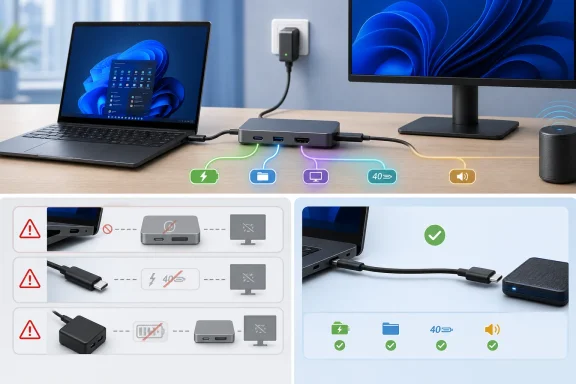 USB-C Errors Usually Point to a Capability Mismatch
Microsoft divides the common Windows notifications into useful categories: “USB4 device functionality might be limited,” “Thunderbolt device functionality might be limited,” “Display connection might be limited,” “Slow charger,” “PC isn’t charging,” and “USB device might need more power.”
Those messages do not necessarily mean the dock, display, cable, or laptop is defective. They usually mean one link in the chain lacks a feature required by the next link. A USB4 dock connected to an older USB-C-only port may still expose basic USB ports, for example, while losing the bandwidth, display support, PCIe tunneling, or expansion features that justified buying the dock.
Microsoft’s advice to connect the device directly to the PC before involving a dock is the right first test. It removes a layer of negotiation and isolates whether the failure comes from the endpoint, cable, PC port, or dock. If a monitor works directly through a USB-C-to-DisplayPort adapter but fails through a dock, the operating system is far less likely to be the root cause than the dock’s upstream connection, firmware, power budget, or display-routing limits.
The connector alone is not a specification sheet. A port marked only with the USB-C shape may support charging, data, DisplayPort Alt Mode, USB4, Thunderbolt, or some combination of those functions. Manufacturers’ technical specifications, port symbols, and service manuals remain the authoritative record for a specific machine.
Check the Port Before Replacing the Dock
For USB4-capable Windows 11 systems, Microsoft provides a useful capability check that is more definitive than guessing from the laptop’s age. Go to Settings > Bluetooth & devices > USB > USB4 Hubs and Devices. Microsoft says that page is available on systems where Windows detects a USB4 host router; if it does not appear, the PC may not support USB4, although OEM firmware design can affect whether the page is shown.
This check matters for an increasingly common purchase mistake: buying a USB4 or Thunderbolt dock for a laptop that has USB-C ports but lacks the matching transport support. The dock may still work partially. That partial success is misleading because it can make an unsupported configuration look like a driver issue.
Windows’ “Use different USB port” notification deserves to be taken literally. On many business laptops, one USB-C port may be reserved for charging and ordinary USB data while another supports a higher-bandwidth controller or DisplayPort output. On some models, the ports look identical but are wired differently internally. Moving the cable one port over can restore display output or higher-speed storage without any driver change.
For an IT administrator, this is also a documentation issue. Standardizing on a dock model without recording which laptop ports support its required features produces avoidable desk-side incidents. A deployment guide should identify the supported port, minimum charger wattage, approved cable type, display limits, and dock firmware version—not merely list “USB-C dock” as compatible equipment.
Charging Problems Are Usually a Three-Way Negotiation Failure
The “Slow charger” and “PC isn’t charging” notices are often interpreted as a bad battery or a Windows power-management bug. Microsoft’s guidance makes the more likely explanation clear: the charger, cable, and PC must all support the voltage, current, and USB Power Delivery profile the laptop needs.
A charger’s headline wattage is not enough. A 65 W USB-C charger may offer its power through profiles that do not match a particular laptop’s preferred requirements, while a cable can also impose a lower current limit. Microsoft uses a simple example: a PC that needs 12 V at 3 A for its fastest charging will not get that result from a 5 V, 3 A source, even though both are USB-C connections.
The USB Implementers Forum says modern USB Power Delivery can reach up to 240 W in supported equipment, but that is a ceiling for the standard, not a guarantee for every cable or notebook. Certified USB-C-to-USB-C cables are now expected to carry a 60 W or 240 W power-capability marking when they qualify for USB-IF certification. That marking helps identify cable capacity, but it still cannot add a power profile that the charger or laptop does not implement.
Microsoft also calls out a frequent source of frustration: charging through an external dock or hub. A dock may consume part of the incoming power for its Ethernet controller, USB peripherals, storage, and display circuitry before passing the remainder to the PC. The result can be a laptop that charges while idle, discharges under load, or generates the slow-charger warning only when several peripherals are attached.
A sensible test order is:
- Connect the laptop’s original charger directly to the computer’s designated charging port.
- Try a known-capable USB-C cable rather than assuming any spare cable can carry the required power.
- Disconnect the dock and all nonessential peripherals, then check whether charging resumes at the expected rate.
- Plug the PC into AC power before testing a power-hungry USB device, because Windows may reduce peripheral power delivery while the battery is low.
- Inspect the port for lint or debris, using compressed air cautiously and avoiding conductive tools.
If direct charging works but dock charging does not, replacing Windows drivers should not be the first response. Check the dock’s input-power requirement, its host-charge passthrough rating, and whether its firmware is current.
Display Errors Need DisplayPort Support at Every Link
The display warning is the clearest example of why a USB-C cable should not be treated as interchangeable. Microsoft says that the PC, cable, external display or adapter, and selected port must support the same display Alternate Mode—such as DisplayPort Alt Mode—for video to work as intended.
A USB-C-to-HDMI adapter can therefore fail for several valid reasons. The laptop port may have no DisplayPort Alt Mode support; the cable between the PC and dock may lack the necessary high-speed lanes; the dock may have reached its display limit; or a second screen may consume the bandwidth needed for the first display’s preferred resolution and refresh rate.
This is also why a display can light up at a lower resolution but fail at 4K, high refresh rates, or with a second monitor attached. The connection has not necessarily stopped working. It has fallen back to a mode that fits the available lanes and bandwidth. Microsoft’s general wording—“Display connection might be limited”—is more accurate than calling every such incident a monitor failure.
Test direct video output before troubleshooting a multi-monitor dock. Then add devices back one at a time. If the direct adapter works and the dock does not, check the dock manufacturer’s documented monitor combinations rather than relying on the number of display connectors physically present.
Device Manager Is the Right Path for Recognition Failures
When Windows says “USB device not recognized,” Microsoft directs users to Device Manager, where the affected device should appear with a yellow warning icon and an error code under its Properties page. This is the point where diagnosis moves from cable and capability questions into a real device or driver problem.
The error code matters. A failed enumeration, a driver-start problem, an unavailable device, and a missing driver are different conditions with different remedies. Microsoft specifically excludes Device Manager Code 28 from its general “follow the error-code guidance” instruction because Code 28 means drivers are not installed; that should send administrators toward the PC maker, peripheral maker, Windows Update, or managed driver deployment process rather than repeated cable swaps.
Do not blindly uninstall USB controllers or chipset devices simply because a dock disappears. That may temporarily force redetection, but it does not repair an underpowered dock, unsupported Alternate Mode, damaged cable, or incompatible USB4 chain. Use Device Manager after direct-connection tests have established that the physical configuration should work.
Analog USB-C Audio Is a Separate Compatibility Trap
Microsoft’s final warning concerns USB-C audio adapters. The company says most PCs support digital USB-C audio adapters, which contain their own digital-to-analog converter, rather than passive analog USB-C adapters.
This is one of the least obvious USB-C compatibility failures because a simple analog adapter may work with one phone and do nothing on a Windows laptop. The hardware support for analog audio over USB-C is optional, while a digital adapter presents itself as an audio device that Windows can use through the USB connection. For a repeatable support purchase, choose a digital adapter from a vendor that explicitly lists Windows support.
The short version is that Windows’ USB-C notices are useful, but they are diagnostic starting points rather than explanations by themselves. Verify the exact PC port, test directly, use a cable rated for the job, establish adequate power, and only then chase drivers or firmware. That order will resolve more real-world USB-C failures than treating every reversible plug as interchangeable.
