

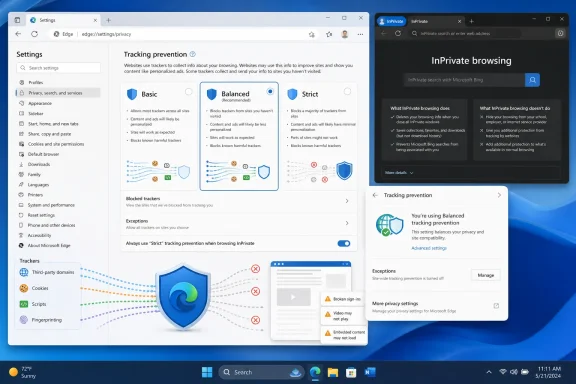
Microsoft Support describes three choices in Edge under Settings > Privacy, search, and services > Tracking prevention: Basic, Balanced, and Strict. Balanced is the recommended and default setting. It blocks trackers Microsoft identifies as harmful, plus trackers from sites the user has not visited, while Strict blocks “most trackers across sites” and warns that sign-ins, embedded video, and other site functions can fail.
That is an accurate summary, but it leaves out the policy logic that determines why a tracker might still run. Microsoft’s separate Edge developer documentation fills in the missing detail: tracking prevention relies on Disconnect’s tracker-protection lists, then applies different enforcement and compatibility exemptions depending on the selected level. The browser may restrict a tracker’s access to cookies and browser storage, block the tracker’s resource load before it reaches the network, or allow it through under one of Edge’s compatibility mitigations.
For a personal PC, that makes Balanced a sensible default. For users trying to minimize cross-site visibility—or administrators who need a predictable privacy baseline—the distinction between “some tracking is blocked” and “this particular classified tracker is prevented from loading” is the part worth understanding.
Balanced Blocks Selectively, Then Makes Exceptions
Microsoft’s support page frames Balanced as blocking trackers from sites the user has not visited. The developer documentation is more precise: in Balanced mode, Edge can restrict storage access for certain advertising, social, content, and other trackers, but it does not uniformly block every network request from those categories.
That difference is technical, but important. A storage restriction can stop a known tracker from reading or writing cookies, localStorage, or IndexedDB; it does not necessarily mean the third-party resource never loads. A full resource block stops tracking scripts, pixels, iframes, or other resources before the browser makes the request. Microsoft says Strict applies more full blocks than Balanced, including to advertising and analytics categories.
Basic is much less ambitious than its name may imply. According to Microsoft’s developer documentation, Basic does not apply enforcement to advertising, analytics, content, social, or other tracker categories. It targets trackers categorized as cryptomining or fingerprinting. Users who choose Basic in pursuit of fewer ads or less cross-site profiling should not expect it to deliver either result in a meaningful way.
Strict is closer to what privacy-conscious users commonly assume tracker blocking means. It blocks loads as well as storage access for classified advertising, analytics, cryptomining, fingerprinting, social, and other trackers; the content category gets storage restrictions rather than a full blocking action. Microsoft’s warning about site breakage is therefore not boilerplate. Some pages depend on third-party scripts, identity providers, video hosts, payment components, content-delivery systems, or social embeds that can land in the same classifications Edge is trying to control.
The support article correctly says Strict may prevent sign-in or video playback. What it does not explain is that the difference is not merely the number of trackers counted in the address-bar panel. Microsoft notes that Strict can sometimes appear to block fewer tracker requests than Balanced because Strict may prevent the tracker resource from loading at all, so it never gets the chance to generate subsequent requests. A lower visible count is not evidence of weaker blocking.
Edge Treats Familiar Organizations Differently
The strongest finding in Microsoft’s technical documentation is that Balanced mode deliberately relaxes protection for organizations with which the user has an established relationship. Edge uses Disconnect’s entities.json ownership mapping to associate domains belonging to the same parent organization, then uses Chromium’s Site Engagement service to determine whether a user has interacted sufficiently with a site or organization.
Microsoft says an engagement score of 4.1 or higher qualifies as an ongoing relationship. If a site meets that threshold, a third-party resource belonging to the same organization can be exempted from tracking-prevention enforcement in a different site’s context. In plain terms, having a strong browsing relationship with one company’s properties can affect how Edge treats that company’s embedded services elsewhere.
Microsoft calls this the Org Engagement mitigation, and it applies in Balanced mode. It is disabled in Strict mode. The company also uses an Org Relationship mitigation at all three levels: when a site and an ostensibly third-party resource belong to the same organization, Edge may permit the request to avoid breaking sites that separate their main domain from CDNs or other operational domains.
These are compatibility choices, not a hidden malfunction. A major site can legitimately use related domains for video delivery, login, static assets, support chat, or anti-abuse systems. But the consequence is clear: Balanced is not a static list of “allowed trackers” and “blocked trackers.” Its behavior can vary based on the ownership map and a person’s browsing history.
That helps explain why a user might see different outcomes on the same page after spending time with a particular service, or why a clean test profile can behave differently from a long-used profile. It also means troubleshooting must account for browsing history and profile state—not merely whether the global toggle is enabled.
The Exception Control Turns Off More Than the Label Suggests
Microsoft Support advises users to add an exception when a trusted site does not work and says they can toggle tracking prevention off directly from the site-information panel. The important warning appears in the same document but deserves more emphasis: an exception permits all trackers on that site, including potentially harmful ones.
This is broader than allowing one login domain, video player, or embedded widget. Edge’s own developer documentation confirms that the browser exposes a site-level option to stop tracking-prevention enforcement for that site. It does not offer a consumer-facing control to selectively exempt only the component that broke.
Users should therefore avoid treating the exception list as a general “make this site work” button. Test the affected function first, and use the smallest possible exception scope. If a site only breaks in Strict mode, reverting to Balanced may be a better trade-off than disabling tracking prevention for the entire site. If the failure is limited to cookies or storage, Edge’s separate cookie and site-data controls may be the narrower troubleshooting tool.
For admins, this is a reason to document exceptions rather than leave users to create them ad hoc. A support team may otherwise inherit a growing list of site-level privacy bypasses that are invisible to centralized policy reporting unless Edge configuration is audited.
Enterprise Edge Can Enforce the Choice, but It Cannot Recommend It
Microsoft’s Edge policy documentation confirms that the TrackingPrevention policy remains available for Windows and macOS deployments, with support dating back to Edge version 78. The policy can be set as mandatory through the Microsoft Edge administrative templates under Administrative Templates > Microsoft Edge > Block tracking of users’ web-browsing activity, or through the TrackingPrevention DWORD under SOFTWARE\Policies\Microsoft\Edge.
The available policy values are straightforward:
- A value of
0turns tracking prevention off. - A value of
1forces Basic. - A value of
2forces Balanced. - A value of
3forces Strict.
Microsoft’s policy documentation says the setting supports mandatory deployment and dynamic policy refresh, meaning administrators can apply a change without waiting for a browser reinstall or a new Edge version. It does not support the “recommended” policy channel, however. The choice is effectively between leaving users in control and enforcing an organization-wide level.
A managed fleet should not default to Strict merely because it offers the most blocking. Strict intentionally disables Balanced’s engagement-based compatibility mitigation and can break federated sign-in, embedded content, and legacy web applications. A better operational pattern is to pilot Strict with a representative group, capture exceptions by business application, and decide whether the privacy benefit outweighs the help-desk and application-owner cost.
Balanced is usually the lower-risk corporate baseline because it retains Microsoft’s compatibility mechanisms while still applying protections beyond Basic. But it should be described accurately in policy documentation: it reduces third-party tracking exposure; it does not make a managed browser profile anonymous or eliminate all data collection by every site a user visits.
InPrivate Windows Do Not Automatically Become Strict
One final omission from the support article concerns InPrivate browsing. Microsoft’s developer documentation states that InPrivate windows use the same tracking-prevention level as standard windows by default. Opening an InPrivate window while the regular profile is set to Balanced does not silently upgrade tracker protection to Strict.
Users who want that behavior must explicitly enable Edge’s option to always use Strict tracking prevention in InPrivate mode. That setting is available from edge://settings/privacy.
InPrivate mode and tracking prevention solve different problems. InPrivate reduces what the browser retains locally after the session; tracking prevention governs how Edge handles classified third-party tracking resources during browsing. Neither control prevents a site from recognizing a user who signs in, and neither turns a permissive site exception into a limited exception.
Microsoft’s July support guidance is therefore a useful reminder, but it is not a feature launch and should not be read as one. The actionable change for most users is simple: leave Balanced enabled unless there is a reason to choose otherwise; use Strict when cross-site blocking is worth occasional compatibility work; and treat every exception as a full-site waiver, not a surgical repair.