
The important qualification is that this is a new index for Teams meeting material, not a new system that records, transcribes, or summarizes meetings by itself. Microsoft’s own documentation makes clear that the Recap app only surfaces material that already exists and that the most useful AI features remain dependent on licensing, transcription, and meeting type. For IT departments, that means the app can improve discoverability immediately, but it will not repair a weak recording policy or give unlicensed users Copilot-generated insight.
Microsoft has also not finished the worldwide rollout. Its June 25 Message Center notice said general availability would start in early July 2026 and finish by late July; a July 21 revision moved the expected completion to early August 2026. On August 3, organizations that do not yet see the app should treat that as a normal rollout condition rather than evidence of a broken Teams client.
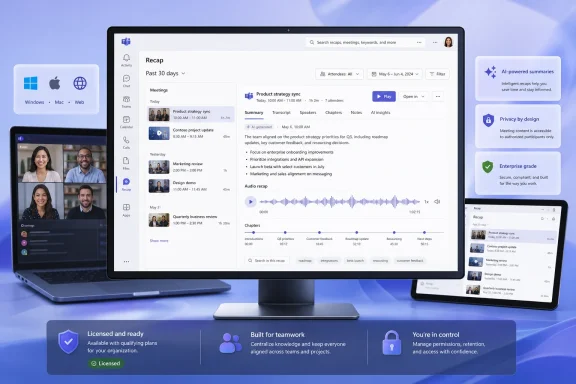 The Recap app fixes Teams’ fragmented meeting trail
Teams has already offered post-meeting material through several paths. A user can open a meeting chat and select its Recap tab, revisit the calendar item, or use the Meet app. Microsoft’s support documentation still describes all three routes for accessing recaps and audio recaps.
The new Recap app does not replace those locations. It centralizes them into a personal view of meetings from the previous 30 days, with filters for date, attendees, and keywords. A user can open a meeting from that view to get to its recording or transcript, and qualifying users can access AI-generated summaries, video recaps, or audio recaps.
That sounds incremental because it is. But it targets a genuine Teams usability problem: meeting evidence was technically available, yet attached to the event that created it. In a busy tenant, users often remember a decision or an action item without remembering the exact meeting title, date, or chat thread. A searchable personal archive makes the recap feature substantially more usable for people who miss a call or need to revisit a decision weeks later.
Microsoft calls the product the Recap app, singular—not “Meeting Recaps app,” as some coverage has described it. The naming distinction is small, but it helps admins and help-desk staff direct users to the right entry: Teams Apps, then Recap. Microsoft says it is a first-party core app that is preinstalled and enabled by default, but it is not pinned by default. That last point is likely to determine whether employees actually discover it.
The “skip the meeting” pitch depends on what was captured
A recap can only be as complete as the meeting record behind it. Microsoft says the Recap app can surface recaps for meetings that have a recording or transcript. If neither exists, there is no post-meeting material for the app to consolidate.
The distinction is especially relevant for organizations that have disabled transcription to reduce data retention, control sensitive-information exposure, or avoid the administrative overhead of managing meeting artifacts. Microsoft’s Teams documentation says that transcription is a prerequisite for audio recaps, and that meeting policies in the Teams admin center control whether users can transcribe meetings at all.
A recording is not a universal substitute, either. Microsoft’s intelligent-recap documentation says its video recap requires both a recording and a transcript. Meetings that are transcribed but not recorded can still have recap insights, but they cannot produce the short narrated video highlights Microsoft introduced earlier in 2026.
That produces a more realistic description of the app’s value:
- Users without the AI entitlement can still use Recap to locate recordings and transcripts they already have permission to access.
- Users need an eligible meeting record before there is anything meaningful for Recap to display.
- Organizations that forbid transcripts will limit the very AI features most likely to make missed meetings skippable.
The app does not bypass existing permissions. Microsoft’s rollout notice says that users without a Copilot license can access recordings and transcripts according to existing permissions. That should reassure administrators worried that a new centralized view changes the sharing model, but it also means a recap hub will not solve access requests caused by organizers restricting the underlying recording or transcript.
Licensing is less tidy than Microsoft’s rollout notice suggests
Microsoft’s Recap-app announcement says AI-powered capabilities—including intelligent summaries, video recap, and audio recap—require a Microsoft 365 Copilot license. The company’s broader Teams administration documentation, however, says users with either Teams Premium or Microsoft 365 Copilot automatically have access to intelligent recap, assuming transcription is enabled.
Microsoft’s separate support page for audio recap is stricter: it specifically says users need both a qualifying Microsoft 365 subscription and a Microsoft 365 Copilot license to use Copilot-in-Teams features such as audio recaps. That leaves an awkward but important product-boundary question for organizations that bought Teams Premium for intelligent recap before deploying Microsoft 365 Copilot more broadly.
The safest operational reading is that Teams Premium may still unlock the underlying intelligent-recap experience described in the admin documentation, while the new Recap app’s advanced Copilot-branded features—particularly combined audio recaps—should be tested against the tenant’s actual license mix. Microsoft’s public rollout notice does not explain the apparent difference between those license statements.
Administrators should not promise the same Recap experience to every employee until they validate it with accounts assigned Teams Premium, Microsoft 365 Copilot, and neither license. The basic hub is broadly available; the difference lies in whether a user receives raw meeting artifacts or AI-generated interpretation of them.
Audio Recap is useful, but it is a derived artifact
The headline-friendly feature in the new hub is the option to create a podcast-style Audio Recap across multiple meetings. Microsoft says users can select up to eight meetings with eligible transcripts, choose a time period and presentation style, then generate an audio summary. The result has chapters, a transcript, playback controls, and is designed for catching up without opening each meeting one at a time.
It also has limits that matter when employees use it as a substitute for attendance. Microsoft warns that AI-generated content can miss key information or include inaccuracies, and explicitly recommends checking the original recording or transcript. In other words, an Audio Recap is an efficient briefing, not an authoritative meeting record.
The retention model is also shorter than many users may expect. Teams transcripts expire after 120 days by default unless the organizer deletes them sooner, while generated Audio Recaps are available for 60 days and stored in the user’s OneDrive. The Audio Recap does not become a durable corporate archive merely because it is easier to consume.
There is another rollout wrinkle: the dedicated Recap app is currently planned for Teams desktop, Mac, and web, with mobile support “coming soon,” according to Microsoft’s Message Center notice. That does not mean mobile users are locked out of audio recaps. Microsoft already documents mobile creation and playback through the Teams calendar and meeting experience. It means the new centralized app view is not yet the same cross-platform experience the underlying recap features can provide.
What Teams administrators should do before the rollout completes
Microsoft says no action is required, which is true only in the narrow sense that the app is enabled by default. Organizations that want Recap to change behavior rather than become another hidden Teams capability have several practical tasks.
- Pin the Recap app through Teams app setup policies if employees are expected to use it as the default place to revisit meetings.
- Review recording and transcription policies, because disabling transcription removes the foundation for audio recaps and constrains intelligent recap.
- Check retention policies for OneDrive, recordings, and transcripts so users understand that the 30-day Recap view is not a long-term knowledge-management system.
- Test the experience across Teams Premium and Microsoft 365 Copilot license assignments before describing AI recap availability in internal training.
- Tell employees that summaries are for orientation and follow-up, while contested decisions, commitments, and sensitive details should be checked against the original transcript or recording.
The Recap app’s value is straightforward: it makes Teams’ accumulated meeting residue findable. But it does not turn every meeting into a reliable asynchronous update, and it does not eliminate the governance decisions around recording, transcription, retention, and Copilot licensing that determine what employees can actually retrieve.
By early August, the rollout should be complete worldwide. Once it is, the most visible difference for many tenants may be simple: the meeting materials users already had will finally be placed somewhere they can find them.
