
That distinction matters more than the raw number might suggest. A notification is an interruption mechanism: Windows tells someone an important message has arrived, the user clicks it, and the application should preserve that context without detouring through a full inbox refresh. Cutting a wait from 10 seconds to five seconds is progress. It is not, however, an experience that should be considered competitive with the mature desktop client Microsoft is gradually asking customers to leave behind.
For Windows users who depend on email alerts during busy workdays, this is the central New Outlook performance problem in miniature. The application is gaining features, closing gaps, and receiving quiet service-side improvements. Yet the basic act of responding to a message from a notification remains slower than it is in the decades-old Win32 application.
 The Notification Bug Is Better, Not Solved
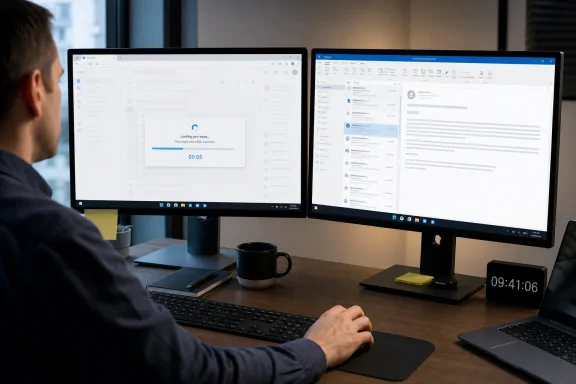
The latest improvement appears to be a silent performance fix rather than a prominently announced New Outlook feature. According to the latest testing, clicking an email alert still launches the client and exposes the inbox before it eventually navigates to the message that generated the notification; the key change is that the message now arrives in roughly half the previous time. Repeatable results of around five seconds were observed on version 1.2026.713.100.
Microsoft’s public documentation does not presently describe a dedicated “notification navigation” fix. Its support page for known New Outlook issues does list historical notification and mail-delivery issues, which illustrates that notification behavior has been an ongoing area of attention, but it does not identify the newly improved open-to-message path as a named fix. Microsoft’s New Outlook issue tracker includes a previous fix for desktop alerts opening behind other applications and documents other known client problems.
That lack of a detailed changelog is not unusual in a client built around web-style servicing. Microsoft says New Outlook features and changes are delivered through service-driven release mechanisms, allowing updates to reach users faster than the traditional classic Outlook servicing model. Microsoft’s architecture overview says new functionality can be flighted to release rings and that service-delivered updates can deploy critical changes within hours.
The upside is obvious: a troublesome workflow can improve without requiring an Office build rollout, a lengthy deployment window, or a major user-facing release announcement. The downside is equally practical: administrators and users may have little visibility into what changed, when it changed, or whether the improvement is universal across account types, hardware profiles, mailbox sizes, and Windows configurations.
Why five seconds is still a workflow failure
In ordinary application performance discussions, five seconds may not sound catastrophic. In the context of a clicked notification, it is a long pause. The user has already selected the target message. The client has the notification payload. The operating system has already presented the alert. There should be no ambiguity over the intended destination.
The prior behavior was even more damaging because manually opening New Outlook and selecting the new message could be faster than clicking the notification designed to open it. Earlier testing found that New Outlook could spend around 10 seconds loading the notified message, while the same email could be reached more quickly through a manual Start-menu launch and inbox click.
That reverses the purpose of notifications. Rather than reducing the time from awareness to action, the alert becomes a slower route into the application.
A five-second result removes some of the absurdity, but not the underlying contradiction. Microsoft has improved the symptom sufficiently that the experience is less irritating. It has not yet made the interaction feel native, direct, or dependable enough for high-volume email work.
Background: Two Outlook Clients, Two Very Different Designs
The performance divide is not merely a case of one version having newer code and the other having older code. Outlook Classic and New Outlook are products with radically different foundations.
Classic Outlook is the long-running Windows desktop client used with Microsoft 365, Office perpetual-license editions, Exchange, POP, IMAP, PST archives, COM integrations, and a large ecosystem of enterprise workflows. New Outlook is Microsoft’s modern replacement, designed around a more web-centric delivery model and a common experience closer to Outlook on the web.
Microsoft explicitly describes New Outlook for Windows as a client built on a modern service architecture that uses a Native Windows Integration Component and Microsoft Edge WebView2. Microsoft’s New Outlook overview also confirms that the app is inspired by the Outlook web experience and does not support classic COM add-ins.
That architecture has strategic benefits:
- It gives Microsoft a common feature and design foundation across web and Windows experiences.
- It allows server-connected features and user-interface updates to be delivered more quickly.
- It reduces the burden of maintaining two completely separate feature stacks.
- It makes it easier to introduce Microsoft 365 services and Copilot experiences across Outlook surfaces.
But it can impose costs in the places Windows users notice most: launch behavior, background wake-up, rendering, memory use, local integration, and the speed of navigation from one Windows surface to another.
WebView2 is not inherently the problem—but it shapes the experience
It would be simplistic to argue that every WebView2 application must be slow. WebView2 can support capable, responsive Windows software when developers manage startup paths, caching, rendering, process lifetimes, authentication, and resource use well.
Still, a WebView2-based Outlook must coordinate browser-style runtime components with Windows application behavior. In a notification scenario, that can mean resuming or initializing the client, restoring a web shell, loading mail state, resolving the target item, applying authentication and policy checks, and rendering the message view. Each step may be individually defensible. Collectively, they can make a simple click feel delayed.
June testing showed that the New Outlook process tree contained multiple WebView2-related components, while Classic Outlook appeared as a much more compact single-process application. That observation is a useful explanation for why the two clients may behave differently, though it should not be treated as a universal benchmark for every PC or mailbox.
The important point is not that multiple processes are automatically bad. Modern browsers, Electron apps, and WebView2 applications commonly use multiprocess architectures for reliability, sandboxing, graphics, background work, and responsiveness. The issue is whether that architecture delivers a better user experience than the alternative in the task being measured.
For notification-to-message navigation, Classic Outlook still wins decisively.
The Resource Gap Remains an Uncomfortable Signal
Performance concerns extend beyond notification handling. An earlier comparison measured New Outlook at roughly 490 MB to 636 MB of RAM while idle, compared with about 117 MB to 148 MB for Classic Outlook. The same report recorded approximately 4% CPU use at idle for New Outlook versus under 1% for Classic Outlook.
Those numbers are not a formal Microsoft benchmark, and they should be read as test-specific measurements rather than guaranteed hardware requirements. Mailbox size, connected accounts, extensions, background synchronization, display scaling, security software, Windows power settings, and WebView2 process state can all change the result.
Even with that caveat, the direction of travel is hard to dismiss. A modern email client should not have to consume several times the memory of its predecessor merely to remain open in the background. On a powerful desktop with abundant RAM, the difference may be mostly academic. On business laptops, virtual desktops, lower-memory PCs, or systems running Teams, Edge, Office applications, endpoint security tools, and line-of-business software at the same time, it becomes much more relevant.
Performance is a reliability issue, not just a benchmark contest
A high memory footprint does not only affect Task Manager screenshots. It can affect how quickly an app resumes after Windows has reclaimed resources, how much pressure it puts on systems with limited RAM, and how smoothly users can switch between applications during a busy day.
The notification delay illustrates this perfectly. Microsoft may be able to improve the routing and loading path substantially through software changes—and this week’s five-second result suggests it already has. But if New Outlook remains heavier to initialize or resume than Classic Outlook, edge cases involving memory pressure, suspended processes, poor connectivity, complex mailboxes, or multiple accounts may continue to expose the difference.
For organizations, this means the New Outlook vs Classic Outlook choice cannot be framed solely as a feature checklist. It is also a question of responsiveness under real-world conditions.
Feature Parity Is Improving at a Faster Pace
There is a positive side to Microsoft’s New Outlook strategy: the application has been steadily filling in conspicuous gaps.
PST support is no longer merely a roadmap promise
One of the most important changes is expanding support for Outlook Data Files, better known as .pst files. PST archives matter enormously to long-time Windows users because they often contain years of historical mail, contacts, calendars, tasks, and locally stored information.
Microsoft says New Outlook can now open PST files, read and search their emails, move or copy messages and folders, and drag messages between a mailbox and a PST file. Microsoft’s PST support documentation also says that export support has been added for email, calendars, contacts, and tasks.
That is substantial progress. It moves New Outlook closer to being a credible successor for users whose mail history is not limited to a cloud mailbox.
However, there is an important constraint. Microsoft’s current documentation says that opening PST files in New Outlook requires Classic Outlook to also be installed, with both applications using the same 32-bit or 64-bit architecture. Microsoft’s support guidance further notes that PST support is unavailable in the ARM version of New Outlook.
This is a revealing transition-state compromise. New Outlook can present and work with PST content, but the legacy client still plays a necessary role behind the scenes. Microsoft says it plans to remove the Classic Outlook installation requirement after bulk PST import capabilities arrive, but that future work remains significant for organizations with archive-heavy workflows. Microsoft’s PST documentation describes that planned direction.
Offline work has become more capable
Offline access was initially one of New Outlook’s biggest liabilities, particularly for laptop users and people who work during flights, travel through unreliable networks, or access mail in constrained virtual desktop environments.
Microsoft now says New Outlook can locally save email, calendar events, and people data when offline access is enabled. Users can read mail, view attachments and inline images, draft messages, search cached mail, manage folders, work with calendars, and perform a range of message actions while disconnected. Microsoft’s offline support guide details the available offline functions.
That is meaningful progress, and it is fair to recognize it. New Outlook is no longer accurately characterized as an online-only shell incapable of useful disconnected work.
Yet Microsoft’s own documentation also acknowledges an essential performance trade-off: the amount of email synchronized locally affects both storage consumption and app opening time. Microsoft explains that its default synchronization setting for Exchange and Microsoft 365 accounts is 12 months of email and that changing the amount of locally synchronized mail can alter startup time.
This is why “offline support exists” should not be confused with “offline behavior is equivalent.” Caching policy, account configuration, device resources, and the speed of reconnecting to Microsoft 365 services remain part of the user experience.
Quick Parts and productivity features matter
New Outlook has also gained Quick Parts, the reusable-content feature that lets people insert stored phrases, replies, templates, and text blocks into messages. Microsoft describes Quick Parts as a way to create, store, and insert frequently used content in Outlook, including reusable phrases and blocks of text. Microsoft’s Quick Parts documentation includes instructions for both Classic Outlook and New Outlook.
This is not a glamorous feature, but it is exactly the kind of tool that determines whether a mail client works for support teams, sales departments, legal operations, recruiters, procurement staff, and anyone who sends standardized responses repeatedly.
The broader pattern is encouraging. New Outlook is not standing still. It is adding practical capability rather than merely pursuing cosmetic redesigns. Microsoft’s official “What’s new” page also documents PST management, mailbox-to-PST drag and drop, offline functionality, calendar notifications while the app is closed, and notification batching. Microsoft’s feature update history shows how much of the client’s maturation has occurred through iterative delivery.
Copilot Is Changing the Classic Outlook Conversation
While New Outlook accumulates legacy productivity features, Microsoft is increasingly using Classic Outlook as another entry point for Microsoft 365 Copilot.
That creates a complicated message for long-time customers. Classic Outlook remains supported and functional, but it is no longer the platform Microsoft is building toward. New Outlook receives parity work; Classic Outlook receives maintenance, compatibility attention, and AI integration.
The change becomes clearer with the retirement of Meeting Insights. Microsoft plans to stop displaying Meeting Insights beginning in September 2026 and replace it with a Copilot-powered “Prepare for the meeting” experience. The successor is intended to summarize relevant content and tasks before a meeting.
For licensed Copilot customers, that could be a worthwhile upgrade. Contextual summaries and AI-assisted preparation may be more useful than simply surfacing a list of recently relevant documents and messages.
For users without the appropriate Copilot entitlement, it raises a familiar concern: a feature that was once included as part of the Outlook experience can become a gateway into a separately licensed AI service. That does not automatically make the replacement inferior, but it does change the value proposition.
The risk for Microsoft is that customers may perceive classic Outlook feature retirement as less about simplification and more about monetization. The company needs to distinguish genuinely better workflows from basic productivity capabilities being repositioned behind an AI license.
Microsoft’s Migration Strategy Raises the Stakes
New Outlook performance is not an isolated product-quality debate because Microsoft’s long-term direction is clear: it intends for New Outlook to become the standard Windows email client.
Microsoft’s official migration guidance describes a staged progression from opt-in, to opt-out, and ultimately to cutover. In the opt-out phase, New Outlook becomes enabled by default, though users can revert to Classic Outlook. In the cutover phase, customers cannot switch back, while new Microsoft 365 subscription deployments use New Outlook. Microsoft’s migration roadmap says administrators will receive at least 12 months of notice before cutover in production rings.
Classic Outlook is not disappearing tomorrow. Microsoft states that existing Classic Outlook installations through perpetual and subscription licensing will continue to be supported until at least 2029. Microsoft’s published roadmap provides important reassurance for organizations that need time to validate workflows and plan their migration.
But support through 2029 should not be interpreted as a reason to delay all preparation. The transition can be actively managed by administrators today. Microsoft’s admin-controlled migration policy can move users toward New Outlook, while a separate policy can set an interval for renewed migration attempts if a user switches back to Classic Outlook. Microsoft’s policy documentation explains that the retry interval can range from repeated prompts at every launch to a defined number of days after a user reverts.
That is powerful from a deployment perspective. It is also why organizations should be precise about readiness. If the New Outlook experience is pushed before high-frequency email workflows, archives, add-ins, accessibility requirements, account configurations, and notification behavior are validated, help desks will inherit the consequences.
What Windows Users and IT Teams Should Take From This
The improved notification response is good news. It demonstrates that Microsoft can make measurable changes to New Outlook’s day-to-day responsiveness without waiting for a dramatic rewrite. A 50% reduction in delay is not trivial.
Still, the real benchmark is not whether New Outlook has improved against its own earlier shortcomings. The benchmark is whether it performs the core task as well as the client it is intended to replace.
At the moment, the practical conclusions are straightforward:
- Classic Outlook remains the better choice for instant notification-to-message response.
- New Outlook is becoming more feature-complete, especially for PST files, offline use, reusable email content, and modern Microsoft 365 integrations.
- The New Outlook performance gap is narrowing in specific areas, but it remains visible in notification workflows and potentially in resource-constrained environments.
- PST compatibility has advanced, though the requirement to retain Classic Outlook for opening PST files shows that migration work is not yet complete.
- Copilot is becoming more central to Outlook’s direction, which may improve certain workflows while also complicating licensing and feature-value discussions.
- Organizations should test rather than assume parity, particularly where notifications, shared mailboxes, archives, add-ins, offline work, or legacy integrations are business-critical.
New Outlook does not need to replicate every internal detail of Classic Outlook to succeed. It does, however, need to match the older client’s confidence-inspiring basics: click a notification, open the relevant email, and do so immediately.
This week’s improvement means the pain is less severe. The underlying lesson remains unchanged: Microsoft has made New Outlook more capable, but it has not yet made it feel as fast—or as inherently dependable—as Outlook Classic.
