
That tension matters because Outlook is not just another Windows app. For a large share of businesses, it is the daily control center for email, appointments, contact management, shared mailboxes, archives, delegated calendars, encryption, line-of-business add-ins, and compliance-sensitive communication. Replacing it is therefore not equivalent to redesigning an inbox. It is a migration of habits, policies, integrations, and, in some cases, mission-critical business processes.
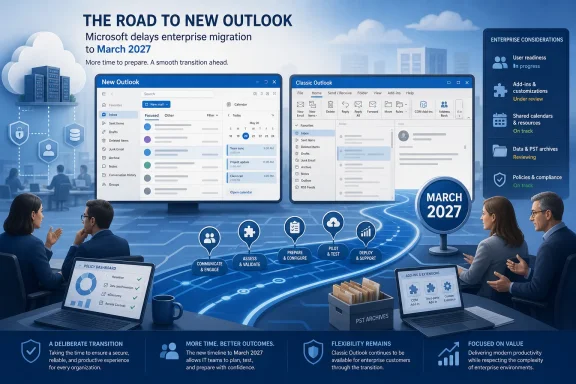 The March 2027 Outlook Deadline Is Significant — but It Is Not Yet Full Retirement
Microsoft’s terminology can be confusing, and that confusion risks turning a real migration concern into an unnecessarily simplistic narrative. March 2027 is not the date on which Classic Outlook stops working. It marks the beginning of the enterprise opt-out phase, in which New Outlook becomes the expected default migration path while users and administrators can still retain or return to Classic Outlook under applicable policies. Reporting on Microsoft’s updated schedule notes that the company moved this phase from April 2026 to March 2027 and framed the delay as additional time to prepare.
The distinction is important:
- Opt-out phase: New Outlook is promoted or moved toward becoming the default experience, but organizations can still use policies and user choices to keep Classic Outlook available.
- Cutover phase: The more consequential future stage, where switching back to Classic Outlook would no longer be an option for affected users.
- Classic Outlook support: Existing perpetual and subscription installations of Classic Outlook are expected to remain supported until at least 2029, according to Microsoft material cited in coverage of the revised transition. The Register reports that Microsoft has not yet announced a complete end-of-support date beyond that baseline.
In other words, the March 2027 change is not an overnight deletion of outlook.exe. It is still a major operational deadline because it shifts the burden onto organizations to justify, configure, and maintain an exception rather than simply continue with the established client by default.
For IT departments, that is a meaningful difference. A temporary ability to opt out is not the same as a durable guarantee that the older platform will remain the preferred, fully compatible endpoint forever.
Background: From Mail & Calendar Replacement to Classic Outlook Migration
New Outlook for Windows has followed a long and sometimes uneven path. Microsoft initially positioned it as a modernized Outlook experience built around the company’s web architecture, with a common design language across Windows and the browser. The application subsequently became the successor to the retired Mail & Calendar apps, whose support ended on December 31, 2024. Microsoft’s own administrative guidance says active Mail & Calendar users have been automatically switched to New Outlook. Microsoft Learn
That earlier transition offered a preview of the friction surrounding the larger Outlook Classic migration. Mail & Calendar had its own shortcomings, but it was lightweight, familiar, and sufficient for many basic personal email and calendar needs. New Outlook added a different interface, a different feature set, new account flows, and a substantially more cloud-connected operating model.
Classic Outlook users are a different category altogether. The Win32 client has accumulated decades of functionality, including tools many people never notice until they disappear:
- COM add-ins and custom integrations.
- Deep support for
.pstOutlook Data Files. - Extensive offline behavior and local caching controls.
- Complex shared mailbox and delegation scenarios.
- Forms, macros, custom views, rules, and legacy workflow support.
- Mature enterprise administration through established update channels and policy systems.
New Outlook does not have to reproduce every historical option forever. But Microsoft’s decision to encourage migration means it must convincingly address the features that remain essential to real-world users—not merely the capabilities that look good in a feature checklist.
Why Users Still Prefer Outlook Classic
The most revealing criticism of New Outlook is not that it looks different. Outlook has changed visually many times. The deeper objection is that the new client can disrupt work that Classic Outlook handles predictably.
A person who only reads and sends email may find New Outlook clean, fast enough, and easier to navigate than the older desktop interface. A person who manages years of local archives, coordinates executive calendars, works intermittently without connectivity, relies on add-ins, or moves messages through elaborate rules may have a very different experience.
That is why the complaint resonates. The frustration is rarely about resistance to change in the abstract. It is usually about a familiar action taking more clicks, a missing option, an altered workflow, or the sudden need to redesign a process that was already working.
Familiarity Is Not a Trivial Issue
There is a temptation in software planning to dismiss user familiarity as nostalgia. In business software, that is a mistake. Familiarity is often accumulated expertise.
A finance worker may know precisely how to sort, search, export, archive, categorize, and retrieve correspondence associated with an audit. An executive assistant may depend on long-established delegated calendar practices. A legal, sales, healthcare, or public-sector team may have very specific requirements around storage, retention, encryption, access, and attachments.
When a client change alters these routines, the cost is measured in more than complaints. It can produce:
- Lower short-term productivity.
- More help desk tickets.
- Training and documentation expenses.
- New security or compliance review work.
- Informal workarounds using unapproved apps or personal accounts.
- Higher resistance to future Microsoft 365 modernization projects.
Microsoft’s challenge is therefore not simply to tell users that New Outlook can do email. It must show that it can do their email work.
New Outlook Has Improved in Meaningful Ways
It would be unfair to describe New Outlook as frozen in its early state. Microsoft has added capabilities at a rapid pace, and its recent list of productivity updates shows that the company is actively filling some of the most conspicuous gaps. In a post highlighting 15 productivity features, Microsoft pointed to additions across offline support, shared mailboxes, .pst files, pinning, snoozing, categories, Sweep automation, and scheduled sending. Microsoft Tech Community
Several of these additions are useful on their own.
Inbox Management Is More Competitive
New Outlook now supports tools that help users keep busy inboxes manageable:
- Pin keeps an important message at the top of the inbox.
- Snooze temporarily removes a message and returns it at a selected time.
- Schedule Send lets users compose messages when convenient and delay delivery.
- Multiple categories can be applied to messages in one action.
- Sweep can automate actions for messages from specified senders. Microsoft Tech Community
Microsoft’s support documentation also describes pinning, snoozing, scheduling messages, and category shortcuts as core parts of the New Outlook experience. Microsoft Support
These are welcome features, particularly for users who came from Mail & Calendar or webmail. The problem, as critics correctly point out, is that many are not revolutionary features for long-time Outlook users. They are often parity features—capabilities that help New Outlook catch up to workflows already available, in some form, in Classic Outlook or Outlook on the web.
PST File Support Is No Longer Just a Roadmap Promise
The development of .pst functionality is one of the more consequential improvements. PST files are deeply embedded in Windows-based email practices, especially for local archives, historical mail collections, and portable records.
Microsoft’s New Outlook release notes say users can now perform several management actions within PST files, including moving, copying, deleting, flagging, marking messages read or unread, applying categories, and creating or reorganizing folders. The company also says users can reply to and forward messages stored in a PST file. Microsoft Support
That progress should not be minimized. Earlier PST implementations in New Outlook were much more constrained, and the ability to manage archived mail rather than merely view it reduces one of the strongest reasons many users had to avoid the new client.
Still, Microsoft itself says that future releases will expand PST capabilities. Microsoft Support That wording is a reminder that feature presence is not always feature equivalence. Organizations with large, complicated archives should test the exact archive tasks their users perform—not just verify that a PST file opens.
Offline Support Is Better, but It Requires Careful Testing
Offline functionality was another major early concern. New Outlook can now save email, calendar events, and People data locally, allowing users to read and manage a range of information without an internet connection. Microsoft says supported offline actions include reading mail, viewing attachments and inline images, composing drafts, sending messages to the Outbox, replying, forwarding, searching, managing folders, viewing calendars, and working with shared mailboxes added as accounts. Microsoft Support
Microsoft has also expanded the default offline email retention period to 30 days and added offline search folders, according to its release notes. Microsoft Support
That is a substantially stronger position than “web app with a desktop window.” Yet it remains a different model from Classic Outlook’s established cached desktop experience. Microsoft lists several limitations or planned additions for offline mode, including certain attachment, calendar, folder, settings, shared-folder, group, People, and add-in scenarios. Microsoft Support
For road warriors, field staff, travelers, and virtual desktop users, those details are not edge cases. They are the product.
The Architectural Trade-Off: Faster Innovation, Less Predictable Change
Microsoft is making a deliberate trade. New Outlook receives automatic app updates and service-delivered feature releases instead of following the traditional Classic Outlook update-channel model. Microsoft says builds ship weekly, while new functionality is released through service rings, beginning with targeted audiences before broader availability. Microsoft Learn
There are real benefits to that approach:
- Microsoft can deliver fixes and features more quickly.
- The application can converge more closely with Outlook on the web.
- Teams, Microsoft 365, and Copilot-connected experiences can be introduced without waiting for long desktop release cycles.
- Customers can receive improvements without manually deploying a major Office build.
For individual users, this can be convenient. For enterprises, it introduces a governance challenge.
Classic Outlook has long fit into controlled deployment systems where organizations can validate a build, select a servicing channel, document changes, and roll out updates according to business risk. Microsoft acknowledges that New Outlook does not use the same Monthly Enterprise Channel or Semi-Annual Enterprise Channel model. Instead, it recommends that organizations use Targeted Release to prepare for changes before general availability. Microsoft Learn
That is not automatically unacceptable. But it means IT teams must update their operating assumptions. Testing cannot be a one-time migration project completed in 2026. It must become a continuing process because features, behavior, and integrations can change through the service.
COM Add-Ins Remain a Serious Enterprise Migration Blocker
The largest technical issue for many organizations is not an inbox feature. It is extensibility.
Microsoft explicitly advises organizations to conduct a COM add-in inventory before migration because COM add-ins are not supported in New Outlook. The company’s guidance is to transition to web add-ins where possible. Microsoft Learn
That sentence should command attention from every Outlook administrator.
COM add-ins have powered countless internal tools and third-party systems over the years. They may be used for:
- Customer relationship management integration.
- Records management and document filing.
- Matter-centric legal workflows.
- Financial data retrieval and approval processes.
- Specialized encryption or signing systems.
- Industry-specific archiving, case management, and compliance tools.
- Custom buttons, message handlers, forms, and automation.
A web add-in can be the right strategic replacement, but “can be replaced” is not the same as “has been replaced.” An organization must identify every dependency, determine whether an equivalent web add-in exists, test feature coverage, assess performance, and decide whether the replacement meets security and compliance obligations.
Microsoft itself recommends running New Outlook and Classic Outlook side by side during adoption, keeping both accessible so users can return to the established client when a workflow requires it. Microsoft Learn That is sensible advice, and it effectively acknowledges that a controlled migration is safer than a broad, premature switch.
What Administrators Can Do Before March 2027
The revised timeline should not be treated as a reason to postpone planning. It should be treated as an opportunity to run a deliberate migration program before New Outlook becomes the default pressure point.
Microsoft currently provides several controls. Administrators can hide the “Try the new Outlook” toggle through cloud policy or registry settings, block the app’s installation or remove it from managed devices, control automatic migration behavior, and block work or school mailbox access from New Outlook through Exchange policy. Microsoft Learn
A practical preparation plan should include the following steps.
- Inventory the business-critical Outlook estate.
Identify COM add-ins, PST dependencies, macros, custom forms, shared-mailbox arrangements, delegate access, encryption workflows, archive systems, and line-of-business integrations. - Segment users by workflow, not job title.
A small group of executive assistants, finance specialists, records staff, or customer-service teams may face more migration risk than a much larger group of basic email users. - Create a controlled pilot.
Select representative users, use New Outlook alongside Classic Outlook, and capture every instance where they return to the older client. Microsoft specifically recommends side-by-side usage and feedback collection during adoption. Microsoft Learn - Test offline and archive scenarios under real conditions.
Do not limit validation to a lab with perfect connectivity and a small mailbox. Test travel, slow networks, large attachments, retained archives, shared folders, and recovery after reconnection. - Establish a policy decision for automatic migration.
Microsoft’s policy settings can disable automatic migration, permit it, or leave the choice controlled by individual users. Microsoft Learn The right setting should be intentional, documented, and aligned with the organization’s readiness. - Build training around changed workflows.
Training should cover what has actually changed: the location of familiar commands, the limits of offline work, how PST files behave, how shared mailboxes are configured, and when to use Classic Outlook as a fallback. - Define exit criteria.
A migration should not be declared successful because New Outlook launched and email arrived. It should be successful when critical workflows, security controls, support processes, and user acceptance meet a documented standard.
Microsoft’s Adoption Claim Meets a More Complicated Reality
Microsoft says it is seeing strong and accelerating adoption of New Outlook. That may well be true. Adoption can rise because users appreciate a more modern interface, because Windows devices already include the app, because Mail & Calendar users have been moved across, or because Microsoft 365 and Copilot investments make New Outlook increasingly attractive.
But adoption statistics should be interpreted carefully. Opening an app, accepting a prompt, or using a new default client does not prove that every affected workflow has migrated successfully. Nor does it establish that users who remain on Classic Outlook are merely reluctant to learn a new interface.
The most constructive reading of the March 2027 delay is that Microsoft understands the gap between product direction and enterprise readiness. The company is continuing to invest in New Outlook, and its pace of feature delivery is real. At the same time, the delay provides breathing room because features, policy controls, third-party integrations, and organizational adoption are not yet universally aligned.
That is better than forcing a hard cutover before the product is ready. Yet Microsoft must avoid treating the delay as a substitute for solving the underlying trust problem. Users will accept a new Outlook when it demonstrably handles the work they need to do, not because a roadmap declares that the old one is on borrowed time.
The Bottom Line for Windows Users and IT Teams
New Outlook for Windows is no longer the bare-bones replacement many users encountered in its earliest stages. It has gained credible offline capabilities, steadily improving PST support, modern inbox-management features, shared mailbox improvements, and closer ties to Microsoft’s broader cloud ecosystem. Microsoft Support
However, the case for a forced-default migration remains incomplete for organizations that rely on Classic Outlook’s deepest capabilities. COM add-ins, workflow compatibility, administrative predictability, offline edge cases, archive handling, and entrenched user processes are not superficial objections. They are legitimate deployment criteria.
March 2027 should therefore be viewed as a migration milestone, not an excuse for panic and not a reason for complacency. Classic Outlook is not scheduled to vanish on that date, but the window for organizations to identify blockers, modernize integrations, pilot New Outlook, and prepare users is narrowing. Microsoft has bought enterprises more time. The smart use of that time is to demand proof of readiness—not just promises of eventual parity.
