
{86ca1aa0-34aa-4e8b-a509-50c905bae2a2} CLSID workaround; separate testing published by Pureinfotech in May 2026 confirms that it continues to work on current Windows 11 installations.The practical payoff is simple: File Explorer, the desktop, and many shell locations open the full legacy menu immediately instead of making users select Show more options first. Microsoft’s own Windows support material still documents “Show more options” in ordinary Windows 11 procedures, while noting that some installations already expose the full menu. Microsoft has not provided a supported Settings switch to make the classic menu the default.
For users who know exactly which command they want but are tired of the extra click, this is a legitimate per-profile customization. It is also an unsupported compatibility behavior rather than a documented Windows policy setting, which changes how IT administrators should treat it.
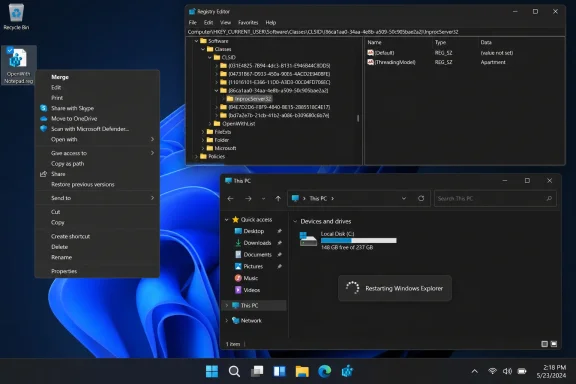 The Registry key must have an empty default value
The crucial detail in Neowin’s instructions is not merely creating the two Registry keys. The (Default) value under InprocServer32 must be saved as an empty string. Several recent guides, including Pureinfotech’s, flag that distinction because a missing or untouched value may not produce the same result.
The manual route is:
- Open Registry Editor by pressing
Win + R, enteringregedit, and selecting Enter. - Go to
HKEY_CURRENT_USER\Software\Classes\CLSID. - Create a key named
{86ca1aa0-34aa-4e8b-a509-50c905bae2a2}. - Inside it, create a key named
InprocServer32. - Open the
(Default)string value, leave its Value data field blank, and save it. - Restart Windows Explorer or restart the PC.
Because the change is made under HKEY_CURRENT_USER, it applies only to the signed-in user who makes it. That is useful for a shared PC: one person can restore the older menu without changing the experience for every local account. It also means administrators should not mistake this for a centrally managed, machine-wide configuration.
For a more repeatable deployment on an individual device, the same setting can be created from Command Prompt or Windows Terminal:
reg.exe add "HKCU\Software\Classes\CLSID\{86ca1aa0-34aa-4e8b-a509-50c905bae2a2}\InprocServer32" /f /ve /d ""
The command does not need elevation because it writes to the current user’s Registry hive. That makes it less intrusive than variations of this tweak that target HKEY_LOCAL_MACHINE and require administrative permissions.
Restarting Explorer is the step users most often skip
The Registry edit does not redraw an already-running Explorer shell. Users need to restart Explorer before judging whether it worked.
The least disruptive method is to restart the computer. On a workstation that cannot be rebooted immediately, open Task Manager, find Windows Explorer, right-click it, and choose Restart. The taskbar and desktop may disappear briefly while Explorer reloads; that is expected.
Once Explorer returns, right-click a file, folder, or empty area of the desktop. The full legacy menu should appear without the modern compact menu or its second-step overflow command.
This is an important distinction for support staff. A user may correctly create the CLSID branch and still report no change simply because Explorer is running with the earlier shell state. Repeating Registry steps before restarting Explorer only raises the risk of creating duplicate or malformed keys.
The classic menu is not necessarily better for every extension
Neowin correctly cautions that newer Windows 11 shell extensions can be designed around Microsoft’s compact menu model. The classic view often remains more useful for traditional desktop programs, particularly those that add multiple file actions, archive utilities, version-control clients, security products, and older administrative tools. It exposes more commands at once and restores the denser menu muscle memory many Windows 10 users expect.
But the compatibility tradeoff is real. An app whose developer only integrated with the newer Windows 11 menu can place a command differently, omit an icon, or behave inconsistently when the legacy menu is forced. The tweak should therefore be tested against the tools that matter on that PC rather than deployed blindly as a universal “fix.”
For enterprise administration, that is the dividing line between a personal preference and a support concern. On a developer workstation where a user repeatedly needs legacy Git, archive, or management commands, the change can remove friction. On a broadly managed fleet, it creates another per-user shell state that help-desk staff must recognize and potentially reverse after application upgrades.
The Registry edit also does not improve the modern menu itself. It bypasses it. Microsoft may alter or remove this fallback behavior in a future feature update, and there is no Microsoft documentation promising its continued availability. A cumulative update is unlikely to advertise a change in this area, so organizations relying on the workaround should include it in their Windows 11 regression checks.
Reversing the change is cleaner than trying to edit around it
To return to Windows 11’s default context menu, delete the CLSID key that was created:
reg.exe delete "HKCU\Software\Classes\CLSID\{86ca1aa0-34aa-4e8b-a509-50c905bae2a2}" /f
Then restart Windows Explorer or reboot. Removing the parent key is preferable to deleting only one value because it returns the user hive to its previous state rather than leaving a partial override behind.
Before applying either command manually, export the relevant Registry branch or create a Windows restore point. This is not because the specific key is especially dangerous; it is because Registry Editor provides little protection against a typo in a neighboring path. The target is under HKCU\Software\Classes\CLSID, not the similarly named machine-wide HKEY_LOCAL_MACHINE branch.
Users who only occasionally need the older commands may not need the Registry change at all. Microsoft documents Shift + F10 as a way to open a context menu for a selected item, and the keyboard shortcut can be quicker than hunting through the modern interface. But for people who right-click constantly in File Explorer, the per-user override remains the more durable answer—provided they accept that it relies on an undocumented Windows behavior Microsoft can change.
