

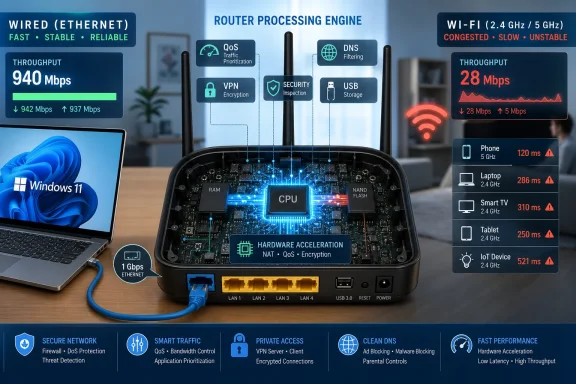
For Windows users, the first rule is to separate a router throughput problem from a Wi‑Fi problem. A laptop that receives 300 Mbps over Wi‑Fi in a distant bedroom may be limited by radio signal, channel congestion, client hardware, or its Wi‑Fi driver—not the router processor. CPU-heavy router features show up most clearly when a modern Windows PC is connected by Ethernet, the ISP line can deliver more bandwidth than the router is passing, and a speed test or large download drives the router’s CPU path to its limit.
The key technical detail left too broad in the original advice is hardware forwarding. Many consumer routers can pass ordinary NAT traffic through a fast path in their networking hardware. Once a feature needs to inspect, classify, queue, encrypt, or rewrite individual packets, traffic may be sent through the general-purpose processor instead. That can reduce maximum WAN throughput sharply on an older or lower-end router, even while its Wi‑Fi radios and Ethernet ports are capable of higher headline speeds.
ASUS documents that enabling certain features can disable NAT acceleration, while GL.iNet explicitly says its QoS and Smart Queue Management options cannot work with network acceleration. That is a design tradeoff, not automatically a fault. The job is to identify which tradeoff your network is making and whether it is still the right one.
Establish whether the router is actually the bottleneck
Before disabling security or parental controls, test the connection with a Windows PC connected directly to the router by Ethernet. Use the same PC, Ethernet cable, browser or test application, and nearby test server for each comparison. First record a baseline with the router configured as it normally is; then change one feature at a time, reboot if the vendor interface requires it, and retest.
A large improvement in wired downstream or upstream speed after a feature is disabled is meaningful. A change from 700 Mbps to 940 Mbps on a gigabit service, for example, points to packet processing rather than wireless interference. If wired throughput is already close to the subscribed rate, do not expect these settings to cure Wi‑Fi dead zones, crowded apartment channels, or a Windows adapter that has fallen back to 2.4 GHz.
Also check the less obvious half of the result: latency under load. Open a video call or game on one device while another device uploads files or runs a cloud backup. A router can achieve an impressive top-line speed-test figure with acceleration enabled yet allow upload congestion to make the rest of the connection feel unusable. QoS or SQM can be the better configuration in that situation, even if the maximum speed-test result is lower.
QoS can trade raw speed for usable latency
Quality of Service is the first setting to test on a router that cannot reach the internet speed it achieved when new. QoS assigns priority among devices, applications, or traffic classes, which means the router must identify traffic and decide when packets should be sent. On many designs, that prevents traffic from using the simple accelerated forwarding path.
This is why the blanket advice to disable QoS has a major exception: households with a slow upload connection, recurring video-call failures, online gaming while someone uploads, or severe bufferbloat—the delay caused by a saturated connection holding packets in long queues. In those cases, disabling QoS may improve a speed-test number while making a Teams call, Remote Desktop session, or multiplayer game worse during busy periods.
The better test is conditional. Disable QoS temporarily and retest wired throughput. If the gain is substantial and the connection remains responsive while someone else downloads or uploads, leave it off. If latency rises dramatically when the line is busy, turn it back on and enter the broadband rates accurately. QoS configured with an inflated bandwidth figure cannot control the real bottleneck effectively.
Router brands also use the QoS label loosely. TP-Link’s documentation, for example, describes device and activity prioritization, while other vendors offer per-device limits, application categorization, or full queue-management algorithms. A simple “prioritize this PC for two hours” feature may have a different cost from a router attempting to classify and shape all traffic continuously.
Security inspection is not a free performance setting
Built-in suites marketed as ASUS AiProtection, NETGEAR Armor, TP-Link HomeShield, or Ubiquiti intrusion detection and prevention features deserve more caution than the How-To Geek article gives them. Their value is not hypothetical: they can inspect traffic patterns, block known malicious destinations, identify risky IoT devices, and apply network-wide controls to devices that cannot run endpoint security software.
Those features can cost throughput because traffic inspection and intrusion prevention do more work than ordinary NAT. Vendors themselves publish separate IDS/IPS throughput figures for higher-end gateways, an acknowledgment that security inspection has a measurable performance budget. TP-Link’s HomeShield materials likewise distinguish network scans and basic controls from more extensive web protection, intrusion prevention, and IoT protection features.
Do not turn off a security suite merely because it exists. Instead, check whether it is implicated:
- Disable the inspection or intrusion-prevention component briefly, retest from Ethernet, and re-enable it if there is no material gain.
- Keep Windows Security, browser protections, operating-system updates, and device patching in place regardless of what happens at the router.
- If disabling security inspection is the only way a router can deliver the bandwidth you pay for, the long-term answer may be newer hardware or a gateway designed for inspected traffic—not a permanently less protected network.
A security suite that shaves 10 percent from a multi-gigabit connection is a different decision from one that reduces a gigabit line to a few hundred megabits. The exact result depends on the router’s processor, firmware, enabled features, and traffic mix; the product name alone does not establish the performance hit.
Content filtering should match the control you need
“Parental controls” range from lightweight scheduling to broad filtering and activity reporting. A scheduled nightly pause for a child’s device can be a comparatively simple rule. URL categorization, SafeSearch enforcement, application limits, browsing histories, and cloud-backed content classification are more involved features, and their privacy implications are as important as their processing overhead.
If the only goal is domain-level blocking of malware or adult material, a filtering DNS resolver can reduce the router’s own workload compared with a full inspection suite. Cloudflare’s 1.1.1.1 for Families offers one resolver pair for malware blocking and another for malware plus adult-content blocking; the router only needs to hand DNS requests to the resolver rather than maintain a local categorization and inspection engine.
But DNS filtering is not equivalent to full parental control or intrusion prevention. It generally cannot enforce time limits, reliably identify every app’s activity, or see traffic that uses another encrypted DNS provider or a VPN. It also relies on category databases that can misclassify domains. Families that need schedules and age-based policies should retain those features, then measure the cost rather than treating all filtering as expendable.
Router VPNs have a clear CPU cost, but protocol choice matters
A VPN client or server on the router encrypts and decrypts traffic for every protected device. On a modest router, that process can make the VPN speed far lower than the normal broadband rate. Netgate’s pfSense documentation recommends cryptographic acceleration where available and notes that faster CPU cores and efficient encryption choices matter for VPN scaling.
The original guide is right that installing a VPN client directly on the Windows PC, phone, or other device is often the cleanest option when only a few devices need the tunnel. It avoids sending every television, smart speaker, console, and guest device through the encrypted path. It also lets the user choose which traffic uses the VPN without changing the whole household’s connection.
Still, router-level VPNs are justified for some uses: a device without VPN support, a home network that must reach a work or home-lab resource, or a travel router protecting multiple devices. In those cases, look for the router’s actual VPN throughput for the selected protocol, not its Wi‑Fi 7 or “multi-gig” marketing number. A router that routes 2.5 Gbps normally may be capable of only a fraction of that with an encrypted tunnel enabled.
DNS ad blocking and USB storage are lower-priority suspects
Router-level ad blocking usually works at DNS level: the router answers requests for listed ad or tracking domains with a blocked response. A small list should not be the first setting blamed for a major throughput collapse. A very large blocklist, exhaustive logging, or a router with little RAM can create overhead, but the more likely benefit is that web pages make fewer tracking requests.
It is therefore sensible to test DNS blocking only after QoS, VPN, and deep packet inspection. If disabling it produces no repeatable wired improvement, restore it. The meaningful choice is whether the benefits and occasional site breakage are acceptable, not whether every router feature must be stripped down for an artificial speed-test win.
USB file sharing is a different case again. Copying files to a USB drive attached to the router consumes processing and storage I/O that cheaper router chips may handle poorly. It can interfere with router responsiveness during sustained transfers, especially when a built-in download manager is also active. That is a good reason to move regular backups, media serving, or torrenting to a Windows PC, NAS, or dedicated server.
The USB 3.0 warning is real but separate from CPU load. The USB Implementers Forum has documented radio-frequency noise from some USB 3.0 devices and cables in the 2.4 GHz band. If Wi‑Fi becomes unreliable only when an external drive is connected, test a shorter or better-shielded cable, increase the distance from the router antennas, use 5 GHz or 6 GHz where possible, or move the storage workload off the router.
The practical result is simple: test QoS and router VPN first, then deep inspection features if wired throughput remains unexpectedly low. Preserve controls that solve a real latency, child-safety, or security problem. If a router needs most of its advertised features disabled before it can handle the broadband line attached to it, that is no longer a settings problem—it is a hardware capacity problem.
References
- Your router's CPU is throttling your Wi-Fi—here's which 6 settings to disable first How-To Geek · 2026-08-23T19:00:13+00:00