
Published July 31, HP’s overview frames Teams Copilot as an everyday productivity tool for people buried in meetings and channel traffic. That is broadly the right use case. Microsoft Teams can use meeting transcripts and chat context to answer questions about what was said, surface decisions, suggest follow-up tasks, and summarize conversations that a user missed.
For Windows users, the important distinction is that this is not a generic local AI feature tied to a new laptop. Copilot in Teams is a Microsoft 365 service, governed by the user’s license, the meeting organizer’s settings, tenant policies, permissions, and—often—whether a transcript exists. Buying a Copilot+ PC may improve a device’s local AI capabilities, but it does not unlock or inherently accelerate the cloud-based Teams Copilot workflow HP is describing.
Microsoft’s current Teams documentation makes that separation clear: Copilot in Teams is available across Windows, macOS, the web, Android, and iOS. The deciding factors are the organization’s Microsoft 365 setup and the meeting’s configuration, not whether the endpoint has an NPU.
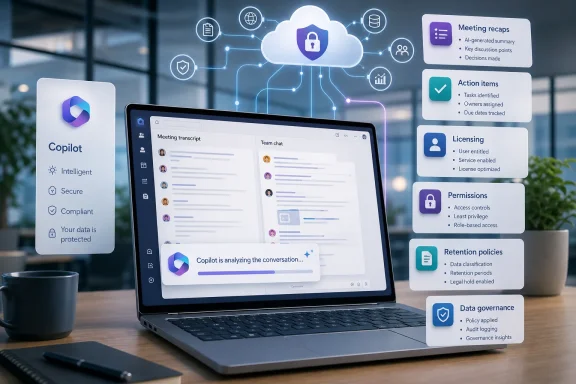 The Meeting Transcript Is the Feature’s Real Foundation
HP places meeting summaries and action-item extraction at the center of its pitch, and that is where Teams Copilot delivers its clearest practical value. A user can ask what has been discussed so far, request a list of decisions, identify unresolved questions, or have Copilot suggest tasks and owners.
But the useful after-the-fact experience depends heavily on transcription. Microsoft says a user can invoke Copilot during a meeting without recording or saving a transcript when the meeting is configured for only during the meeting. In that mode, Teams can process speech-to-text data for live assistance, but the information and Copilot conversation are not retained when the meeting ends.
That may be attractive for sensitive calls where an organization does not want a recording or enduring transcript. It is not, however, the configuration HP’s promised post-meeting recap depends on. To revisit questions after the call, use Copilot from the Recap tab, or obtain a durable account of decisions and tasks, the meeting needs a transcript available.
This leaves administrators with a genuine trade-off. Enabling transcripts can make meetings searchable, auditable, and far easier to review. It also creates a governed data artifact that must fit retention rules, eDiscovery requirements, sensitivity labels, regional data practices, and employee expectations. Teams meeting recaps can include recordings, transcripts, shared files, notes, agendas, and follow-up tasks; that is useful context, but it is not inconsequential data.
Microsoft also warns that AI-generated meeting content can be incomplete or inaccurate. Teams Copilot is best treated as a fast first pass over a discussion, not a substitute for the meeting owner’s judgment. A task assigned tentatively in conversation can be summarized as more definite than participants intended, while a nuanced decision may be reduced to a sentence that loses its conditions.
Organizers and Admins Control More Than End Users Expect
The consumer-style version of the Copilot story is simple: click the Copilot button, ask for a recap, and move on. The enterprise version is more conditional.
Microsoft gives Teams meeting organizers options to allow Copilot during and after a meeting, allow it only during the meeting, or turn it off. Administrators can establish defaults and enforce policy through the Teams admin center or PowerShell. Sensitivity labels, meeting templates, transcription rules, and recording policies can further limit what users can do.
That means an employee with a Copilot license may still encounter a meeting where the feature is unavailable. End-to-end encrypted Teams meetings do not support Microsoft 365 Copilot in Teams. External meetings can also be restrictive: Microsoft notes that Copilot will not work in meetings hosted outside a participant’s organization. In practice, this matters most for consultants, managed service providers, and enterprises that work constantly across tenant boundaries.
The access model is equally important. Microsoft says Copilot respects the user’s existing identity, permissions, sensitivity labels, retention policies, and administrative settings. That is reassuring only if the organization’s underlying permissions are already healthy. Copilot does not magically create access to a confidential project channel or restricted SharePoint site, but it can make existing oversharing easier to discover and summarize.
For IT teams, that shifts the deployment question away from “Should we turn on Copilot?” and toward “What will Copilot reveal from the data people can already reach?” Teams chat, SharePoint, OneDrive, Exchange, and meeting content are part of a broader Microsoft 365 information estate. A sensible rollout starts with access reviews, oversharing remediation, sensitivity-label coverage, and clear rules for recordings and transcripts—not a companywide prompt-writing workshop.
Chat Catch-Up Is Useful, but It Is Not an Archive Search Miracle
HP is also right to emphasize chat and channel summaries. In a busy Teams environment, summarizing a long thread can be a much better use of time than scrolling through dozens or hundreds of messages. Teams Copilot can surface the main points, decisions, and action items in a chat, and it can use a meeting transcript as context in a meeting chat when one is available.
That is especially useful after vacation, when joining a project already in motion, or when a user is handling several active incident, deployment, or customer channels. The most effective prompts tend to be narrow and operational: summarize decisions from a specific thread, identify open questions, list the action items affecting a particular team, or explain what changed since a named date.
The limitations are familiar to anyone who has used generative AI in a business setting. A summary is only as good as the source material. If a decision happened in a phone call, in a private chat, in an email thread, or in somebody’s head rather than in the relevant Teams conversation, the answer will be incomplete. If a channel contains conflicting proposals, Copilot may identify the disagreement but cannot determine which participant actually had authority to settle it.
That makes Copilot more valuable as a navigation layer than as an official system of record. Teams users should still document final decisions in durable places: meeting notes, Planner tasks, approved documentation, an ITSM ticket, a change record, or a project system. The practical benefit is not that Copilot eliminates documentation; it reduces the time needed to locate the documentation and conversation that should inform it.
Licensing Remains More Complicated Than “Included With Microsoft 365”
HP advises organizations to check with Microsoft on licensing, which is prudent because the product naming remains confusing. Microsoft 365 Copilot, Microsoft 365 Copilot Chat, Teams Premium, Copilot+ PCs, and the Copilot app in Teams are related but not interchangeable offerings.
Microsoft says Copilot Chat is included for organizations with eligible Microsoft 365 subscriptions, with web-based chat providing internet-grounded responses. Work-based grounding—where Copilot can use organizational data a user has permission to access—requires a Microsoft 365 Copilot license. Teams meeting experiences, including the full Copilot workflow described by HP, also depend on the relevant Copilot entitlement and Teams policy configuration.
There is some overlap with Teams Premium. Microsoft’s intelligent recap capabilities are available through Teams Premium and through Microsoft 365 Copilot in supported scenarios. That does not mean every recap feature, every AI-generated artifact, or every meeting configuration behaves identically across licenses. Administrators should test the exact scenarios their users need rather than licensing from a marketing checklist.
The first deployment group should be one where the value is measurable: project managers handling recurring status meetings, service-delivery teams running incident reviews, sales operations, or engineering leads tracking cross-functional work. Compare time spent reviewing recordings and chat backlogs before and after the rollout. More importantly, inspect whether action items are accurate, whether information is being surfaced to the right people, and whether the organization’s retention policies produce the intended outcome.
Copilot+ PC Branding Should Not Distract From the Cloud Service
HP’s guide ends by steering readers toward its Copilot+ PCs, EliteBooks, and OmniBook Ultra Flip 14. Those systems may be sensible choices for Windows users who need strong webcams, microphones, battery life, endpoint security, or local AI functions. An NPU can be valuable for on-device workloads such as supported Windows Studio Effects and certain locally accelerated applications.
But an NPU is not a prerequisite for Copilot in Teams. Microsoft’s Teams support material identifies the Teams clients and Microsoft 365 licensing requirements, while the meeting and chat features rely on the organization’s cloud data, transcript availability, and policy controls. There is no basis in Microsoft’s published Teams guidance for treating a Copilot+ PC as the route to faster cloud-generated meeting summaries.
That does not make hardware irrelevant. A poor webcam, weak microphone array, unstable wireless connection, or underpowered system can still make the meeting itself worse—and worse meeting audio means worse transcription. For organizations standardizing laptops around Teams, audio capture quality, Windows Autopatch readiness, driver management, security controls, battery health, and supportability remain more concrete buying criteria than a broad claim about AI responsiveness.
The near-term value of Copilot in Teams will be determined less by the silicon in a laptop than by whether organizations deliberately configure transcription, retention, permissions, and meeting policies. When those foundations are in place, the feature can turn a missed hour-long meeting or an overloaded channel into a few minutes of useful review. When they are not, users will simply see another Copilot button that either cannot access the needed context—or produces an answer nobody should trust without checking.
