
PCMag’s new 20-project guide makes a strong case for reusing an old Windows PC or Intel Mac, but its most useful lesson is more specific than “install Linux and start tinkering.” A machine pushed out of its original desktop role can still be a capable appliance: a media server, a local backup target, a Home Assistant host, a game server, a kitchen browser, or a dedicated video-call terminal. The practical win is to give it one job it can do reliably, rather than trying to recreate a modern all-purpose PC on aging hardware.
The timing is real. Standard Windows 10 22H2 support ended on October 14, 2025, while Apple’s macOS 27 compatibility list excludes Intel Macs. But “unsupported” should not be read as “dead hardware.” Microsoft still offers Consumer Extended Security Updates for eligible Windows 10 22H2 PCs through October 13, 2026, and the final Intel Macs can still run macOS Tahoe 26. PCMag’s list, built around that transition, is directionally right: reuse is often a better answer than forcing a marginal Windows 11 upgrade or sending working equipment to e-waste.
There is a catch for Windows users. PCMag suggests installing Windows 11 for a distant relative, but many machines that are old enough to need repurposing will fail Windows 11’s supported hardware checks. Microsoft’s published baseline still includes a supported 64-bit processor, UEFI with Secure Boot capability, and TPM 2.0, alongside 4GB of memory and 64GB of storage. A clean install does not make an unsupported PC supported.
Windows 10’s October 2025 end-of-support date changed the security posture of ordinary consumer PCs, particularly machines used for browsing, email, banking, remote access, or file sharing. Consumer ESU buys time, but it does not add features, extend support indefinitely, or make an otherwise failing hard drive and obsolete browser stack a good long-term workstation. It is a transition measure, not a refurbishment strategy.
For a Windows 10 PC that passes Windows 11’s checks, a normal Windows 11 installation remains the least disruptive route. For a system blocked by the processor, TPM, or firmware requirements, an officially supported Linux distribution or ChromeOS Flex is generally more defensible than installing Windows 11 through a requirements bypass and hoping future feature updates continue to cooperate.
Intel Macs have a different path. Apple’s macOS 27, announced for release later in 2026, requires Apple silicon, so Intel Macs will not receive that next major OS. Yet a 2019 Mac Pro, 2020 iMac, 2019 16-inch MacBook Pro, or 2020 four-port 13-inch MacBook Pro can still be useful machines under macOS Tahoe. The decision is less about immediate obsolescence than whether the Mac can continue doing a defined job without needing features, drivers, or applications that will require newer macOS versions.
PCMag’s core recommendation to consider Linux is especially sound for both groups. Linux Mint, Zorin OS, Ubuntu, Fedora, and other distributions can make a system useful for web, office, media playback, SSH administration, and lightweight development long after the vendor OS has reached its lifecycle limit. But the distro should fit the hardware. A low-memory dual-core laptop benefits from a lighter desktop environment; a 2015-era quad-core desktop with an SSD and 8GB or 16GB of RAM can comfortably run a conventional Linux desktop.
A media server is the obvious starting point. Plex, Jellyfin, Kodi, and similar software can turn local movies, music, recordings, and family videos into something accessible across a home network. The hardware requirement is often modest if clients can directly play the stored files. The complication is transcoding: converting high-bitrate video into a format a phone, TV, or remote user can play can overwhelm an older CPU. Before buying storage or setting up a library, check whether the intended playback devices can direct play the formats already in the collection.
A home NAS is similarly attractive, but it must be treated as storage infrastructure rather than a pile of spare disks. TrueNAS, OpenMediaVault, Unraid, XigmaNAS, and other platforms can turn a tower PC into a shared file server, backup destination, or photo archive. A NAS with no external backup is still only one hardware failure away from data loss. Redundancy can keep a server online after a drive failure; it does not replace a disconnected backup or a second copy elsewhere.
Home Assistant is another excellent fit for a small, low-power desktop, mini PC, or Intel Mac that can run Linux. It can bring local control to lights, plugs, sensors, thermostats, cameras, and dashboards without making a cloud account the center of the home. The old machine should be on reliable wired Ethernet where possible and connected to a UPS if it controls anything consequential, such as heating or security-related automations.
PCMag also points to game hosting, dedicated Zoom or Google Meet systems, a kitchen or guest PC, a photo-frame display, a focused writing station, and a small PC prepared for a distant family member. Those are all viable because they impose narrow limits. A guest machine does not need gaming performance. A family-support machine does not need unrestricted administrator access. A photo-frame display does not need a full productivity environment. In each case, the machine becomes easier to maintain because its purpose is constrained.
The more theatrical ideas—converting a laptop into a DIY tablet, using the chassis for a learning-oriented PC rebuild, or making a guitar-effects rig—are legitimate hobby projects. They should be approached as projects, not savings plans. A used touchscreen tablet, a refurbished practice amp, or a standard desktop case may cost less in money and time, but learning how the old hardware works can be the point.
An old computer should not be exposed directly to the public internet merely because the software offers remote access. Avoid opening router ports for a NAS dashboard, Home Assistant administration page, Plex server, webcam interface, or game server unless you understand the authentication, patching, firewall, reverse-proxy, and logging implications. Remote access through a properly configured VPN or a vendor-supported relay mechanism is often safer than putting an administrative interface on the open internet.
The machine also needs current security updates for whatever operating system it runs. Reusing an unsupported Windows 10 installation as a home server is a poor trade when a maintained Linux distribution is available. The same applies to an Intel Mac stuck on an old macOS release: it may be fine for a disconnected music library or retro-game station, but it should not quietly become the household’s internet-facing camera server.
A privacy PC built around Tails is useful for its intended purpose: temporary, privacy-conscious sessions that run from removable media and route traffic through Tor. It is not a substitute for securing a permanent home server, and it should not be mistaken for a universal anonymous-computing solution. The project works because it is intentionally temporary and isolated.
The same distinction applies to distributed computing. BOINC and Folding@home can make idle CPU time useful, but a machine running computation around the clock will consume electricity, generate heat, and put sustained stress on old fans, power supplies, and disks. For a tiny, low-power system already running for another purpose, it can be worthwhile. For an aging desktop kept alive solely to contribute a few CPU cycles, the economics are less appealing.
First, Home Assistant does support voice control. Its built-in Assist voice assistant can run through the companion app, dedicated voice hardware, and DIY ESPHome devices; speech processing can be local or cloud-assisted. A repurposed PC can host Home Assistant, though it is usually better suited to being the central controller than to sitting in a room as the microphone-and-speaker endpoint. The article’s claim that Home Assistant “doesn’t support voice” is outdated.
Second, ChromeOS Flex is a sensible alternative for many old PCs and Macs, but the certification caveat is larger than it appears. Google says it is designed for many devices made in the last decade or more, while only exact models on its certified list are guaranteed to have core functions such as installation, networking, display output, and audio work consistently through updates. An unsupported Intel Mac or Windows laptop may boot Flex perfectly; it may also have Wi-Fi, sleep, webcam, audio, or update problems. Check the exact model number before erasing the original installation.
Third, local AI does not require an Nvidia GPU or an NPU. Ollama, LM Studio, and related tools can run models on a CPU, and Ollama supports acceleration across Nvidia, AMD, Intel/Vulkan configurations, and Apple silicon through Metal. The real constraint is memory, model size, and tolerance for slow responses. An old 8GB office PC can experiment with a small quantized model, but it is not a realistic host for large models or multiple users. An NPU is neither a universal requirement nor a magic performance upgrade for this use case.
The old PC in the closet does not need to become a laboratory for every item on PCMag’s list. Give it a maintained operating system, a defined task, and a failure plan. That produces a useful machine; anything beyond that is the hobby.
There is a catch for Windows users. PCMag suggests installing Windows 11 for a distant relative, but many machines that are old enough to need repurposing will fail Windows 11’s supported hardware checks. Microsoft’s published baseline still includes a supported 64-bit processor, UEFI with Secure Boot capability, and TPM 2.0, alongside 4GB of memory and 64GB of storage. A clean install does not make an unsupported PC supported.
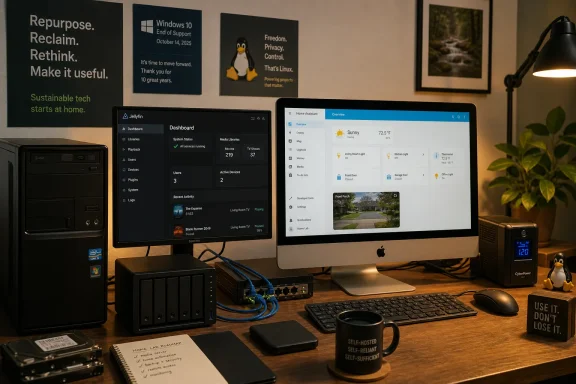 Windows 10 and Intel Macs face different deadlines
Windows 10’s October 2025 end-of-support date changed the security posture of ordinary consumer PCs, particularly machines used for browsing, email, banking, remote access, or file sharing. Consumer ESU buys time, but it does not add features, extend support indefinitely, or make an otherwise failing hard drive and obsolete browser stack a good long-term workstation. It is a transition measure, not a refurbishment strategy.For a Windows 10 PC that passes Windows 11’s checks, a normal Windows 11 installation remains the least disruptive route. For a system blocked by the processor, TPM, or firmware requirements, an officially supported Linux distribution or ChromeOS Flex is generally more defensible than installing Windows 11 through a requirements bypass and hoping future feature updates continue to cooperate.
Intel Macs have a different path. Apple’s macOS 27, announced for release later in 2026, requires Apple silicon, so Intel Macs will not receive that next major OS. Yet a 2019 Mac Pro, 2020 iMac, 2019 16-inch MacBook Pro, or 2020 four-port 13-inch MacBook Pro can still be useful machines under macOS Tahoe. The decision is less about immediate obsolescence than whether the Mac can continue doing a defined job without needing features, drivers, or applications that will require newer macOS versions.
PCMag’s core recommendation to consider Linux is especially sound for both groups. Linux Mint, Zorin OS, Ubuntu, Fedora, and other distributions can make a system useful for web, office, media playback, SSH administration, and lightweight development long after the vendor OS has reached its lifecycle limit. But the distro should fit the hardware. A low-memory dual-core laptop benefits from a lighter desktop environment; a 2015-era quad-core desktop with an SSD and 8GB or 16GB of RAM can comfortably run a conventional Linux desktop.
The best reuse projects are appliance roles
The list’s strongest options are the projects where the old computer stops being a general-purpose endpoint and becomes a dedicated service. Those are less demanding, easier to troubleshoot, and less likely to be ruined by a user installing random software or leaving twenty browser tabs open.A media server is the obvious starting point. Plex, Jellyfin, Kodi, and similar software can turn local movies, music, recordings, and family videos into something accessible across a home network. The hardware requirement is often modest if clients can directly play the stored files. The complication is transcoding: converting high-bitrate video into a format a phone, TV, or remote user can play can overwhelm an older CPU. Before buying storage or setting up a library, check whether the intended playback devices can direct play the formats already in the collection.
A home NAS is similarly attractive, but it must be treated as storage infrastructure rather than a pile of spare disks. TrueNAS, OpenMediaVault, Unraid, XigmaNAS, and other platforms can turn a tower PC into a shared file server, backup destination, or photo archive. A NAS with no external backup is still only one hardware failure away from data loss. Redundancy can keep a server online after a drive failure; it does not replace a disconnected backup or a second copy elsewhere.
Home Assistant is another excellent fit for a small, low-power desktop, mini PC, or Intel Mac that can run Linux. It can bring local control to lights, plugs, sensors, thermostats, cameras, and dashboards without making a cloud account the center of the home. The old machine should be on reliable wired Ethernet where possible and connected to a UPS if it controls anything consequential, such as heating or security-related automations.
PCMag also points to game hosting, dedicated Zoom or Google Meet systems, a kitchen or guest PC, a photo-frame display, a focused writing station, and a small PC prepared for a distant family member. Those are all viable because they impose narrow limits. A guest machine does not need gaming performance. A family-support machine does not need unrestricted administrator access. A photo-frame display does not need a full productivity environment. In each case, the machine becomes easier to maintain because its purpose is constrained.
The more theatrical ideas—converting a laptop into a DIY tablet, using the chassis for a learning-oriented PC rebuild, or making a guitar-effects rig—are legitimate hobby projects. They should be approached as projects, not savings plans. A used touchscreen tablet, a refurbished practice amp, or a standard desktop case may cost less in money and time, but learning how the old hardware works can be the point.
A server on the internet is no longer a harmless experiment
PCMag’s list includes media servers, NAS software, security-camera software, privacy-focused live systems, hotspots, distributed computing, local AI, smart-home control, and game servers. Several of those tasks make an old system network-facing, and that is where a reuse project can become a liability.An old computer should not be exposed directly to the public internet merely because the software offers remote access. Avoid opening router ports for a NAS dashboard, Home Assistant administration page, Plex server, webcam interface, or game server unless you understand the authentication, patching, firewall, reverse-proxy, and logging implications. Remote access through a properly configured VPN or a vendor-supported relay mechanism is often safer than putting an administrative interface on the open internet.
The machine also needs current security updates for whatever operating system it runs. Reusing an unsupported Windows 10 installation as a home server is a poor trade when a maintained Linux distribution is available. The same applies to an Intel Mac stuck on an old macOS release: it may be fine for a disconnected music library or retro-game station, but it should not quietly become the household’s internet-facing camera server.
A privacy PC built around Tails is useful for its intended purpose: temporary, privacy-conscious sessions that run from removable media and route traffic through Tor. It is not a substitute for securing a permanent home server, and it should not be mistaken for a universal anonymous-computing solution. The project works because it is intentionally temporary and isolated.
The same distinction applies to distributed computing. BOINC and Folding@home can make idle CPU time useful, but a machine running computation around the clock will consume electricity, generate heat, and put sustained stress on old fans, power supplies, and disks. For a tiny, low-power system already running for another purpose, it can be worthwhile. For an aging desktop kept alive solely to contribute a few CPU cycles, the economics are less appealing.
Three recommendations need a current reality check
PCMag’s roundup is broad, but some details have not kept pace with the software it recommends.First, Home Assistant does support voice control. Its built-in Assist voice assistant can run through the companion app, dedicated voice hardware, and DIY ESPHome devices; speech processing can be local or cloud-assisted. A repurposed PC can host Home Assistant, though it is usually better suited to being the central controller than to sitting in a room as the microphone-and-speaker endpoint. The article’s claim that Home Assistant “doesn’t support voice” is outdated.
Second, ChromeOS Flex is a sensible alternative for many old PCs and Macs, but the certification caveat is larger than it appears. Google says it is designed for many devices made in the last decade or more, while only exact models on its certified list are guaranteed to have core functions such as installation, networking, display output, and audio work consistently through updates. An unsupported Intel Mac or Windows laptop may boot Flex perfectly; it may also have Wi-Fi, sleep, webcam, audio, or update problems. Check the exact model number before erasing the original installation.
Third, local AI does not require an Nvidia GPU or an NPU. Ollama, LM Studio, and related tools can run models on a CPU, and Ollama supports acceleration across Nvidia, AMD, Intel/Vulkan configurations, and Apple silicon through Metal. The real constraint is memory, model size, and tolerance for slow responses. An old 8GB office PC can experiment with a small quantized model, but it is not a realistic host for large models or multiple users. An NPU is neither a universal requirement nor a magic performance upgrade for this use case.
Start with the hardware, then choose the project
The most effective way to use PCMag’s 20 suggestions is to sort the computer before selecting the software.- A laptop with a working screen, keyboard, webcam, and battery is best reserved for a guest system, family-support PC, writing terminal, privacy live-boot machine, Zoom station, or portable Linux device.
- A desktop tower with several drive bays and Ethernet is the better candidate for a NAS, Plex or Jellyfin server, game server, Home Assistant host, backup node, or local development box.
- A machine with a weak CPU but a good display can still become a kitchen browser, digital photo frame, dashboard panel, or kiosk.
- A system with unreliable storage, swollen batteries, failing fans, or no available security updates should be repaired only if the project justifies the cost. Otherwise, securely erase the drive and use a certified electronics recycler.
The old PC in the closet does not need to become a laboratory for every item on PCMag’s list. Give it a maintained operating system, a defined task, and a failure plan. That produces a useful machine; anything beyond that is the hobby.
References
- Primary source: PCMag
Published: 2026-08-05T17:10:33+00:00
Have an Intel Mac or Old Windows PC? Revive It With One of These 20 Fun DIY Projects | PCMag
Do you have an ancient laptop or desktop just lying around? Transform that aging PC into an NAS, experiment with a new OS, build your own security cam, and more.www.pcmag.com - Related coverage: learn.microsoft.com
Windows 10 reaching end of support - Microsoft Lifecycle | Microsoft Learn
Announcing Windows 10 reaching end of support.learn.microsoft.com - Related coverage: learn.microsoft.com
Windows 10 - release information | Microsoft Learn
Learn release information for Windows 10 releaseslearn.microsoft.com - Related coverage: microsoft.com
End of support for Windows 10, Windows 8.1, and Windows 7 | Microsoft Windows
Make a smooth transition to Windows 11 from your unsupported operating system with help from Microsoft. Enjoy the benefits of upgrading to a Windows 11 PC.www.microsoft.com - Related coverage: microsoft.com
Windows 10 Extended Security Updates | Microsoft Windows
Use Windows 10 securely with the Extended Security Updates program. See how it helps protect your PC and find out how to get it.www.microsoft.com - Related coverage: support.apple.com
Security Verification
Security verification page to protect against malicious bots.support.apple.com
- Related coverage: blogs.windows.com
Stay secure with Windows 11, Copilot+ PCs and Windows 365 before support ends for Windows 10
When we launched Windows in 1985, we set out to revolutionize computing—guided by the belief that technology should be accessible, intuitive and powerful for everyone. Nearly 40 years later, that same vision continues to drive us forward. Today, Wiblogs.windows.com - Related coverage: ncsc.gov.uk
ChromeOS
Guidance on the recommended technical and procedural controls for organisations looking to secure devices running Chrome OS.www.ncsc.gov.uk - Related coverage: apple.com
- Related coverage: windowscentral.com
Windows 10 support has ended: Discover how to keep your device secure beyond October 2025 | Windows Central
Mainstream support for Windows 10 ended in October 2025. That means the OS no longer receives security updates automatically, and you must take action to ensure your devices remain secure when connected to the internet.www.windowscentral.com - Related coverage: tomshardware.com
Microsoft no longer permits local Windows 10 accounts if you want Consumer Extended Security Updates — support beyond EOL requires a Microsoft Account link-up even if you pay $30 | Tom's Hardware
$30 covers up to 10 machines for one yearwww.tomshardware.com - Related coverage: techradar.com
Microsoft in 2025: year in review | TechRadar
Microsoft pushed AI even harder this year – and Windows 11 users rebelledwww.techradar.com - Related coverage: support.apple.com
Using Intel-based apps on a Mac with Apple silicon - Apple Support
Rosetta enables a Mac with Apple silicon to run Intel-based apps. Support for Rosetta will end in a future version of macOS, so check with the app's developer for an updated version.support.apple.com - Related coverage: apple.com
OS - macOS 27 Golden Gate - Apple
macOS 27 Golden Gate with all-new Siri AI powered by Apple Intelligence and new features for a more responsive, delightful experience.www.apple.com - Related coverage: docs.ollama.com
Windows - Ollama
 docs.ollama.com
- Related coverage: ollama.com
- Related coverage: arstechnica.com
macOS 27 requires Apple Silicon, as Apple draws down the Intel Mac era - Ars Technica
You'll need an M1 or better to run the next release of macOS.arstechnica.com - Related coverage: eshop.macsales.com
macOS 27 Golden Gate Drops Intel Support: Here’s How to Find Out If You’re Affected
Apple is winding down support for Intel Macs and the apps built for Intel Macs. Here’s what you need to know.eshop.macsales.com - Related coverage: techtimes.com
macOS 27 Intel Mac Support Ends at WWDC 2026: Four Models Cut, Neural Engine Is Why
macOS 27 Intel Mac support ends at WWDC 2026, locking out four final models — the MacBook Pro 16-inch (2019), MacBook Pro 13-inch (2020), iMac 27-inch (2020), and Mac Pro (2019). Apple Silicon’swww.techtimes.com - Related coverage: techradar.com
Apple quietly kills off support for Intel Macs and MacBooks | TechRadar
macOS 27 Golden Gate will only be available for Apple silicon deviceswww.techradar.com - Related coverage: training.apple.com
- Related coverage: images.apple.com
