
The Verge highlighted the Print option in its first report, while Microsoft’s File Explorer team has since published the more consequential detail: the redesign is intended to separate the everyday commands people need from Windows features and third-party extensions they may not. Microsoft also says the change is rolling out gradually, meaning even an Insider running build 26340.9212 may not see it immediately.
For years, the Windows 11 context menu has asked users to choose between two bad experiences. The compact initial menu reduced the rows of shell extensions that used to pile into the Windows 10 menu, but it hid commands and pushed many workflows into “Show more options.” The legacy menu preserved compatibility but frequently inherited every application’s urge to add itself to the right-click experience.
Build 26340.9212 is Microsoft’s attempt to address that tradeoff without restoring the old free-for-all by default.
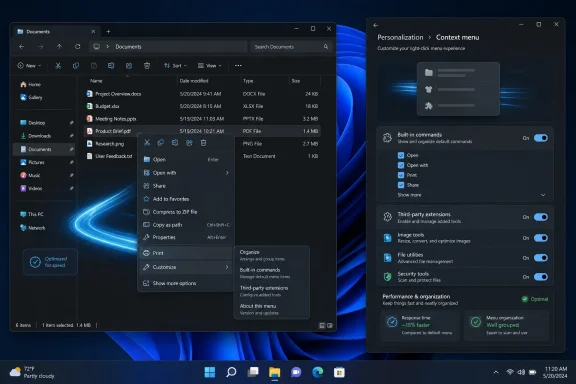 A settings page replaces an all-or-nothing menu
The new File Explorer menu adds a “Customize menu” shortcut at its bottom, opening a Context Menu page under Settings > Personalization. Microsoft says that page lets users enable or disable built-in commands such as Send to and Create shortcut, and can expose Print, which was not previously offered in the standard Windows 11 context menu.
That sounds small until viewed against the history of Windows shell customization. Adding, removing, or rearranging context-menu entries traditionally meant accepting application defaults, altering registry keys, using third-party menu managers, or falling back to the classic menu. Windows 11’s original redesign improved the look of the menu, but it gave users little practical authority over its contents.
Microsoft is now moving at least part of that control into the operating system’s own interface. A user who prints frequently can promote Print without restoring the full classic menu. A user who never uses Send to can remove it. The company has also included options to show Cut, Copy, Paste, Rename, Delete, and Share as text commands rather than the icon row introduced in Windows 11, and to move Properties to the bottom of the menu.
The aim is clearly to accommodate two established habits: users who prefer the compact Windows 11 arrangement and users whose muscle memory was built on the more textual Windows 10 menu. Microsoft is not reverting the design. It is making the default design less rigid.
Third-party extensions are the real performance test
The more important part of this update is how it handles applications that add commands of their own. Microsoft says users will be able to choose whether app extensions appear in the main menu or in a submenu, and can hide that submenu entirely.
That is a meaningful change because context-menu clutter is also a startup-cost problem. A crowded right-click menu is not simply ugly: Explorer must identify and prepare actions supplied by installed software before the user can act. Microsoft explicitly acknowledges that each additional app option can add work when the menu opens.
Windows veterans will recognize the pattern. Archive tools, cloud clients, source-control utilities, PDF software, media players, security products, image editors, backup agents, and enterprise-management tools can all add commands. In a managed fleet, the problem can become more pronounced because endpoint protection, data-loss prevention, encryption, and document-management software may integrate directly with Explorer.
Microsoft’s blog describes the new menu as faster and says it has eliminated “dozens” of possible stalls and interruptions in File Explorer more broadly. But the company has not published timings, a before-and-after benchmark, or a list of extensions tested under the redesigned model. Its speed claim should therefore be read as a vendor performance assertion rather than a quantified result.
The architecture is still promising. The old Windows 11 menu’s practical complaint was that it made extensions disappear behind an extra click; the Windows 10 menu’s complaint was that it made everything visible at once. Putting extensions behind a configurable boundary could give power users a cleaner main menu without requiring developers to remove their integration entirely.
For IT administrators, however, Microsoft has not yet documented policy controls for enforcing a standard menu layout, controlling the availability of specific extensions, or configuring these preferences through Intune, Group Policy, or configuration service providers. The current announcement describes a per-user Settings experience. That makes it useful for individuals and pilot users, but it is not yet a management feature administrators should plan a deployment around.
Experimental means experimental, not a 26H2 commitment
Microsoft’s release notes identify build 26340.9212 as a Windows 11 version 26H2 build delivered through an enablement package to the Experimental channel. Features in that channel are subject to Controlled Feature Rollout, where Microsoft exposes a capability to some Insiders first and expands availability only after reviewing feedback.
That distinction matters more than the build number. A PC can be on the correct Insider build and still lack the menu redesign at first. Microsoft also warns that Experimental features can change, be removed, or never ship outside the Insider program. There is no announced retail release date, no stated channel progression to Beta or Release Preview, and no commitment that the final menu will retain every customization control currently shown.
This is especially worth noting for users who have been waiting for a Windows 11 context-menu fix on production PCs. Build 26340.9212 is based on 26H2, while the established release branches remain separate. The new interface is a preview of direction, not an update that can be safely expected in the next cumulative patch.
The feature is also specifically described as a File Explorer context-menu update. Microsoft has not said that the same customization page governs right-click menus in desktop applications, on the taskbar, in Start, or across the entire shell. Readers should not assume this is a universal Windows context-menu framework.
File Explorer work extends beyond the menu
Microsoft’s accompanying File Explorer post makes clear that the right-click redesign is part of a broader reliability and usability push. The company says it has been addressing hangs, slowdowns, renaming interruptions, and unexpected flashes when browsing files or navigating Explorer.
Several changes now tied to that work are concrete. File renames should no longer be interrupted by background file synchronization, and changing only the capitalization of a filename is meant to appear immediately. The address bar now accepts paths containing quotation marks and double backslashes, while middle-clicking folders to open them in a new tab has expanded to address-bar locations and folders on the Home page.
Build 26340.9212 also fixes an image-preview issue from the prior Experimental flight, where previews displayed an unexpected thick band across the middle. Those repairs are routine, but they underscore why the menu redesign should be judged on more than screenshots: Explorer’s responsiveness is shaped by navigation, shell extensions, synchronization, preview handlers, and the underlying file workload.
Microsoft’s claim that it has made Explorer launch faster and reduced potential stalls is encouraging, but the current documentation does not name affected hardware classes, storage configurations, cloud providers, or known extension conflicts. Insiders testing the menu should use Feedback Hub to report slow opening times alongside their installed Explorer-integrated software, rather than reporting only a general complaint that right-clicking feels slow.
Emoji 17.0 arrives in the same build
The same Experimental flight adds support for Emoji 17.0 through the Windows emoji panel, opened with Windows key + Period. Microsoft specifically names distorted face, fight cloud, and hairy creature among the new characters, and says it has also adjusted several existing emoji designs, including saluting face, face with peeking eye, goose, lotus, and kissing cat.
Emoji support is a far less operationally significant part of the build, but it carries the same rollout limitation. It is not proof that every Windows 11 user has Emoji 17.0 today. It is being tested in a gradual Experimental deployment on version 26H2.
The practical change worth watching is the File Explorer menu. If Microsoft preserves the ability to promote useful built-in commands, demote noisy extensions, and choose a more familiar command layout, Windows 11 will finally offer a supported answer to a complaint that has persisted since its original right-click menu shipped.
