
The practical conclusion is simpler than the headline: Control Panel has not been retired, and neither has the broader collection of legacy Windows administration interfaces that sit beside it. For home users, the Settings app covers most common configuration. For help desk staff, power users, and anyone diagnosing hardware, drivers, storage, or network filters, Windows 11 remains a two-interface operating system.
Microsoft’s stated direction is still to migrate controls into Settings. But as Windows Central reported on August 3, Microsoft CVP of Design and Research Marcus Ash described Control Panel migration as conditional: functionality is moved into Settings first, then the older surface can be deprecated where it is no longer needed. That is a much narrower promise than eliminating every familiar administrative window on a timetable.
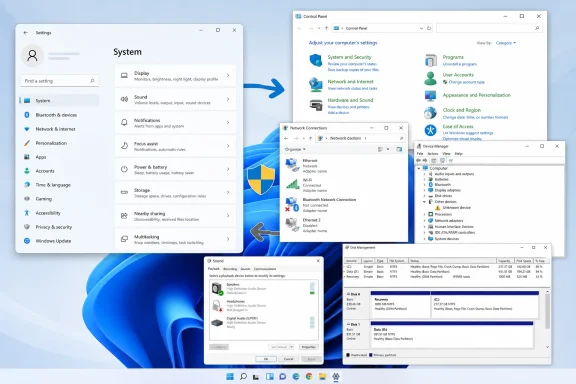 “Retired” is not Microsoft’s current status for Control Panel
The phrase “retired Control Panel” overstates the record. Microsoft briefly caused confusion in August 2024 when a support article said Control Panel was “in the process of being deprecated” in favor of Settings. Ars Technica reported that Microsoft subsequently removed that wording, and Control Panel has not appeared as a whole product component in Microsoft’s official list of deprecated Windows client features.
That distinction is more than semantic. A deprecated Windows component has an announced retirement direction and is generally expected to disappear or lose support over time. Control Panel remains installed, reachable through search and control.exe, and actively documented by Microsoft for current Windows 11 tasks. Microsoft’s support instructions for changing User Account Control behavior still specifically say to open Control Panel, navigate to System and Security, and select “Change User Account Control settings.”
Microsoft has moved individual settings for years: Windows 11’s Settings app now owns most display, personalization, update, account, Bluetooth, accessibility, storage-cleanup, and ordinary network configuration. It has also absorbed pieces of classic Control Panel at a steady but uneven pace, including further language and time settings work in Windows 11 preview builds during 2025.
But Windows is not one settings database with one front end. It is a decades-old platform with shell applets, MMC snap-ins, driver property pages, COM interfaces, Group Policy, PowerShell, Device Configuration Service providers, and vendor-installed control panels. Moving a checkbox is easy only when the underlying behavior is equally simple.
The stronger finding from the MakeUseOf report is that Windows 11 still exposes a visible divide between consumer configuration and administrative configuration. That divide is real. Calling all five examples abandoned Control Panel features is not.
Network Connections remains the adapter-level control surface
The clearest example is Network Connections, the legacy adapter window commonly opened with ncpa.cpl. Windows 11 Settings can connect to Wi-Fi, configure a network profile, set IP and DNS values, manage VPN entries, and reset networking. It cannot provide an equivalent consolidated interface for the bindings and properties attached to a particular network adapter.
From Settings, Microsoft still exposes a “More network adapter options” link under Advanced network settings. Selecting it opens the classic Network Connections interface. Microsoft support responses continue to direct Windows 11 users there to examine adapter properties, including IPv4, IPv6, authentication settings, and adapter-specific configuration.
That older window matters because an adapter can contain more than TCP/IP settings. It can host Microsoft networking components, Hyper-V virtual-switch bindings, VPN client filters, VMware components, packet schedulers, endpoint security filters, and NIC driver options such as Speed & Duplex or power-management behavior. Whether a particular entry appears depends on the hardware and installed software; that variability is precisely why Settings has not replaced it cleanly.
For IT professionals, this is not nostalgia. A VPN that breaks local LAN access, a virtual switch that binds to the wrong physical NIC, or a driver filter that survives an uninstall will not be resolved by Settings’ basic network page. Microsoft has modernized the on-ramp, but the actual adapter control surface remains legacy.
Device Manager and Disk Management are legacy tools, but not Control Panel replacements
MakeUseOf is on firm ground that Device Manager remains indispensable for hardware troubleshooting. Microsoft’s own driver documentation continues to use Device Manager as a primary diagnostic interface: a yellow warning overlay identifies a problem device, and its Properties dialog surfaces the numerical problem code. The tool also remains the graphical route for viewing hardware IDs, inspecting driver details, disabling a device, scanning for hardware changes, and rolling back a driver.
However, Device Manager is an MMC snap-in, not a conventional Control Panel page. It can be launched through Device Manager search results, the Win+X menu, Computer Management, devmgmt.msc, or administrative tools. It belongs to the same legacy administrative world as Control Panel, but Microsoft would need to build a substantially different Settings experience to replace it.
The same is true of Disk Management. Microsoft’s current Windows 11 support page describes Disk Management as the tool for initializing disks, creating and formatting volumes, assigning drive letters, and extending or shrinking volumes. Microsoft explicitly says it works the same in Windows 10 and Windows 11, with no feature differences between the releases.
There is an important correction to the MakeUseOf account, though: Windows 11’s Settings app is not limited to storage consumption, Storage Sense, and cleanup recommendations. It includes System > Storage > Advanced storage settings > Disks & volumes, where users can inspect disks and volumes, alter some volume properties, and resize a volume. Microsoft also uses that Settings page in documentation for managing Dev Drives.
That does not make Settings a full replacement for Disk Management. The newer page lacks the spatial disk map that makes partition relationships immediately legible, and Microsoft’s instructions for core tasks including disk initialization still point to Disk Management. The difference is not that Windows 11 has no modern disk-management surface; it is that Microsoft has maintained two partial ones, while the older MMC tool remains the more complete and familiar option for partition work.
For a technician extending a system partition after a clone or adding a new SSD, the old tool is still the safer interface to reach for—provided there is a verified backup. Both Disk Management and Settings operate on structures where an incorrect delete, format, or resize can destroy data.
Microsoft still sends Settings users back to the Sound Control Panel
Audio is the most visible example of Windows 11’s mixed-interface design because Microsoft’s own documentation openly crosses the boundary. On a Windows 11 support page for fixing speaker and headphone problems, Microsoft tells users to start in Settings, then select “More sound settings” and use the Playback tab in the classic dialog to set a default playback device.
The modern Sound page has improved considerably. It can select input and output devices, control per-app volume through Volume Mixer, configure audio enhancements in many cases, and provide a direct path to troubleshooting. But the old dialog persists because it exposes a broader set of endpoint-level controls and compatibility behavior, some of which depend on the audio driver and hardware vendor.
The MakeUseOf report correctly identifies common reasons users land there: a separate default communications device, multi-channel speaker setup, recording device management, and Exclusive Mode controls. Windows 11’s Settings interface can configure speaker arrangements on some hardware, and Microsoft Surface documentation notes speaker configuration support there. But the classic Sound dialog remains the universal fallback, particularly on machines with several USB headsets, HDMI audio outputs, docks, virtual audio cables, or vendor drivers.
That fallback has an operational cost. A user following a Settings-based support script may believe the setting is missing when it is actually one click away in a different, older UI. In a managed environment, documentation and service-desk runbooks need to name the destination precisely rather than telling users to “check Sound settings.”
UAC is a security setting still anchored in Control Panel
User Account Control is the one item in the five that most clearly remains tied to Control Panel. Microsoft’s current support article instructs Windows 11 users to change the UAC notification level through the Control Panel slider, and Microsoft’s security documentation describes UAC as protection against unauthorized operating-system changes.
The practical advice is not to lower it casually. The default level prompts when applications attempt administrator-level changes while avoiding prompts for routine changes made within Windows settings. Dropping the level can reduce friction during repeated testing or troubleshooting, but it also reduces a control that can interrupt unwanted elevation attempts.
Enterprise administrators should also distinguish the consumer-facing slider from UAC’s wider policy configuration. Microsoft documents several UAC policies that govern administrator approval mode, elevation prompts, secure desktop behavior, and approval rules. Those belong in Group Policy, MDM policy, or security baselines—not in a one-off adjustment to the Control Panel slider.
This is the larger reason a Settings migration can be slow: the visible control is often the smallest part of the compatibility contract. A UAC choice may be backed by security policy; an adapter property by third-party network filters; an audio endpoint by a vendor driver; a disk operation by partition rules and boot configuration.
The problem is the handoff, not the old tools themselves
Windows 11 is not failing because legacy tools still exist. Device Manager, Disk Management, Network Connections, and the Sound Control Panel provide direct, dense interfaces that are useful when a machine is misbehaving. Replacing them with a simplified view that hides driver state, protocol bindings, or partition layout would make Windows less manageable.
The problem is that Microsoft presents Settings as the primary configuration center while regularly handing users to interfaces that have different terminology, navigation models, and visual language. The handoff is often framed as “More” or “Advanced,” which tells users little about which tool contains the control they need.
For now, the best working model is to treat Settings as the first stop for normal configuration and legacy tools as supported administrative surfaces, not forbidden relics. Search remains the fastest route: ncpa.cpl for Network Connections, devmgmt.msc for Device Manager, diskmgmt.msc for Disk Management, mmsys.cpl for classic Sound, and UserAccountControlSettings.exe for the UAC slider.
Microsoft has not announced a removal date for Control Panel, Device Manager, Disk Management, or the classic Sound dialog. Until it does—and until Settings can reproduce the configuration depth that drivers, virtual networking software, storage layouts, and audio stacks require—Windows 11 administrators should expect those tools to remain part of the job.
