
Microsoft’s own documentation confirms that Fast Startup is a hybrid shutdown, not a conventional power-off. A shutdown saves part of the Windows session to the hibernation file; the next boot resumes that saved state rather than performing the same initialization sequence as a restart. Microsoft also documents cases in which updates can remain uninstalled after a Fast Startup shutdown because they need a full shutdown cycle to complete. In that narrow but real scenario, How-To Geek is right: use Restart when troubleshooting or when Windows has asked for a reboot.
The more important finding is that these four switches do not form a single “debloat” setting, and they do not all carry the same trade-off. On a personally managed Windows 11 PC, they are reasonable preference changes. In a managed environment, administrators should use supported policies and configuration profiles—not a collection of per-user registry edits—while keeping Fast Startup decisions tied to hardware and support requirements.
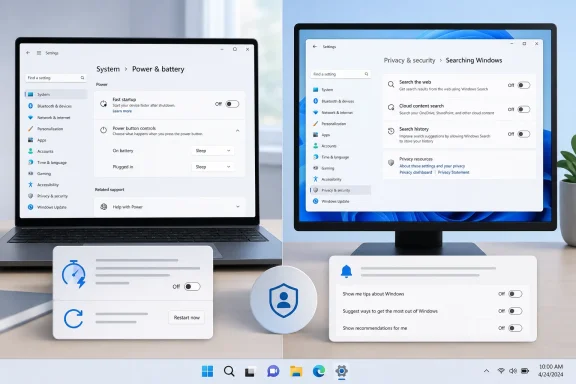 Fast Startup still has a job, even on SSD PCs
Fast Startup arrived with Windows 8, when hard-disk boot times made the feature more noticeable. It is less dramatic on a current NVMe SSD system, but “less dramatic” is not the same as useless. A laptop that is shut down frequently may still boot faster with Fast Startup enabled, while a desktop that is restarted regularly may gain very little.
The larger consideration is state. A restart deliberately reloads Windows, drivers, and services. A Fast Startup shutdown preserves enough of the system state to accelerate the next boot. That can complicate driver diagnosis, hardware changes, update servicing, and dual-boot arrangements where another operating system needs to access the Windows volume safely.
Microsoft’s hardware and Windows engineering documentation is explicit that Fast Startup relies on the hibernation file. That means disabling it also disables the hybrid-shutdown path, which is exactly what some support workflows require. It does not mean hibernation itself must disappear; the settings are related, but the choice should be made carefully on mobile PCs where hibernation remains useful for preserving a session without battery drain.
For users who want predictable recovery behavior, the practical rule is simpler than disabling a default on every machine: restart for troubleshooting, driver installation, firmware-adjacent changes, and updates. Disable Fast Startup if those cases are routine, if a system dual-boots, or if the feature has caused a reproducible problem. Otherwise, leave it alone and avoid turning a minor boot-time preference into a universal prescription.
How-To Geek’s Control Panel path remains valid: Power Options, then “Choose what the power buttons do,” followed by “Change settings that are currently unavailable.” The Fast Startup checkbox may be absent when hibernation is disabled or unavailable.
Windows Search is getting an official off switch
The strongest item in the list is online Search results, because Microsoft is now moving toward a supported, visible choice. In a July 13 Windows Insider Blog post, Microsoft said it is testing controls under Settings > Privacy & security > Search that separately govern web results and Microsoft Store suggestions in Windows Search.
That is a material improvement over the workaround in How-To Geek’s article. Its PowerShell command sets BingSearchEnabled to zero under the current user’s Search registry key. The command has been widely used for years, but it is not the configuration route Microsoft documents for enterprise management—and its behavior has shifted across Windows releases. It affects one user profile, it does not create an auditable organization-wide policy, and it may not cover every surface that readers mean when they say they want to remove “Bing from Windows.”
Microsoft’s Search policy documentation draws the distinction more clearly. On eligible Enterprise and Education devices, the DoNotUseWebResults policy can prevent web queries and web results in Search. Microsoft also documents related policy values that administrators can deploy through Group Policy or device management. Windows Pro does not receive every enterprise Search policy, so a consumer registry tweak should not be presented as an equivalent replacement for a managed configuration.
Windows Central and Pureinfotech have separately reported that Microsoft’s new consumer-facing Search controls are expected to reach the broader Windows 11 release stream in the September 2026 update. As of August 28, 2026, Microsoft’s own announcement only confirms a gradual Experimental-channel rollout; it does not publish a general-availability date or list the final Windows 11 builds that will receive it. Readers should treat September as reported rollout timing, not as a completed deployment.
For a newly installed Windows 11 machine today, check Settings first. If the web and Store toggles are present, use them. If they are not, home users can decide whether a reversible per-user registry change is worth the maintenance burden. Administrators should deploy Microsoft’s supported Search policy where their Windows edition and management tooling support it.
There is also a correction to the performance claim. Removing web results may make the Search interface feel cleaner and reduce results users do not want, but neither Microsoft nor the independent reporting establishes a universal, measurable performance improvement across all PCs. Search problems involving missing local files and slow results are often indexing, permissions, profile, or service issues; turning off web results will not repair those faults.
Notification tips are optional, but some prompts are useful
Windows 11 groups several user-experience messages under System > Notifications > Additional settings. Microsoft’s support material confirms that “Get tips and suggestions when using Windows” can be turned off there, alongside the setting that lets Windows suggest ways to finish setting up the device.
How-To Geek is right that these are safe to disable for an experienced user who does not want them. The “finish setting up” messaging frequently directs people toward Microsoft services such as OneDrive, Microsoft 365, Edge, or account-related configuration. For a clean local setup, suppressing those nudges is a sensible choice.
The reporting overstates the case by treating every tip as obsolete. A brand-new Windows user, a family PC, or a device being handed to someone unfamiliar with Windows may benefit from some guidance—particularly following a feature update. The best default is not “all notifications off.” It is to disable the promotional or repetitive Windows guidance while keeping notifications from security software, backup tools, authentication apps, and required system components intact.
That distinction matters for support. A user who globally disables notifications can miss a BitLocker recovery prompt, a failed backup, a disconnected work account, or a security action from endpoint protection. Windows’ “Additional settings” checkboxes target a defined category of operating-system advice; use those rather than silencing the entire notification system.
“Ads and recommendations” require several controls, not one
The fourth recommendation is directionally correct but operationally incomplete. Windows 11 does not offer a single master switch labeled “remove ads.” Microsoft uses separate settings for suggested Settings content, personalized app advertising, Start personalization, device-usage suggestions, lock-screen content, and recommendation surfaces that vary by edition and update level.
Microsoft’s privacy documentation is especially important here: turning off the Windows advertising ID does not reduce the number of ads or offers. It only limits personalization from that identifier. That makes it a privacy preference, not an ad-blocking control.
For a fresh personal installation, the most practical controls to review are:
- Turn off suggested content in Settings under Privacy & security > General if you do not want feature, app, or content suggestions there.
- Turn off personalized ads by advertising ID in the same General settings area if you do not want Windows apps to use that identifier for tailored advertising.
- Review Personalization > Start and disable recommendation or promotion settings that appear on the installed build.
- Review Lock screen settings and choose a static Picture or Slideshow rather than Spotlight if you do not want rotating content and suggestions.
- Turn off unnecessary device-usage categories under Personalization if Windows is using them to tailor service and app suggestions.
The point is not semantic. Calling every Microsoft suggestion an advertisement can obscure what setting controls it; calling them all harmless tips obscures that they can push services and applications. Microsoft’s own documentation acknowledges that Settings can show suggested content and that Windows uses activity and preference data to personalize parts of Start and Search. A good fresh-install checklist changes the relevant controls one by one and verifies the affected surface afterward.
Build a baseline around supportability
How-To Geek also says it removes OneDrive and Copilot, disables optional telemetry, and uninstalls bundled apps on every installation. Those choices can be appropriate, but they require more care than the four items covered in the article. OneDrive may be the active backup and Known Folder Move path for a Microsoft-account user; Copilot availability changes by region, account type, and Windows build; and “telemetry” includes required diagnostic data that Windows does not let consumer devices disable entirely.
For an IT department, the important dividing line is whether a choice is supported, reversible, and consistently enforceable. Use Intune, Group Policy, provisioning packages, or documented configuration service providers for a fleet. Record why a setting was changed. Test it against the exact Windows 11 release, because feature updates can move controls, introduce new controls, or change defaults.
For an individual Windows 11 installation, the less complicated answer is to disable web Search and promotional guidance if they are unwanted, tune recommendation settings rather than expecting one toggle to cover them all, and use Restart when a true clean boot state is needed. Fast Startup is the one feature on this list that should be a deliberate compatibility decision—not an automatic removal from every fresh install.
