
MakeUseOf’s report correctly identifies three recurring irritants: no sortable folder-size field in File Explorer, Windows’ refusal or alteration of some seemingly valid filenames, and uneven long-path support. The useful conclusion is less that Windows 11 “refuses” ordinary tasks than that the visible Windows interface is constrained by expensive calculations and decades-old Win32 compatibility rules—and Microsoft’s recent File Explorer work has fixed only a narrow part of that gap.
Microsoft’s Windows Insider Blog said on August 17 that File Explorer’s Details view now displays file sizes with appropriate units—KB, MB, and GB—rather than the older KB-only presentation. That means the MakeUseOf claim about every listed file remaining expressed in KB was already outdated for the Insider changes announced ten days before its August 27 publication. The update does not add exact byte counts or folder totals, which are separate problems.
 Folder-size blanks are a missing view, not missing data
File Explorer can calculate a folder’s contents when a user opens Properties, but it still does not expose that total as a standard Details-view column that can be sorted alongside files. Windows Central separately reported this summer that the gap remains in the built-in Explorer, while third-party file managers continue to market folder-size views as a differentiator.
The reason matters when interpreting the omission. A file has a stored length available directly from its metadata. A folder “size,” by contrast, generally means walking its entire descendant tree, opening directories, accumulating file lengths, handling permissions failures, and deciding what to do with symbolic links, junctions, cloud placeholders, hard links, and inaccessible content. Doing that automatically for every folder displayed in a large directory could turn a fast listing into continuous disk and network activity.
Microsoft has not published a current product explanation committing to that performance tradeoff, so it should not be presented as a settled official rationale. But it is the practical distinction behind the interface: Properties performs an on-demand calculation; a sortable Explorer column would invite the same calculation across every visible folder, repeatedly, as a directory changes.
There is also no single universally correct number for storage troubleshooting. A recursive total of file lengths is different from space actually allocated on disk. NTFS allocation units can make a set of small files consume more capacity than their logical byte lengths imply, while compression, sparse files, deduplication, alternate data streams, and cloud hydration can complicate the picture further. Microsoft’s NTFS documentation notes, for example, that Windows Explorer and the dir command do not include alternate data streams in normal file-size or volume statistics.
For a quick one-folder check, Explorer Properties remains adequate. For a system drive that is actually filling up, IT staff should use a storage-analysis tool or a scripted scan that makes its counting rules explicit, rather than assuming a hypothetical File Explorer number would equal consumed SSD capacity.
A basic PowerShell inventory of files in the current folder can provide exact logical byte counts without modifying anything:
Get-ChildItem -File | Select-Object Name, Length
For folder totals, a script must deliberately recurse and define how to handle reparse points and access-denied paths. That extra complexity is precisely why an empty Explorer cell is more than a cosmetic oversight—but it is still a poor default experience when the user’s immediate task is “which folder is largest?”
Exact bytes remain absent even as units improve
Microsoft’s recent Insider change makes File Explorer’s size display more readable by using KB, MB, and GB as appropriate. It does not provide a supported preference for displaying every file’s exact byte count directly in the Details list.
The difference is important for developers, backup administrators, and anyone comparing generated artifacts. A displayed value such as 1.2 MB is intentionally rounded. The Properties dialog shows a more precise byte figure for an individual object, but that requires leaving the list and inspecting items one by one.
That limitation is not remedied by enabling the new size formatting. Microsoft’s community support answers continue to direct users who need a batch view of exact lengths toward PowerShell rather than an Explorer option. The practical workaround is straightforward for files; it becomes more involved when the requirement is a recursive folder total or a size on disk calculation.
Microsoft’s public File Explorer changes focus on readability, navigation, context menus, and performance. The company has not announced a folder-size column or an exact-bytes mode for the Details view. Readers should treat the new unit display as a welcome presentation fix, not a storage-management feature.
Reserved names are Win32 rules with real operational consequences
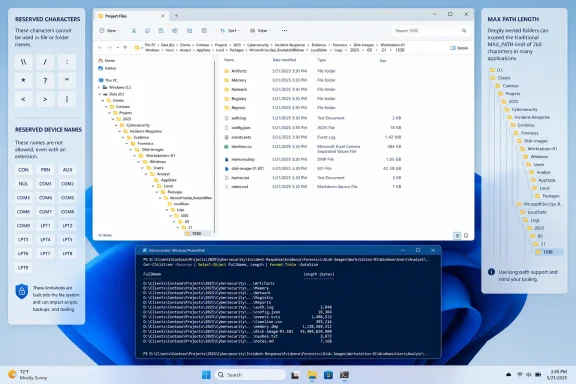
MakeUseOf is on firmer ground with filenames, though its list of forbidden characters is incomplete. Microsoft’s Win32 naming documentation reserves not only backslash, forward slash, colon, asterisk, question mark, quotation mark, and vertical bar, but also the less-than and greater-than signs. Control characters are restricted as well.
The familiar device-like names are also broader than many users expect. CON, PRN, AUX, NUL, COM1 through COM9, and LPT1 through LPT9 are reserved even when an extension is appended. NUL.txt, for example, is not a safe workaround. Microsoft’s documentation also calls out superscript variants of the digits 1, 2, and 3 in COM and LPT device names.
These rules are not merely File Explorer being fussy. They are part of the Win32 naming environment that ordinary Windows applications inherit, preserving behavior for old device abstractions and APIs. A file tree produced by Linux, macOS, a network appliance, an archive extractor, or a low-level NTFS-aware utility can therefore contain names that are awkward or impossible to manage through Explorer and conventional Command Prompt operations.
The trailing-space and trailing-period issue deserves particularly careful wording. Microsoft says that the Windows shell and user interface do not support names ending in a space or period, even where the underlying file system may have capabilities that the normal interface does not expose. Its support documentation further says trailing spaces can be valid at the NTFS level but invalid from a Win32 subsystem perspective, producing objects Explorer and Command Prompt may not reliably rename or delete.
For periods, Microsoft’s newer whitespace documentation is more specific: trailing ASCII periods are removed by the Object Manager during creation. In other words, a user typing Report. into File Explorer should not read the behavior as Explorer silently preserving an exotic NTFS filename. In the ordinary Windows creation path, the final period is normalized away.
This is where the MakeUseOf formulation overreaches. “NTFS can store it” does not mean Windows has made that name available as a usable, portable filename. For admins handling migrated data, the safe rule is practical rather than philosophical: normalize names before copying them into a Windows-dependent workflow, and test any cleanup tooling against reserved names and whitespace edge cases.
Long paths require both policy and application support
The long-path issue is the one most likely to affect enterprise workflows, build systems, source trees, extraction tools, and sync clients. Microsoft removed the legacy 260-character MAX_PATH restriction from many common Win32 file and directory functions beginning with Windows 10 version 1607, but it did not remove it globally.
Microsoft’s Maximum Path Length Limitation documentation sets out two requirements for the newer behavior. The system-wide LongPathsEnabled registry value must be enabled, which administrators can configure through the Enable Win32 long paths Group Policy setting. The application itself must also declare that it is long-path aware in its manifest.
That second condition is the operational trap. An administrator can enable the policy, but cannot make an already-shipped archive tool, line-of-business client, older installer, shell extension, or deployment agent long-path aware. The same document warns that Windows APIs can create paths that the shell UI cannot interpret properly. A file tree may therefore work in one tool and fail later during a copy, zip operation, cleanup, source-control action, or upload.
Developers should avoid treating the policy as a compatibility guarantee. Test full workflows with the deepest realistic project tree, including package restore, compiler output, test artifacts, archiving, endpoint protection, backup, and synchronization. Administrators should inventory the applications touching shared workspaces before changing naming or folder-depth standards.
The old path limit is no longer a universal Windows ceiling. It is now a per-application compatibility property, with policy acting as the gatekeeper rather than the cure.
Microsoft’s current File Explorer work shows that small usability issues can be addressed when the company chooses to prioritize them; the new human-readable size units are evidence. But folder totals, exact list-view bytes, portable edge-case names, and long-path reliability remain distinct problems. For Windows 11 users, the immediate consequence is simple: use Explorer for ordinary browsing, but reach for PowerShell, a storage analyzer, and tested long-path-aware tools when file management becomes operationally important.