
That distinction changes what readers should do with similar symptoms. A SATA SSD can be an effective isolation tool or a cheap second library drive, but moving a game from NVMe to SATA changes two conditions at once: it frees capacity on the original drive and moves the game’s reads to another device. XDA’s before-and-after result shows that the original storage arrangement was implicated. It does not establish which of those two changes removed the bottleneck.
The author’s instinct to investigate Windows 11 was understandable. NVIDIA users did report lower 1% lows, frame-rate drops, artifacts, and black-screen problems after Windows 11’s January 2026 KB5074109 update, and NVIDIA support staff acknowledged reports tied to that release. Tom’s Hardware, TechSpot, and Windows Central also documented the issue. But a real Windows update regression is not a license to blame Windows for every hitch in every game.
In this case, the hitching pattern—exiting caves, entering new regions, and driving into newly streamed parts of a world—pointed more directly at asset delivery than at a broad GPU performance loss. That is where the storage explanation earns its place.
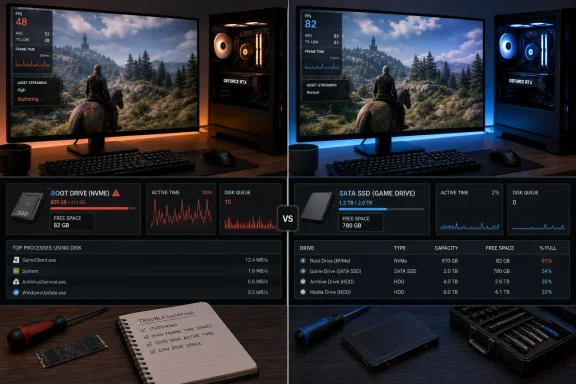 A Nearly Full Boot Drive Is a Plausible Bottleneck
XDA reports that the system’s 1TB NVMe boot drive was 91% occupied. In practical terms, that leaves roughly 90GB of decimal capacity, or about 84GiB as Windows would normally display it. That is close enough to full that it deserves scrutiny, especially if the remaining space must serve Windows temporary files, game updates, browser caches, shader caches, restore points, and the page file.
The commonly repeated “leave 10% to 15% free” rule is not a Windows requirement and should not be treated as a magic threshold. It is a conservative operational guideline. SSD controllers need free NAND blocks for garbage collection and wear leveling, while many consumer drives use portions of available flash as a dynamic SLC write cache. As usable free space shrinks, the controller has fewer easy places to put incoming data and may have to move existing data around more aggressively.
Crucial’s own BX500 documentation lists SLC write acceleration, active garbage collection, TRIM support, and SMART monitoring among the drive’s features. Those are normal SSD mechanisms, not a unique advantage of the BX500. Samsung, Western Digital, Seagate, and other NAND vendors implement comparable approaches under different names and configurations.
What matters for this incident is the workload. A game reading texture and geometry data from a drive is primarily issuing reads. Windows and its background applications can be writing, reading, indexing, paging, checking antivirus signatures, downloading updates, or compiling shaders at the same time. The drive’s peak sequential-read figure—the familiar number printed on a retail box—does not describe how well it will handle a burst of small, mixed requests when its controller is also doing housekeeping.
A system can therefore produce a frustrating result: average frame rate looks normal, GPU benchmarks pass, temperatures remain safe, and yet the game delivers intermittent bad frame times precisely when it needs new assets. For players, that feels like a micro-stutter. Benchmark charts that focus only on average FPS can miss it.
The SATA Drive Was a Workload Split, Not a Faster Upgrade
The crucial fact in XDA’s report is that the Crucial BX500 was assigned a single job: hosting the game. The SATA SSD was not simultaneously serving Windows, the page file, indexing, application caches, and update activity. Meanwhile, moving the game freed space on the original NVMe drive.
That is a sensible storage-layout correction. It is also why the story should not be read as a recommendation to downgrade game storage from NVMe to SATA.
Crucial itself describes a typical SATA SSD at around 500MB/s, against roughly 3,000MB/s for a typical NVMe SSD. Modern NVMe models can deliver substantially more than that under suitable workloads. Microsoft’s DirectStorage documentation is even clearer about the direction of travel: its high-throughput asset-loading model is intended to take advantage of fast NVMe storage and many small I/O requests with lower CPU overhead.
For an older title or a game with modest streaming demands, a healthy SATA SSD remains entirely adequate. The XDA account is proof enough of that in this particular configuration. But for games that use DirectStorage or aggressive open-world streaming, a healthy NVMe drive remains the better destination. Moving a game to SATA may remove a conflict on one PC while imposing a throughput ceiling that becomes visible in another game.
The better conclusion is: separate the game from the overloaded workload, then preserve free space on the drive that remains. A second NVMe SSD is preferable if the budget and motherboard slots allow it. A SATA SSD is still a credible low-cost alternative, particularly when it is already available and the affected titles do not demand NVMe-class streaming.
What the Account Did Not Measure
XDA describes a clear troubleshooting sequence: review Windows updates, perform a clean NVIDIA driver installation with Display Driver Uninstaller, reinstall the game, notice that stutters coincide with fresh asset streaming, then move the game. That is more methodical than randomly disabling Windows features or rolling back security patches.
Yet the report offers no repeatable measurements that can separate its suspected causes. There are no frame-time captures from a repeatable route, no 1% or 0.1% low figures before and after, no Disk Active Time graph during a stutter, no per-process I/O data, no SMART health information, and no identification of the original 1TB NVMe model. Those missing details matter.
A three-year-old NVMe drive may be perfectly healthy at 91% capacity. It may also have an aging firmware issue, a thermal problem, a poor PCIe link state, a degrading NAND or controller condition, or a drive-specific weakness under sustained mixed I/O. The author’s 3DMark result ruled out an obvious GPU or CPU shortfall, but it did not test storage latency under the game’s actual workload.
The clean NVIDIA driver reinstall also provides limited diagnostic value here. It was reasonable to rule out corruption, but a driver reinstall would not be expected to repair a storage queue issue. Likewise, the absence of a match between installed Windows updates and known gaming regressions makes KB5074109 a weaker explanation for this machine, not proof that Windows background activity was the deciding factor.
The experiment that would have clarified the story is simple: first uninstall or relocate enough non-game data to restore 15% to 20% free capacity on the NVMe drive while leaving the game where it is. Then replay the exact trouble spot and capture frame times and disk utilization. If the stutter disappears, free capacity and boot-drive contention were the likely cause. If it remains, move the game to the second drive without changing other variables. That would isolate drive placement from drive fullness.
How to Test This Before Buying Anything
Players with a similar hitching pattern should resist the urge to immediately uninstall Windows updates, replace a graphics card, or buy the fastest SSD on sale. Start by determining whether the stutter actually coincides with storage pressure.
Use Task Manager’s Performance tab or Resource Monitor while reproducing the problem. Watch the system drive’s Active Time, read and write response times, queue behavior, and free capacity—not just its MB/s transfer rate. High active time combined with poor response time during a stutter is more informative than a momentary peak throughput number.
A practical sequence is:
- Leave enough free space on the Windows drive for the page file, temporary files, updates, and normal SSD housekeeping; 15% is a practical target rather than a hard technical rule.
- Check SMART status and firmware with the SSD vendor’s utility before assuming the drive is merely crowded.
- Confirm where the page file, game launcher cache, shader cache, and game itself reside, because moving only the game may not move the competing workload.
- Test one change at a time and use a repeatable scene, route, or built-in benchmark while recording frame-time data.
- Treat a Windows update rollback as a targeted response to a confirmed regression, not a general gaming-tuning step—especially when the update contains security fixes.
Forza Horizon 6 and Pragmata may put more pressure on asset delivery than an older game, but streaming hitches can still originate in game-engine traversal behavior, shader compilation, CPU scheduling, VRAM pressure, driver defects, or a specific game build. Storage is a strong suspect when the drive is near full and busy at the instant the frame-time spike occurs. It is not the only suspect.
The XDA result is useful because it demonstrates a cheap, low-risk first intervention: reclaim capacity on the boot drive and distribute workloads across available storage. The SATA SSD did not overturn the basic hierarchy of PC storage performance. It gave a crowded Windows installation room to work—and that is a fix many gaming PCs need before their owners start blaming Windows 11.
