
For most people, the smartest approach is not to find a single “migration tool,” but to separate the task into three pieces: files, settings, and applications. Cloud syncing and external storage are excellent for files. Vendor migration tools can carry selected settings and user data. Applications, licenses, add-ins, and obscure local databases often require their own plan.
Most importantly, do not erase, reset, donate, or recycle the old computer immediately after the transfer. A successful migration is not measured by a progress bar reaching 100%; it is measured by opening the important files on the new device, confirming that cloud folders are fully synced, and ensuring that critical work is genuinely usable.
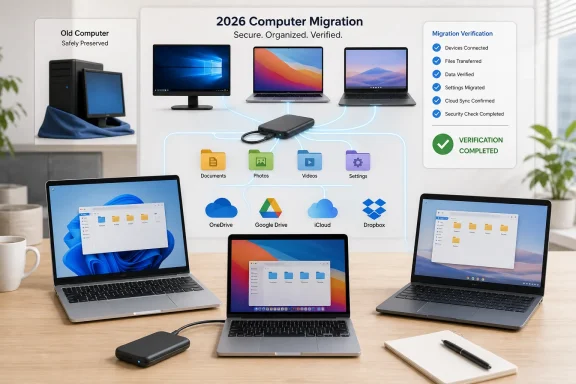 Overview: Choose the Transfer Method Before Copying Anything
The quickest way to turn a simple PC migration into a mess is to begin copying folders without deciding what the new machine needs to become. A new computer may need only personal documents and photos, or it may need browser bookmarks, desktop layout, app settings, email archives, creative-project libraries, and local business records.
The broad choices are straightforward:
- Windows PC to Windows PC: Use Windows Backup and OneDrive for consumer accounts, an external drive for large files, or local sharing for small nearby transfers.
- Mac to Mac: Use Migration Assistant when accounts, apps, settings, and documents should come over together.
- Windows PC to Mac: Use Apple’s Windows Migration Assistant when moving beyond a basic folder copy.
- Any computer to Chromebook: Use Google Drive or compatible removable storage through the ChromeOS Files app.
- Large media libraries: Favor a properly formatted external SSD or hard drive over cloud uploads when internet capacity or cloud storage is limited.
- A few files between nearby devices: Use Windows Nearby sharing, AirDrop, Quick Share where applicable, or a private local network.
The supplied guide correctly emphasizes that the legacy Windows Easy Transfer path is not a current solution. Microsoft’s modern consumer migration path is centered on Windows Backup and OneDrive-backed folders rather than the former PC-to-PC utility. Microsoft’s Windows Backup documentation describes the current model: selected folders, settings, preferences, app pins, and cloud-based restoration using the same Microsoft account.
Files are not the same as a full PC migration
A copied Documents folder may contain the work itself, but not necessarily the software needed to open it, the fonts used by a design project, an app’s template library, or the license required to reactivate a paid program.
That distinction matters most for:
- Accounting software with local company files
- Email stored in Outlook PST archives
- Adobe, CAD, video-editing, and music-production projects
- Game saves stored outside standard Documents folders
- Virtual machines, developer repositories, and encrypted containers
- Password managers, browser profiles, and security keys
- Apps whose activation is tied to the old computer
A good file transfer plan therefore starts with an inventory. Identify not only the folders to move, but also the applications and services that depend on those folders.
Windows to Windows: Windows Backup Is the Best Starting Point for Consumer PCs
For a typical home Windows computer, Windows Backup is the cleanest supported starting point. It combines selected folder backup with saved settings and app-related restoration information, so the new PC can feel closer to the old one without cloning every outdated file and unnecessary program.
Microsoft says Windows Backup supports consumer devices signed in with a personal Microsoft account. It does not support work or school Microsoft accounts in the consumer Windows Backup app. Microsoft’s support guidance also confirms that it can back up Desktop, Documents, Pictures, Videos, and Music through OneDrive.
What Windows Backup does well
Windows Backup is useful because it can preserve more than visible documents. Depending on the options selected, it can carry over items such as:
- Desktop, Documents, Pictures, Videos, and Music folders
- Installed-app list and app pins
- Accessibility preferences
- Accounts, remembered Wi-Fi networks, and passwords
- Personalization settings such as wallpaper, theme, colors, and Start layout
- Language settings and other Windows preferences
This is especially valuable when setting up a new Windows 11 PC. During setup, signing in with the same Microsoft account can prompt the option to restore a previous backup. Microsoft notes that non-Microsoft Store apps are not silently reinstalled in every case; instead, Windows can direct the user to download the relevant installer. The Windows Backup restore process is therefore a convenience layer, not an exact disk image.
The practical Windows Backup workflow
- On the old PC, open Start, search for Windows Backup, and launch it.
- Confirm that the PC is signed in with a personal Microsoft account.
- Expand Folders and enable the known folders that should be protected.
- Review the settings and preferences categories before enabling backup.
- Select Back up and wait for the cloud synchronization to complete.
- Set up the new computer using the same Microsoft account.
- Choose the old device backup when Windows offers a restore option.
- Open OneDrive in File Explorer and verify that all expected folders are present and downloadable.
The central strength of this approach is convenience. It reduces manual work, keeps files accessible through OneDrive, and restores a familiar Windows environment. The central limitation is storage: Microsoft’s free account allocation is limited, so a large personal media library can exceed available OneDrive capacity quickly. Microsoft’s backup documentation explicitly ties known-folder backup to OneDrive storage.
Why cloud sync needs a verification step
Cloud sync is often mistaken for a traditional backup. It can be part of a reliable migration plan, but sync also means that deletions and changes may propagate.
Before removing anything from the old PC:
- Open the files on the new computer rather than merely checking that filenames appear.
- Confirm that large videos, ZIP archives, and project folders have finished downloading.
- Look for cloud-status icons in File Explorer.
- Check hidden or nonstandard locations such as
Downloads, application-specific folders, and local archives. - Confirm that the new computer has enough free disk space for files marked as offline.
If the old PC will be wiped after a OneDrive migration, unlink it from OneDrive first if the goal is to avoid deleting synchronized content from the cloud. The distinction between removing a local copy and deleting a synchronized cloud file is critical.
OneDrive, Google Drive, iCloud Drive, and Dropbox: Cloud Sync Is Ideal for Everyday Files
Cloud storage is the most elegant choice for files that are already part of an ongoing digital workflow. Documents, photos, spreadsheets, school work, desktop folders, and current projects benefit from becoming available on both old and new devices during the transition.
The attraction is obvious: there is no cable to lose, no drive-format issue, and no need to keep both computers physically close. The risks are equally clear: internet upload speed, account storage limits, accidental deletions, and incomplete syncs can all interrupt the move.
OneDrive for Windows users
For a Windows migration, OneDrive is tightly integrated into the operating system and is the storage engine behind Windows Backup’s folder protection. The practical manual method is simple:
- Move or copy selected items into the OneDrive folder on the old computer.
- Wait until OneDrive reports that syncing is complete.
- Sign in to OneDrive on the new computer using the same account.
- Open the OneDrive folder in File Explorer.
- Make important folders available offline if they need to stay on the PC.
This route is strong for files used regularly across multiple devices. It is weaker for huge raw-video libraries, disk images, software installers, or old archives that would consume expensive cloud storage without needing regular access.
Google Drive for a Chromebook move
A Chromebook is designed around cloud-connected storage, making Google Drive the default bridge from an older Windows PC, Mac, or Linux system. Google’s own Chromebook migration guidance recommends uploading files to Drive, signing into the Chromebook with the same Google Account, and finding the uploaded content in Files > Google Drive > Computers. Google’s Chromebook switch guide also supports the alternative of using compatible USB storage or an external hard drive.
That makes Google Drive particularly effective for:
- Office documents and PDFs
- Photos intended for cloud access
- Chrome browser bookmarks and settings
- School or personal files used from multiple devices
- Lightweight Chromebook storage configurations
The limitation is that a Chromebook is not simply a Windows PC with a different interface. Before migrating, check whether specialized Windows applications have web, Android, Linux, or ChromeOS-compatible equivalents. A transferred file is only useful if the new platform has a practical way to open and edit it.
iCloud Drive for Mac users
For users staying in Apple’s ecosystem, iCloud Drive provides the same kind of continuity for Desktop, Documents, and selected app data. Turning on iCloud Drive and Desktop & Documents Folders can make ordinary personal files appear on a new Mac after signing in with the same Apple Account.
It is a smooth option for users already paying for sufficient iCloud storage. It should not, however, be treated as a substitute for checking original-resolution media, external-drive archives, or professional project assets. Creative applications can rely on local scratch disks, plug-ins, libraries, and reference paths that iCloud Drive alone does not recreate.
Dropbox remains a cross-platform alternative
Dropbox is still useful for people who already organize active work around its folder model. The official desktop app places a Dropbox folder in File Explorer on Windows or Finder on macOS, then synchronizes changes across devices signed into the account. Dropbox’s installation guide confirms that changes made through the desktop app sync across the user’s Dropbox locations.
Dropbox is particularly useful when the move involves mixed operating systems and existing team folders. But the same sync caution applies: wait for completion, inspect sync status, and understand which files are online-only before assuming the new computer holds a complete local copy.
External Drives: The Best Choice for Large, Private, or Offline Transfers
When the migration includes hundreds of gigabytes of photos, 4K video, local backups, or project assets, an external SSD or hard drive is often the most sensible choice. It avoids dependence on upload bandwidth and cloud-storage quotas while delivering a direct, tangible copy of the data.
An external SSD is typically the best all-around purchase for a one-time migration because it is faster and more resistant to drops than a portable spinning hard drive. A traditional external hard disk can still be cost-effective for a very large archive, especially if speed is less important than capacity.
Use a format both computers can read
The external drive’s file system can determine whether the migration goes smoothly.
- exFAT is generally the safest cross-platform choice for Windows and modern Macs because it supports large files.
- NTFS is native to Windows, but macOS commonly reads it without writing to it by default.
- APFS and Mac OS Extended are Mac-oriented formats and are not directly convenient on Windows.
- FAT32 is widely compatible but unsuitable for large files because of its file-size limitation.
For a Windows-to-Mac or Mac-to-Windows transfer, check the drive format before copying everything. Reformatting after files have been copied will erase the drive.
A dependable external-drive procedure
- Connect the storage device to the old computer.
- Create a clearly named top-level folder, such as
Old_PC_Migration_2026. - Copy the important folders rather than dragging them blindly one at a time.
- Include Desktop, Documents, Pictures, Videos, Music, Downloads, and any known application-data folders.
- Eject the drive safely before unplugging it.
- Connect it to the new computer.
- Copy files into the intended destination folders.
- Open several files from each major category.
- Compare folder size and file count where possible.
- Keep the drive intact until the entire migration is complete.
The major benefit is control: the old PC stays unchanged, the new PC receives a separate copy, and the external drive can serve as a temporary safety net. The major risk is human error—especially copying a folder that contains cloud placeholders rather than fully downloaded files.
Do not forget the Downloads folder
Many users focus on Documents and Desktop while overlooking Downloads. That folder can contain downloaded tax records, installers, invoices, photos from messaging apps, PDFs, exported videos, and unfinished files that were never filed properly.
The same is true of the desktop itself. A desktop crowded with files is inconvenient, but it is also a common hiding place for unique material that may not exist anywhere else.
Mac to Mac: Migration Assistant Moves More Than Documents
For a complete Mac replacement, Migration Assistant is Apple’s preferred tool. It can transfer documents, apps, user accounts, and settings from one Mac to another, and Apple specifically notes that it does not erase information from the old Mac or replace the operating system on the new one. Apple’s Migration Assistant guide also supports moving from a Time Machine backup or from a Windows PC.
This is a major advantage over manually copying files. A manual copy might recreate folders, but it does not automatically preserve account-level settings or application-related data in the same way.
How the Mac migration process works
On a new Mac, Migration Assistant is available during initial setup. If setup has already been completed, it is available in Applications > Utilities.
The typical Mac-to-Mac sequence is:
- Update both Macs where practical.
- Keep both machines connected to power.
- Turn on Wi-Fi and place the Macs near one another, or use a faster wired connection where available.
- Open Migration Assistant on the new Mac.
- Choose From a Mac, Time Machine backup, or startup disk.
- Open Migration Assistant on the old Mac and choose transfer to another Mac.
- Verify the security code displayed on both systems.
- Select the user accounts, applications, documents, and settings to transfer.
- Allow the migration to complete without allowing either computer to sleep.
Apple explains that Migration Assistant calculates the storage used by the available data before the user selects categories to transfer. The official Mac migration instructions also recommend updating macOS and temporarily disabling antivirus, firewall, or VPN tools that could interfere with connectivity.
Time Machine as the alternate route
A Time Machine backup can be the better answer when the old Mac is unstable, already erased, or not convenient to keep connected alongside the new machine. A current Time Machine backup also has a broader value: it is a recovery resource if a migration fails or files are later discovered to be missing.
The caution is that an old or incomplete Time Machine backup can faithfully restore old or incomplete data. Check the date of the last successful backup before depending on it as the migration source.
Windows to Mac: Use Apple’s Windows Migration Assistant, Not Just a USB Stick
A Windows-to-Mac switch requires extra care because file systems, application formats, user profiles, and default apps differ. Copying files to an external drive is perfectly valid for a basic personal move, but Apple’s Windows Migration Assistant is more suitable when users want to migrate compatible categories beyond ordinary folders.
Apple’s current documentation states that Windows Migration Assistant 3.0.2.1 is for Windows 10 or later when moving to macOS Tahoe 26, macOS Sequoia 15, or macOS Sonoma 14. Apple’s Windows-to-Mac migration guide also lists older Migration Assistant releases for older versions of macOS. The current v3.0.2.1 download page specifies macOS Sonoma 14.4 or later and Windows 10 or later. Apple’s download page should be used instead of third-party download repositories.
What it can bring over
According to Apple, Windows Migration Assistant can migrate compatible data including documents and files in the Windows home directory, supported browser bookmarks, some email and calendar information, contacts, music, photos, and selected settings. Apple’s transfer compatibility table details where several of those categories land on the Mac, including Safari, Mail, Contacts, Calendar, Reminders, Music, and the Mac home folder.
The important phrase is compatible data. Windows applications do not become Mac applications. A Windows-only program will need a Mac version, a web alternative, a virtualized Windows environment, or replacement software.
Common Windows-to-Mac surprises
- An
.exeinstaller cannot run natively on macOS. - Outlook data may transfer differently depending on account type and local storage.
- NTFS external drives may be readable but inconvenient for writing from macOS.
- Some Windows fonts and templates may need separate installation.
- Browser passwords may be better migrated using browser sync rather than local profile copying.
- Proprietary database files should be exported from the old software where possible.
A migration is more successful when original files are copied and application data is exported in an open or portable format—such as CSV, PDF, standard image files, or an app-specific backup file.
Chromebook Transfers: Keep Expectations Focused on Files and Cloud Services
A Chromebook move is often simpler because ChromeOS is built around a cloud-first workflow. Google advises users to upload files to Google Drive or use a compatible USB thumb drive or external hard drive, then access the materials through the Files app. Google’s Chromebook migration guidance explains both routes.
The process is straightforward:
- Upload files to Google Drive from the old computer, or copy them to compatible external storage.
- Sign in to the Chromebook with the same Google Account.
- Open Launcher > Files > Google Drive > Computers for Drive-based transfers.
- For removable storage, connect the device, select it in Files, then drag the content to My files if a local copy is desired.
ChromeOS can work with external storage, but compatibility and formatting still matter. Google’s file-management documentation advises safely ejecting storage devices and notes that some external devices may not be supported without reformatting. Google’s Chromebook Files support page is a useful reference before relying on an older USB drive.
Nearby Sharing and AirDrop: Excellent for Small Batches, Not Full Migrations
Wireless proximity tools are ideal for sending a few recent documents, photos, or PDFs after the new computer is already configured. They are not usually the right answer for a complete household migration.
Windows Nearby sharing
Windows Nearby sharing can transfer documents, photos, and links between supported Windows PCs over Bluetooth or Wi-Fi. Microsoft says it works across Windows 10 and Windows 11, with Windows 10 requiring version 1803 or later for the feature. Microsoft’s Nearby sharing guide provides the exact setup paths.
On Windows 11, enable it from:
Start > Settings > System > Nearby sharing
On Windows 10, the equivalent settings are under:
Start > Settings > System > Shared experiences
For best results, keep both PCs on the same private Wi-Fi network, ensure Bluetooth and Wi-Fi are enabled, and use My devices only rather than Everyone nearby when the transfer is between personal computers. Microsoft warns that choosing everyone nearby makes the PC name and Bluetooth MAC address available to nearby devices. Microsoft’s sharing documentation makes that privacy trade-off explicit.
AirDrop between Apple devices
AirDrop remains one of the easiest ways to send selected files between Apple devices. On a Mac, a file can be sent through the Share menu or by opening Finder > AirDrop and dragging the item to the recipient.
Apple’s current guidance notes a meaningful security change: on iOS 26.2, iPadOS 26.2, macOS 26.2, or later, someone who is not in the recipient’s contacts may need to use an AirDrop code before the transfer can proceed. Apple’s AirDrop documentation says that transfers between devices signed in to the same Apple Account are accepted automatically.
That is a useful safeguard, but it is another reason AirDrop should be treated as a convenience tool for selected items—not as the sole plan for moving an entire computer.
A Migration Checklist Before Wiping the Old Computer
The last stage is the one most likely to prevent lasting data loss. Before resetting the old machine, inspect the new machine deliberately.
Verify these folders and services
- Desktop
- Documents
- Downloads
- Pictures
- Videos
- Music
- OneDrive, iCloud Drive, Google Drive, Dropbox, or other cloud folders
- Browser bookmarks, passwords, extensions, and open tabs
- Email archives and locally stored messages
- Financial records, tax documents, and scanned IDs
- Password manager vaults and recovery codes
- Software license keys and device deauthorization settings
- Creative-project folders, font collections, presets, and plug-ins
- Local game saves and exported application backups
Open files, do not merely count them
A folder’s presence does not prove that a migration succeeded. Open a spreadsheet, play a video, inspect a photo, extract a ZIP archive, and launch a project in the relevant application.
For important records, compare file counts and folder sizes between the old and new locations. If a folder is unexpectedly much smaller on the new computer, investigate before proceeding.
Maintain a rollback window
Keep the old device intact for a reasonable period after the move. It can remain powered off and stored safely, but it should not be erased until the new computer has been used long enough to reveal missing files, forgotten passwords, app activation problems, and overlooked local data.
The strongest new-computer migration is rarely the fastest one. It is the one that combines the right supported tool for the platform, a separate copy for irreplaceable files, careful cloud-sync verification, and a final inspection before the old computer is allowed to leave the household.
