

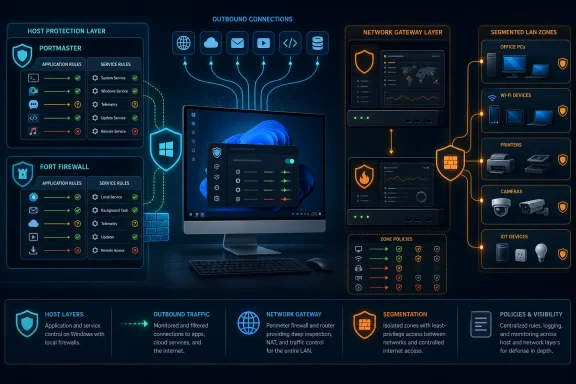
The important correction is in the headline’s premise: Windows Defender Firewall can block outbound connections and scope rules to a program, port, remote address, or individual service. Microsoft’s own documentation describes creating outbound program and service rules, including rules for a single service hosted inside svchost.exe. What Windows lacks is a consumer-friendly, default-deny outbound workflow with a real-time connection review screen.
That distinction changes the buying—or rather, deployment—decision. A Windows host firewall can answer “may this executable or service connect?” A router firewall can answer “may this device or network segment reach this destination?” Neither question replaces the other.
Defender Firewall Has the Controls, but Not the Workflow
On a normal Windows 11 installation, Defender Firewall blocks unsolicited inbound traffic while permitting outbound traffic unless an explicit blocking rule matches it. That is a defensible default for a general-purpose PC: Windows Update, Microsoft Store, line-of-business software, cloud synchronization clients, game launchers, VPNs, and device-management agents can operate without a blizzard of approval prompts.
The trade-off is visibility. A user who wants to know every outbound destination must either inspect firewall rules, use PowerShell and event logging, or construct their own policy set in Windows Defender Firewall with Advanced Security. The built-in interface supports it, but it is a slow way to manage a home PC and an even slower way to manage software that updates into new folders or uses multiple helper processes.
Microsoft also supports rules for services carried by svchost.exe, contrary to the claim that Defender’s per-app model cannot distinguish them. The catch is the implementation: creating a service-specific policy means choosing a custom rule, selecting the hosting executable, then narrowing it to the relevant service name. Microsoft notes that service scoping also depends on the Windows service having an applicable service SID. That is powerful administration, but it is not an approachable interface for someone investigating an unexpected outbound connection after lunch.
The practical conclusion is straightforward: do not disable Defender Firewall merely to install another Windows filtering product. Microsoft advises keeping the underlying firewall service running because Windows components depend on it. Third-party products using the Windows Filtering Platform can coexist with the built-in firewall rules, subject to the platform’s filter-arbitration behavior.
Portmaster Makes Outbound Connections Visible
Portmaster is the most direct answer for a Windows user who wants a live view of what local software is doing on the network. Safing’s open-source project uses a Windows Filtering Platform kernel driver, the same Microsoft framework used by Defender Firewall, to observe and act on traffic as it passes through the local networking stack.
Its value is the presentation layer and policy model. Portmaster places applications, destinations, domain-level rules, DNS handling, and network scopes in front of the user rather than making them side effects of an advanced rule wizard. It can also associate traffic with special Windows processes, including svchost.exe services, which is useful when the executable name alone says almost nothing about the underlying network activity.
Portmaster’s DNS component adds a capability Defender Firewall does not attempt to provide: it can intercept local DNS requests, use configured DNS-over-HTTPS or DNS-over-TLS resolvers, and apply domain blocklists for trackers, advertising, phishing, and malware infrastructure. That produces a more useful privacy-control surface than a pure packet firewall, particularly for users who want to stop browser and application telemetry without maintaining long IP-address block rules.
There is a pricing boundary that deserves clearer treatment. Safing’s project lists the firewall, per-app controls, secure DNS, and filter lists as free features, while connection history search, per-app bandwidth visibility, and the Safing Privacy Network are paid features. The free edition is still functional as an application firewall, but a user expecting unlimited historic forensic visibility from the no-cost tier should check the current feature screen before committing to it.
Portmaster is best suited to a Windows desktop or laptop where the operator wants to see and decide on outbound behavior. It does not protect a smart television, printer, game console, or IoT device, and it adds a kernel-level component to the machine. That is normal for a packet-filtering product, but it means it deserves the same update discipline as any other privileged security software.
Fort Firewall Reduces the svchost.exe Problem
Fort Firewall is the leaner Windows-only alternative in this group. Its project documentation says it uses its own driver based on the Windows Filtering Platform and can apply filtering based on svchost.exe service names. It also offers a more rule-centric model than Portmaster, with application groupings and traffic controls that appeal to users who want a compact control plane rather than a privacy suite.
The meaningful use case is not that Fort Firewall discovers an ability Windows lacks. It makes a painful Windows capability easier to operate. Blocking svchost.exe wholesale is a poor policy because it can disrupt DNS resolution, update services, time synchronization, network discovery, and other shared service-host processes. A service-aware rule lets an administrator target a specific hosted service without treating the entire Windows networking substrate as suspicious.
That is especially useful on hardened desktops, labs, kiosks, and test VMs where outbound network access should be deliberately limited. Fort Firewall may also be attractive where a policy needs to survive application updates that alter versioned installation paths. A firewall rule tied to one exact executable path can become stale after a routine application update; broadening a rule carefully can reduce that maintenance burden.
Its limitation is operational rather than technical. Fort Firewall’s interface is denser, its documentation assumes more familiarity with networking concepts, and the user must understand what they are blocking before enforcing a rule. It is a better fit for someone prepared to build and test policy than for a user seeking an automatic security product.
OPNsense Changes Where Enforcement Happens
OPNsense is the first tool in the list that genuinely expands the enforcement boundary beyond a Windows PC. It is a FreeBSD-based firewall and routing platform placed at, or between segments of, the network. Once it sits on the path between a LAN and the internet, it can apply controls to every device whose traffic traverses it—Windows systems, Macs, phones, printers, smart speakers, cameras, consoles, and television sets.
That is the category change Defender Firewall cannot reproduce. A Windows firewall has no control over a printer sending traffic directly through the household router. OPNsense can put the printer into a separate VLAN or security zone, restrict its access to the main workstation network, limit its outbound destinations, and record traffic at the network edge.
OPNsense also provides capabilities that matter in a managed network: stateful rules, VLAN-aware segmentation, flow reporting through its Insight NetFlow analyzer, Unbound DNS blocklists, and Suricata-based intrusion detection and prevention. Its DNS resolver can apply blocklists to particular source networks, allowing, for example, a stricter policy for an IoT VLAN than for an administrator workstation.
The omission in casual “install it on a mini PC” advice is that OPNsense is a network redesign, not a desktop utility. It must be deployed so traffic actually passes through it. A two-NIC appliance is the simplest arrangement—one interface toward the modem or upstream router and one toward the LAN—but VLAN-capable switches can support more advanced layouts. Hardware compatibility matters as well: OPNsense relies on FreeBSD drivers, and its own documentation continues to favor reliable Intel network adapters.
Suricata needs particular care. Enabling an intrusion prevention engine does not automatically provide useful protection unless appropriate rule sets are installed, tuned, and kept current. OPNsense also notes that IPS modes have interface and hardware-offloading considerations. Turning it on blindly can impair throughput or produce false positives that look like a broken network. For a home deployment, segmentation and sane DNS policy often deliver a clearer security payoff before deep packet inspection enters the picture.
IPFire Puts Segmentation Ahead of Feature Sprawl
IPFire pursues the same network-edge goal with a more opinionated model. Its interface organizes networks into four color-coded zones: Red for the external network, Green for the trusted LAN, Blue for wireless, and Orange for a DMZ. The visual model helps communicate a security policy that users often fail to express in router configurations: devices are not equally trusted merely because they share Wi-Fi.
A Green workstation should not automatically accept connections from a Blue guest network. An Orange-facing service should not receive unrestricted access to Green. A Red internet connection should not be able to reach internal networks unless a narrow forwarding rule exists. IPFire’s zone arrangement makes those relationships visible at setup rather than leaving them implied in a long firewall-rule list.
IPFire includes DNS filtering through its DNS Firewall and offers Suricata-based intrusion prevention as well. It can run on comparatively modest hardware, although actual requirements depend on line speed, the number of active clients, VPN use, filtering, and inspection features. It is not simply a drop-in app for an existing all-in-one Wi-Fi router; it needs a deliberate place in the network topology.
The constraint is flexibility. IPFire’s zone design is easy to understand when a network fits its Green/Blue/Orange/Red model, but less accommodating when an administrator needs many independently routed VLANs, complicated multi-WAN arrangements, or extensive firewall automation. OPNsense is generally the broader platform for those cases. IPFire is the clearer choice when the objective is to separate trusted PCs, guest wireless devices, and exposed services without creating a large appliance-management project.
The Right Deployment Is Usually Two Layers
For a single Windows PC, Portmaster or Fort Firewall can make outbound control usable in a way Defender Firewall’s stock interface does not. Portmaster is the stronger choice for connection visibility, DNS privacy controls, and per-application policy. Fort Firewall is the narrower tool for users who want granular Windows service handling and a more traditional rule-based firewall.
For a household or small office, OPNsense and IPFire solve a separate problem: they enforce policy for devices that cannot run endpoint software. Use OPNsense when VLANs, traffic reporting, extensible routing, and more sophisticated network policy are the target. Use IPFire when a small number of clearly separated trust zones is the goal and the administrator values a more constrained model.
The safest first move is not to replace Defender Firewall or block every outbound connection. Keep the Windows firewall enabled, install a host-based tool only if you will review and maintain its policy, then put network segmentation in front of the devices that have no meaningful local controls at all. The printer, television, camera, and unpatched IoT hub are where a router firewall delivers the protection a Windows firewall never could.