

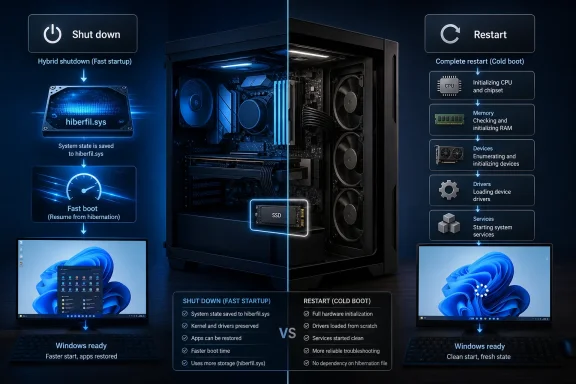
hiberfil.sys, then restores them on the next power-on. But the stronger claim—that Windows has simply failed to “properly shut down” for 14 years—needs a sharper distinction. This is an intentional hybrid shutdown design, not an accidental failure to power off.Microsoft’s own Windows driver documentation says Fast Startup has been the default shutdown transition since Windows 8. It closes applications, logs out users, prepares drivers for hibernation, saves the kernel memory image to disk, and then shuts down the computer. The PC is off. The important difference is that Windows has retained a reusable system-state snapshot rather than rebuilding the kernel, drivers, devices, and services from scratch at the next boot.
That design explains why “restart your PC” remains such persistent Windows troubleshooting advice. Restart and Shut down are not equivalent operations when Fast Startup is enabled. Restart deliberately takes the full boot path; the ordinary Shut down command usually does not.
hiberfil.sys is evidence of hibernation support, not automatically a problem
The 12.5GB hiberfil.sys file that prompted XDA’s investigation is a normal protected Windows system file stored at the root of the operating-system drive. It is used for standard hibernation, hybrid sleep on supported systems, and Fast Startup. Deleting it manually is neither necessary nor a supported way to reclaim disk space; Windows manages it while hibernation remains enabled.
The file size can also tell a more nuanced story than “Fast Startup ate 12.5GB.” Microsoft documents two hibernation-file types. A full hibernation file, used when a computer supports regular Hibernate, defaults to 40% of installed physical memory. A reduced file used exclusively for Fast Startup defaults to 20%.
That makes a 12.5GB file highly suggestive of a PC with roughly 32GB of RAM using a full hibernation file, not necessarily a machine burdened by Fast Startup alone. The difference matters for users who depend on Hibernate: disabling Fast Startup in Control Panel preserves the broader hibernation feature, while turning hibernation off with powercfg /hibernate off removes hiberfil.sys entirely and also disables both Hibernate and Fast Startup.
Microsoft’s published powercfg documentation gives administrators a middle route, too. A system that only needs Fast Startup can use a reduced hibernation file, while a system that needs true Hibernate requires the full file. On a small SSD, that distinction can return several gigabytes without removing every power-state option.
What Windows actually saves during Fast Startup
A traditional shutdown tears down user sessions and the kernel session, unloads or reinitializes system components on the next boot, enumerates hardware, and starts drivers and services again. Fast Startup still terminates user applications and logs users out. It does not preserve an open desktop session in the way Hibernate does.
Instead, Windows saves Session 0: the kernel, loaded kernel-mode drivers, and the system-level state needed to get back to a login screen quickly. When the machine is powered on, Windows reads that snapshot from hiberfil.sys rather than creating a fresh kernel state.
Microsoft explicitly describes this as a state that appears to users like a full S5 shutdown even though Windows has actually transitioned through S4 hibernation behavior. That is why the PC can be fully unplugged, moved, or left with a flat battery and still resume through the fast-startup path later. The preserved state is on disk, not in volatile RAM.
There is also a practical boundary that gets lost in the usual “Windows never shuts down” shorthand. Fast Startup cannot magically keep bad application processes alive: user applications are closed. A browser memory leak, a stuck user-session process, or an open document will not survive it. The problems Fast Startup can expose sit lower in the stack—kernel drivers, hardware initialization, firmware interactions, startup-time services, and servicing operations that genuinely require a complete reboot cycle.
For drivers, Microsoft’s own guidance is revealing. A driver must account for Fast Startup and configure hardware as it would after a cold start, even though Windows has restored the kernel image. Well-written drivers are supposed to handle this. Older drivers, edge-case firmware, USB peripherals, some network adapters, and hardware that expects a fully reset software environment are where the arrangement can become visibly unreliable.
Restart remains Windows’ clean-state command
Microsoft has long documented that Fast Startup does not apply to Restart. The company’s current troubleshooting guidance for Windows 10 says the same thing in unusually direct language: some updates can complete only after a full shutdown, and choosing Restart is required to ensure pending updates finish when Fast Startup is enabled.
That is the concrete, vendor-confirmed consequence behind years of advice to restart rather than power-cycle a troubled PC. A restart ends the kernel session, starts drivers and services anew, and forces Windows down the clean initialization path. If a display adapter, Wi-Fi device, USB dock, audio controller, VPN filter driver, or storage driver behaves after a Restart but not after Shut down and power-on, Fast Startup is a credible suspect.
It is not, however, evidence that every strange Windows problem since 2012 traces back to Fast Startup. XDA’s broad framing captures a real source of confusion but overstates the causal record. Windows has accumulated separate bugs in cumulative updates, firmware, sleep states, drivers, power management, and the Start menu over that period. A feature that preserves kernel state can aggravate some failures and conceal a needed reset; it does not furnish a universal explanation for a decade of Windows instability.
The distinction is especially relevant for IT teams. “Please reboot” is a sound first response to many endpoint problems, but it only works as intended if the user selects Restart or the management tool initiates a reboot. Telling a user to shut down, wait, and switch the PC back on may leave the system in essentially the same kernel-and-driver state that caused the incident.
The update-and-shutdown bug should not be folded into Fast Startup
The 2025 Windows 11 “Update and shut down” problem is a separate issue that has become entangled with the Fast Startup discussion. Microsoft’s October 28, 2025 optional preview cumulative update, KB5067036, says it addressed an underlying issue that could cause “Update and shut down” not to actually turn off a PC after updating. Windows Central and PC Gamer independently reported that the fix subsequently reached the regular November 2025 cumulative update path for Windows 11 24H2 and 25H2.
The useful correction is this: Microsoft confirmed the symptom and shipped the fix, but its KB5067036 release notes did not identify Fast Startup as the root cause. WindowsForum’s earlier technical analysis listed Fast Startup among the components that could interact with update staging and resume behavior; that was a plausible diagnosis, not a root-cause disclosure from Microsoft.
Fast Startup does have a documented update implication of its own. Microsoft’s KB4011287 says some Windows updates may not complete after Shutdown because Fast Startup hibernates the system instead of performing the full shutdown those updates require. The prescribed action is Restart. That official guidance is enough to justify operational caution without turning every failure of the “Update and shut down” button into proof that hybrid shutdown caused it.
For administrators, the result is simple: managed maintenance workflows should specify reboot behavior rather than presume that power-off means a cold boot. Microsoft noted in KB4011287 that Fast Startup could delay update completion in Configuration Manager environments, although it said the relevant behavior was addressed in Configuration Manager 2002 and Windows 10 version 21H1. Old runbooks that still instruct staff to “shut down and turn it back on” deserve revision.
Who should leave Fast Startup on
Fast Startup was built for the era when many Windows systems still booted from mechanical hard disks. It can still reduce boot time, and it is not obsolete merely because NVMe SSDs are common. Laptop users who routinely power off between short work sessions, and desktops still using hard drives or slower SATA storage, may see a meaningful enough improvement to keep it enabled.
The cost calculation changes on a modern desktop with a fast SSD, current firmware, and a workflow that already uses sleep or hibernation. A cold boot is often quick enough that the benefit of restoring a saved kernel state is hard to notice, while the troubleshooting ambiguity is very real. Dual-boot users and technicians who frequently change firmware settings, hardware, drivers, or low-level software are also better served by predictable cold starts.
Disabling it is reasonable when there is a recurring pattern of hardware not initializing correctly after a shut down and power-on, a system that only becomes stable after Restart, or an environment that needs every shutdown to mean a full teardown. In Windows 11, the normal control is still in the legacy Power Options interface: choose what the power buttons do, unlock currently unavailable settings, clear “Turn on fast startup,” and save the change.
A one-time full shutdown is also available from an elevated Command Prompt or Windows Terminal with:
shutdown /s /t 0
Microsoft’s documentation distinguishes that default Shutdown.exe command from the /hybrid option, which explicitly requests the Fast Startup-style shutdown. That makes the command useful for diagnosis: it can separate an ordinary fast-startup resume issue from a problem that persists through a true cold start.
Windows Fast Startup has always delivered exactly the compromise Microsoft designed: less boot work in exchange for retaining system-level state. The important correction in 2026 is not to panic over hiberfil.sys, nor to treat the feature as a hidden defect. It is to stop using Shut down as shorthand for Restart. When an update, driver, peripheral, or kernel-level setting must be cleared, Restart is the operation that actually gives Windows a fresh start.