
The important detail is what triggers it. Microsoft says the brightness increase occurs only when the Windows Hello infrared camera can see the user but the color camera lacks enough light. The display returns to its prior brightness as soon as the sign-in either succeeds or ends. This is not a persistent change to adaptive brightness, and users do not need to restore their preferred level manually.
Microsoft’s support documentation is useful, but it also leaves a deployment question unanswered: the company does not identify the Windows 11 version, cumulative update, camera firmware, PC models, or Hello camera capabilities required for the toggle to appear. For administrators and support staff, that means the new page should be treated as confirmation of a feature behavior—not as proof that every Windows 11 PC with a webcam has received it.
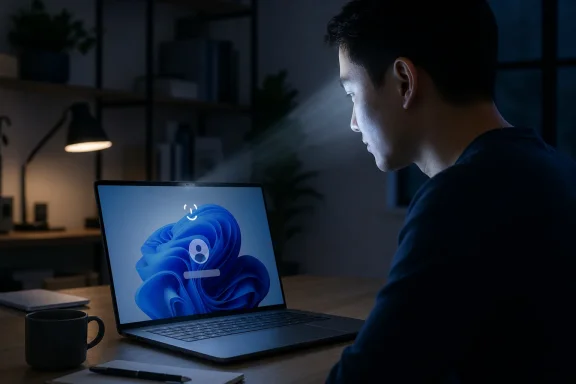 The screen flash is conditional, and Hello hardware still matters
Windows Hello facial recognition requires a compatible infrared camera. Microsoft’s broader Windows Hello setup guidance still describes an IR camera—integrated or external—as the requirement for face sign-in. A conventional RGB webcam alone cannot be enrolled as a Windows Hello facial-authentication device simply because the PC can brighten its display.
That distinction matters for troubleshooting. A user whose laptop has only a normal webcam will not gain Windows Hello Face by enabling display brightness settings. Likewise, a PC that has a Hello-capable camera but lacks the new brightness option should not be assumed defective; Microsoft has not published a compatibility list or rollout boundary for low-light sign-in.
Microsoft Learn’s technical documentation explains why the IR hardware remains central. The Windows Hello face-authentication system uses near-infrared imaging because it provides a more consistent image across lighting conditions than a conventional color camera and adds resistance to simple photo-based spoofing attempts. The low-light display adjustment therefore does not replace IR authentication. It appears designed to help the color-camera portion of the sign-in flow obtain enough usable illumination in situations where the IR sensor already detects the face.
That is a more nuanced behavior than a blanket “brighten the screen whenever Windows Hello runs” rule. If the room is sufficiently lit, users should see no brightness jump. If Windows cannot detect a face through the IR camera, the documented condition for the brightness increase has not been met. And if face authentication still fails after the temporary flash, Microsoft directs users to a PIN or fingerprint fallback.
Microsoft has made the flash opt-out a local user choice
The setting is on by default, but Microsoft provides a straightforward opt-out:
- Open Settings and select Accounts.
- Open Sign-in options, then expand Facial recognition (Windows Hello).
- Turn off automatically adjust screen brightness during face recognition.
Turning it off does exactly what the label suggests: Windows will no longer raise the display brightness for face sign-in. Microsoft also explicitly warns that facial recognition may then fail in darker environments. The trade-off is simple. Users who value reliable hands-free sign-in in a dim home office, bedroom, conference room, or during a presentation will generally want to leave it enabled. Users who find a sudden bright display distracting—particularly at night—can disable it, accepting that their PIN, fingerprint reader, or another sign-in method may become necessary more often.
The setting is separate from the Windows 11 display controls that respond to an ambient-light sensor. Microsoft’s hardware documentation describes adaptive brightness as an OS response to ambient-light readings; low-light Windows Hello sign-in is tied instead to a facial-recognition attempt and reverts after that attempt. Users trying to stop the sign-in flash should use the Windows Hello setting, not begin by disabling general display brightness automation.
For IT teams, the setting’s placement in the consumer-facing Sign-in options page is notable. Microsoft’s support article does not document a policy, Configuration Service Provider setting, Intune control, Group Policy object, registry value, or PowerShell command for enforcing the preference. It also does not say whether the toggle is available per user, per device, or subject to OEM camera software. Organizations that need a uniform experience should test it on their actual hardware fleet before treating it as manageable configuration.
The missing build and hardware list is the operational problem
Microsoft’s new support page is authoritative about the behavior it describes, but it is unusually thin on availability details. It lists only Windows 11 under “Applies To.” There is no stated minimum release such as Windows 11 version 24H2 or 25H2, no OS build number, and no corresponding Windows Update identifier. There is also no mention of whether the capability is limited to internal laptop displays, how it works with external Hello cameras, or whether it behaves differently when an external monitor is the active display.
Those omissions create several plausible support scenarios that the documentation does not resolve:
- A Windows 11 user may have a fully working Hello IR camera yet not see the brightness toggle because the feature has not reached that build or device configuration.
- A user may see the option but never observe a screen-brightness increase because their normal sign-in environment already gives the color camera enough light.
- A user may disable the feature to avoid the flash and then mistake predictable low-light recognition failures for a broken Windows Hello camera.
- A desktop user with an external Hello camera and multiple displays may need device-specific testing, because Microsoft does not describe which screen, if any, becomes the light source.
The practical first check is therefore more specific than “update Windows.” Confirm that the device can already use Windows Hello Face, confirm that it has an IR-capable Hello camera, then look for the setting in Sign-in options. If it is present, test it in a dim but safe environment from the lock screen and observe whether the display rises briefly before returning to normal. If it is absent, Microsoft’s current documentation offers no supported switch to enable it manually.
A reliability feature, not a reason to weaken sign-in recovery
The low-light behavior should reduce friction for people who repeatedly hit failed facial recognition in low ambient light, but it should not change an organization’s fallback-sign-in plan. Microsoft says users can use a PIN or fingerprint if face recognition does not succeed after the display brightens. That fallback remains particularly important for shared hot-desk spaces, docking stations, unusual camera angles, glasses changes, damaged camera hardware, and environments where a bright screen is undesirable.
Users should also resist the temptation to disable their PIN after face sign-in begins working more consistently. Windows Hello’s PIN is device-bound and remains the most immediate recovery path when the camera cannot authenticate. The temporary display flash improves the odds of a successful face sign-in; it does not guarantee one.
For now, Microsoft has documented an opt-out feature without publishing the usual rollout facts that would let admins map it confidently to builds and hardware. On affected Windows 11 PCs, the consequence is immediate: Windows Hello may briefly brighten the screen before face sign-in in a dark room. On the rest, the absence of that toggle is an availability question Microsoft has yet to answer publicly.
