
The new Microsoft Support article focuses on conditions that impede recognition: harsh light from one side, face-covering accessories, and cosmetics that appear unusually under infrared illumination. Microsoft’s underlying explanation is security-driven. Windows Hello Face uses a compatible infrared camera and software intended to distinguish a live person from a photograph or other flat image, so it will reject attempts where it cannot obtain a confident view.
For most home users, the support article should not be read as a call to repeatedly delete and recreate a face profile. Microsoft’s broader Windows Hello troubleshooting guidance says Improve recognition is usually the better first repair step. It adds another face template; removing face recognition and setting it up again replaces the previous profile instead.
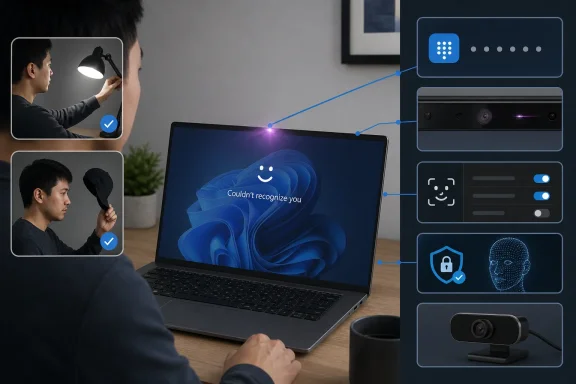 “Couldn’t recognize you” is different from “no compatible camera”
There are two failure classes that look similar at the lock screen but require different responses.
If Windows Hello Face is available and starts trying to identify the user before displaying “Couldn’t recognize you,” Windows still sees the Hello-capable hardware. Start with the physical conditions Microsoft identifies: clean the camera area, remove a hat or accessory that throws shadows across the face, avoid strong side light, and use the PIN to get into Windows. Then open Settings > Accounts > Sign-in options > Facial recognition (Windows Hello) and select Improve recognition.
The second class is more serious: Windows may report that it cannot find a camera compatible with Windows Hello Face, or the facial-recognition option may disappear. In that case, makeup, lighting, and profile retraining are beside the point. Microsoft’s setup documentation is explicit that facial sign-in needs a compatible infrared camera, whether built into the PC or provided by an external Hello-compatible unit. A conventional RGB webcam—even a sharp 1080p or 4K one—is not automatically a Windows Hello Face sensor.
That distinction helps avoid an all-too-common waste of time. “Recognition failed” means Windows captured enough from the biometric pipeline to compare the user against an enrollment. “No compatible camera” points toward a camera-driver, firmware, connection, or hardware issue. Laptop owners should install the current camera and chipset packages from their PC maker, along with Windows updates; Surface users should also ensure current Surface firmware is installed. If the IR camera remains absent after that, Microsoft’s advice to contact the manufacturer is the appropriate escalation.
The lighting advice has a Windows 11 wrinkle
Microsoft says bright or harsh light from one side can make recognition harder, even though Hello Face relies on infrared imaging rather than an ordinary visible-light webcam. That is not contradictory. Windows Hello’s technical documentation describes near-infrared imaging as more consistent than color imaging across many environments, but it does not make the authentication pipeline immune to every lighting condition, obstruction, or camera implementation.
Windows 11 now has another moving part: low-light face sign-in. Microsoft says the feature can temporarily increase screen brightness when the infrared camera can see the face but the color camera decides ambient light is insufficient. The display then acts as a short-lived fill light and returns to its prior brightness after the attempt ends.
The feature is enabled by default where available, and its setting lives under Settings > Accounts > Sign-in options > Facial recognition (Windows Hello) as “automatically adjust screen brightness during face recognition.” Turning it off can preserve a dark-room workflow, but Microsoft warns that face sign-in may then fail in dim environments.
There is an important scope limit: Microsoft’s low-light support page lists Windows 11, while the broader facial-recognition troubleshooting article applies to Windows 10 and Windows 11. A Windows 10 machine therefore should not be expected to gain the screen-brightening behavior described for Windows 11. And because Windows 10 support ended on October 14, 2025, users still relying on it should be cautious about treating any intermittent sign-in issue as merely cosmetic; OEM driver support and firmware maintenance may now be limited as well.
Glasses, makeup, and re-enrollment are not equal problems
Microsoft’s current advice says ordinary glasses are usually fine, especially if they were worn during original enrollment. Its general troubleshooting page goes further: users who begin or stop wearing glasses, or make a substantial facial-hair change, should use Improve recognition to add a new scan. That procedure makes practical sense because it gives Windows another representation of the legitimate user rather than discarding what was already working.
The same principle applies to significant, durable changes in appearance. A new beard, a different pair of glasses, or a regular work accessory should be added through Improve recognition once the user has signed in with a PIN. Repeatedly removing and rebuilding the profile loses the earlier enrollment and can create a cycle where recognition works in one look or setting but not another.
Makeup is more complicated. Microsoft specifically warns that some unusual makeup is visible in infrared and can interfere with facial recognition. The company does not identify brands, formulations, or a test to determine whether a product is the culprit. In practice, the actionable test is simple: try one sign-in without the recently introduced cosmetic change and, if it succeeds consistently, use a PIN until a second face template can be added under typical conditions. Do not weaken sign-in protections simply to accommodate a single intermittent case.
Managed PCs can be deliberately less forgiving
The article’s most consequential note is aimed at work and school PCs. Microsoft says administrators can enable enhanced anti-spoofing, which raises the threshold required for Windows Hello Face to accept a match and can be especially troublesome in dark rooms. This is a policy choice, not necessarily a camera defect.
Microsoft Learn identifies the Windows Hello for Business policy as Configure enhanced anti-spoofing, exposed through Group Policy and the PassportForWork configuration service provider. When enabled, Windows requires enhanced anti-spoofing for face authentication. Microsoft also warns that this policy disables face authentication altogether on devices that do not support it.
For an IT team, the operational consequence is clear: do not tell employees to reset their facial profiles before checking policy and hardware compatibility. A deployment that turns on stronger anti-spoofing can create a concentrated wave of Hello Face failures on older or mixed fleets, particularly if the organization assumed every previously working IR camera supported the stricter mode.
The policy can be appropriate in a higher-risk environment, but it needs change management. Administrators should confirm which device models have compatible sensors, retain PIN and password recovery paths, test dim-room sign-in, and notify users that a failure after a policy rollout may be intentional security behavior rather than a broken account.
Enhanced Sign-in Security complicates external cameras
Windows 11’s Enhanced Sign-in Security, or ESS, adds another distinction that matters for users trying to solve a recognition problem with a USB camera. Microsoft describes ESS as using specialized hardware, Virtualization-Based Security, and TPM 2.0 protections to isolate biometric templates and matching operations. Microsoft says all Copilot+ PCs have ESS enabled by default, although not every such PC necessarily includes built-in ESS-capable biometric sensors.
The practical catch is that Microsoft does not support ESS for external camera modules. Its current third-party-camera guidance says a Windows 11 PC with ESS enabled may not allow an external Windows Hello camera to be used unless ESS is disabled. On Windows 11 version 24H2 and newer, switching off ESS to use a non-ESS camera removes existing ESS enrollments and associated credentials, including passkeys, which must be provisioned again afterward.
That is a meaningful trade-off, not a casual toggle. A user with a flaky internal camera should first pursue OEM driver, firmware, and hardware support rather than disable ESS merely to attach a peripheral. On company-managed hardware, the option may be unavailable by design, and an administrator should decide whether the external-camera exception is compatible with the organization’s authentication policy.
Microsoft’s updated troubleshooting guidance is therefore best treated as the first branch of a diagnosis, not the entire repair manual. Improve recognition after ordinary appearance changes; use the PIN immediately when face sign-in fails; investigate drivers and hardware if Hello Face disappears; and have IT check anti-spoofing or ESS policy before changing security settings. The real test is whether Windows still detects a compatible infrared sensor—because once that hardware path is gone, better lighting will not bring Windows Hello Face back.
