

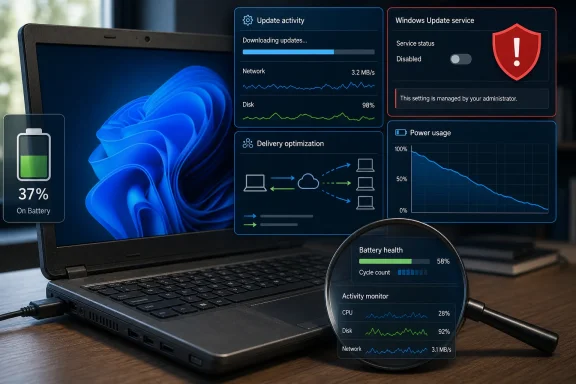
The more useful finding is buried in the author’s own account: the service change was made alongside optimizing power settings. That makes an overnight before-and-after comparison incapable of separating the effect of Windows Update from display brightness, power mode, sleep behavior, vendor utilities, browser activity, battery health, or any other altered setting. An extra 20 to 30 minutes on a three-hour baseline is a sizeable claimed improvement—roughly 11 to 17 percent—but it is still a single-device anecdote without a battery report, power-use trace, update-history correlation, or repeatable test.
Microsoft’s documentation does support part of MakeUseOf’s explanation. Windows checks for updates on a default 22-hour interval when the relevant policy is not configured, and the follow-on work can include downloading and preparing update packages. On a laptop with a degraded battery, a substantial download, decompression operation, disk write, or installation scan can be noticeable. What does not follow is that permanently disabling the Windows Update service is a sensible battery-management setting for ordinary PCs.
The advice disables more than a background check
The MakeUseOf instructions tell readers to open services.msc, stop Windows Update, and set its startup type to Disabled. That changes the wuauserv service from a component that can be invoked when Windows needs it into one the operating system cannot start for scanning, downloading, or installing updates.
Microsoft’s own troubleshooting guidance identifies error 0x80070422 as the condition in which the Windows Update service is disabled or stopped. Its prescribed remedy is the reverse of MakeUseOf’s recommendation: enable the service and start it. The article acknowledges that a manual check in Settings can fail after the service has been disabled, then tells readers to return to Services, reconfigure the startup type, start the service, perform the scan, and disable it again.
That is not a battery-control workflow; it is a recurring system-administration task. It also relies on the user remembering to intervene for every security release, emergency out-of-band patch, driver remediation, and servicing-stack prerequisite. Missing one monthly quality update can mean the next update has a larger payload and a longer maintenance window once the service is restored.
For managed PCs, it can create a separate problem. Devices controlled through Windows Update for Business, Windows Server Update Services, Intune, or another endpoint-management platform may have update rings, compliance deadlines, and restart rules configured by IT. Locally disabling wuauserv does not make that management requirement disappear; it merely turns a supported policy decision into an endpoint that can fall behind and eventually generate update failures or compliance alerts.
Microsoft also describes Windows Update as an essential Windows service. That wording is vendor policy rather than an independent performance finding, but the practical point is straightforward: the update client delivers more than cosmetic feature releases. It handles security fixes, reliability fixes, compatibility work, and, depending on configuration, update-related content relied on by other Microsoft components.
Delivery Optimization is the part worth checking first
MakeUseOf correctly points to Delivery Optimization as a potential source of network and disk activity. The article overstates the likely battery impact for a default home laptop configuration, however.
Microsoft’s current Delivery Optimization documentation says Windows devices use the feature by default to send and receive content on the local network. It also says the default policy does not allow peer sharing while a device is on battery. Uploading to Internet peers is not a default battery-drain scenario; it requires a configuration that permits it, typically through policy or device management.
That distinction is important because the article presents peer uploads as part of the ordinary explanation for its battery improvement. They may be relevant on a machine whose Delivery Optimization settings have been changed, or on a work-issued PC subject to enterprise policy. They are not evidence that a typical unplugged Windows laptop is routinely seeding updates to strangers on the Internet.
Windows also exposes a supported way to inspect this instead of disabling the update engine wholesale. Delivery Optimization’s Activity Monitor can show data received from Microsoft, local-network peers, and Internet peers, along with upload totals. On systems where policy is involved, Microsoft provides the Get-DeliveryOptimizationStatus PowerShell command to examine active transfers and peer behavior.
If the Activity Monitor shows no meaningful activity, shutting down Windows Update will not explain a material battery gain. If it shows an active download, the short-term answer is to let that transfer finish, constrain Delivery Optimization through supported settings, or use a temporary update pause—not to convert a transient workload into a permanently disabled security service.
A one-night battery result needs evidence Windows can provide
The article’s central claim would have been much stronger if it had established three things: that an update download or scan was active during the lower-battery test, that the same workload was used after the service was disabled, and that the result repeated over several charge cycles. None is supplied.
Windows can generate a battery report with powercfg /batteryreport, giving a view of recent usage, capacity history, and estimated runtime. It will not attribute every watt-hour directly to Windows Update, but it can expose a more immediate issue on an older laptop: declining full-charge capacity. A five-year-old machine with a worn battery can see large apparent swings in runtime from changes in workload and calibration, even when no Windows service has materially changed.
Task Manager’s Processes and Performance views, Resource Monitor, Windows Update history, and Delivery Optimization Activity Monitor can narrow the question further. If CPU use, disk activity, and network transfers spike at the same time that Windows Update has recorded a download or installation, there is a case for troubleshooting that episode. If the resource use instead comes from a browser tab, cloud-sync client, antivirus scan, GPU process, or vendor utility, disabling Windows Update becomes both ineffective and risky.
Microsoft’s Update documentation also gives users a supported temporary control: updates can be paused for a limited period, currently up to 35 days. Pausing has obvious security costs if extended repeatedly, but it is designed to resume automatically. It does not leave the service disabled and does not require the user to reconstruct Windows Update manually when a Settings scan fails.
For bandwidth-constrained or metered connections, Delivery Optimization configuration is the more precise tool. Organizations can set background download limits, upload limits, business-hour restrictions, peer-selection rules, and minimum battery thresholds. Home users should at least review the Delivery Optimization setting before assuming Windows Update itself is the source of an unexplained power drain.
Security maintenance is a poor trade for a marginal gain
MakeUseOf does warn readers that disabling updates stops automatic patching, and that warning is the article’s most accurate conclusion. But the proposed workaround—remembering to manually reverse the service state and check for updates—turns a security baseline into a personal calendar task with no verification that it was actually completed.
The risk is particularly pronounced for Windows 10 systems. Free Windows 10 security updates ended on October 14, 2025, except where a device is covered by an applicable Extended Security Updates arrangement. A Windows 10 laptop outside that program cannot regain normal security maintenance merely by re-enabling the service once a month. Disabling Windows Update on top of an unsupported operating system compounds an already exposed position.
On supported Windows 11 installations, the decision is more direct: a device that is not scanning and installing quality updates will miss Microsoft’s regular security fixes until the owner notices and repairs the configuration. Microsoft’s documentation also notes that disabling automatic updates can prevent updates to trusted and untrusted certificate information, which can affect more than the operating system’s feature cadence.
There is a legitimate case for delaying an update during travel, a presentation, a known-bad rollout, or a battery-critical shift. IT administrators make those decisions through supported update policies, deployment rings, maintenance windows, and rollback plans. A consumer laptop with unexplained battery drain needs measurement first, followed by an adjustment to the component actually consuming energy.
The 20-to-30-minute result MakeUseOf reports may be real for that one aging laptop, but it remains uncorroborated and confounded by other power changes. Readers should treat it as a prompt to inspect update and Delivery Optimization activity, not as evidence that disabling Windows Update is a general battery-life upgrade.