
The five utilities examined here are not a generic “install everything” checklist. They target distinct jobs: GNU Style and Diction for prose analysis, WeeChat for IRC, Git for version control, tmux for persistent terminal sessions, and Pixi for reproducible package environments. Together, they form a compact toolkit that can make a Linux workstation—and, for Windows users, a WSL distribution—far more capable without turning the terminal into a crowded museum of obscure utilities.
The selection also makes a useful point about Linux productivity: the command line is not merely for administering servers. It can be a writing desk, a collaboration hub, a development archive, a remote desktop substitute, and a controlled scientific workspace.
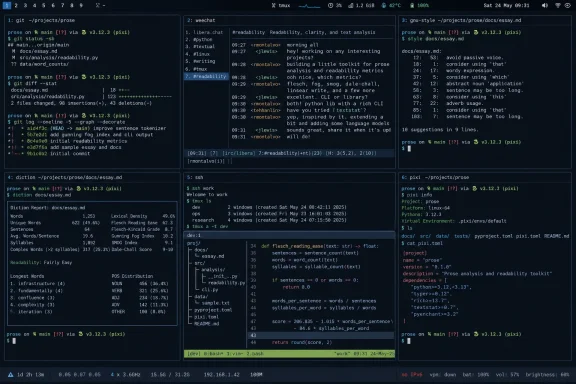 Overview: Five Utilities, Five Different Workflows
There is a temptation to judge terminal software by the number of commands it offers. That is usually the wrong metric. The best command-line apps solve a recurring problem with minimal overhead, work well over SSH, and remain useful even when the graphical environment is unavailable.
These five tools fit that description in different ways:
- GNU Style and Diction helps writers inspect readability and spot weak phrasing.
- WeeChat provides a durable, keyboard-driven IRC client for open-source communities.
- Git tracks the history of code, writing, configuration files, and research projects.
- tmux keeps terminal sessions alive and lets one terminal host many working contexts.
- Pixi manages modern development environments, especially where Python, Conda packages, and reproducibility matter.
None is universally essential. A user who never writes long-form material may have little use for Style and Diction. Someone who works only in a browser-based chat system may not need WeeChat. Yet the broader philosophy is valuable: install tools that preserve context, reduce repeated work, and keep important tasks under the user’s control.
For Windows enthusiasts using Windows Subsystem for Linux, this is also a reminder that WSL is not limited to running occasional Linux commands. A well-configured WSL environment can become a genuinely practical development and writing platform, particularly when paired with Windows Terminal, a good SSH setup, and a Git-aware editor.
GNU Style and Diction: A Lightweight Editor’s Desk in the Terminal
Spellcheckers catch misspellings. Grammar tools can flag agreement errors, punctuation problems, and awkward sentences. But prose can still be technically correct while being exhausting to read.
That is the gap where GNU Style and Diction remains interesting.
Two programs with separate roles
The package combines two classic Unix programs:
dictionscans text for wordy, clichéd, or potentially misused phrases.styleanalyzes surface-level characteristics such as sentence length, word length, and readability measures.
The distinction matters. diction is closer to a blunt editorial warning system, while style is a measurement tool. Neither can decide whether an article has a persuasive argument, a logical structure, or an appropriate tone. They can, however, identify habits that often make writing less direct.
A typical installation on Debian- and Ubuntu-based distributions is straightforward:
sudo apt install diction
Once installed, style can read input directly from the terminal:
style
Paste text, then send an end-of-file signal with Ctrl+D. More commonly, it is easier to point it at a plain-text file:
style draft.txt
Likewise, diction can inspect a document:
diction draft.txt
The results are intentionally simple. That simplicity is part of the appeal. There is no account, cloud upload, browser extension, subscription prompt, or proprietary model standing between the writer and the analysis.
Readability scores are indicators, not verdicts
One of the most visible outputs from style is a Kincaid grade-level score, intended to estimate the years of education typically needed to read a text. A score around 9 roughly corresponds to ninth-grade reading difficulty in the U.S. education system.
That can be useful when preparing public documentation, support articles, internal instructions, or beginner guides. If a “Quick Start” guide has a very high grade-level score, the author may want to shorten sentences, define terms earlier, and remove unnecessary abstraction.
Still, readability scores should be treated carefully.
A high score does not automatically mean poor writing. Technical documentation often needs domain-specific vocabulary. A guide to disk encryption, kernel debugging, or package dependency resolution cannot always be rewritten at an elementary-school reading level without losing precision.
Conversely, a low score does not guarantee clarity. A document can use short sentences while remaining vague, incomplete, or misleading.
The practical value of style lies in comparison:
- Analyze a first draft.
- Revise for clarity and structure.
- Analyze the revision.
- Check whether the changes improved the intended audience fit.
That workflow is more useful than treating any individual number as a pass-or-fail grade.
Where GNU Style and Diction fall short
The biggest limitation is that these are old-school linguistic tools. They do not understand intent, audience expertise, rhetorical structure, factual accuracy, or context in the way a human editor can.
They can also generate false positives. A phrase flagged as wordy may be perfectly appropriate in legal language, technical documentation, quotations, or a deliberately conversational passage. Their value comes from prompting a second look—not from blindly accepting every recommendation.
For writers who prefer local, privacy-conscious tools, however, GNU Style and Diction is still a compelling addition to a Linux command-line toolkit. It encourages a healthy editorial habit: measure the prose, then make a deliberate decision.
WeeChat: IRC Still Has a Place in Linux Culture
IRC no longer dominates online conversation in the way it once did, but writing it off as obsolete misses the point. It remains embedded in parts of the free and open-source ecosystem, where project communities, support channels, technical discussions, and long-running interest groups still rely on its lightweight real-time model.
WeeChat is one of the most capable terminal-based IRC clients available for that world.
Why a terminal IRC client still makes sense
WeeChat’s strengths are not flashy. It is designed to be fast, extensible, scriptable, and usable over a remote connection. It supports multiple servers, encrypted connections, authentication methods such as SASL, filtering, configurable layouts, notifications, and scripts.
The terminal interface becomes especially useful when IRC is part of a broader command-line workflow. A developer can keep a chat buffer open beside a build log. A systems administrator can remain connected to a project channel while investigating a server. A researcher can leave the client running in a persistent session and check in between tasks.
This is not necessarily a better experience than a polished desktop or web-based chat client. It is a different experience: one built around low distraction, persistent sessions, and keyboard control.
A basic installation on Debian or Ubuntu is commonly as simple as:
sudo apt install weechat
Launching it requires only:
weechat
From there, the initial learning curve is real. IRC clients are command-driven, and WeeChat adds its own configuration model. But the fundamentals are manageable:
/server add libera irc.libera.chat/6697 -ssl
/connect libera
/join #channel-name
The exact commands and authentication steps vary by network and account setup, so users should treat the initial configuration as something to learn rather than blindly copy.
The best companion for WeeChat is tmux
WeeChat becomes much more practical when combined with tmux. Instead of leaving an IRC client tied to one local terminal window, users can run it inside a tmux session on a Linux machine or remote server.
That setup offers several advantages:
- The chat client remains active after a local terminal closes.
- SSH disconnects do not necessarily end the session.
- Users can reconnect from a different computer.
- Notifications and highlights remain available within the ongoing session.
- IRC can coexist with shells, monitoring tools, editors, and logs.
For someone who regularly uses SSH, this is the difference between an IRC client that feels temporary and one that behaves like a permanent communications workspace.
Privacy, logging, and community etiquette matter
A terminal client does not make IRC private by default. Channels may be logged by users, projects, archival services, or bots. Sensitive information should never be pasted casually into public channels, and private messages should not be assumed to be confidential merely because they are private.
Modern IRC communities also have rules, operators, local norms, and security expectations. Before asking for support, read the channel topic, search documentation, provide relevant error details, and avoid pasting large logs directly into the chat.
The same advice applies to automation. Bots, scripts, and AI-connected tools can create privacy and moderation problems if they collect or process messages without permission. The technical convenience of an always-on terminal client should not override the expectations of the communities using it.
Git: The One Command-Line Tool That Protects Work
Among these five applications, Git is the least optional for anyone who writes code, maintains configuration files, builds documentation, or works on projects that may change over time.
Git is a distributed version-control system originally created for Linux kernel development. Its central promise remains straightforward: instead of treating a file as a single mutable object, it records a history of deliberate changes.
That history can save a project after a bad edit, explain why a decision was made, enable parallel work, and make synchronization across machines far safer.
Git is more than a developer tool
Git is closely associated with software development, but its value extends beyond source code.
It works well for:
- Shell scripts and PowerShell scripts
- Documentation and Markdown files
- Static websites
- Configuration files
- Research notebooks and supporting code
- Personal knowledge bases
- LaTeX projects
- Small automation projects
- Dotfiles for rebuilding a Linux workstation
A useful rule is simple: if losing the history of a file would be frustrating, Git may be worth using.
The basic workflow begins by creating or entering a repository:
git init
Then, after making changes:
git status
git add .
git commit -m "Describe the change"
The -m option supplies a commit message directly. Without it, Git opens the configured text editor and asks for a message there.
The message is not merely administrative clutter. A good commit message is a note to the future. It should explain what changed and, when useful, why.
Compare these examples:
updates
Fix broken path handling for backup archives
The second message turns the commit log into a usable project record. Months later, it can help the original author or another contributor understand the purpose of a change without reconstructing the entire situation from a diff.
Git’s power comes with sharp edges
Git has a reputation for complexity because it is powerful enough to support branching, rebasing, merging, remote synchronization, patch management, history rewriting, and distributed collaboration.
That flexibility can lead to mistakes:
- Committing passwords, access tokens, or private keys
- Using
git add .without checking what is staged - Rewriting shared history with force pushes
- Resolving merge conflicts incorrectly
- Treating GitHub, GitLab, or another hosting service as though it were Git itself
- Assuming a local commit is automatically backed up
The distinction between Git and a remote hosting provider is essential. Git is the version-control system. A hosted service is a place to synchronize, review, and share repositories. A local repository remains useful even when no remote service is involved.
A safer everyday workflow looks like this:
- Run
git statusbefore staging work. - Add only the files intended for the next commit.
- Review the staged changes with
git diff --staged. - Write a meaningful commit message.
- Push to a remote only after confirming the branch and destination.
- Keep secrets out of the repository from the start.
For Windows users, Git works comfortably in WSL, PowerShell, Git Bash, and graphical clients. But using Git inside WSL carries one extra consideration: avoid casually mixing Windows and Linux Git configurations inside the same working directory unless line-ending behavior, file permissions, and tooling expectations are understood.
tmux: The Terminal Multiplier That Makes SSH Better
tmux is a terminal multiplexer. In practical terms, it lets one terminal session contain several independent shells, windows, and panes. More importantly, it can keep those sessions alive after the terminal that launched them has disappeared.
That capability transforms remote Linux work.
The core idea: detach now, resume later
Imagine starting a long-running command over SSH: a system update, a data conversion task, a build process, a backup, or a remote editor session. If the network drops, closing the terminal may interrupt the task.
With tmux, the command runs inside a session on the remote machine. The user can detach from that session, disconnect, and later reconnect.
Create a named session:
tmux new -s work
Detach from it with the default key sequence:
Ctrl+B, then D
List active tmux sessions:
tmux ls
Reconnect later:
tmux attach -t work
This simple sequence is the foundation of a durable remote workflow.
Windows, panes, and focused workspaces
Within tmux, users can create multiple windows and split them into panes. One pane might run an editor, another a shell, another a log viewer, and another an IRC client.
The result is not a replacement for a graphical desktop. It is better understood as a text-mode workspace manager.
A practical Linux administration layout might include:
- A left pane connected to the target server over SSH
- A right pane displaying system logs
- A second tmux window running a local editor
- A third window hosting WeeChat
- A detached long-running maintenance task
This arrangement remains usable even on slow links, minimal servers, serial consoles, and virtual terminals.
tmux is powerful, but it demands practice
The default tmux prefix key and shortcut vocabulary can feel strange at first. Users accustomed to tabs in Windows Terminal or GNOME Terminal may wonder why they should bother.
The answer is persistence and portability. Tabs are generally tied to a local graphical terminal application. A tmux session belongs to the machine where it runs. That distinction matters when a session must survive an SSH disconnect or move between devices.
Still, tmux has drawbacks:
- It can complicate clipboard behavior.
- Nested tmux sessions can confuse keybindings.
- Mouse support varies by terminal emulator.
- Configuration files can become overengineered quickly.
- Beginners can spend too much time theming tmux instead of using it.
The best starting point is to learn only four operations: create a session, detach, reattach, split a pane, and switch between panes. Everything else can wait.
For remote work, tmux is one of the few tools that quickly becomes difficult to live without once its benefits are understood.
Pixi: A Modern Answer to Scientific Python Environment Sprawl
The final tool, Pixi, addresses a familiar problem in technical computing: package environments become difficult to manage when projects depend on Python, native libraries, Conda packages, compiled tools, and multiple platforms.
Pixi is a Rust-based package-management and workflow tool that builds on the Conda ecosystem while also supporting Python packages from PyPI. Its focus is not simply installing packages. It is about making environments reproducible, declarative, and easier to maintain.
Why environment managers matter
Installing packages globally is convenient at first:
pip install numpy pandas scipy
Over time, that approach creates friction. One project needs an older dependency. Another needs a newer Python version. A third requires a native library that does not fit cleanly into a basic pip workflow.
The result is often a fragile system Python environment where updating one library risks breaking something else.
Pixi encourages a project-oriented alternative:
- Declare dependencies in project configuration.
- Resolve compatible versions.
- Create an isolated environment.
- Record exact package decisions in a lockfile.
- Reproduce the environment on another machine.
That model is especially appealing for data science, scientific programming, numerical work, and cross-platform development.
Global tools versus project environments
Pixi also supports globally managed environments and exposed command-line tools. That makes a command such as the following useful for maintaining global Pixi-managed environments:
pixi global update
There is a distinction worth preserving, though.
A global environment is convenient for personal tools and broadly useful utilities. A project environment is safer for actual development work because it captures the dependencies needed for one specific repository.
For example, a project can define a workflow around Python and common scientific packages:
pixi add python numpy scipy pandas
From there, Pixi can manage the environment associated with that project rather than placing everything into one shared installation.
This is a stronger practice than relying on a huge universal environment for every notebook, script, and experiment. Global environments are easy, but they can become difficult to reproduce and harder to debug as they accumulate packages.
Speed is useful, but reproducibility is the bigger win
Pixi is frequently praised for speed, and its Rust implementation is a meaningful part of that story. Faster dependency resolution and installation reduce friction, particularly when environments must be refreshed regularly.
But speed alone should not be the deciding factor. The more lasting benefit is repeatability.
A reproducible environment helps answer important questions:
- Which package versions produced these results?
- Can another contributor run the same analysis?
- Will the project work on a second Linux machine?
- Can the environment be rebuilt after a clean installation?
- Did a dependency update alter the result?
For serious Python, data science, or research workflows, those questions matter more than shaving a few seconds from an update command.
Pixi is not a replacement for every package tool
Pixi may be unnecessary for a small script with one dependency. It can also feel like additional machinery for users who are already fully comfortable with venv, pip, Poetry, Conda, Mamba, or another established workflow.
There are trade-offs:
- Teams must agree to use the same environment definition.
- Users need to learn a new command set.
- Some packages may require platform-specific care.
- A project’s package strategy should not become more complicated than the project itself.
- Mixing global and project dependencies carelessly can recreate the confusion Pixi is meant to reduce.
Nevertheless, for users who routinely work with Conda packages, Python tooling, and reproducible development environments, Pixi deserves attention. It is particularly well suited to Linux users who want modern tooling without giving up access to the broad scientific software ecosystem.
Building a Better New-Linux Checklist
These five applications work best when installed intentionally rather than automatically.
A sensible order for a new Linux system might be:
- Install Git first to track configuration, scripts, and projects from the beginning.
- Add tmux if the machine will be accessed remotely or used for long-running tasks.
- Install WeeChat only if IRC communities are part of the user’s workflow.
- Use GNU Style and Diction when writing is a regular part of the job.
- Adopt Pixi when Python or Conda-based projects need disciplined environment management.
That order reflects the relative breadth of each tool. Git and tmux can help almost any technical user. WeeChat, Style and Diction, and Pixi are more specialized, but highly valuable in the right context.
The larger lesson is that an effective Linux setup does not require dozens of terminal applications. It requires a handful of tools that protect work, preserve sessions, clarify communication, and make complex workflows repeatable.
A new Linux PC becomes productive not when every package has been installed, but when the essential tools are ready before the first important task begins.
