

📎 AI Summary:
The thread addresses a user experiencing the disappearance of the Tools menu in Outlook 2007, preventing access to account and send/receive settings. A detailed solution is provided, guiding how to manually customize the toolbar by enabling the Tools menu through the Outlook customization options. The overall sentiment suggests a straightforward fix, with the user likely able to restore the menu by following these steps.
The thread addresses a user experiencing the disappearance of the Tools menu in Outlook 2007, preventing access to account and send/receive settings. A detailed solution is provided, guiding how to manually customize the toolbar by enabling the Tools menu through the Outlook customization options. The overall sentiment suggests a straightforward fix, with the user likely able to restore the menu by following these steps.
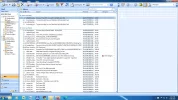
Solution

To restore the Tools menu in Outlook 2007, you can follow these steps:
- Open Outlook 2007 on your computer.
- Right-click on any existing menu item at the top of the Outlook window (like File, Edit, View, etc..
- Look for the "Customize" option in the context menu that appears when you right-click.
- Choose the "Customize" option. This will open the "Customize Toolbar" window.
- In the "Command Bar" tab of the "Customize Toolbar" window, you should see all the menu options available in Outlook.
- Scroll down until you find the "Tools" option.
- Drag and drop the "Tools" option to the menu bar at the top of the Outlook window where you want it to appear.
- Close the "Customize Toolbar" window.
By following these steps, you...

Member details
- Joined
- Mar 14, 2023
- Messages
- 117,473
To restore the Tools menu in Outlook 2007, you can follow these steps:
- Open Outlook 2007 on your computer.
- Right-click on any existing menu item at the top of the Outlook window (like File, Edit, View, etc..
- Look for the "Customize" option in the context menu that appears when you right-click.
- Choose the "Customize" option. This will open the "Customize Toolbar" window.
- In the "Command Bar" tab of the "Customize Toolbar" window, you should see all the menu options available in Outlook.
- Scroll down until you find the "Tools" option.
- Drag and drop the "Tools" option to the menu bar at the top of the Outlook window where you want it to appear.
- Close the "Customize Toolbar" window.
By following these steps, you should be able to restore the Tools menu in Outlook 2007.