

Microsoft’s debugger documentation is clear about the mechanism: the watchdog can fire when a single deferred procedure call or interrupt service routine runs beyond its time allowance, or when the system spends too long cumulatively at elevated IRQL. That makes an SSD, an NVMe/SATA storage-controller driver, or a newly installed peripheral a reasonable suspect—but it does not make the SSD automatically guilty.
The productive way to fix this crash is to preserve evidence, work backward from recent changes, and test one driver layer at a time. Avoid the popular “solution” of randomly replacing the storage controller with a driver found on a forum. A storage driver that lets Windows boot today can still be the wrong match for the system’s chipset, RAID mode, or OEM firmware tomorrow.
Before changing drivers or firmware, back up files you cannot replace. Repeated blue screens during storage activity are a data-risk signal, even when the immediate cause later proves to be software.
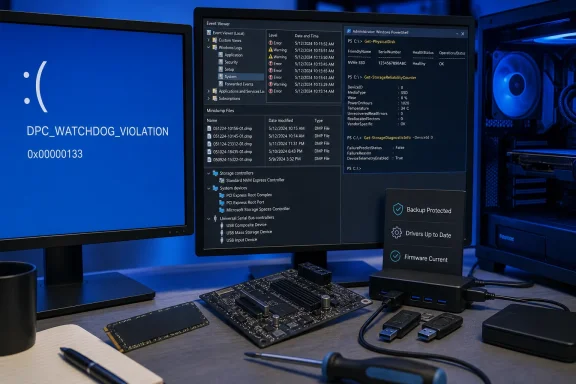 Start with the pattern, not the stop code alone
A DPC watchdog crash that began immediately after installing a graphics driver, USB dock, Wi-Fi package, VPN client, audio interface, capture card, or storage-management utility has a strong starting point. Write down the date and time of the first crash, what the PC was doing, and every hardware or driver change from the preceding week.
The activity at the moment of failure is useful evidence. A crash during game loading, file copying, Windows Update, sleep and wake, docking, or external-drive use narrows the suspect list more effectively than the broad DPC_WATCHDOG_VIOLATION label does. If it occurs only while a particular USB device, Thunderbolt dock, or external SSD is attached, disconnect that device and test the PC before changing the internal drive.
Microsoft’s general blue-screen guidance recommends removing newly added hardware first, then using Safe Mode if normal startup is unreliable. Safe Mode loads a reduced driver set, so stability there does not prove that Windows is healthy; it does support the theory that an optional driver, background utility, or recently attached device is involved.
If the PC remains stable in Safe Mode but crashes during normal use, do not begin by reinstalling Windows. First uninstall or disconnect the most recent nonessential additions and test after each change. The goal is a clean before-and-after result, not a pile of simultaneous “fixes” that makes the actual cause impossible to identify.
Check the crash record and retain a minidump
Open Event Viewer, go to Windows Logs > System, and inspect the entries immediately before the unexpected restart. Look for storage, disk, controller, device-reset, file-system, or driver warnings that repeat near the crash time. A single vague event is rarely decisive; a recurring sequence tied to the same device or driver is far more valuable.
Also check whether Windows is producing small memory dumps. Microsoft documents that small dumps normally reside in C:\Windows\Minidump and include the stop-code parameters, a kernel stack, and the list of loaded drivers. Those files are far more useful than a photograph of the blue screen when a crash persists after basic remediation.
To ensure Windows saves them:
- Search for Advanced system settings and open it.
- Under Startup and Recovery, select Settings.
- Under Write debugging information, select Small memory dump (256 KB) or keep an existing automatic/kernel dump setting.
- Confirm that the system drive has a functioning page file and adequate free space, then restart.
Microsoft’s documentation notes that a 0x133 crash with a first parameter of 0 represents one DPC or ISR exceeding its allotment, while 1 represents a prolonged cumulative period at elevated IRQL. That distinction is primarily for debugging, but it explains why a driver named by a crash analyzer may be the code running when Windows stopped—not necessarily the original source of the delay. Treat a file such as storahci.sys, stornvme.sys, ndis.sys, or a Microsoft kernel component as a lead to investigate, not a license to delete or replace Windows system files.
Inspect the SSD and storage path safely
Start with Windows’ view of the installed drives. Open an elevated PowerShell window and run:
Get-PhysicalDisk | Format-Table FriendlyName, MediaType, HealthStatus, OperationalStatus, Size -Auto
A Healthy result is reassuring but limited: it reflects the information the drive reports through Windows’ storage stack. It is not a complete SMART diagnostic and does not rule out an intermittent controller reset, firmware bug, cable problem, overheating, or power issue.
For drives that expose reliability data, run:
Get-PhysicalDisk | Get-StorageReliabilityCounter | Format-List
Microsoft’s Storage documentation identifies useful fields including temperature, wear, power-on hours, corrected and uncorrected read/write errors, and maximum read, write, and flush latency. Missing values are normal for some drives and connections; USB enclosures, RAID layers, and certain OEM firmware do not always pass all health counters through to Windows.
Pay particular attention to uncorrected I/O errors and persistently extreme latency. Microsoft notes that a maximum flush latency above 10 seconds can indicate trouble with the disk or host bus adapter. That is a reason to back up immediately and investigate the physical and firmware path, not merely reinstall a driver.
Run a non-disruptive NTFS scan of the Windows volume from an elevated Command Prompt:
chkdsk C: /scan
This checks the online NTFS structure without scheduling a full offline repair. If it reports errors, follow the result it gives you rather than jumping directly to aggressive /r scans. File-system corruption can be a consequence of crashes, a contributor to instability, or unrelated to the watchdog event; the result needs to be read alongside the Event Viewer record.
For a SATA SSD in a desktop, reseat both the SATA data and power connections with the machine powered off. Substitute a known-good SATA cable if available, especially if Event Viewer indicates resets or the drive disappears intermittently. For an M.2 NVMe SSD, reseat the module only if you are comfortable opening the device, confirm that its retaining screw is secure, and make sure the drive has an appropriate thermal pad or heatsink arrangement specified by the PC or motherboard maker.
Update the correct driver, and roll back the wrong recent one
Windows 10 and Windows 11 can obtain many drivers through Windows Update, but the most appropriate driver for a laptop’s storage controller, chipset, RAID configuration, dock, or graphics adapter may come from the PC manufacturer. Microsoft’s Device Manager guidance also confirms that rolling back a driver is appropriate when a fault began after a driver update.
Open Device Manager and check first for devices marked with a yellow warning icon. Then concentrate on the categories that connect directly to the observed failure:
- Expand Storage controllers and IDE ATA/ATAPI controllers on SATA systems, and record the controller name and driver version before changing anything.
- Expand Disk drives to record the exact SSD model and firmware revision.
- Review System devices for chipset-related components, and Network adapters, Display adapters, Sound, video and game controllers, and Universal Serial Bus controllers if the timing points to one of them.
- Use the device’s Properties > Driver tab to compare the provider, date, and version with the package offered by the PC maker, motherboard maker, or device vendor.
If the crashes started immediately after a known driver update, use Roll Back Driver on that specific device. If the rollback option is unavailable, download the prior known-good package from the OEM before uninstalling the current driver. Do not use a generic “driver updater” utility: its convenience comes from treating driver matching as a catalog problem, while storage and chipset drivers are a platform-configuration problem.
For a laptop, prioritize the laptop maker’s chipset, storage, graphics, and dock packages. For a custom desktop, use the motherboard vendor’s support page for chipset and storage-controller drivers, then the GPU vendor for graphics. If Device Manager shows a Microsoft inbox driver such as StorAHCI or StorNVMe, leave it in place unless the system or storage vendor specifically directs a change for that hardware and Windows configuration.
This is the practical correction to a long-running DPC watchdog myth: manually switching an AHCI controller from Microsoft’s Standard SATA AHCI Controller to a different driver is not a universal repair. Microsoft’s StorAHCI driver is the built-in AHCI driver for compatible SATA controllers. Replacing it without a confirmed OEM requirement can introduce a boot failure or a new storage problem.
For an inventory of third-party driver packages already in the Driver Store, run this in an elevated Command Prompt:
pnputil /enum-drivers
Microsoft recommends PnPUtil for this purpose. The output can help identify a recently added OEM driver package, but do not delete packages simply because they look old. Match any removal or rollback to a device and a timeline.
Treat SSD firmware as maintenance, not a blind fix
SSD firmware is worth checking when the drive maker or PC maker lists a fix relevant to stability, power management, resets, data integrity, or the exact model installed. Microsoft supports a Windows Update-based mechanism for certain NVMe firmware packages, but drive support is not universal, and vendors still commonly distribute their own approved updater tools.
First identify the exact SSD model and current firmware revision in Device Manager, the manufacturer’s utility, or—where supported—PowerShell:
Get-PhysicalDisk | Get-StorageFirmwareInformation
Then check the OEM or SSD manufacturer’s support material for that exact drive model, capacity, and firmware revision. Do not install a similar-looking firmware image from a third-party mirror, and do not run firmware maintenance while the system is already experiencing uncontrolled resets. Microsoft warns that firmware updates are potentially risky and that firmware meant for unsupported hardware can harm reliability or cause data loss.
Back up first, use AC power on a laptop, close disk-intensive programs, and follow the vendor’s reboot or power-cycle instructions exactly. If the vendor does not document a firmware fix related to your hardware, updating drivers and isolating recent devices should come before a speculative firmware flash.
Repair Windows files and escalate only with a suspect
After the hardware and driver timeline has been addressed, repair Windows component and protected system files from an elevated Command Prompt:
DISM.exe /Online /Cleanup-Image /RestoreHealth
sfc /scannow
Microsoft recommends DISM before System File Checker because DISM can restore the component files SFC needs. These commands can correct damaged Windows files, but they are not a direct repair for a defective SSD, a failing controller, or a vendor driver that stalls at high IRQL.
Driver Verifier is the next-level diagnostic when crashes continue and there is a defined group of suspicious third-party drivers. It is not a general tune-up switch. Microsoft warns that Driver Verifier deliberately causes bug checks when it detects violations and says it should be used for testing and debugging; Microsoft’s troubleshooting guidance specifically cautions against verifying every driver at once.
Use it only after creating a restore point, retaining a minidump, and identifying a small group of recently changed non-Microsoft drivers. If Windows becomes unbootable after enabling it, start in Safe Mode and run:
verifier /reset
Windows 10 remains relevant to this procedure, but its mainstream support ended on October 14, 2025. Systems still running Windows 10 should be on version 22H2 with applicable Extended Security Updates or a supported LTSC arrangement while troubleshooting; a driver fix does not restore the normal servicing lifecycle.
The decisive outcome is not simply that the blue screen disappears once. It is a repeatable test: the crash stops after one identified driver is rolled back, updated, removed, or after a storage fault is corrected—and stays stopped through the workload that previously triggered it.