
Microsoft’s current taskbar documentation treats the volume control differently on the two operating systems. Windows 10 exposes it as a system icon that can be turned off in Notification area settings. In Windows 11, the speaker symbol is part of the combined Quick Settings area alongside network and battery controls, so there is no equivalent independent “Volume” toggle to restore.
The practical result is simple: if Windows 11 still opens Quick Settings with Windows key + A and lets you adjust volume, the sound stack is probably intact. Focus on the taskbar shell. If Quick Settings is missing the speaker control, reports no output device, or the PC has no sound, check the audio services and device configuration instead.
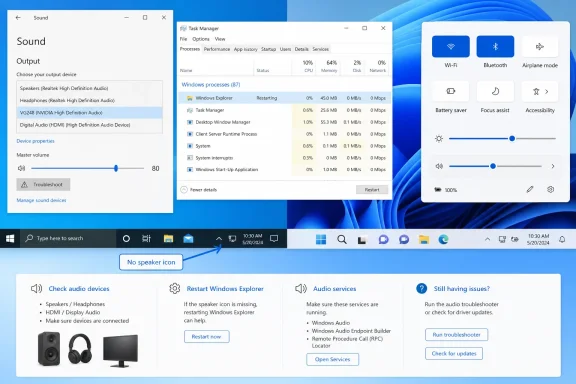 First, tell an icon problem from an audio problem
Before changing anything, use a direct test that does not rely on the taskbar icon.
Press Windows key + A in Windows 11. Quick Settings should open from the lower-right side of the screen and normally includes a volume slider. In Windows 10, press Windows key + I, then open System > Sound. Look under Output for a named device such as Speakers, Headphones, a USB headset, or a monitor connected over HDMI or DisplayPort.
If you can select an output device, change its volume, and hear sound from a test video or app, Windows audio is functioning. The missing speaker symbol is a taskbar-display issue, and restarting Windows Explorer is the most useful next step.
If Windows shows “No output devices found,” the output list is blank, the volume control is unavailable, or audio is silent regardless of the selected device, do not treat it as merely an icon problem. Microsoft’s audio guidance directs users to verify the selected output device, confirm that it is enabled, and run the built-in audio troubleshooter. Those checks address the underlying failure rather than just restoring an indicator.
A common false alarm is an external display. A monitor connected through HDMI, DisplayPort, or USB-C can become the default output even when it has no speakers. In Settings > System > Sound, choose the intended speakers or headset under Output and test again.
Restore the Windows 10 volume icon in Taskbar settings
Windows 10 can hide the volume control as a configurable system icon. This is the one situation where Taskbar settings directly restores the missing speaker symbol.
- Right-click an empty section of the taskbar and select Taskbar settings.
- Scroll to Notification area.
- Select Turn system icons on or off.
- Find Volume and switch it to On.
- Return to the desktop and check the notification area at the far right of the taskbar.
If the icon does not appear immediately, also select Select which icons appear on the taskbar from the Notification area section. Check whether the icon has been moved into the hidden overflow area, which is opened with the small upward arrow near the clock.
Microsoft’s taskbar documentation confirms that Windows 10 lets users turn system icons on or off separately, while Windows 11 handles volume inside Quick Settings. That difference is why a Windows 10 fix commonly found online—turning on the Volume system icon—does not apply to a Windows 11 PC.
If the Volume toggle is on but the icon is still absent, move to the Explorer restart below. Do not begin with registry edits. A setting that is already enabled is evidence that the taskbar process, rather than the setting, may be failing to refresh.
Windows 11 volume controls belong to Quick Settings
On Windows 11, the speaker icon is part of the Quick Settings cluster. Select the network, speaker, or battery area at the right end of the taskbar, or press Windows key + A. You should see the volume slider and, on systems with more than one audio device, an arrow that opens the output-device list.
Microsoft states that Quick Settings cannot be removed from the Windows 11 taskbar. Therefore, if the entire network-volume-battery cluster has vanished, this is not something to correct by looking for a Volume switch in Taskbar settings. Restart Explorer first; if it does not return, sign out and back in or restart the PC.
If only the speaker glyph seems absent but selecting the surrounding Quick Settings area still opens a working volume slider, there is no audio emergency. The usable control remains available, and the taskbar display should be reset rather than repaired through driver removal.
Keyboard users can also reach the taskbar system tray with Windows key + B, then use arrow keys to move among available icons. That can be useful when the icon is present but difficult to see because of display scaling, a customized taskbar, or a second-monitor layout.
Restart Windows Explorer without closing your work
Windows Explorer is more than File Explorer windows: it also draws the desktop, Start menu, taskbar, notification area, and much of the Windows shell. If a taskbar icon disappears after waking the PC, connecting a dock, switching displays, or an application crash, restarting Explorer can reload those elements without a full reboot.
- Press Ctrl + Shift + Esc to open Task Manager.
- If Task Manager opens in the compact view, select More details.
- Find Windows Explorer in the Processes list.
- Right-click Windows Explorer and select Restart.
The taskbar and desktop may disappear for a few seconds. That is expected. Open documents and running applications should remain open, though any File Explorer windows may refresh.
Microsoft’s Windows troubleshooting guidance uses the same Task Manager method to restart Windows Explorer when shell elements fail to display. For a missing volume icon with otherwise normal audio, this is the lowest-risk corrective step because it changes neither device drivers nor system configuration.
If Windows Explorer is not listed, select Run new task from Task Manager’s menu, type explorer.exe, and press Enter. If the volume icon returns and stays present, stop there. Repeatedly restarting Explorer is not a cure for an audio service that has stopped or a device Windows can no longer detect.
Check Windows Audio and Audio Endpoint Builder when sound is also gone
When the icon is missing and Windows cannot play sound or list a usable output device, inspect the two services that support the audio subsystem: Windows Audio and Windows Audio Endpoint Builder.
The Audio Endpoint Builder service is especially important because it detects and creates the speaker, headphone, microphone, and other audio endpoints that Windows exposes to apps and Settings. Microsoft’s driver documentation describes it as the component that enumerates, initializes, and activates audio endpoints. A missing device list can therefore point to more than a hidden taskbar icon.
- Press Windows key + R.
- Type
services.mscand press Enter. - Find Windows Audio Endpoint Builder.
- Confirm that its Status is Running. If it is stopped, right-click it and select Start.
- Find Windows Audio and confirm that it is also Running. Start it if necessary.
- If both are already running but audio has failed, right-click Windows Audio Endpoint Builder and select Restart, then restart Windows Audio if it has not resumed normally.
Restarting these services will briefly interrupt playback, calls, and recording applications. Close or pause a meeting before doing it. On a work-managed computer, a disabled service or an unavailable Start option may be controlled by organizational policy; document the service status and contact IT rather than using a registry “fix” copied from a forum.
After the services restart, return to Settings > System > Sound and check for an output device. If the device appears, select it and test sound. If it remains absent, Microsoft recommends using the audio troubleshooter and checking whether the device is disabled in sound settings before considering driver work.
Use Sound settings before touching the driver
Open Settings > System > Sound and inspect the Output section. Make sure the intended device is selected and not muted. Then open its properties and confirm that the device is enabled. In the older Sound control panel, available through More sound settings, check the Playback tab for disabled devices and make sure the intended speakers or headset are enabled.
Windows 11 users can run the audio troubleshooter through the Get Help app. Windows 10 users can open Settings > Update & Security > Troubleshoot, then run Playing Audio. Microsoft’s support guidance puts these checks ahead of driver reinstallation for good reason: selecting the wrong output, an accidental mute, a disabled endpoint, or a disconnected Bluetooth headset is more common than a damaged audio driver.
Only move to Device Manager if Windows cannot detect the hardware after those steps. A driver reinstall can help after a failed update or hardware change, but it also removes a known-working configuration and may require the PC manufacturer’s driver package. For a volume icon that disappears while audio still works, it is unnecessary.
Windows 10 remains capable of these repairs, but Microsoft ended its free security updates and technical support for the operating system on October 14, 2025. The missing icon procedure is still relevant on existing installations; it should not be mistaken for a reason to keep a security-critical PC on an unsupported Windows release.