
The useful first distinction is between a screen that Windows detects but cannot display correctly and one Windows does not list at all. A detected screen may be disabled, set to the wrong projection mode, positioned off the visible desktop, or using an unsupported resolution. A screen absent from Settings points more often to the monitor input, cable, dock, USB-C capability, graphics port, or driver.
This guide follows the shortest reliable path: prove the monitor and cable work, make Windows request the right display mode, then repair the graphics stack only if the hardware path checks out. Microsoft documents these steps for both Windows 11 and Windows 10, while Dell’s dock documentation separately highlights a commonly missed issue: the monitor may be powered but set to the wrong HDMI, DisplayPort, or USB-C input.
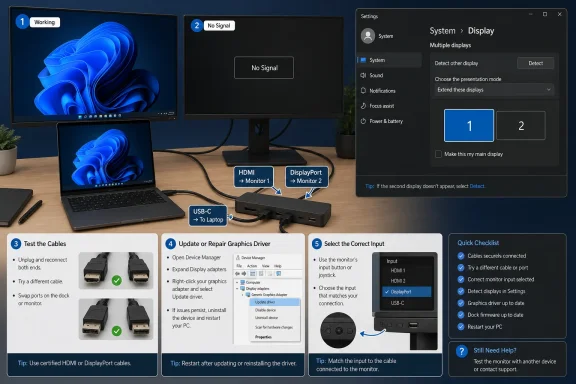 Start with the connection Windows cannot see
Turn the second monitor on and use its physical buttons or on-screen menu to select the input you are actually using. If the cable is in the monitor’s DisplayPort socket, select DisplayPort; if it is connected by HDMI, select the right HDMI input. Many monitors have HDMI 1 and HDMI 2, and choosing the wrong one produces a convincing “No Signal” failure even when the PC is working properly.
Next, reseat the video cable at both ends. Do not only press on the connector: unplug it, examine it for bent contacts or damage, then plug it back in firmly. HDMI and DisplayPort cables can fail internally, and inexpensive adapters are frequent weak points. Test with another known-good cable if one is available.
The fastest isolation test is to connect the supposedly missing monitor directly to the PC with one cable and no dock, splitter, USB hub, KVM switch, capture device, or converter in between. If it appears directly connected, Windows is not the primary fault. The dock, adapter, intervening cable, firmware, or its power arrangement deserves attention instead.
Then test one variable at a time:
- Connect the second monitor to a different video output on the PC, if one is available.
- Connect a working monitor to the cable and port that failed, and connect the suspect monitor to a known-working cable and port.
- If both monitors work individually but not together, check the graphics adapter or dock’s documented maximum number of displays and supported resolution and refresh-rate combinations.
- Disconnect unnecessary USB accessories, display adapters, and docks while testing, because Microsoft notes that these devices can create connection conflicts.
A desktop PC with a separate NVIDIA, AMD, or Intel Arc graphics card has another common trap: connect both monitors to the ports on the graphics card, not one to the graphics card and one to the motherboard video output. Whether motherboard video outputs work alongside a discrete GPU depends on the PC firmware and processor’s integrated graphics support. Mixing them can leave one screen unavailable even though each connector looks valid.
Use Windows display mode before using Detect
When the monitor has power and the connection path has passed a basic test, press Windows key + P. Choose Extend. This is the setting that creates a second independent desktop; Duplicate mirrors the first display, while PC screen only and Second screen only deliberately disable one of the outputs.
This step can solve cases where Windows recognizes the monitor but has selected an output mode that leaves it black. Microsoft specifically recommends confirming Extend mode before deeper external-display troubleshooting.
In Windows 11, open Settings > System > Display, scroll to Multiple displays, and select Detect. In Windows 10, use Settings > System > Display > Multiple displays > Detect. If Windows finds the monitor, use Identify to place a number on each screen and confirm which display is which.
Once both displays appear, arrange their rectangles in Settings to match their physical positions. A monitor placed logically above, below, or far to one side of the main display can make windows and the pointer seem to disappear. Drag the display tiles into position, select the second monitor, and check that its resolution and refresh rate are sensible for that panel.
Do not confuse the Detect button with a hardware diagnosis. It asks Windows to scan for a connected display; it does not override a dead cable, an incorrect monitor input, a USB-C port without video output, or a dock that cannot supply the needed display configuration.
USB-C, docks, and splitters have limits Settings cannot fix
USB-C is a connector shape, not a promise of video support. Microsoft’s USB-C guidance says that the PC, cable, adapter, and display must all support the necessary Alternate Mode, commonly DisplayPort Alt Mode, for a USB-C display connection to work. A USB-C charging or data cable may physically fit and still carry no video.
For a USB-C monitor or USB-C-to-HDMI/DisplayPort adapter, test a different USB-C port on the laptop if one is available. Some systems have multiple USB-C ports but only one supports full Thunderbolt or DisplayPort Alt Mode functionality. Connect the adapter directly to the computer during troubleshooting, rather than through a hub.
Docks add their own compatibility layer. Check that the dock has its external power supply connected, use the cable supplied with the dock where possible, and look for firmware and driver updates from the dock manufacturer. Dell’s current docking guidance advises checking the monitor input, changing the display cable, using Windows’ Detect control, and updating dock firmware when a connected display shows no signal.
A passive HDMI splitter is also routinely mistaken for a dual-monitor solution. Microsoft explicitly warns that a splitter duplicates one signal; it does not create separate extended desktops. If the goal is one screen with email and another with a browser or spreadsheet, use separate GPU outputs, a compatible dock, a DisplayPort Multi-Stream Transport setup supported by the PC and monitors, or a USB graphics adapter designed for multiple displays.
Reset and repair the graphics driver carefully
If the monitor used to work and suddenly disappeared after a restart, sleep cycle, driver update, or Windows update, reset the active graphics driver first. Press Windows key + Ctrl + Shift + B. The display may flicker and Windows may play a beep; that indicates the graphics subsystem has been reset. Then wait a few seconds and check Display settings again.
Restart the PC as well. A proper restart is preferable to repeatedly unplugging displays while Windows is running, particularly after a driver change. For laptop-and-dock setups, shut down the PC, disconnect the dock, remove power from the dock briefly if its vendor permits it, reconnect it, and start the system again.
If the problem began immediately after a graphics-driver update, use Device Manager to roll back the display adapter:
- Right-click Start and select Device Manager.
- Expand Display adapters.
- Right-click the NVIDIA, AMD, Intel, or Microsoft display adapter in use and select Properties.
- Open the Driver tab and select Roll Back Driver if it is available.
- Restart Windows and test the monitor again.
The rollback button is only available when Windows retained an older driver package. If it is unavailable, do not assume the monitor itself needs a special driver. The critical component for detection is normally the display adapter driver, not the generic “Generic PnP Monitor” entry under Monitors.
To update the graphics driver, right-click the adapter under Display adapters and choose Update driver > Search automatically for drivers. Microsoft says Windows Update is the preferred normal delivery path for most hardware driver updates. If Windows cannot find an update, obtain the driver from the PC manufacturer’s support page for laptops and prebuilt desktops, or from Intel, AMD, or NVIDIA for a self-built system when appropriate.
Avoid third-party “driver updater” utilities and random driver-download sites. A newer generic GPU driver is not automatically better for every laptop: manufacturers may package display, dock, power-management, and hybrid-graphics components that are tested together.
Reinstall only the adapter that is actually failing
If the driver reset, restart, and supported update do not help, reinstall the graphics adapter driver through Device Manager. Save work first, because the screen may flash or temporarily switch to a low resolution.
Under Device Manager > Display adapters, right-click the affected graphics adapter and select Uninstall device. If Windows offers an option to remove the driver package, use it only when you have already downloaded the correct replacement driver or are confident Windows Update can restore it. Restart the PC afterward; Windows will attempt to reinstall a suitable driver.
Check Device Manager again after reboot. A yellow warning icon or a device status message such as Code 1, Code 3, or Code 18 is meaningful evidence that the driver layer needs repair. Microsoft’s Device Manager documentation directs users to update or reinstall the device driver for these errors rather than treating them as a monitor-settings issue.
If the only listed adapter is Microsoft Basic Display Adapter, Windows is operating with a fallback driver rather than the vendor’s normal graphics package. It can provide a picture, but multi-monitor features, proper resolutions, and display stability may be limited. Install the correct driver from the PC or GPU manufacturer, restart, and then repeat the Windows display detection check.
Windows 10 users should also factor in support status. Microsoft ended standard Windows 10 support on October 14, 2025. Hardware can still function, but driver and display fixes are increasingly likely to target Windows 11, especially on newer docks, USB-C devices, and graphics hardware.
When the second monitor works with another computer but never appears on the original PC after direct cable, port, Settings, and driver tests, the remaining evidence points to the PC’s graphics output, dock compatibility, or supported-display limit. At that point, the actionable next step is to check the exact PC, GPU, and dock model specifications—not to keep pressing Detect.
