

Microsoft’s current Defender troubleshooting guidance makes an important distinction that many repair guides miss: Windows Security is the dashboard, not the antivirus engine. Restarting the Security Center service can restore status reporting, but it does not itself turn Microsoft Defender Antivirus back on. The service that matters for real-time malware scanning is WinDefend, supported by its filter drivers and the Network Inspection Service.
Start with Windows Security: open Virus & threat protection, select Manage settings, and try turning on Real-time protection. If the switch stays on, the repair is complete. If it turns off again, is grayed out, or the page says the setting is controlled by an organization, work through the checks below in order.
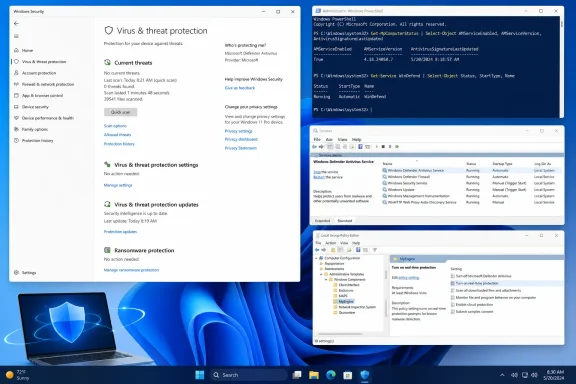 Confirm whether another antivirus owns protection
A current, registered third-party antivirus product causes Microsoft Defender Antivirus to disable itself automatically. This is expected behavior, rather than a Defender fault. Windows is designed to avoid two separate real-time antivirus engines attempting to inspect the same files and processes simultaneously.
In Windows Security, go to Virus & threat protection and select Manage providers under “Who’s protecting me?” If Windows lists Norton, McAfee, Bitdefender, Avast, Malwarebytes, or another antivirus provider, that product is probably the active engine. Defender may still appear in the interface, but it is not meant to take over until the other provider is removed or no longer registered with Windows Security.
If you want Defender to become the primary antivirus again, uninstall the other antivirus from Settings > Apps > Installed apps on Windows 11, or Settings > Apps & features on Windows 10. Restart immediately afterward. Do not rely only on disabling the product’s tray icon or real-time protection toggle; many suites remain registered with Windows after their visible protection has been paused.
Some products leave drivers, services, or Security Center registrations behind after removal. If the antivirus no longer appears in Installed apps but still shows up under Manage providers, use the vendor’s official cleanup utility rather than deleting random registry entries. This is especially common with trial security suites preinstalled by PC manufacturers.
After the reboot, return to Windows Security and enable real-time protection. Microsoft documents that Defender should automatically resume active protection after a non-Microsoft antivirus is uninstalled. If it does not, proceed to the policy checks rather than installing a second antivirus as a workaround.
Treat “managed by your organization” as evidence, not a diagnosis
“Your organization manages some settings” does not automatically mean malware, but it does mean Windows has found a policy source. On a work-owned or school-managed PC, that policy may be delivered by Active Directory Group Policy, Microsoft Intune, Configuration Manager, or another management product. Local changes can be reverted at the next policy refresh, and deleting policies on such a device can violate an organization’s security configuration.
First check Settings > Accounts > Access work or school. If the PC is connected to an employer or school, or if it is a company-issued device, contact the administrator responsible for endpoint security. The organization may deliberately use a different antivirus, require Defender in a particular mode, or apply policy that prevents users from changing real-time protection.
Personal PCs can also display this message because of local policy changes made by a privacy tool, debloating script, old antivirus installer, or a previous attempt to disable Defender. Microsoft’s Defender settings documentation says policy conflicts are a common reason Defender will not start after a move away from third-party antivirus software. It also advises organizations to use one management method where possible, because overlapping Intune, Configuration Manager, Group Policy, PowerShell, and registry settings can produce hard-to-explain results.
On Windows Pro, Enterprise, or Education, press Windows + R, type gpedit.msc, and press Enter. Windows Home does not include the Local Group Policy Editor by default, so skip to the registry section if this command is unavailable.
In Local Group Policy Editor, inspect these locations:
- Go to Computer Configuration > Administrative Templates > Windows Components > Microsoft Defender Antivirus and set Turn off Microsoft Defender Antivirus to Not Configured.
- Go to Computer Configuration > Administrative Templates > Windows Components > Microsoft Defender Antivirus > Real-time Protection and set Turn off real-time protection to Not Configured.
- Review the remaining policies in the Microsoft Defender Antivirus branch. On a personally managed PC, settings that were enabled only to weaken or disable protection should generally be returned to Not Configured, not switched blindly to the opposite value.
The difference matters. “Not Configured” removes the local policy instruction and permits Windows’ normal defaults or higher-priority organization management to apply. Selecting “Disabled” can sometimes actively force a behavior, which is the wrong repair when you are trying to remove an old local override.
Open an elevated Command Prompt after making changes and run:
gpupdate /force
Restart the PC before checking Windows Security again. A reboot ensures that services, drivers, and the Defender platform reload under the corrected policy state.
Remove stale Defender policy only on an unmanaged PC
Registry “fixes” are widely copied and often outdated. In particular, legacy values such as DisableAntiSpyware and DisableAntiVirus once had a larger role in disabling Defender. Microsoft says those settings are no longer needed for normal client antivirus switching; modern Defender versions protect many settings with Tamper Protection, and some legacy disable behavior is ignored on devices enrolled in Microsoft Defender for Endpoint.
That does not mean stale policy keys are harmless. Microsoft’s current service-startup troubleshooting procedure still includes backing up and removing Defender policy keys when policy conflict is the confirmed problem. The safe interpretation is narrow: use this only on a personal computer that is not connected to an employer, school, Intune tenant, or other device-management service.
Before touching the registry, create a restore point or back up the policy branch. Open PowerShell as Administrator and run:
New-Item -Path "C:\DefenderTemp" -ItemType Directory -Force
reg export "HKLM\SOFTWARE\Policies\Microsoft\Windows Defender" "C:\DefenderTemp\DefenderPolicyBackup.reg"
If Windows reports that the key does not exist, there is no policy branch to remove. If the export completes and you have confirmed this is your unmanaged PC, remove the policy branch:
Remove-Item -Path "HKLM:\SOFTWARE\Policies\Microsoft\Windows Defender" -Recurse -Force
Restart Windows afterward. Do not create DisableAntiSpyware or DisableAntiVirus values with zeroes “just in case.” Creating legacy controls that are absent adds clutter without addressing the actual source of the problem, and Microsoft’s newer platform behavior makes many old registry recipes unreliable.
If the policy key returns after a reboot, it is being recreated by an installed application or management mechanism. Re-check Access work or school, scheduled tasks, antivirus remnants, and any privacy or system-tweaking tools. Repeatedly deleting a returning key treats the symptom while leaving the program that imposed it in control.
Verify the Defender services instead of restarting everything
Microsoft’s May 2026 Defender service-startup guidance identifies the services and drivers worth checking. Open PowerShell as Administrator and run:
Get-Service WinDefend, WdBoot, WdFilter, WdNisSvc, WdNisDrv, SecurityHealthService, wscsvc |
Format-Table -Auto DisplayName, Name, StartType, Status
For a normal actively protected system, WinDefend—the Microsoft Defender Antivirus Service—should be set to Automatic and be Running. WdFilter, the Defender mini-filter driver, should also be running. WdNisSvc and WdNisDrv support network inspection and are normally running. The Security Center service, wscsvc, should be automatic and running, while Windows Security Service, SecurityHealthService, is normally manual but running when needed.
Do not mistake WdBoot being stopped for a fault. It is the Microsoft Defender boot driver, and Microsoft specifically notes that it is normal for it to be stopped after boot.
If WinDefend is stopped, first attempt a standard start:
Start-Service WinDefend
If that succeeds, restart Windows and revisit Virus & threat protection. If it fails with an access, disabled-service, or policy-related error, do not force driver start types in the registry. Go back to the third-party antivirus and policy checks; WinDefend is commonly disabled because Windows has a different security provider or a controlling policy, not because the service simply needs a manual restart.
If the Defender engine is running but Windows Security still shows stale or contradictory status, restart the PC before making deeper changes. Microsoft warns that disabling or misconfiguring SecurityHealthService or wscsvc can leave Windows Security displaying inaccurate protection information and can interfere with Defender re-enabling after removal of older antivirus software. Repairing the interface services may improve reporting, but it is not a replacement for restoring WinDefend.
Check the protection state from PowerShell
Windows Security’s switch is convenient, but PowerShell can show whether Defender is truly active. In an elevated PowerShell session, run:
Get-MpComputerStatus |
Select-Object AMRunningMode, AntivirusEnabled, RealTimeProtectionEnabled, BehaviorMonitorEnabled, IoavProtectionEnabled, IsTamperProtected
The result should show AMRunningMode as Normal, with AntivirusEnabled and RealTimeProtectionEnabled set to True. A non-normal running mode or false real-time protection result confirms that the issue is more than a cosmetic Windows Security problem.
When Defender will not enable after policy cleanup and service verification, update the antimalware platform and security intelligence through Settings > Windows Update > Check for updates. Microsoft’s service recovery documentation also recommends updating signatures and using Microsoft Safety Scanner to rule out malware when the Defender service itself cannot start. A security product that was disabled by malware should be treated as a potential compromise, not merely as a settings annoyance.
Finally, return to Windows Security > Virus & threat protection > Manage settings and confirm that Tamper Protection is enabled after repairs. Tamper Protection can block local changes to protected settings, which may frustrate troubleshooting, but leaving it off removes a layer that helps stop malicious or unwanted changes to Defender configuration.
The practical end state is simple: Windows Security should identify Microsoft Defender Antivirus as the provider, WinDefend should be running, and Get-MpComputerStatus should report real-time protection enabled. If a work or school connection keeps reapplying policy, the correct fix belongs with the administrator—not in another registry deletion.