
Link Removed
Sometimes you might have a shared computer where you don’t want the users to be able to do a Shutdown or Restart. Today we take a look at using Local Group Policy Editor to remove those buttons from the Start Menu in Windows 7.
Note: This process uses Local Group Policy Editor which is not available in Starter or Home versions of Windows 7.
http://www.howtogeek.com/wp-content/uploads/2009/12/1pwr.png
Disable Shutdown, Restart, Sleep, and Hibernate Buttons
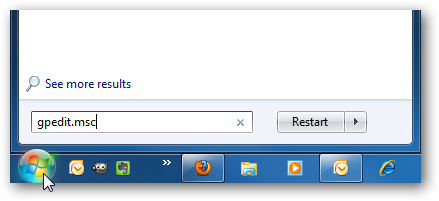
To open Local Group Policy Editor, click on Start and type in gpedit.msc and hit Enter.
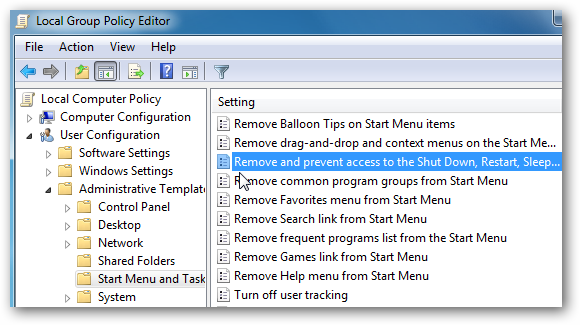
In Local Group Policy Editor navigate to User Configuration \ Administrative Templates \ Start Menu and Taskbar and double click on Remove and prevent access to the Shut Down, Restart, Sleep, and Hibernate commands.
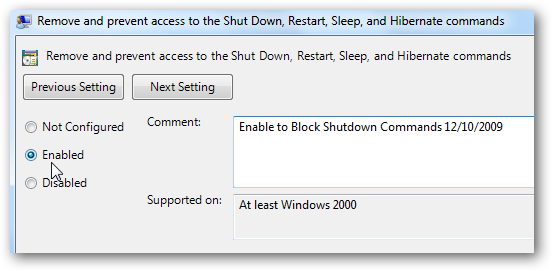
Now you want to enable this setting and click Apply and Ok. You can leave a note to yourself in the comment box, which I find comes in handy when changing a lot of settings in Group Policy.
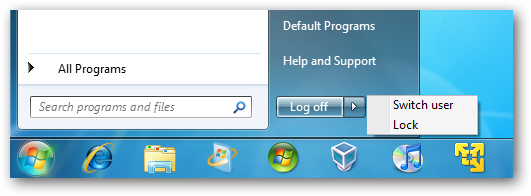
Now when you look at the Power options in the Start Menu, the only options available are Log off, Switch user, and Lock.
The setting goes into effect right away for all users of the machine. The button to turn off the computer if the user hits Ctrl+Alt+Del will be gone as well.
Link Removed
