
Microsoft’s current support guidance divides the issue much the same way: restore the desktop display setting when everything disappears, use Desktop icon settings for built-in items such as Recycle Bin, and check OneDrive’s Desktop folder location when files and shortcuts seem to have moved. Microsoft Learn separately documents a policy that can deliberately remove every desktop item. The practical lesson is simple: a blank desktop does not prove that shortcuts were deleted.
Before changing anything, open File Explorer with Windows + E, select Desktop in the navigation pane, and look for the missing shortcuts. If they are there, your data is probably intact and the issue is display, Explorer, or a redirected folder. If they are not there, look in the locations below before re-creating shortcuts or moving files.
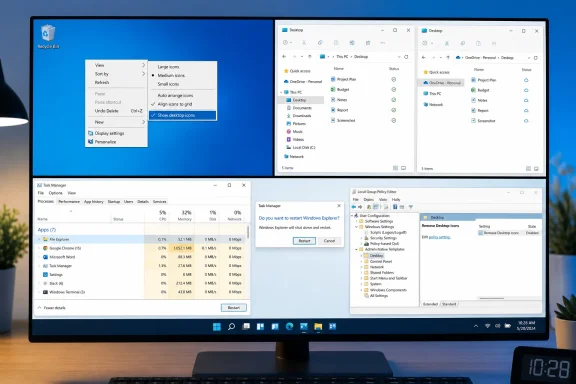 Restore the desktop display before touching files
If every icon disappeared at once but the wallpaper remains, Windows may have the desktop-icon display toggle turned off. This setting is easy to change accidentally, particularly on a desktop used for screen sharing or presentations.
Right-click an empty area of the desktop, choose View, and make sure Show desktop icons is checked. The icons should return immediately. If they do, stop there: no cache rebuild, registry edit, or OneDrive reset is needed.
If only standard Windows icons are missing—such as This PC, Recycle Bin, Network, or the user folder—open the desktop-icon settings instead:
- Right-click an empty desktop area and choose Personalize.
- Open Themes.
- Select Desktop icon settings.
- Tick the icons you want Windows to show, then select Apply and OK.
Microsoft Support confirms that this is the supported control for the built-in desktop icons on both Windows 10 and Windows 11. It will not restore ordinary application shortcuts, documents, or folders; those live in the actual Desktop folder.
A useful distinction: a missing Recycle Bin is usually a personalization setting. A missing collection of application shortcuts is usually a folder-location, policy, profile, or Explorer problem.
Check which Desktop folder Windows is actually using
OneDrive Folder Backup—also called Known Folder Move in Microsoft’s administration documentation—can redirect Desktop from the local profile folder to OneDrive. That can make a desktop look empty even though the shortcuts are sitting safely in another Desktop folder, often under a personal OneDrive account or a work account.
Start by checking these locations in File Explorer:
%USERPROFILE%\DesktopOneDrive\DesktopOneDrive - YourOrganization\Desktop, if you use a work or school accountC:\Users\Public\Desktop, which can contain shortcuts displayed for every user of the PC
Do not drag everything from one folder to another until you know which one Windows currently treats as the Desktop. Duplicating shortcuts is inconvenient; duplicating a large folder of files can create a sync mess, especially when OneDrive is involved.
Microsoft Support’s guidance for a misplaced desktop is to open the relevant Desktop folder in File Explorer, right-click it, choose Properties, and inspect the Location tab. If the Location tab is absent, you may be looking at the wrong Desktop folder—for example, the local profile’s Desktop while Windows is showing the OneDrive-backed Desktop, or the reverse.
If the folder containing the missing shortcuts has a Location tab, use Move to choose the intended Desktop location, then select Apply. When Windows asks whether to move files from the old location to the new one, choose Yes only after confirming that the destination is the folder you intend to use. This preserves the content instead of leaving it split across two Desktops.
For users who want OneDrive to keep backing up the desktop, open the OneDrive cloud icon in the notification area, then go to Settings > Sync and backup > Manage backup. Confirm that Desktop is enabled and that OneDrive is signed into the expected account. A paused or signed-out OneDrive client does not normally erase shortcuts, but it can leave you looking at a local or cloud-backed folder that does not contain the version you expected.
For a work-managed PC, do not casually turn off Folder Backup or redirect Desktop to a local path. Microsoft documents policies that can control whether users may redirect profile folders, and an organization’s management policy can overwrite a local change.
A policy can hide every icon without deleting anything
On Windows Pro, Enterprise, and Education, an administrator can enable the Group Policy setting named Hide and disable all items on the desktop. Microsoft Learn documents the policy as NoDesktop; it removes default icons, user-created shortcuts, and other desktop items from view, including Recycle Bin, Computer, and Network Locations.
The important part is what the policy does not do: it does not prevent users from opening the same applications or locations another way, and it does not mean the underlying desktop files were deleted. A user may still find the shortcuts by opening their Desktop folder in File Explorer.
On an unmanaged Windows Pro PC, check the setting this way:
- Press
Windows + R, typegpedit.msc, and press Enter. - Check both User Configuration and Computer Configuration.
- In each area, open Administrative Templates > Desktop.
- Open Hide and disable all items on the desktop.
- Set it to Not Configured or Disabled if you want desktop items to appear.
Sign out and back in, or restart Windows Explorer, after changing the policy. Windows Home does not include the Local Group Policy Editor by default, so do not download a third-party “gpedit installer” just to follow this check.
For IT administrators, the documented registry-backed policy value is NoDesktop under Software\Microsoft\Windows\CurrentVersion\Policies\Explorer, and Microsoft lists both user and device policy scopes. That makes this a useful endpoint-management check for Intune and domain environments. It also means a manual local change can be reversed at the next policy refresh.
If the device belongs to an employer, school, library, kiosk deployment, or shared household account managed by someone else, treat the policy as intentional until the administrator confirms otherwise. Removing it locally may violate the organization’s configuration and will often not stick.
Restart Windows Explorer when icons exist but do not render
If the missing shortcuts are visible in File Explorer but not on the desktop, restart Windows Explorer before doing anything more invasive. Explorer supplies the desktop shell, taskbar, and much of the visible Windows interface; restarting it reloads that shell without restarting the PC.
Press Ctrl + Shift + Esc to open Task Manager. Find Windows Explorer under Processes, right-click it, and choose Restart. Your taskbar and desktop may briefly disappear and return.
This is the appropriate first response when icons vanished after waking from sleep, connecting or disconnecting displays, changing display scaling, or an Explorer crash. It is also safer than deleting cache files because it changes no user data or configuration.
If icons return after Explorer restarts but disappear repeatedly, check whether the problem follows one Windows account or affects every account on the PC. A single affected account points toward that profile’s Desktop path, OneDrive configuration, or user policy. A problem affecting all accounts is more likely to be device management, an Explorer issue, or a shared shortcut location such as the Public Desktop.
Rebuild the icon cache only for blank or wrong-looking icons
The icon cache is relevant when desktop shortcuts remain in place but look blank, generic, corrupted, or fail to refresh after an application update. It is not the fix for an entirely empty desktop or for shortcuts that have moved into a different OneDrive folder.
Microsoft Learn’s February 2026 troubleshooting article addresses this exact symptom: application shortcuts can remain usable even when their pictures are blank on the desktop, Start menu, or taskbar. Microsoft’s documented cache-clearing procedure requires closing Explorer first, so save any open work before proceeding.
- Press
Ctrl + Shift + Escto open Task Manager. - Find Windows Explorer, right-click it, and select End task. The taskbar and desktop will disappear temporarily.
- In Task Manager, select Run new task from the appropriate menu.
- Type
cmd.exe, tick the option to create the task with administrative privileges, and select OK. - Run these commands one at a time:
CD /d %userprofile%\AppData\Local
DEL IconCache.db /a- Return to Task Manager, choose Run new task, type
explorer.exe, and press Enter.
Windows recreates the icon cache as Explorer starts. Give it a minute or two to redraw the desktop, Start menu, and taskbar. If the shortcuts are still blank but their targets open correctly, Microsoft’s next documented checks involve the shortcut IconHandler registry registration and Shell Experience Host—both are deeper repair steps and should not be the starting point for a simple missing-desktop report.
Do not use cache-clearing scripts copied from random forums. Many kill Explorer, delete broad sets of files, force a restart, and provide no explanation of what they change. The narrow Microsoft procedure above is sufficient for the documented blank-icon case.
Windows 10 support ended on October 14, 2025, according to Microsoft Support, so a Windows 10 machine still exhibiting recurring Explorer or OneDrive issues deserves a support and upgrade plan rather than repeated cosmetic repairs. On either Windows 10 or Windows 11, the durable fix is to identify whether the icons are hidden, redirected, policy-controlled, or merely rendered incorrectly—and then change only that layer.
