
The important limitation is easy to miss: this switch controls whether Windows displays badges. It does not decide which apps produce them, force an app to show an unread count, or clear an app’s pending messages. If a mail client, chat client, reminder app, or other program does not supply a taskbar badge, enabling the Windows setting will not create one.
For most PCs, this is a five-minute personalization change. Leave badges enabled if the taskbar is part of your notification workflow; turn them off if app dots, counters, and alerts turn a clean row of pinned apps into another source of distraction.
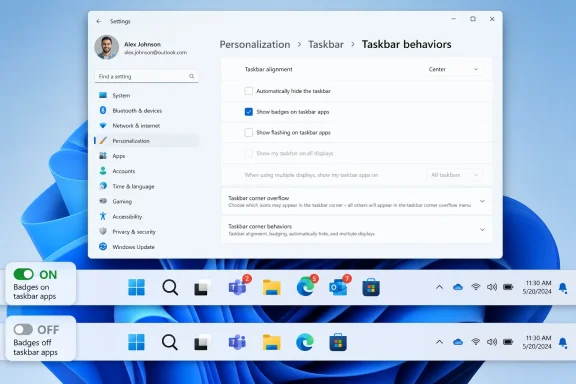 Turn taskbar badges on or off
Start from the desktop rather than hunting through the full Settings catalog:
- Right-click an unused area of the Windows 11 taskbar.
- Select Taskbar settings.
- Scroll down and expand Taskbar behaviors.
- Select Show badges on taskbar apps to enable badges, or clear it to hide them.
The change applies immediately. There is no sign-out, restart, Registry edit, Group Policy change, or app reinstall required.
When enabled, Windows can display small overlays on supported taskbar buttons. Depending on the app, that may be a number representing unread items, a colored dot, or an icon indicating a status that requires attention. Microsoft uses the Clock app as a straightforward example: an active alarm can place a bell badge on Clock’s taskbar icon.
Disabling the option removes those taskbar overlays across supported apps. It does not turn off desktop notification banners, sounds, notification-center entries, or the underlying alerts inside the applications themselves. A chat app can still show a toast notification; it simply will not be allowed to put its unread indicator over the Windows taskbar icon.
What Windows means by a “badge”
A taskbar badge is an overlay associated with one app’s taskbar button. It is separate from the notification bell near the clock, separate from a system-tray icon, and separate from the small line or highlight Windows uses to indicate that an app is currently open.
This distinction matters when cleaning up taskbar distractions. The Show badges on taskbar apps setting is not a master control for all notification visuals:
- It does not hide the notification bell or erase notifications already stored in Notification Center.
- It does not stop an app icon from flashing when that application wants your attention.
- It does not remove badges or counters shown inside an app window, on a Start menu entry, or in a browser tab.
- It does not suppress the Widgets icon’s own notification behavior, which Microsoft manages through Widgets settings.
Microsoft’s developer documentation makes the division clear: an application must use Windows’ badge-notification support to place a small overlay on its taskbar icon. The app, not Windows, determines what the indicator means and when it appears. A badge can represent unread mail, a pending task, a reminder, an active alarm, new activity, or a status condition chosen by the developer.
As a result, Windows 11 does not provide a reliable master list of “badge-capable apps.” Support is application-specific, and the same product may behave differently across its desktop, Store, web-app, and enterprise-managed versions.
Which apps are likely to use badges
Apps built around time-sensitive or unread activity are the most likely candidates. Messaging, email, collaboration, task-management, calendar, and reminder apps commonly have reason to present an unread count or attention indicator. But “commonly” is not a promise: some apps use Windows badges, some rely on a flashing taskbar button, and some show only their own in-app counters.
Clock is the clearest built-in example because Microsoft explicitly documents the alarm badge behavior. Widgets is another visual notification source that can appear on the taskbar, but its notifications are controlled separately in the Widgets experience. Do not use the global app-badge checkbox as the sole troubleshooting step for Widgets alerts.
Older Win32 desktop software can also behave differently from newer Windows apps. Many legacy programs manage taskbar attention through their own code, may flash an icon instead of presenting a counter, or may offer an application-specific setting for unread status. Browser-based services are especially inconsistent: a website open in Edge, Chrome, or another browser may display a tab indicator while never producing a Windows taskbar badge.
The practical rule is simple: enable the Windows setting to permit badges, then check the individual app’s notification or appearance preferences if you want a specific count. Windows can hide a badge an app provides, but it cannot invent an unread count that the app never sends.
Keep badges, but reduce the interruptions
Showing badges is useful when you want passive awareness without an audible alert or a pop-up. A small count on a pinned mail or messaging app can tell you that something changed without immediately pulling focus away from your work.
If that is your goal, leave Show badges on taskbar apps enabled and adjust notifications app by app:
- Open Settings > System > Notifications.
- Under Notifications from apps and other senders, select the application you want to change.
- Keep notifications enabled if the app needs them for its normal alert behavior.
- Turn off banners, sounds, or Notification Center entries that you do not want.
Microsoft documents these notification controls separately from taskbar badging, and that separation is useful. You can, for example, keep a badge as a quiet visual reminder while turning off a noisy notification sound or eliminating pop-up banners from a lower-priority app.
There is no equivalent per-app toggle in the standard Windows 11 Taskbar behaviors page. The badge control there is all or nothing for supported taskbar apps. If one application is responsible for most of the clutter, look first in that app’s own settings rather than disabling badges globally.
Why a badge may not appear
If Show badges on taskbar apps is enabled but an expected unread count or dot is missing, work through the cause in this order.
First, confirm that you changed the correct setting. The relevant checkbox is under Personalization > Taskbar > Taskbar behaviors. Settings under System > Notifications govern whether apps can notify you; taskbar settings govern whether Windows shows supported taskbar overlays.
Second, check the app itself. Look for notification, unread-count, badge, tray, desktop-alert, or appearance options. An app may have notifications disabled, may not be signed in, may not be syncing, or may deliberately use a different attention mechanism. Clearing messages or opening the app can also reset a legitimate badge quickly, making it appear as if Windows never showed one.
Third, make sure the app is actually capable of producing the badge you expect. A badge on an Android or iPhone home-screen icon does not mean the Windows edition supports the same feature. Likewise, a browser tab’s unread marker and a system-tray icon are not taskbar badges.
Finally, check Focus. Microsoft says that a Windows Focus session can temporarily turn off both flashing and badges on taskbar apps. Open Settings > System > Focus and review whether Hide badges on taskbar apps is selected for focus sessions. If the badge returns after the session ends, the global taskbar setting was not the problem.
Do not confuse badges with flashing taskbar apps
Windows 11 places Show flashing on taskbar apps near the badge setting, but the two controls solve different problems. A badge is a persistent visual overlay such as a dot, number, or icon. Flashing is an app repeatedly highlighting its taskbar button when it needs an immediate response, often because it opened behind another window or is waiting for input.
If an app is still demanding attention after you disable badges, return to Taskbar behaviors and review the flashing option separately. Conversely, disabling flashing will not remove unread counters from supported apps.
That separation lets you choose a quieter configuration without losing every useful signal. A good middle ground for many users is to keep badges enabled for at-a-glance status while disabling taskbar flashing and minimizing notification sounds.
The setting is deliberately broad: Windows 11 can either show or hide taskbar badges for supported apps, but it cannot make every program badge-aware or manage each app’s counter for you. Once the global checkbox is set to your preference, the remaining control belongs to each application’s own notification design and settings.