

é, currency signs such as €, mathematical operators such as ≤, and less familiar Unicode symbols that the Windows emoji picker does not make easy to browse.Microsoft’s current support documentation describes Character Map as a built-in Windows utility for viewing the characters available in a selected font, copying one or more of them to the Clipboard, and pasting them into compatible applications. The important limitation is in that wording: Character Map shows glyphs supplied by a font. A character can be valid Unicode and still appear as an empty box, a replacement symbol, or a different-looking glyph if the destination app uses a font that does not support it.
For occasional symbols, the emoji panel is faster. For a character you need to identify, verify by Unicode name, or reuse in several places, Character Map is the better tool.
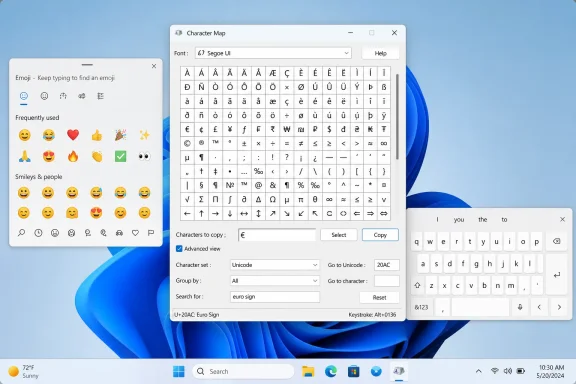 Open Character Map and copy a character
Open Start, type Character Map, and press Enter. You can also press Win + R, type charmap, and press Enter.
The main Character Map window displays a grid of characters from the currently selected font. Start with a broadly capable Windows font if you are looking for common punctuation, arrows, technical symbols, or currency signs. Fonts such as Segoe UI Symbol contain many symbols, while text fonts may offer better coverage for ordinary Latin letters and accents.
To insert a character:
- Select the font from the Font drop-down list if necessary.
- Click the character you want in the grid.
- Click Select. The character appears in the “Characters to copy” field at the bottom.
- Click Copy.
- Switch to the application where you need the character and press
Ctrl + V.
You are not limited to one character. Select several characters before clicking Copy to build a small reusable string, such as © 2026, ± 0.5, or → ✓ ✗.
Double-clicking a character also adds it to the copy field. That is often the quickest route when you already know what you are looking for.
Use Advanced view to search by name or Unicode value
The default grid is useful for browsing, but it becomes slow when you need a particular symbol among hundreds or thousands of choices. Turn on Advanced view near the bottom of Character Map to expose the controls that make the tool practical for less obvious characters.
With Advanced view enabled, use Search for to enter a descriptive word. Searches such as arrow, degree, copyright, euro, check, Greek, or heart narrow the results by character name. This is far more reliable than scanning a grid and hoping to recognize the symbol.
The Group by menu can organize results into useful categories, while the Character set and Unicode controls help when you know the character’s code or need to restrict the results to a particular Unicode range. Microsoft’s accessibility documentation specifically identifies the ability to search by name or description and to go directly to a Unicode value in Advanced view.
When you select a character, Character Map displays its Unicode value at the bottom of the window. For example:
©is UnicodeU+00A9.€is UnicodeU+20AC.—is UnicodeU+2014.✓is UnicodeU+2713.éis UnicodeU+00E9.
The code is useful as an identifier, especially when two similar-looking symbols have different meanings. An ordinary hyphen-minus (-), an en dash (–), and an em dash (—) are three separate characters. Character Map lets you confirm which one you have copied instead of trusting how it looks in a particular font.
Choose the font before treating a symbol as final
Character Map’s biggest source of confusion is that its font selector is not cosmetic. It determines the character collection you are browsing.
If you copy a symbol from Segoe UI Symbol and paste it into a document formatted in a different typeface, the document application may substitute a font automatically. It may also fail to do so. The result can be a missing-character box, a monochrome fallback glyph, or a character whose style does not match the rest of the document.
For ordinary text, use Character Map to locate the actual letter or punctuation mark, then paste it and inspect it in the destination app. This is particularly important for:
- Decorative arrows, boxed symbols, technical notation, and chess or music symbols.
- Characters copied into older business software, remote desktops, terminals, databases, or line-of-business applications.
- Documents that will be exported to PDF, printed, shared with users on other devices, or opened in a web app with different font handling.
Unicode identifies the character, but Unicode alone does not guarantee that every installed font can render it. Character Map helps locate the code point; the destination font still decides whether readers see it correctly.
Use the Windows emoji panel for routine symbols
For a small set of common symbols during normal typing, press Win + . (Windows key plus period). Windows also accepts Win + ; on current Windows 10 and Windows 11 builds.
Despite its name, the emoji panel is not limited to emoji. Select Symbols to browse punctuation, currency marks, accented letters, mathematical characters, and other frequently used entries. Clicking an entry inserts it at the active text cursor, avoiding the separate copy-and-paste step used by Character Map.
Microsoft documents this as the quick route for characters such as an em dash or copyright symbol. It is especially helpful on laptops without a numeric keypad and in apps where you only need one or two common characters.
The panel is faster than Character Map when you know the symbol is likely to be in its curated set. It is less suitable when you need a specific Unicode character, need to compare similar glyphs, or are looking for characters from a particular script or specialized font. It is a text-entry panel, not a complete Unicode browser.
Use the touch keyboard on touch-enabled PCs
Windows also includes a touch keyboard, which is useful on tablets, 2-in-1 PCs, Surface devices, and systems being operated with a mouse or pen. Tap in a text field to make it appear automatically, or select the touch keyboard icon in the taskbar’s system tray.
If the icon is missing, Windows 11 provides controls under Settings > Personalization > Taskbar > System tray icons, where the touch keyboard can be set to appear always or only when no hardware keyboard is attached. Windows 10 exposes similar taskbar controls, though the settings labels differ.
On the touch keyboard, select &123 to switch from the letter layout to numbers and symbols. Use its additional symbol page when available. Touch keyboards also commonly expose accented-letter choices by pressing and holding a compatible letter key, although the available choices depend on the active keyboard language and layout.
That dependency matters. If you routinely type French, Spanish, German, Polish, Vietnamese, or another language with its own character set, changing or adding the appropriate Windows keyboard layout is generally more efficient than opening Character Map for every word. Character Map is ideal for exceptions; a suitable input layout is better for continuous multilingual writing.
Treat Alt codes as a narrow shortcut, not a replacement
Classic Alt codes can still be convenient for a handful of memorized characters. Microsoft lists examples including Alt + 0169 for ©, Alt + 0174 for ®, Alt + 0153 for ™, Alt + 0163 for £, and Alt + 0128 for €.
They have two practical constraints. You must enter the digits using the numeric keypad, not the number row above the letters, and Num Lock must be enabled where the hardware requires it. Many compact laptops therefore cannot use these shortcuts directly.
Do not confuse Windows Alt codes with Microsoft Office’s Alt + X conversion. In supported Office applications, typing a Unicode hexadecimal value and pressing Alt + X can convert it into a character; for example, 2014 followed by Alt + X can produce an em dash. That is an Office feature, not a general Windows text-entry method, and Microsoft notes that support varies by application.
Character Map avoids both problems: it does not require a numeric keypad, a memorized code, or Office-specific behavior.
For the practical choice, use Win + . when you need a familiar symbol immediately, the touch keyboard when you are already working on a touch device, and Character Map when the exact character matters. Its Advanced view, Unicode value display, and font-aware grid make it the built-in Windows tool most likely to solve the “where do I find this character?” problem without copying an unreliable look-alike from the web.