

Microsoft Support’s current battery guidance for Surface devices and Dell’s laptop diagnostics point to the same practical order of operations: test the power path first, then reset the controller state, then repair Windows-side device detection. That sequence avoids a common mistake—reinstalling drivers while a weak USB-C charger, dock, damaged cable, or firmware charge limit is the real reason the percentage will not rise.
Do not begin with “Reset this PC.” A Windows reinstall will not fix a failing adapter, worn battery pack, or charging circuit, and it can turn a 15-minute hardware diagnosis into an unnecessary recovery job.
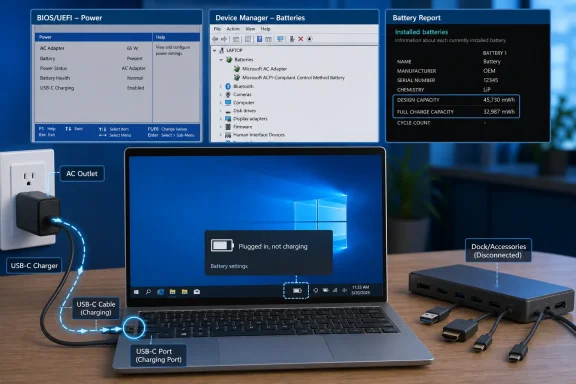 Read the battery icon before changing anything
Hover over the battery icon in the taskbar and note the exact status. “Plugged in, charging” means Windows has detected a power source and is attempting to charge; a percentage that rises very slowly can mean the laptop is consuming as much power as the adapter can provide. Gaming, video rendering, external displays, and USB-powered accessories can make this especially visible with low-wattage USB-C chargers.
“Plugged in, not charging” separates into two very different cases:
- If the charge remains at 80%, 85%, or another repeatable ceiling, look for a battery-preservation feature before treating it as a fault. Microsoft calls this Smart charging on supported devices, while Dell, Lenovo, HP, ASUS, and others may expose a charge threshold in their firmware or companion utility.
- If the charge is stuck at a low number, falls while plugged in, or the laptop immediately turns off when unplugged, treat it as a power-delivery or battery-health problem until the checks below prove otherwise.
A heart icon on some Windows 11 systems can mean Smart charging is active. Microsoft says this behavior intentionally holds the battery below 100% to reduce long-term lithium-ion wear. Dell also documents BIOS charge modes that can stop short of full capacity. Changing that setting temporarily to a standard charging mode is useful for testing, but leaving a preservation limit enabled is usually sensible for a laptop that spends most of its life on a desk.
Prove the charger can actually charge the laptop
Start at the wall outlet, not Device Manager. Disconnect the charger from the laptop and outlet, inspect the cable and connector for fraying, exposed wire, bent contacts, discoloration, looseness, or excessive heat, then reconnect it firmly. Try a different wall outlet and bypass a questionable power strip or travel adapter.
For USB-C charging, use a charger and cable rated for the laptop’s required wattage and USB Power Delivery capability. A phone charger may keep a sleeping laptop alive or slow its discharge but still fail to charge its battery under normal use. A cable is part of the equation: some USB-C cables support data but not the current level required for a larger laptop.
Disconnect docks, monitors, USB drives, Ethernet adapters, and other peripherals for this test. Microsoft specifically advises disconnecting high-power accessories when troubleshooting Surface charging, and the principle applies broadly: the adapter has to power the system and replenish the battery. If charging resumes with accessories removed, the issue is an insufficient power budget rather than a corrupt Windows battery driver.
If you have access to a known-good manufacturer charger with the correct or higher approved wattage, test it. Do not rely only on a matching barrel connector or USB-C plug. Dell’s documentation notes that an adapter the firmware identifies as “Unknown” can cause both charging failure and reduced performance. Other manufacturers implement similar checks, particularly on systems that identify the adapter electronically.
A laptop that will not power on even with its charger attached has moved beyond a “battery not charging” diagnosis. The adapter, port, DC-in board, or motherboard power circuitry becomes more likely than Windows.
Check whether the problem exists outside Windows
Restart the laptop and enter its UEFI or BIOS setup screen. The key varies by manufacturer—common options include F2, Del, Esc, or a dedicated recovery button—and the correct method is in the laptop’s manual. Look for a Battery, Power, or System Information page.
This is the most useful dividing line in the entire process. If firmware reports that the AC adapter is unknown, absent, underpowered, or faulty, Windows driver work is unlikely to change the result. If firmware cannot detect the battery at all, or reports poor battery health, a failing pack, connection, or charging subsystem is more plausible than a Windows configuration fault.
Conversely, if BIOS recognizes both the proper adapter and the battery, but Windows alone reports an odd state, reinstalling the Microsoft battery devices is a reasonable next step. Check the BIOS page for a charge-limit feature at the same time. A setting such as “Primarily AC Use,” “Battery Care,” “Conservation Mode,” or a custom start/stop threshold can intentionally prevent a full charge.
Do not update firmware merely because it is newer. First record the currently installed BIOS version and download firmware only from the laptop manufacturer’s support page for the exact model. Firmware updates can improve charging behavior on a model-specific basis, but they also must not be interrupted; perform one only with stable AC power and according to the vendor’s instructions.
Reinstall the Windows battery devices
Windows normally uses inbox drivers for standard battery and adapter reporting. In Device Manager, the relevant entries commonly appear under Batteries as:
- Microsoft AC Adapter
- Microsoft ACPI-Compliant Control Method Battery
Some models use manufacturer-specific names, such as a Surface Battery. The wording may differ, but the category is still Batteries.
- Save work and keep the charger connected.
- Right-click Start and select Device Manager.
- Expand Batteries.
- Right-click Microsoft ACPI-Compliant Control Method Battery, or the model-specific battery entry, and select Uninstall device.
- If Microsoft AC Adapter displays a warning icon or error code, uninstall that entry too. Otherwise, leave it in place initially.
- Select Action on the Device Manager menu, then choose Scan for hardware changes.
- Restart Windows with the charger connected.
Microsoft’s Device Manager documentation confirms that uninstalling a malfunctioning device and scanning for hardware changes causes Windows to reinstall the detected hardware. The key word is detected: this routine can repair a bad device registration or a temporary ACPI communication issue, but it cannot make a disconnected battery or unidentified adapter appear.
Surface owners need one important exception. Microsoft warns not to uninstall battery drivers on Surface Pro X as part of this procedure, because restoring them may require a full system reset. Follow the device-specific Surface guidance instead.
After the restart, open Settings > Windows Update and install available updates. On Windows 11, also check Advanced options > Optional updates for driver updates. Microsoft notes that optional drivers are not installed automatically. Prefer drivers and firmware supplied by the PC maker over “driver updater” utilities or random driver-download sites.
Perform a safe power reset, not a factory reset
A power reset drains residual electrical state and forces the embedded controller to initialize the power hardware again. It does not erase files, apps, user accounts, BitLocker keys, or Windows settings.
Shut down Windows fully. Unplug the charger from the laptop, remove every accessory and dock, then hold the physical power button for about 20 to 30 seconds. Reconnect only the manufacturer-approved charger directly to the laptop, wait a minute, and turn it on.
Dell describes this residual-power drain as a hard reset for some of its notebooks. The exact procedure is not universal: a few laptops have a manufacturer-specific reset pinhole, key sequence, or real-time-clock reset that can also reset BIOS settings. Do not press a pinhole button, open the chassis, remove an internal battery, or attempt an RTC reset unless the manual for the exact model explicitly calls for it.
For a Surface, Microsoft’s documented forced restart is different: shut down, then hold the power button for 20 seconds, continuing through the first logo until it appears again. That is a Surface-specific instruction, not a rule to copy to every Windows laptop.
Use a battery report to decide whether the pack is worn out
If the laptop now detects power but still runs down rapidly or refuses to hold a useful charge, generate Windows’ built-in battery report. Open Terminal or Command Prompt and run:
powercfg /batteryreport /output "%USERPROFILE%\Desktop\battery-report.html"
Open the HTML file from the desktop and compare Design Capacity with Full Charge Capacity. A large gap indicates the battery can store substantially less energy than it could when new. The report also records recent usage, charging sessions, and capacity history where available.
The report is evidence, not a verdict. It can show that a battery is degraded, but it cannot diagnose a failed USB-C port, an underpowered adapter, a firmware charge ceiling, or a battery that the system cannot detect at all. Microsoft’s PowerCfg documentation confirms that /batteryreport generates an HTML report of battery usage characteristics over the life of the system; it should be used to support the hardware checks, not replace them.
When to stop troubleshooting and arrange service
Move to manufacturer diagnostics or repair when BIOS does not see the battery or adapter, when the correct known-good charger does not work, when the charging port is physically damaged, or when the battery is swollen. A swollen battery is a safety issue: stop using the laptop on battery power, do not compress the chassis or attempt to puncture the pack, and arrange professional service.
If Windows can see the adapter and battery, the BIOS reports both as healthy, and charging resumes after the Device Manager reinstall or power reset, the fault was likely temporary controller or device-enumeration state. If it returns repeatedly, record the behavior, BIOS adapter status, Windows battery report, charger wattage, and any diagnostic code before contacting support. Those details make it far easier to distinguish a software symptom from hardware that needs replacement.