

Microsoft’s current lock-screen documentation confirms that Spotlight remains a selectable lock-screen background in both Windows 10 and Windows 11. Its Windows configuration documentation also says Spotlight rotates images daily and is governed by separate management policies on organizational PCs. That distinction is useful: a broken-looking image rotation is often a local cache problem on a personal PC, but on a managed device it may be an intentional administrator setting.
Start with the least disruptive checks. Only clear Spotlight’s files after confirming Windows is actually set to use it.
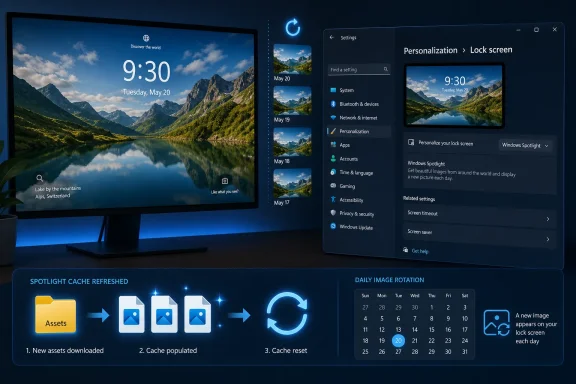 Confirm Windows Spotlight is selected
Open Settings and go to Personalization > Lock screen.
Under the lock-screen background menu, select Windows spotlight. In Windows 10, the control may simply be labeled Background; in Windows 11, it is typically Personalize your lock screen.
Then lock the computer with Windows + L and confirm that the lock screen, rather than the desktop wallpaper, is showing. A common false alarm is confusing Windows 11’s separate desktop Spotlight feature with lock-screen Spotlight:
- Settings > Personalization > Background controls the desktop image.
- Settings > Personalization > Lock screen controls the image shown before sign-in or after
Windows + L.
If Windows Spotlight was already selected, temporarily switch the lock screen to Picture. Close Settings, restart the PC, then return to the same page and select Windows spotlight again. This forces Windows to write the preference afresh without deleting anything.
Give it time after re-enabling the feature. Microsoft describes Spotlight’s normal image cadence as daily, so an unchanged picture immediately after the switch is not proof that the reset failed. Lock the PC later that day and again the next day before escalating.
Make sure a policy is not controlling the lock screen
If Windows spotlight is missing from the menu, grayed out, or flips back to a fixed picture after you select it, do not start deleting caches. The setting may be controlled by an employer, school, or device-management profile.
Microsoft documents policies named AllowWindowsSpotlight and ConfigureWindowsSpotlightOnLockScreen, among others. Administrators can use Group Policy or mobile-device management such as Intune to turn off Spotlight entirely or to set a custom lock-screen image. A reset performed under your user profile will not override either arrangement.
On a work-managed Windows PC, ask the IT team whether the following policies are intentionally configured:
- Turn off all Windows Spotlight features under User Configuration > Administrative Templates > Windows Components > Cloud Content.
- Configure Windows Spotlight on lock screen under the same Cloud Content policy area.
- A custom lock-screen or logon image policy under Computer Configuration > Administrative Templates > Control Panel > Personalization.
For a personal Windows Pro PC, you can inspect those policies in Local Group Policy Editor by running gpedit.msc. Windows Home does not include that editor, and manually changing Registry policy values is a poor first-line fix: the values can be restored by management software or another account with administrative control.
If you see “Some settings are managed by your organization” in Personalization, treat that as the explanation until proven otherwise. It is more meaningful than an empty Spotlight image folder.
Reset the downloaded Spotlight image cache
Windows Spotlight saves downloaded image assets under the current user’s ContentDeliveryManager package folder. Those assets are cached locally, so clearing them removes old downloaded files and prompts Windows to build a fresh cache when Spotlight is enabled again.
This does not delete personal photos, desktop wallpapers, account files, or Windows itself. It does remove the existing Spotlight image cache for the account currently signed in. The files in this folder generally have no file extensions and are not meant to be opened directly.
First, turn Spotlight off temporarily:
- Open Settings > Personalization > Lock screen.
- Change the lock-screen background from Windows spotlight to Picture.
- Close the Settings app.
Next, press Windows + R, paste the following path, and select OK:
%LOCALAPPDATA%\Packages\Microsoft.Windows.ContentDeliveryManager_cw5n1h2txyewy\LocalState\Assets
In the folder that opens, press Ctrl + A, then press Delete. If Windows asks for permission, approve it. If there are no files, that is also useful information: Spotlight may not have been downloading images in the first place.
Do not delete the Microsoft.Windows.ContentDeliveryManager_cw5n1h2txyewy folder itself. Removing the whole package directory goes beyond clearing the image cache and can complicate later troubleshooting. Delete only the contents of Assets.
Restart Windows when the deletion is complete. After signing in, return to Settings > Personalization > Lock screen, select Windows spotlight, and leave the machine connected to the internet. The Assets folder should begin receiving new files as Spotlight downloads content, though the visible lock-screen image may not change until the normal rotation interval.
Reset Spotlight’s stored preferences
If clearing cached images did not help after a full day, reset the small settings files that tell the feature what state it is in. Microsoft has not published a dedicated one-click Spotlight repair button in Settings; the commonly used manual sequence is to disable the feature, clear its cache, and force its local preference files to be recreated.
With Spotlight still set to Picture, press Windows + R and open:
%LOCALAPPDATA%\Packages\Microsoft.Windows.ContentDeliveryManager_cw5n1h2txyewy\Settings
Look for these files:
settings.dat
roaming.lock
Rename them rather than permanently deleting them:
settings.dat.bak
roaming.lock.bak
Windows may show only one of the two files, or may not show either file on every build. Rename whichever exists. The .bak extension makes this reversible and preserves the old files for comparison if something unexpected happens.
Restart the computer. Once Windows has started again, go back to Settings > Personalization > Lock screen and select Windows spotlight. This causes Windows to regenerate the local preference state and request new image data.
The important sequence is deliberate:
- Switch away from Spotlight before changing its files.
- Clear old assets and rename its stored settings.
- Restart Windows.
- Turn Spotlight back on.
- Allow time for content to download and the scheduled image rotation to occur.
Skipping the first step is why many copy-and-paste fixes appear to do nothing. Windows can recreate or retain the active state while its setting is still in use.
Avoid the broad PowerShell “repair” commands
Search results frequently suggest re-registering Microsoft.Windows.ContentDeliveryManager with an elevated PowerShell command. A Microsoft Q&A discussion preserves such a workaround, but it is a community troubleshooting technique rather than a current Microsoft Support repair procedure. Many versions use -AllUsers, which expands the scope from the affected account to every installed user profile.
That is excessive for a stuck lock-screen image. Re-registering an AppX package can be useful when a Windows component is genuinely damaged, but it is not the logical first response to a stale cache. It may also produce access warnings on provisioned packages or managed computers, creating noise without proving that Spotlight itself is fixed.
Use the settings-and-cache reset first. If Spotlight is still absent from Settings, produces no new Assets files after several days on a working connection, or fails for only one Windows account, the problem has moved beyond a simple image cache. At that point, test with another local user account before attempting package repair. If Spotlight works there, the Windows installation and Microsoft’s image service are functioning; the failure is isolated to the original profile.
Check the Windows version before chasing a cosmetic fix
Windows 11 remains the normal target for current Spotlight troubleshooting. Windows 10 needs a lifecycle caveat: Microsoft ended support for standard Windows 10 Home, Pro, Enterprise, and Education installations on October 14, 2025. Some organizations may have Extended Security Updates or be using a supported LTSC release, but a frozen Spotlight image is not a reason to postpone a broader migration or support decision.
For an ordinary Windows 10 22H2 PC, clearing the cache can still restore the lock screen. It does not restore operating-system support, security updates, or feature development.
A successful repair is simple to recognize: Windows Spotlight stays selected, new files eventually appear in the Assets folder, and the lock screen receives a different image on a later daily refresh. If the option is missing or immediately reverted, stop resetting local files—the controlling policy or account configuration is the thing that needs attention.