

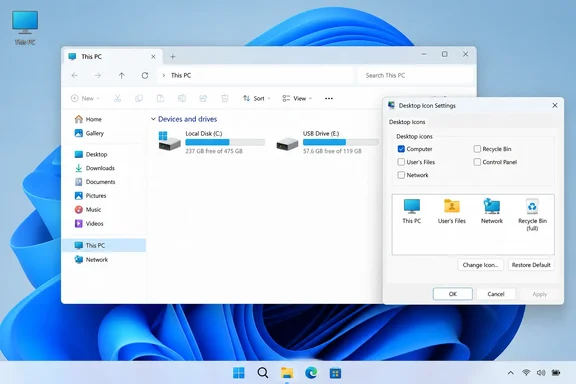
What changed from "My Computer" to "This PC"
The name changed more than once. As Solve Your Tech puts it, Microsoft changed the name from My Computer to Computer and eventually to This PC. TechEngage reports that the rename to "This PC" happened in Windows 8.1. The icon still does the same job. In Microsoft's own support documentation for Windows 11 and Windows 10, This PC is the icon that provides access to the computer's drives and connected devices.
According to Microsoft, Windows puts only the Recycle Bin on the desktop by default. This PC, Network and User's Files are all optional.
Why bother? If you've pinned a lot of folders to Quick access, File Explorer's navigation pane fills up quickly. A This PC icon on the desktop takes you straight to your internal drives, external drives and other connected locations. It's also familiar, and that counts for something.
How to add This PC to the Windows 11 desktop
The right tool is Desktop icon settings. It adds This PC as a built-in Windows icon, not an ordinary shortcut file. You can turn it on and off, or change its icon, in the same window as the other system icons.
- Right-click an empty area of the desktop and choose Personalize.
- In the Settings window, click Themes.
- Scroll down to Related settings and click Desktop icon settings. A small separate dialog opens.
- Tick the checkbox labeled Computer.
- Click Apply, then OK.
Microsoft's OneDrive support page gives the same route for restoring missing system icons: right-click on your desktop, select Personalize, open Themes, click Desktop icon settings on the right, and enable Computer / This PC.
You can also start from Settings. Press the "Windows key + I" shortcut, then go to the "Personalization" tab on the sidebar and then click the "Themes" option on the right panel. Microsoft's customization page describes the same thing as Settings > Personalization > Themes > Desktop icon settings: choose your icons, then click OK.
The checkbox says "Computer," not "This PC"
This label trips people up, and it's why many searches for this task go nowhere. Solve Your Tech notes that Windows 11 uses the name This PC for the File Explorer location, but the Desktop Icon Settings window may label its checkbox Computer. Don't hunt for a box that says This PC. Checking Computer is what enables the built-in This PC desktop icon.
One caveat. iTechGuides says that on some Windows 10 builds or localized installations, the checkbox is named Computer instead. Select Computer if that is the label shown on your PC. So the label can vary with your language and build. If you see "Computer," that's the one.
What success looks like
When it works, the This PC icon shows up on the desktop straight away. Double-click it and File Explorer opens to the This PC view, with your drives, folders and connected devices. You can drag the icon anywhere on the desktop like any other icon.
Section summary: Right-click the desktop, choose Personalize, then Themes, then Desktop icon settings. Tick Computer, then click Apply and OK.
Built-in icon or dragged shortcut?
You can also drag This PC from File Explorer's navigation pane onto the desktop. That creates a regular shortcut file, which is not the same thing as the system icon.
TechEngage says the version you enable in Desktop Icon Settings gives you additional right-click options like System Properties, Computer Management, and Map Network Drive. It also doesn't show the small shortcut arrow in the corner. By contrast, a shortcut created by dragging from File Explorer opens the same view but only has shortcut properties when right-clicked.
Removal works differently too. WindowsLoop points out that once you add the "This PC" icon, it cannot be removed like a regular shortcut. To remove it, you'll need to go back to the Desktop Icon Settings and disable it. If you made a dragged shortcut instead, you can delete it like any other shortcut.
Here's a quick rule of thumb:
| Goal | Best method |
|---|---|
| The real, built-in This PC icon | Desktop icon settings → Computer |
| A link to one specific file or folder | Right-click → Show more options → Send to → Desktop (create shortcut) |
| A quick link you'll delete later | Drag This PC from File Explorer to the desktop |
For ordinary files and folders, Microsoft's documented route is right-click → Show more options → Send to → Desktop (create shortcut). Microsoft adds that on some installs the full context menu appears straight away, so you'll see Send to without the Show more options step.
Troubleshooting: the icon won't appear
Check whether all desktop icons are hidden
If you ticked Computer and nothing appeared, check this first. Windows has a global switch that hides every desktop icon at once, and it's easy to turn off by accident.
- Right-click an empty area of the desktop.
- Hover over View.
- Make sure Show desktop icons is checked.
When that option is off, Windows hides every icon on the desktop, This PC included. Solve Your Tech explains that this setting is easy to overlook because it hides all desktop icons without actually removing them. Your shortcuts and system icons are still there; Windows simply isn't displaying them. Turn it back on and the icon you enabled should appear.
The same switch can be handy on purpose. Microsoft suggests hiding desktop icons during presentations or screen sharing so your desktop looks tidier.
If other icons show but This PC doesn't
If your other desktop icons are visible and This PC isn't, go back to Desktop icon settings and make sure Computer is still ticked. Microsoft's support guidance names this dialog as the place to restore system icons such as This PC, Recycle Bin and Network.
TechEngage lists a few more reasons icons can disappear: the Show Desktop Icons toggle got turned off, a Windows Update reset your desktop icon settings, a new theme overrode your choices, or tablet mode is active. Treat these as possibilities worth checking, not documented Windows behavior. Going through them in order is sensible, though.
Themes and custom icons
The same dialog has an Allow themes to change desktop icons checkbox. Microsoft says this setting controls whether themes can change the icons for common desktop shortcuts such as This PC, User's Files, Network and Recycle Bin. Themes are allowed to change them by default. If you've picked a custom icon and want to keep it, clear that box before you switch themes. You don't need this setting to enable This PC in the first place.
Section summary: Check View → Show desktop icons first. Then confirm Computer is still ticked in Desktop icon settings. If you use custom icons, look at the theme-override checkbox.
Other built-in icons you can add
Computer isn't the only option in Desktop icon settings. Micro Center's Windows 11 guide lists five Windows features – Computer (This PC), User's files (File Explorer), Network, Recycle Bin, and Control Panel.
- User's Files: opens your personal user folder. Microsoft calls it a shortcut to your personal folders.
- Network: lets you view and connect to network resources.
- Recycle Bin: holds deleted files so you can restore them or empty the bin. It's usually on the desktop already, and its Properties menu controls how Windows handles deleted files.
- Control Panel: a quick way into the classic Control Panel. It isn't in the extracted text of Microsoft's customization page, but Microsoft's OneDrive support page and several Windows 11 guides list it as an option in this dialog.
Tick the ones you want, then click Apply and OK. You don't have to enable all five. If you only want This PC, leave the others alone.
To change how an icon looks, select it in the dialog, click Change Icon, and pick from the available options.
Removing This PC later
If you want the old tidy desktop back, you won't lose anything by removing the icon:
- Right-click an empty area of the desktop and choose Personalize.
- Go to Themes > Desktop icon settings.
- Clear the Computer checkbox.
- Click Apply, then OK.
This only takes the icon off the desktop. Your files, your drives and the This PC view in File Explorer are all untouched. As Solve Your Tech notes, you can remove the This PC icon later without affecting any of your files or drives.
Bottom line
This isn't a new Windows 11 feature. Desktop icon settings has worked this way through several versions of Windows, and Microsoft's support documentation covers both Windows 11 and Windows 10. The one thing that catches people is the label: the checkbox is still called "Computer," while File Explorer calls the location "This PC."
If the icon doesn't show up, check Show desktop icons before anything else. If you want to fix other missing system icons, the Recycle Bin and Network icons are managed in the same dialog.